
GCP-210 · Lesson 3 of 12 · 21 min
Creating and managing users
▶ Video coming soon A video version of this lesson is on the way.
The IT pilot starts on Monday, November 30, so the third session is practical. Fourteen people on Birchline's IT team need Workspace accounts: Sofia, Owen, the four help desk staff, the network team, two developers and others. Synchronization from Active Directory (lesson 7) will create the other thousand-odd accounts later, but Sofia wants Owen to understand every part of a user account first, and the best way is to create a few by hand. "If you can't do it in the console," she says, "you won't understand what the sync tool is doing for you."
What a user account holds
A Workspace user is a directory record for one person. It holds a primary email address, which is also the sign-in name; a first and last name; a password (unless sign-in is handled by another identity provider); the organizational unit the user belongs to, which decides most of their settings; and a set of optional fields: secondary email for recovery, phone numbers, job title, department, manager, employee ID, addresses and custom attributes that the organization defines. Each user can also have aliases, extra addresses that deliver to the same mailbox, and is assigned licenses that decide which services they can use.
Several of those fields do real work. The manager field powers organization charts in Gmail and Calendar. The department and job title appear in the directory that colleagues see. Custom attributes can be referenced by rules, synchronization and some apps. And the organizational unit is not just a label: it decides which settings apply, so putting a user in the wrong one is a security and support problem, not a cosmetic one.
Naming conventions first
Before creating anyone, Sofia and Owen agree on a naming convention, because changing addresses later causes confusion. Birchline will use firstname.lastname@birchline.example, matching its Exchange addresses so that people keep the address they already have. Duplicates get a middle initial (for example, a second Jordan Lee becomes jordan.k.lee). Names with accents or apostrophes are written without them in the address but kept in the display name, so Zoë Côté-O'Neill is zoe.cote-oneill@birchline.example and still appears as Zoë Côté-O'Neill. Generic accounts, such as test and service accounts, start with a prefix that marks them as non-personal (test., svc. and sa- for super admin accounts).
Creating a user in the console
In the Admin console, Owen opens Directory, then Users, and chooses to add a new user. The form asks for first and last name, primary email address (the part before the @ and the domain from a list of the account's domains), an optional secondary email, and the organizational unit. Under the password options he can let Google generate a password or set one, and he can require a password change at the next sign-in. Once he saves, the console shows the new user's details and offers to email sign-in instructions.
He creates his test account test.pilot01 this way and checks the result: the user appears in the list, sits in the Pilot organizational unit and has been assigned an Enterprise Standard license automatically. That last part surprises him until Sofia explains automatic license assignment, which lesson 6 covers: the account is set to give a license to every new user in certain organizational units.
Adding users in bulk with a CSV file
For more than a handful of users, the console offers a bulk upload: download a CSV template, fill in one row per user and upload it. The same mechanism can update existing users, for example to move many people to a new organizational unit or set a new attribute. The template's column headers must be kept exactly as Google provides them; the required columns are marked in the header text.
First Name [Required],Last Name [Required],Email Address [Required],Password [Required],Org Unit Path [Required],Change Password at Next Sign-In,Employee ID,Department
Sofia,Marchetti,sofia.marchetti@birchline.example,(generated),/Pilot,TRUE,100412,IT
Owen,Mitchell,owen.mitchell@birchline.example,(generated),/Pilot,TRUE,100877,IT
Amara,Diallo,amara.diallo@birchline.example,(generated),/Pilot,TRUE,101305,IT
Tomasz,Wiśniewski,tomasz.wisniewski@birchline.example,(generated),/Pilot,TRUE,101562,IT
Bulk uploads fail in predictable ways: a header renamed by a spreadsheet program, a missing required field, an organizational unit path that does not exist (paths are case-sensitive and start with a slash), an address at a domain the account does not own, a duplicate address or a password that does not meet the account's password rules. The console reports errors after processing, but Sofia prefers to catch them before uploading. Owen writes a short check.
import csv, io
data = """First Name [Required],Last Name [Required],Email Address [Required],Password [Required],Org Unit Path [Required]
Sofia,Marchetti,sofia.marchetti@birchline.example,Xk29-pq81-Lm47,/Pilot
Owen,Mitchell,owen.mitchell@birchline.example,Rt55-vb02-Hs93,/pilot
Amara,Diallo,amara.diallo@birchline.example,short,/Pilot
Tomasz,Wisniewski,tomasz.wisniewski@birchline.example,Qa71-ze36-Wn58,/Pilot
Owen,Mitchell,owen.mitchell@birchline.example,Yu18-cd77-Pf20,/Pilot
Lena,Brandt,lena.brandt@birchline-outfitters.example,Gh62-nm45-Ks09,/Pilot
"""
domains = {"birchline.example", "trailheadrentals.example"}
org_units = {"/", "/Pilot", "/Head office", "/Stores", "/Warehouses"}
MIN_LENGTH = 12

seen, problems = set(), 0
for row_number, row in enumerate(csv.DictReader(io.StringIO(data)), start=2):
    email = row["Email Address [Required]"].lower()
    notes = []
    if email.split("@")[1] not in domains:
        notes.append("domain not in this account")
    if email in seen:
        notes.append("duplicate address")
    if row["Org Unit Path [Required]"] not in org_units:
        notes.append("unknown organizational unit")
    if len(row["Password [Required]"]) < MIN_LENGTH:
        notes.append("password too short")
    seen.add(email)
    if notes:
        problems += 1
        print("row", row_number, email, "->", ", ".join(notes))
print(problems, "rows need fixing before upload")row 3 owen.mitchell@birchline.example -> unknown organizational unit row 4 amara.diallo@birchline.example -> password too short row 6 owen.mitchell@birchline.example -> duplicate address row 7 lena.brandt@birchline-outfitters.example -> domain not in this account 4 rows need fixing before upload
What this code does
The check reads a small upload file, one row per new user, and compares each row with what the account allows: the domains it owns, the organizational units that exist and the minimum password length. For every row it notes anything that would make the upload fail, such as a misspelled domain, an address that appears twice or a unit path with the wrong capital letter. It then prints only the rows that need fixing and a count, so the file can be corrected before it reaches the console.
Four of the six rows have problems, each typical. The /pilot path is lowercase and does not match /Pilot. Amara's test password is too short for Birchline's rule of at least 12 characters. Owen's row appears twice. And Lena's address uses birchline-outfitters.example, a hyphenated spelling of the old domain that the account does not have. Fixing these before upload takes two minutes; untangling a half-processed upload takes longer.
Other ways users are created
Manual creation and CSV uploads suit small numbers and one-off changes. For an organization of Birchline's size, most accounts will be provisioned automatically, created, updated and suspended by another system as people join, move and leave.
| Method | How it works | Good for |
|---|---|---|
| Admin console, one at a time | An admin fills in the add-user form | A few accounts, test accounts, exceptions |
| CSV bulk upload | An admin uploads a spreadsheet of users or changes | Tens or hundreds of one-off additions or updates |
| Directory API | A script or HR system calls the Admin SDK | Custom automation, for example from an HR system |
| Google Cloud Directory Sync or Directory Sync | Google's tools copy users and groups from Active Directory or another LDAP or cloud directory | Organizations whose source of truth is an existing directory (lesson 7) |
| Third-party identity provider provisioning | An identity provider such as Microsoft Entra ID or Okta creates and updates Google accounts | Organizations that manage identity in that provider (lesson 8) |
The key design decision is the source of truth: which system is authoritative for each person's account. At Birchline it is Active Directory, which is fed by the HR system. If Owen edits a synchronized user's department in the Google console, the next sync run will overwrite it with the Active Directory value. Admins in a synchronized organization make most changes at the source, not in Google.
Changing a user's details
Users change. People marry, transfer, get promoted and correct typos in their names. From the user's page in the console, an admin can change names, the primary email address, aliases, the organizational unit, contact information, the password and more.
Renaming a user (changing the primary email address) is common and well supported. Google keeps the old address as an alias automatically, so mail sent to the old address still arrives, and the user keeps all their mail, files and calendar. The user must sign in with the new address afterwards, and some apps and devices need to be signed in again. When Renée Gagnon in Finance becomes Renée Gagnon-Ross, Owen will rename renee.gagnon to renee.gagnon-ross and leave the old address as an alias.
Aliases are added on the user's page under user information. Birchline will give the payroll lead the alias payroll@birchline.example only until a proper group can replace it; Sofia dislikes aliases for shared functions because they disappear with the person.
Passwords can be reset by an admin, who can then require a change at the next sign-in. The account's password policy (set under Security, and covered with two-step verification in GCP-212) controls minimum length, strength enforcement, reuse and expiry. Admins can also see whether a user's password meets the current policy and force a change for users who signed up before a stricter policy took effect.
Suspending, deleting and restoring
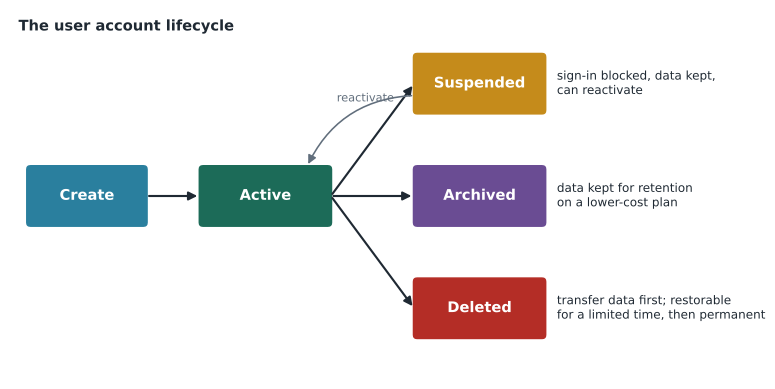
When someone leaves, an administrator has three main options, and choosing between them is a frequent exam scenario.
Suspending a user blocks sign-in immediately while keeping the account and all its data. Mail sent to a suspended user is bounced, but nothing is lost, and the account can be reactivated at any time. A suspended user still holds a license in most editions, so suspension is a short-term state, for example while a manager reviews the person's files, during an investigation or during a long leave.
Deleting a user removes the account and, after transfer options are applied, its data. The console offers to transfer data first: Drive files (including those the user owns in their My Drive), Calendar events and some other data can be transferred to another user, usually the manager. A deleted user can be restored for a limited period, which Google's documentation gives as 20 days; after that, deletion is permanent. Deleting frees the license.
An Archived User license (available for some editions) is a third option for organizations that must keep former employees' data for compliance: the account is set to archived, cannot sign in and keeps its data available to Google Vault, at a lower cost than a full license. Birchline's legal team wants mailboxes of departed staff kept for seven years, which makes archived licenses worth pricing (lesson 6).
| Situation | Best action | Why |
|---|---|---|
| Employee leaves today; manager needs their files | Suspend now, transfer Drive data, then delete | Blocks access immediately without losing files |
| Employee on six months' parental leave | Leave active (or suspend if policy requires) and keep the license | They return to the same account |
| Legal hold: data must be kept for years | Archived User license, with Vault retention | Keeps data at lower cost; no sign-in |
| Account created by mistake yesterday | Delete | Nothing to keep |
| Account deleted by mistake last week | Restore it from the users list | Possible within the restore window |
Transferring Drive ownership
Drive files belong to the user who owns them. If an account is deleted without a transfer, the files it owned are deleted with it, including files that colleagues were using. The data transfer tool, available when deleting a user and separately from the console, moves ownership of a user's files to another user. The receiving user gets a folder containing the transferred files. Shared drives (lesson 5 and GCP-211) avoid much of this problem, because files in a shared drive belong to the shared drive rather than to a person.
Sofia's offboarding checklist for the pilot shows how these pieces fit together. When a pilot member leaves, Owen will suspend the account, reset the password and sign the user out of all sessions, wipe the account from mobile devices (lesson 10), set up mail forwarding or delegation to the manager if requested, transfer Drive files and Calendar events to the manager, remove the user from groups that grant access to sensitive data, and finally delete or archive the account and free the license. In production, synchronization will do the suspension automatically when Active Directory disables the account; the rest remains a checklist.
Common mistakes
MistakeEditing a synchronized user's details in the Google console.
InsteadChange them in the source directory; the next sync will overwrite changes made in Google.
MistakeDeleting a leaver immediately to save a license.
InsteadSuspend first, transfer Drive and Calendar data, then delete or archive.
MistakeRenaming a user and creating a new account for the old address.
InsteadRenaming keeps the old address as an alias automatically; no new account is needed.
MistakeUsing aliases on one person's account for shared addresses such as payroll@.
InsteadUse a group or collaborative inbox, which survives staff changes.
Worked problem
Handling a departure
Marco Russo, a buyer in the pilot group, resigns and his last day is Friday. His manager, Hana Kim, needs his Drive files, and Birchline's retention rule says buyers' mail must be kept for seven years. What should Owen do on Friday afternoon, and what happens to the license?
Show solution
- At the end of the day, suspend Marco's account so that he can no longer sign in; reset his password and sign him out of all sessions.
- Remove his account from his mobile devices and from groups that give access to buying data.
- Transfer ownership of his Drive files and Calendar events to Hana with the data transfer tool.
- Because his mail must be kept for seven years, switch him to an Archived User license rather than deleting the account, so that Vault keeps his data.
- The full license is released for a new hire; the archived license costs less but is still a cost to track.
Answer: Suspend, secure, transfer to the manager, then archive rather than delete because of the retention rule.
Summary and key terms
- A user account holds a primary email (also the sign-in name), names, an organizational unit, licenses, aliases and optional attributes.
- Agree a naming convention before creating accounts.
- Create users in the console, by CSV bulk upload, through the Directory API, by synchronization or from a third-party identity provider.
- Decide the source of truth; in synchronized organizations, change details at the source.
- Renaming keeps the old address as an alias.
- Suspension blocks sign-in and keeps data and usually the license.
- Deletion is restorable for a limited period, after which it is permanent; transfer Drive and Calendar data first.
- Archived User licenses keep departed staff's data for retention at lower cost.
- User
- A directory record for one person, with a primary email address used to sign in.
- Bulk upload
- Adding or updating many users from a CSV file in the Admin console.
- Source of truth
- The system that is authoritative for user details, such as Active Directory or an HR system.
- Suspend
- Block a user from signing in while keeping the account and its data.
- Restore
- Bring back a recently deleted user within Google's restore window.
- Data transfer
- Moving ownership of a user's Drive files and other data to another user.
- Archived User license
- A license that keeps a former employee's data for retention without allowing sign-in.
- Custom attribute
- An organization-defined field added to user records.
Practice problems
Work each problem on paper first, then reveal the answer to check.
Why does Owen check the CSV file before uploading it?
Show answer
To catch typical errors such as wrong organizational unit paths, duplicate addresses, unknown domains and weak passwords before a partial upload causes clean-up work.
A user changes surname. What happens to mail sent to the old address after a rename?
Show answer
Google keeps the old address as an alias, so mail still arrives.
Why is suspension a short-term state?
Show answer
A suspended user usually still uses a license, so it suits reviews, investigations and short absences rather than permanent departures.
Lesson quiz · 5 questions
Score 60% or more to complete this lesson.
Create a free account to save your progress, take quizzes and earn a certificate.