
CMPUT-404 · Lesson 2 of 12 · 34 min
HTML, the DOM and accessibility
HTML is the foundation of every web page. It describes the structure and meaning of content: this is a heading, this is a list, this is a form field labeled 'Email', this is the main content and that is the navigation. Browsers turn HTML into the Document Object Model, a tree of nodes that CSS styles and JavaScript manipulates. Assistive technologies such as screen readers, switch devices and voice control read the same tree, through an accessibility tree derived from it. Writing good HTML is therefore not a beginner's chore to rush through on the way to frameworks; it decides whether a page is fast, searchable, robust and usable by everyone.
This lesson covers the structure of an HTML document, semantic elements and landmarks, forms, how parsing builds the DOM, and the essentials of accessibility, including the WCAG guidelines and the law in Canada and the United States. CMPUT-421 (Human-Computer Interaction) goes much further into user research and usability evaluation; here we focus on what every web developer must get right in markup.
The anatomy of a document
An HTML document begins with a doctype that tells the browser to use standards mode. The html element carries a lang attribute so screen readers pronounce words correctly and browsers choose fonts and hyphenation. The head holds metadata: the character encoding (always UTF-8), the viewport setting that lets pages adapt to phone screens, a title that appears in tabs and search results, links to stylesheets and scripts. The body holds the visible content. The example below is a complete, valid page for booking a study room; read it before continuing, because later lessons style it, script it and serve it.
<!doctype html>
<html lang="en">
<head>
  <meta charset="utf-8">
  <meta name="viewport" content="width=device-width, initial-scale=1">
  <title>Book a study room - Riverbend College</title>
  <link rel="stylesheet" href="/css/site.css">
  <script src="/js/booking.js" defer></script>
</head>
<body>
  <a class="skip" href="#main">Skip to main content</a>
  <header>
    <nav aria-label="Main">
      <ul><li><a href="/">Home</a></li><li><a href="/rooms" aria-current="page">Rooms</a></li></ul>
    </nav>
  </header>
  <main id="main">
    <h1>Book a study room</h1>
    <form action="/bookings" method="post">
      <label for="room">Room</label>
      <select id="room" name="room" required>
        <option value="">Choose a room</option>
        <option value="L201">L201 (6 seats)</option>
      </select>
      <fieldset>
        <legend>Time</legend>
        <label><input type="radio" name="slot" value="am"> Morning</label>
        <label><input type="radio" name="slot" value="pm"> Afternoon</label>
      </fieldset>
      <button type="submit">Book room</button>
    </form>
  </main>
  <footer><p>Riverbend College</p></footer>
</body>
</html>
Several details in that page matter more than they appear to. The defer attribute on the script tag tells the browser to download the script in parallel and run it only after parsing finishes, so the script does not block rendering. The skip link lets keyboard users jump past repeated navigation. The nav element has an aria-label so a screen reader can distinguish it from other navigation regions, and aria-current marks the current page. Every form control has a label linked by the for attribute, and the radio buttons are grouped in a fieldset whose legend names the group.
Semantic elements and landmarks
Semantic HTML means choosing elements for their meaning rather than their default appearance. A button element is announced as a button, can be focused with the Tab key and activated with Enter or Space, and submits its form, all without a line of JavaScript. A div styled to look like a button has none of those behaviors until a developer adds them, and developers usually forget some. Headings (h1 to h6) form an outline that screen-reader users navigate by; many such users jump from heading to heading to skim a page, exactly as sighted users skim visually. Landmark elements (header, nav, main, aside, footer) let them jump between regions.
# Parse an HTML document the way a browser's tokenizer sees it, and print its outline.
from html.parser import HTMLParser

DOC = """<!doctype html><html lang="en"><body>
<header><nav aria-label="Main"><a href="/">Home</a></nav></header>
<main><h1>Book a study room</h1>
  <section><h2>Rules</h2><p>Bookings last two hours.</p></section>
  <section><h2>Rooms</h2><h3>Library</h3><h3>Science building</h3></section>
</main><footer><p>Riverbend College</p></footer></body></html>"""

class Outline(HTMLParser):
    LANDMARKS = {"header": "banner", "nav": "navigation", "main": "main", "footer": "contentinfo"}
    def __init__(self):
        super().__init__(); self.depth = 0; self.in_heading = None
    def handle_starttag(self, tag, attrs):
        if tag in self.LANDMARKS:
            print("  " * self.depth + f"[landmark: {self.LANDMARKS[tag]}] <{tag}>")
        if tag in ("h1", "h2", "h3", "h4", "h5", "h6"):
            self.in_heading = int(tag[1])
        if tag in ("header", "nav", "main", "footer", "section"):
            self.depth += 1
    def handle_endtag(self, tag):
        if tag in ("header", "nav", "main", "footer", "section"):
            self.depth -= 1
        if tag.startswith("h") and len(tag) == 2:
            self.in_heading = None
    def handle_data(self, data):
        if self.in_heading and data.strip():
            print("  " * self.depth + "  " * (self.in_heading - 1) + f"h{self.in_heading}: {data.strip()}")

Outline().feed(DOC)[landmark: banner] <header>
[landmark: navigation] <nav>
[landmark: main] <main>
h1: Book a study room
h2: Rules
h2: Rooms
h3: Library
h3: Science building
[landmark: contentinfo] <footer>ARIA (Accessible Rich Internet Applications) attributes such as role, aria-label, aria-expanded and aria-live let developers describe custom widgets to assistive technologies. The first rule of ARIA, from the W3C's own guidance, is not to use it when a native element will do: a real button is better than a div with role='button' because the native element already handles focus and keyboard input. ARIA changes only what is announced, not how an element behaves, so incorrect ARIA can make a page worse than none.
Forms: the web's original interactive feature
Forms let users send data to servers without any JavaScript. The action and method attributes say where and how to submit; each control's name becomes a key in the submitted data. HTML provides input types that bring the right keyboard on phones and built-in validation: email, tel, url, number, date, and attributes such as required, min, max, minlength and pattern. Built-in validation improves usability, but it is only a convenience. Anyone can submit any data to a server with a script or a tool such as curl, so the server must validate everything again, a point lesson 10 develops. Autocomplete attributes, such as autocomplete='email' and autocomplete='new-password', help browsers and password managers fill fields correctly and are also an accessibility requirement in WCAG 2.1 and later.
From bytes to the DOM
Browsers parse HTML with a precisely specified algorithm from the WHATWG standard. The tokenizer reads characters and emits tokens such as start tags, end tags and text; the tree builder turns tokens into DOM nodes, inserting implied elements (a missing tbody, html or body) and recovering from errors in a standard way, so every browser builds the same tree from the same broken markup. Parsing is incremental: the browser can start fetching images and stylesheets before the document has fully arrived. Scripts can block parsing, which is why defer and async exist and why modern pages put scripts at the end or mark them defer.
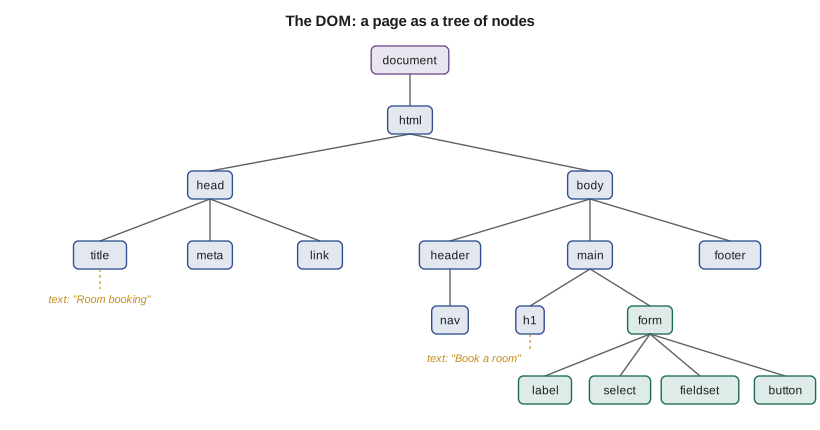
JavaScript reaches the DOM through methods such as document.querySelector, element.addEventListener and element.append. Changing the DOM causes the browser to recalculate styles, lay out and repaint; doing that many times in a loop, especially when reading layout values such as offsetHeight between writes, can make pages sluggish. Frameworks discussed in lesson 5 exist partly to batch DOM updates efficiently. The listing below enhances the booking form: it submits with fetch and announces the result through a status region, while the form still works without JavaScript.
// Working with the DOM in the browser (listing: browsers provide `document`).
const form = document.querySelector('form[action="/bookings"]');
const status = document.createElement('p');
status.setAttribute('role', 'status');        // screen readers announce changes politely
form.after(status);

form.addEventListener('submit', async (event) => {
  event.preventDefault();                       // stay on the page; we will use fetch instead
  const data = new FormData(form);
  const resp = await fetch(form.action, { method: 'POST', body: data });
  status.textContent = resp.ok ? 'Room booked.' : 'Sorry, that slot is taken.';
});
Accessibility: designing for everyone
About one in four Canadian adults aged 15 and over reported a disability in Statistics Canada's 2022 Canadian Survey on Disability, and the US Centers for Disease Control and Prevention estimates a similar share of US adults. Disabilities that affect web use include blindness and low vision, color vision deficiency, deafness, motor impairments that make a mouse unusable, and cognitive and learning disabilities. Situational limits matter too: a broken arm, glare on a phone screen, a noisy train. Accessible design helps all of these users, and it tends to produce cleaner, more robust code.
The Web Content Accessibility Guidelines (WCAG), published by the W3C, are the international reference. WCAG 2.2, released in October 2023, organizes success criteria under four principles: content must be perceivable, operable, understandable and robust (POUR). Each criterion has a conformance level A, AA or AAA, and most laws and policies require level AA. Examples include text alternatives for images, captions for video, sufficient color contrast, full keyboard operability with a visible focus indicator, no keyboard traps, consistent navigation, clear error messages and correct use of HTML so assistive technologies can interpret the page. WCAG 2.2 added criteria such as a minimum target size for pointer inputs and not hiding the focused element behind sticky headers.
# A tiny accessibility checker: a few rules a real tool such as axe-core also applies.
from html.parser import HTMLParser

HTML = """<html><body>
<img src="logo.png">
<img src="divider.png" alt="">
<img src="map.png" alt="Campus map showing the library north of the gym">
<label for="email">Email</label><input id="email" type="email">
<input id="phone" type="tel" placeholder="Phone">
<a href="/rooms">click here</a>
<div onclick="book()">Book</div>
<button>Book room</button>
</body></html>"""

class Checker(HTMLParser):
    def __init__(self):
        super().__init__(); self.labels = set(); self.inputs = []; self.problems = []
        self.link_text = None
    def handle_starttag(self, tag, attrs):
        a = dict(attrs)
        if tag == "img" and "alt" not in a:
            self.problems.append(f"img {a.get('src')}: missing alt (use alt=\"\" if decorative)")
        if tag == "label" and "for" in a:
            self.labels.add(a["for"])
        if tag == "input":
            self.inputs.append(a.get("id"))
        if tag == "div" and "onclick" in a:
            self.problems.append("div with onclick: not focusable or announced; use <button>")
        if tag == "a":
            self.link_text = ""
    def handle_data(self, data):
        if self.link_text is not None:
            self.link_text += data
    def handle_endtag(self, tag):
        if tag == "a":
            if self.link_text.strip().lower() in ("click here", "here", "more", "read more"):
                self.problems.append(f"link text '{self.link_text.strip()}' says nothing out of context")
            self.link_text = None
    def report(self):
        for i in self.inputs:
            if i not in self.labels:
                self.problems.append(f"input #{i}: no <label>; a placeholder is not a label")
        return self.problems

c = Checker(); c.feed(HTML)
for p in c.report():
    print("-", p)
print(f"{len(c.problems)} problems found")- img logo.png: missing alt (use alt="" if decorative) - link text 'click here' says nothing out of context - div with onclick: not focusable or announced; use <button> - input #phone: no <label>; a placeholder is not a label 4 problems found
# WCAG contrast ratio between a foreground (text) and a background value.
def channel(c8):
    c = c8 / 255
    return c / 12.92 if c <= 0.04045 else ((c + 0.055) / 1.055) ** 2.4

def luminance(hexcol):
    r, g, b = (int(hexcol[i:i + 2], 16) for i in (1, 3, 5))
    return 0.2126 * channel(r) + 0.7152 * channel(g) + 0.0722 * channel(b)

def ratio(fg, bg):
    l1, l2 = sorted((luminance(fg), luminance(bg)), reverse=True)
    return (l1 + 0.05) / (l2 + 0.05)

pairs = [("#000000", "#ffffff"), ("#767676", "#ffffff"), ("#999999", "#ffffff"),
         ("#1a5fb4", "#ffffff"), ("#ffffff", "#e66100")]
for fg, bg in pairs:
    r = ratio(fg, bg)
    verdict = "AA body text" if r >= 4.5 else ("AA large text only" if r >= 3 else "fails AA")
print(f"{fg} on {bg}: {r:5.2f}:1 {verdict}")#000000 on #ffffff: 21.00:1 AA body text #767676 on #ffffff: 4.54:1 AA body text #999999 on #ffffff: 2.85:1 fails AA #1a5fb4 on #ffffff: 6.29:1 AA body text #ffffff on #e66100: 3.46:1 AA large text only
Automated tools such as axe-core, Lighthouse and WAVE catch perhaps a third of accessibility problems; the rest need human judgment. Is the alt text meaningful? Does the reading order make sense? Can the whole booking flow be completed with only a keyboard, and with a screen reader such as NVDA, JAWS or VoiceOver? Teams that test with disabled users find problems no checklist anticipates.
In the United States, the Americans with Disabilities Act (ADA) is the main source of obligations. In April 2024 the Department of Justice issued a rule under Title II requiring state and local governments to make web content and mobile apps conform to WCAG 2.1 level AA; in April 2026 an interim final rule extended the compliance dates by one year, to April 2027 for entities serving 50,000 people or more and April 2028 for smaller ones. Title III, covering businesses open to the public, has no technical rule, but courts and the Justice Department treat inaccessible websites as potential discrimination, and thousands of website accessibility lawsuits are filed each year. Federal agencies must meet Section 508 of the Rehabilitation Act, which incorporates WCAG 2.0 level AA. Check the current requirements for your state and sector.
Whatever the legal minimum, the engineering lesson is the same: accessibility is far cheaper to build in from the start than to retrofit. Semantic HTML, labeled controls, keyboard support and sufficient contrast cost almost nothing when done first, and a great deal when a lawsuit or audit forces a redesign.
Worked examples
Worked problem
Fixing a fake button
A page uses a div with an onclick handler to open a booking dialog. List what is broken and how to fix it.
Show solution
- The div is not focusable, so keyboard users cannot reach it with Tab.
- It does not respond to Enter or Space, which users expect from buttons.
- Screen readers announce it as plain text, not as an actionable control.
- Replace it with a button element, which provides focus, keyboard activation and the correct role automatically; style it with CSS as needed.
Answer: Use a real button element; adding tabindex, key handlers and role to the div only imitates what the button already does.
Worked problem
Writing alternative text
Write alt text for: a college logo that links to the home page; a decorative swirl; a chart showing registration rising from 1,200 in 2022 to 1,650 in 2026.
Show solution
- A linked logo's alt text should describe the link's purpose: "Riverbend College home".
- A purely decorative image gets an empty alt attribute (alt="") so screen readers skip it.
- A chart needs its key information: "Registration rose from 1,200 in 2022 to 1,650 in 2026", with a data table nearby for detail.
- Avoid "image of" or file names; the screen reader already announces that it is an image.
Answer: Describe purpose for functional images, use empty alt for decoration, and give the takeaway (plus a table) for informative charts.
Worked problem
Checking contrast
A designer proposes gray text #999999 on white for help messages. Does it pass WCAG AA, and what is the smallest change that would?
Show solution
- The contrast checker above gives about 2.85:1 for #999999 on white.
- Normal text needs 4.5:1 at AA and large text needs 3:1, so it fails both.
- #767676 on white gives about 4.54:1, just above the 4.5:1 threshold.
- Choose #767676 or darker; do not rely on color alone to convey meaning.
Answer: It fails; #767676 is roughly the lightest gray on white that passes AA for body text.
Common mistakes
MistakeA placeholder is a fine substitute for a label.
InsteadPlaceholders disappear when typing starts, often have poor contrast and are not reliably announced; every control needs a real label.
MistakeHeading levels are chosen for their font size.
InsteadHeadings form an outline; choose levels by structure and set size with CSS.
MistakeAdding ARIA roles always improves accessibility.
InsteadARIA changes only what is announced; prefer native elements, and incorrect ARIA can make things worse.
MistakeAutomated checkers prove a page is accessible.
InsteadThey catch only a fraction of problems; keyboard and screen-reader testing, ideally with disabled users, is essential.
MistakeHTML validation in the browser means the server can trust form data.
InsteadBrowser validation is a convenience; anyone can send any data, so the server must validate again.
Summary and key terms
- HTML describes structure and meaning; browsers build the DOM and an accessibility tree from it.
- Semantic elements and landmarks give keyboard, focus and screen-reader behavior for free.
- Forms work without JavaScript; browser validation helps users but never replaces server validation.
- Parsing is standardized and incremental; defer and async keep scripts from blocking rendering.
- WCAG 2.2 organizes success criteria under perceivable, operable, understandable and robust, with AA as the usual legal target.
- Contrast, alt text, labels and keyboard support are cheap to build in and costly to retrofit.
- Accessibility law differs by country, province and state, and is tightening.
- Semantic HTML
- Using elements for their meaning, such as button for actions and nav for navigation.
- Landmark
- A region of a page, such as main or navigation, that assistive technologies can jump to.
- Accessibility tree
- The browser's structure of names, roles and states exposed to assistive technologies.
- ARIA
- Accessible Rich Internet Applications attributes that describe roles and states to assistive technologies.
- WCAG
- The W3C's Web Content Accessibility Guidelines, organized under perceivable, operable, understandable and robust.
- Alternative text
- A text description of an image provided in the alt attribute.
- Contrast ratio
- A measure of luminance difference between text and background, from 1:1 to 21:1.
- Skip link
- A link at the top of a page that lets keyboard users jump to the main content.
- defer attribute
- A script attribute that downloads in parallel and runs after parsing finishes.
- Assistive technology
- Software or hardware, such as a screen reader or switch, that helps people with disabilities use computers.
Practice problems
Work each problem on paper first, then reveal the answer to check.
Why should every page have exactly one main element?
Show answer
It identifies the primary content so skip links and screen readers can jump straight to it.
What does the lang attribute on the html element do?
Show answer
It tells screen readers and browsers the language, so words are pronounced correctly and fonts and hyphenation are chosen properly.
When should an image have alt=""?
Show answer
When it is purely decorative and conveys no information.
What contrast ratio does WCAG AA require for normal-size text?
Show answer
4.5:1 (3:1 for large text).
Name the four WCAG principles.
Show answer
Perceivable, operable, understandable and robust.
Why is a button better than a div with a click handler?
Show answer
The button is focusable, keyboard-activated and announced as a button without extra code.
What does the defer attribute change about script loading?
Show answer
The script downloads in parallel and runs after the document is parsed, so it does not block rendering.
Give one WCAG 2.2 addition.
Show answer
A minimum target size for pointer inputs, or ensuring focused elements are not hidden by sticky content.
Why must the server validate form data even when the browser does?
Show answer
Anyone can bypass the browser and submit arbitrary data directly.
What is the first rule of ARIA?
Show answer
Do not use ARIA when a native HTML element or attribute provides the semantics and behavior you need.
Lesson quiz · 5 questions
Score 60% or more to complete this lesson.
Create a free account to save your progress, take quizzes and earn a certificate.