
BAS-320 · Lesson 10 of 12 · 21 min
Remote access and mobile clients
▶ Video coming soon A video version of this lesson is on the way.
At 2:40 one morning last February, Harcastle's central plant raised a critical alarm: boiler 2 had locked out on flame failure with the outdoor temperature at 0 °F. Nell Nakagawa was on call. She read the alarm on her phone, opened the plant graphic, saw that boiler 1 had started and was carrying the load, and that the steam header pressure was recovering. She acknowledged the alarm, called the operator on site to reset boiler 2 at the burner panel, and watched the trend for twenty minutes before going back to sleep. The whole thing was handled from her kitchen, and it worked because Harcastle's front end could be reached safely from outside the campus.
Remote access is one of the most useful things a front end can offer and one of the most dangerous. This lesson covers how it is usually arranged, what makes it safe or unsafe, and how mobile clients fit in. The security side is treated in depth in BAS-430; here the aim is to understand the choices well enough to set up, use and hand over remote access without leaving the building open.
Who needs to get in from outside
Before choosing how, it helps to list who needs remote access and what for. Different users need very different things, and the list usually shows that most of them need much less than full access to everything.
| User | Needs | Typical access |
|---|---|---|
| On-call operator | Read alarms, view graphics, acknowledge, make limited commands | Front end only, operator role, from a phone or laptop |
| Facilities manager | View dashboards and reports, approve changes | Front end only, view role |
| Controls contractor service desk | Diagnose, change settings, sometimes engineering | Front end and, when needed, engineering tools on the controls network |
| Equipment vendor (chiller, boiler) | Look at their own equipment's data | Limited view of that equipment, often for a set period |
| Analytics or fault detection service | Read trend data | A data connection from the front end, not interactive access |
The list matters because the safest remote access gives each user only what is on their line. An analytics service that only needs data should get data through an export or a read-only interface, not a login. A chiller vendor who needs to look at their chiller once a quarter should get a time-limited account, as lesson 7 described for contractors, not a permanent one.
What not to do: exposing the front end or controllers
The simplest way to give remote access is also the worst: make the front end, or worse a controller, directly reachable from the internet by forwarding a port on the building's router. Search engines that index internet-connected devices regularly find building automation systems this way, many with default passwords. BAS-310 noted that BACnet/IP has no built-in security in its common form and that a controller reachable from the internet can be read and commanded by anyone who finds it. A web-based front end exposed directly is better than an exposed controller only if it is patched, has strong authentication and is set up for internet exposure, and few are.
When Quillon took over Ninefield's service contract, the first security check found a port forward on the building's internet router that pointed at the old front-end server's web page. The previous contractor had set it up years before so a technician could log in from home. Nobody at Ninefield knew it was there. Ilona had it removed the same day, and Quillon's handover checklist has included "no port forwards to the controls network" ever since.
The common arrangements
Three arrangements cover most sites. Each puts something in front of the building system that identifies the user before they can reach anything.
| Arrangement | How it works | Strengths | Watch for |
|---|---|---|---|
| VPN to the controls network | The user connects to a VPN gateway, proves who they are, and is placed on a network that can reach the front end | Familiar; works with any front end and engineering tool | A VPN that lands users on the whole controls network gives too much; limit what VPN users can reach |
| Owner's remote desktop or access gateway | The user logs into a gateway the owner's IT team runs and works on a machine inside | IT controls and logs access; nothing installed on the user's device | Needs IT support; can be slow on poor connections |
| Vendor cloud or remote access service | A device in the building makes an outgoing connection to a cloud service; users log into the service | No inbound ports; works for multi-site portfolios | Depends on the vendor's security and availability; check where data is held and who at the vendor can see it |
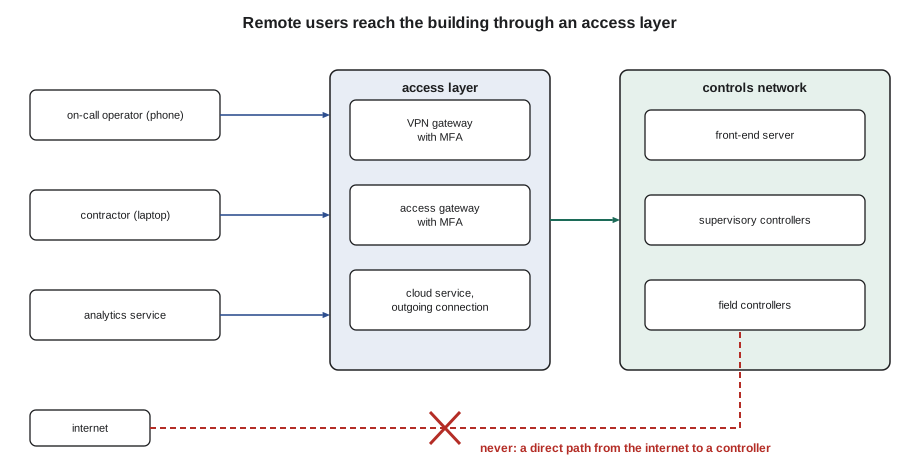
Whatever the arrangement, the same rules apply. Every remote user has a personal account. Remote access uses multi-factor authentication, so that a stolen password alone is not enough. Users reach only what they need: an operator's VPN profile reaches the front-end server's web page, not every controller. Access is logged. And there is a way to turn off a user's remote access quickly, without waiting for a change to the front end.
Multi-factor authentication
Multi-factor authentication (MFA) asks for two or more different kinds of proof: something the user knows, such as a password; something they have, such as a phone app that shows a code or a hardware key; or something they are, such as a fingerprint on their phone. Lesson 7 noted that NIST's current guidance allows a shorter password when a second factor is used. For remote access, MFA is the single most effective protection against stolen or guessed passwords, which are the commonest way in.
MFA is often applied at the access layer, the VPN or the gateway, rather than in the front end itself, because many front ends support it poorly or not at all. That works as long as the front end cannot be reached any other way. If a user can reach the front end's login page without going through the VPN, the MFA on the VPN protects nothing.
Mobile clients
Most front ends now offer a way to use them from a phone or tablet: a web interface that adapts to a small screen, a vendor's app, or both. Lesson 4 described how graphics should be laid out for phones. This section is about what mobile use should and should not include.
Phones are good for reading alarms, acknowledging them, looking at a graphic or a trend, and making a small number of simple commands such as releasing an override or starting a standby pump. They are poor for editing schedules, changing programs or making many commands, because the screen is small, mistakes are easy and the user is often doing something else at the time. Sophie's rule for the mobile roles she set up was that a phone user could acknowledge, view and make commands only from a short list on each equipment page, and that anything else waited for a laptop.
| Mobile task | Suitable? | Notes |
|---|---|---|
| Read and acknowledge alarms | Yes | The main reason for mobile access |
| View graphics and trends | Yes | Graphics need a phone layout to be readable |
| Release an override or start a standby pump | Yes, with care | Limit to a short list; confirm before writing |
| Change setpoints | Sometimes | Within limits set in the role |
| Edit schedules or calendars | No | Too easy to make a mistake on a small screen |
| Engineering changes | No | Need full tools and attention |
Phones are also lost and stolen. A mobile client should not keep a login that never expires, and the owner should be able to revoke a phone's access from the front end or the access layer when it goes missing. Notifications sent to phones, which lesson 5 covered under routing, should say what the alarm is without giving away information that would help an attacker, such as internal addresses or passwords in a message.
Mobile data and poor connections
Remote users are often on mobile data or a weak connection. Front ends differ a great deal in how much data they send. A graphic that loads large images and refreshes every value every second can use a surprising amount of data, and on a weak connection it may not load at all.
Worked problem
Data used by a mobile graphic
A plant graphic's first load is 1.8 MB. While it is open, it refreshes 60 values every 5 seconds, using about 0.4 kB a value. Nell keeps it open for 20 minutes during a night call. How much data does that use, and how many such calls fit in a 1 GB monthly allowance?
Show solution
- Refreshes in 20 minutes: 20 × 60 ÷ 5 = 240.
- Data per refresh: 60 × 0.4 kB = 24 kB.
- Refresh data: 240 × 24 kB = 5,760 kB ≈ 5.8 MB.
- Total: 1.8 + 5.8 = 7.6 MB.
- Calls per 1 GB: 1,000 ÷ 7.6 ≈ 131.
Answer: About 7.6 MB a call, so data is not a problem here. A graphic with large photographs or a front end that resends the whole page on every refresh can use ten times as much, which is worth checking before relying on phones for on-call.
Good mobile pages are light: simple shapes rather than images, values updated only when they change, and a clear indication when the page has lost its connection, so that the user does not act on stale values. Lesson 3's data quality rules apply with extra force on a phone, because a dropped connection is common.
Remote access for contractors
Quillon's own access to client sites followed the same rules it recommended. Each technician had a personal account at each site. Remote sessions were made through the arrangement the owner chose: a VPN at Ninefield, Harcastle's IT gateway for the campus, and a vendor remote access service at two smaller sites. Engineering changes made remotely were recorded on a work order with the time, the reason and the points changed, and a backup was taken before and after, as lesson 11 describes. When a technician left Quillon, their accounts at every site were removed the same day, from a list the service desk kept of who had access where.
Some owners want to approve each remote session. Harcastle's gateway required a facilities staff member to approve a contractor's session before it opened, which added a few minutes to every call but meant that Gus always knew who was working on his system and when.
Handing over remote access
At handover, remote access should be documented like any other part of the system. The record says which arrangement is used, who runs it, how accounts are created and removed, which users have remote access and with what roles, and how MFA is applied. It also says what has been checked: that there are no port forwards, that the front end cannot be reached except through the access layer, and that default passwords have been changed. BAS-430 covers how to test these properly. At the level of this course, the important habit is to look for the direct path from the internet that should not be there, and to write down the one that should.
A remote session, start to finish
Sophie gave Callie a short routine for remote service sessions, the same one Quillon's service desk used on every call. Before connecting, read the work order and decide what the session is for, so that it does not drift into changes nobody asked for. Connect through the site's own arrangement with a personal account, never a shared one. Before changing anything, take a backup of the controller or the front-end configuration that will be touched, and note the present values of the points that will be changed. Make the change, watch the result on a trend long enough to see that it works, and record what was changed on the work order. Take a second backup. Finally, disconnect, rather than leaving the session open on a laptop that may be closed and forgotten.
| Stage | Record |
|---|---|
| Before | Work order number, purpose, backup name, present values |
| During | Each point changed, old and new value, time |
| After | Result seen on the trend, second backup name, time disconnected |
The routine adds a few minutes to each call. It pays for itself the first time a change has to be undone, because the old values and the backup are already written down.
Common mistakes
MistakeForwarding a port to the front end or a controller.
InsteadUse a VPN, an access gateway or a remote access service, and check there are no port forwards.
MistakeGiving every remote user full access to the controls network.
InsteadGive each user only what their role needs.
MistakeApplying MFA at the VPN while the front end can be reached another way.
InsteadMake sure the access layer is the only way in.
MistakeEditing schedules or programs from a phone.
InsteadKeep mobile use to alarms, viewing and a short list of commands.
MistakeLeaving contractor remote accounts open after the work ends.
InsteadSet end dates and remove accounts when people leave.
MistakeTrusting values on a phone that has lost its connection.
InsteadShow connection status clearly on mobile pages.
Summary and key terms
- Remote access lets operators and contractors act quickly, and must be arranged so the building is not exposed.
- Different remote users need very different access; list them first.
- Never expose a front end or controller directly to the internet.
- VPNs, access gateways and remote access services all identify users before they reach the system.
- Multi-factor authentication is the most effective protection for remote access.
- Phones suit alarms, viewing and a few simple commands, not schedules or engineering.
- Mobile pages should be light and show when they have lost their connection.
- Remote access is documented and checked at handover; BAS-430 covers testing it.
- Remote access
- Use of the building system from outside the building's own networks.
- Port forward
- A router setting that sends traffic from the internet to a device inside a network.
- VPN
- A virtual private network that connects a remote user to a private network over the internet.
- Access gateway
- A server through which remote users log in and work on systems inside a network.
- Remote access service
- A service, often from a vendor, reached through an outgoing connection from the building.
- Multi-factor authentication
- Logging in with two or more different kinds of proof.
- Mobile client
- A phone or tablet interface to the front end.
Practice problems
Work each problem on paper first, then reveal the answer to check.
Why is a port forward to a controller dangerous?
Show answer
Anyone on the internet who finds it can read and command the controller.
What are the three kinds of factor used in MFA?
Show answer
Something you know, something you have and something you are.
A graphic refreshes 40 values every 10 seconds at 0.5 kB a value. How much refresh data in 30 minutes?
Show answer
180 refreshes × 20 kB = 3,600 kB, about 3.6 MB.
Name two tasks that suit a phone and two that do not.
Show answer
Suit: acknowledging alarms, viewing graphics. Do not: editing schedules, engineering changes.
What should a handover record say about remote access?
Show answer
The arrangement, who runs it, how accounts are managed, who has access, how MFA is applied and what was checked.
Lesson quiz · 5 questions
Score 60% or more to complete this lesson.
Create a free account to save your progress, take quizzes and earn a certificate.