
PHOT-301 · Lesson 2 of 12 · 25 min
The ICC colour management system
Before colour management, matching colour between devices depended on experience, trial and error, and proprietary systems from individual manufacturers. In 1993, a group of companies including Adobe, Agfa, Apple, Kodak, Microsoft and Sun founded the International Color Consortium (ICC) to create an open, vendor-neutral standard. The ICC specification, now also an ISO standard (ISO 15076-1), defines profiles that describe how devices reproduce colour and a framework in which software converts colour between them. Almost every photographic application, operating system, printer driver and raster image processor uses it. This lesson explains how the ICC system works: the profile connection space, profiles and their types, colour management modules, rendering intents, black point compensation, embedded and assigned profiles, and the conversions that happen when you open, edit, display and print an image.
The idea: a hub and spokes
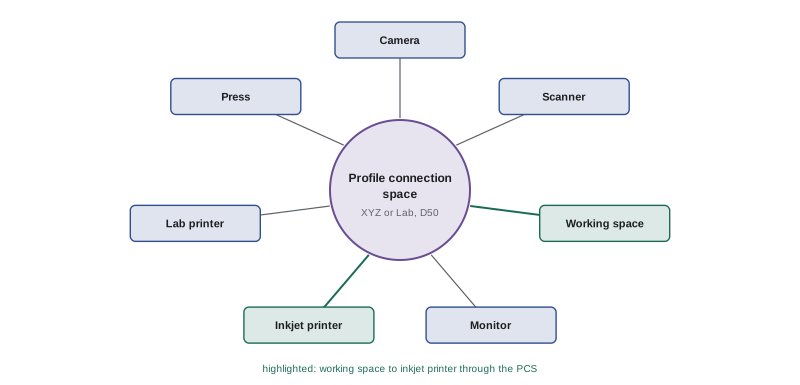
Without a common reference, converting colour between every pair of devices would require a separate conversion for each pair: ten devices would need dozens of conversions. ICC colour management instead uses a hub-and-spoke model. Each device is described once by a profile that relates its own colour values, such as RGB for a monitor or CMYK for a press, to a device-independent reference called the profile connection space (PCS). To convert from one device to another, the colour management system converts from the source device to the PCS using the source profile, then from the PCS to the destination device using the destination profile. Adding a new device requires only one new profile.
The profile connection space
The PCS is either CIE XYZ or CIELAB, always relative to a D50 white point and the 1931 standard observer. D50, a daylight-like white of about 5,000 K, was chosen because it is the standard illuminant for viewing prints in the graphic arts (Lesson 5). Displays usually have a D65 white point, so their profiles include a chromatic adaptation transform that maps D65 to D50 in the PCS, and back again when displaying. You never see the PCS directly; it is the shared language through which all conversions pass.
Profiles and profile classes
An ICC profile is a file, with the extension .icc or .icm, that contains tags describing a device or colour space. Profile classes include:
- Input profiles, for cameras and scanners, describing how the device records colour.
- Display profiles, for monitors, describing the display's primaries, white point and tone response after calibration.
- Output profiles, for printers and presses, describing how combinations of ink or device values reproduce colour on a specific paper with specific settings.
- Colour space profiles, for working spaces such as sRGB, Adobe RGB (1998), Display P3 and ProPhoto RGB, which are abstract, device-independent RGB spaces with defined primaries, white point and tone curve.
- Device link profiles, which convert directly between two specific devices, used in commercial printing.
Profiles can be simple matrix-and-curve profiles, describing an RGB device with three primaries and a tone curve, which suit well-behaved displays and working spaces; or look-up table (LUT) profiles, which store a detailed table of conversions and are needed for printers, whose behaviour is complex and non-linear. Printer profiles usually contain separate tables for each rendering intent and for converting in both directions.
| Profile class | Examples | Created by |
|---|---|---|
| Input | Camera, scanner | Measuring a target with known values |
| Display | Monitor, laptop screen | Calibration software and a colorimeter |
| Output | Inkjet printer and paper, lab printer, press | Printing and measuring patch charts |
| Colour space | sRGB, Adobe RGB, Display P3, ProPhoto RGB | Published definitions |
| Device link | One press to another | Specialist software |
Colour management modules
The software engine that performs conversions using profiles is the colour management module (CMM). Examples include the Adobe Color Engine (ACE) in Adobe applications, Apple ColorSync on macOS, Microsoft's Windows Color System and the open-source LittleCMS used in many applications. Different CMMs give very slightly different results because of differences in interpolation and black point handling, which is why professional workflows often specify the engine. For most photographers, the important thing is to understand which application is managing colour at each step, so that conversions are neither skipped nor performed twice.
Rendering intents
When a destination device cannot reproduce all the colours in the source, the conversion must decide what to do with out-of-gamut colours. The rendering intent defines the strategy. The ICC specification defines four:
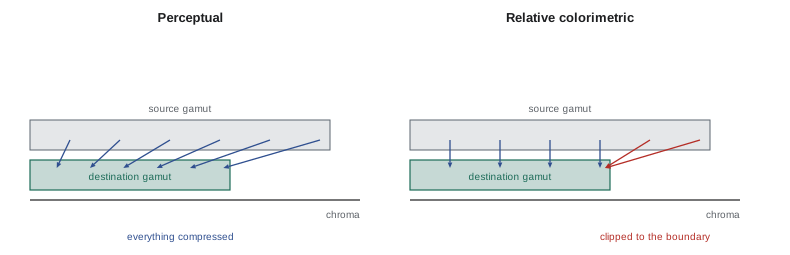
- Perceptual: compresses the whole source gamut into the destination gamut, shifting all colours, including in-gamut ones, to preserve the relationships between them. It suits photographs with many saturated colours that would otherwise clip, keeping gradations and detail at the cost of overall saturation.
- Relative colorimetric: reproduces in-gamut colours exactly, relative to the destination's white (the paper white maps to the source white), and clips out-of-gamut colours to the nearest reproducible colour. It preserves accuracy for most colours, and is often preferred for photographs whose colours are mostly in gamut, but saturated areas may lose detail.
- Saturation: aims for vivid colours rather than accuracy, intended for business graphics and charts; rarely suitable for photographs.
- Absolute colorimetric: like relative colorimetric, but does not map white points, so the paper colour of the destination is simulated. It is used for proofing, for example showing on one printer how a print on newspaper or warm paper will look.
Perceptual rendering is not standardized between profile makers, so two profiles can produce quite different perceptual results. For this reason, many fine art printers compare perceptual and relative colorimetric with soft proofing (Lesson 8) and choose the better rendering for each image.
Black point compensation
Different devices have different darkest blacks. A monitor's black may be much deeper than the black of a matte paper. Without adjustment, a relative colorimetric conversion would map all the dark tones darker than the paper's black onto that black, crushing shadow detail. Black point compensation (BPC) scales the tonal range so that the source black maps to the destination black, preserving shadow detail. It is normally turned on for relative colorimetric conversions of photographs. Perceptual rendering includes its own black point mapping.
Worked problem
Choosing an intent for a sunset print
A photographer prints a sunset with intensely saturated orange and magenta clouds on a matte fine art paper with a smaller gamut than glossy paper. Soft proofing with relative colorimetric shows flat, detail-less patches in the brightest clouds; perceptual shows detail but the whole image looks slightly less saturated. What should the photographer do?
Show solution
- Recognize that the cloud colours are out of the matte paper's gamut, so relative colorimetric clips them.
- Perceptual preserves gradation by compressing all colours.
- Try perceptual, then adjust the soft-proof copy: add a little saturation or vibrance to the overall image to compensate.
- Alternatively, use relative colorimetric with black point compensation and reduce saturation locally in the clouds until gradation returns.
- Compare both versions as test prints under D50 light and choose the one that best preserves the feeling of the sunset.
Answer: Use perceptual (with a small compensating saturation boost) or locally desaturate the clouds with relative colorimetric, judging by soft proof and test prints.
Embedding, assigning and converting
Three operations are often confused:
- Embedding a profile: saving the image with its colour space profile, so that other applications know how to interpret its numbers. Every image you export should have an embedded profile, typically sRGB, Adobe RGB or Display P3.
- Assigning a profile: telling the application to interpret the existing numbers in a different colour space, without changing them. The appearance changes. Assigning is used to correct a missing or wrong profile, for example an untagged image that was actually created in Adobe RGB.
- Converting to a profile: changing the numbers so that the appearance stays as close as possible to the original in a new colour space. Converting is used to prepare an image for a different space, such as converting from ProPhoto RGB to sRGB for the web.
A common error is assigning when you should convert, which changes the image's colours unexpectedly, or opening an untagged image and letting the application assume the wrong space. Applications usually offer colour management policies that warn when an image's embedded profile differs from the working space; choosing to preserve embedded profiles is the safest default.
Conversions along the workflow
Following an image through a typical workflow shows where colour management operates. A raw file is interpreted using the camera profile in the raw processor, which works internally in a wide space. When the image is displayed, the application converts from its working space to the monitor's display profile so that it looks correct on that particular monitor. When the image is exported, it is converted to an output working space such as Adobe RGB or sRGB and the profile is embedded. When it is printed, the printing application converts from the image's space to the printer and paper profile using the chosen rendering intent, and the printer driver must be told not to apply its own colour management on top. Each step is invisible when it works and obvious when it fails: washed-out web images, oversaturated prints, magenta skin or a sickly green cast all usually trace back to a missing, wrong or doubled conversion.
Limits of colour management
Colour management cannot make different media look the same. A transmissive, backlit monitor with a contrast ratio of 1,000:1 or more cannot be perfectly matched by a reflective print with a contrast ratio of perhaps 250:1 on glossy paper and 50:1 or less on matte paper. Nor can it extend a device's gamut. What it can do is make conversions predictable, preserve colour relationships, show you in advance how an image will look on a given output, and allow you to make informed adjustments. A realistic goal is a print that looks like the screen image would look if the screen were printed: the same colours, tones and mood, within the limits of the paper.
Profile versions and inspection
ICC profiles exist in two main versions: version 2 (v2), widely supported for decades, and version 4 (v4), introduced in 2001, which defines the perceptual reference medium more precisely to make perceptual rendering more consistent between profiles. Most photographic software supports both, but some older applications and web browsers handle v4 profiles poorly, so v2 profiles remain common for working spaces and for images delivered to the web. Utilities such as ColorSync Utility on macOS, profile inspectors in calibration software and online tools let you open a profile and see its class, version, white point, primaries, tone curves and gamut. Inspecting profiles is a useful diagnostic habit: an image tagged with an unexpected profile, or a display profile with an odd white point, often explains strange colour.
Colour management in browsers and operating systems
Modern operating systems manage colour for applications that support it. macOS applies colour management system-wide through ColorSync, while Windows provides colour management that many applications use. Web browsers such as Safari, Chrome, Firefox and Edge colour-manage tagged images, converting them to the display profile, and treat untagged images as sRGB. Some browsers handle CSS colours and wide-gamut images differently, and support for v4 profiles and HDR images varies. For reliable web display, export images in sRGB with embedded profiles, or Display P3 for wide-gamut audiences when you know the platform preserves the profile.
Colour management in raw processors
Raw processors such as Lightroom Classic and Capture One manage colour internally. They convert raw data with the camera profile into a large internal working space, display images through the monitor profile, and convert to the chosen colour space on export or to the printer profile when printing. Users rarely see these steps, but export settings, external editor settings and print settings must still be chosen correctly.
Common mistakes
MistakeExporting images without an embedded profile.
InsteadAlways embed the profile of the working space used.
MistakeAssigning a profile to change an image's colour space.
InsteadConvert to change spaces; assign only to fix wrong tags.
MistakeUsing the saturation intent for photographs.
InsteadChoose perceptual or relative colorimetric.
MistakeTurning off black point compensation with relative colorimetric.
InsteadUse BPC to preserve shadow detail.
MistakeLetting the application and printer driver both manage colour.
InsteadManage colour in one place only.
Summary and key terms
- The ICC system converts colour through a device-independent profile connection space.
- The PCS is CIE XYZ or Lab relative to D50.
- Profiles describe input devices, displays, outputs and working spaces.
- The CMM performs conversions using source and destination profiles.
- Rendering intents decide how out-of-gamut colours are handled.
- Black point compensation preserves shadow detail.
- Embed profiles, convert to change spaces and assign only to fix tags.
- ICC
- International Color Consortium, which defines profile standards.
- Profile connection space
- Device-independent reference for conversions.
- ICC profile
- File describing a device's colour behaviour.
- Colour management module
- Engine that performs profile conversions.
- Matrix-shaper profile
- Profile using primaries and tone curves.
- LUT profile
- Profile using look-up tables for complex devices.
- Rendering intent
- Strategy for handling out-of-gamut colours.
- Perceptual intent
- Compresses the whole gamut to preserve relationships.
- Relative colorimetric
- Matches in-gamut colours relative to paper white.
- Black point compensation
- Mapping source black to destination black.
Practice problems
Work each problem on paper first, then reveal the answer to check.
When was the ICC founded?
Show answer
1993.
Why use a hub-and-spoke model?
Show answer
Each device needs only one profile.
What white point does the PCS use?
Show answer
D50.
Name four profile classes.
Show answer
Input, display, output, colour space (and device link).
Why do printers need LUT profiles?
Show answer
Their behaviour is complex and non-linear.
What does perceptual rendering do?
Show answer
Compresses the whole gamut to preserve relationships.
When is absolute colorimetric used?
Show answer
Proofing, to simulate paper colour.
What does black point compensation prevent?
Show answer
Crushed shadows.
What is the difference between assign and convert?
Show answer
Assign reinterprets numbers; convert changes numbers to keep appearance.
Name two symptoms of colour management errors.
Show answer
Washed-out web images, oversaturated or tinted prints.
Lesson quiz · 5 questions
Score 60% or more to complete this lesson.
Create a free account to save your progress, take quizzes and earn a certificate.