
MSBA-252 · Lesson 2 of 12 · 20 min
Cloud flow design patterns
▶ Video coming soon A video version of this lesson is on the way.
With the discovery work done, Rupert asked Signe Tavernier-Mbeki, one of central IT's two professional developers, to sketch the intake flow with Ysaline. Maribeth joined the first session because she had built several cloud flows for the transcript solution and knew which mistakes she had already made. Their first whiteboard drawing had one box: "invoice email arrives, flow does everything". By the end of the hour it had become five flows, each with one job, connected through a Dataverse table. This lesson explains why, and introduces the patterns that experienced flow makers reach for again and again.
Cloud flows are the main automation tool in Power Automate. They run in Microsoft's cloud, connect to services through connectors, and start from a trigger. AB-410 asks you to recommend cloud flow triggers, evaluate and recommend connectors, and configure cloud flow actions, so this lesson covers those three skills first and then the design patterns that tie them together.
Choosing a trigger
A trigger decides when a flow runs, and choosing the right one is the first design decision. There are three kinds of cloud flow, named after their triggers. An automated cloud flow starts when something happens in a connected service, such as an email arriving, a file being created or a Dataverse row changing. An instant cloud flow starts when a person or app asks it to, for example from a button in a canvas app, a selected item in SharePoint, a message in Teams or a call from another flow. A scheduled cloud flow starts at set times, such as every weekday at 7:00.
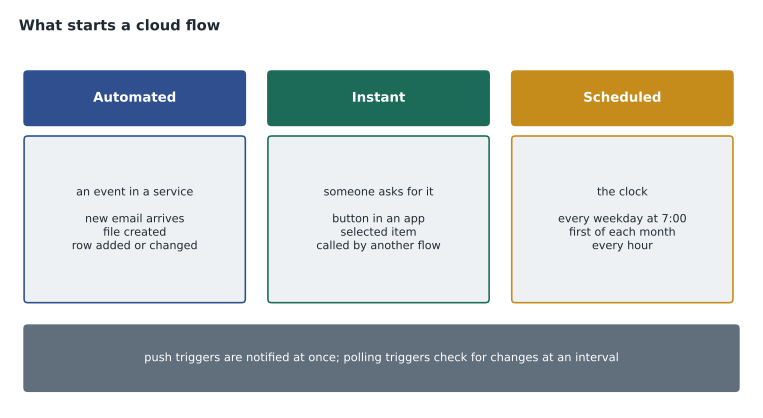
Automated triggers come in two technical styles. Push triggers, sometimes called webhook triggers, are notified by the service the moment something happens. Polling triggers check the service for changes at an interval set by the connector and the licence, so they can lag by a few minutes. The Dataverse trigger "When a row is added, modified or deleted" is a push trigger with useful options: the change type, the table, a scope (user, business unit, parent-child business unit or organization), selected columns so that the flow runs only when particular columns change, and a filter expression to limit which rows qualify.
For the invoice project, the intake trigger was obvious: the Office 365 Outlook trigger for a new email arriving in a shared mailbox, filtered to messages with attachments. But Signe made two choices that mattered later. She set the trigger to the shared mailbox itself, using a connection that had access to that mailbox, rather than to a clerk's personal mailbox. And she added a trigger condition, an expression evaluated before the flow starts, so that messages from the college's own domain, such as internal forwards and replies, never started a run. Trigger conditions save runs, which matters for both performance and capacity, and they keep run history clean.
@and(
  equals(triggerOutputs()?['body/hasAttachments'], true),
  not(endsWith(toLower(triggerOutputs()?['body/from']), '@lumenvale.example'))
)
Evaluating connectors
A connector wraps a service's API so that flows and apps can use it through triggers and actions without writing code. Power Platform has well over a thousand connectors, and choosing among them is a skill the exam tests directly. Three properties matter most.
Tier. Standard connectors, such as SharePoint, Outlook and Teams, are included with Microsoft 365 licences that include Power Automate. Premium connectors, such as Dataverse in most scenarios, SQL Server, HTTP and many third-party services, need a premium licence such as Power Automate Premium for the user or Power Automate Process for the flow. Custom connectors, which an organization builds for its own APIs, are also premium. Tier is shown on each connector's page and in the designer.
Capabilities and limits. Each connector documents its triggers, actions and throttling limits, such as the number of calls allowed per connection in a period. A connector that offers a push trigger is usually better than one that only polls. Some connectors offer bulk actions; others need a loop. Reading the connector reference before designing saves surprises.
Authentication and data policy. Connectors sign in with different methods, such as the user's Microsoft Entra account, a service principal, an API key or an on-premises data gateway for systems inside the network. Administrators also group connectors into business, non-business and blocked categories through data policies, the subject of lesson 11, and a flow cannot mix connectors from the business and non-business groups.
| Need at Lumenvale | Connector chosen | Tier | Why |
|---|---|---|---|
| Watch the invoice mailbox | Office 365 Outlook | Standard | Shared mailbox trigger with attachment filter |
| Store the original PDF | SharePoint | Standard | Finance document library with retention already set |
| Record each invoice and its status | Microsoft Dataverse | Premium | Relational data, security roles, auditing, business process flows |
| Look up open purchase orders | Custom connector to LedgerPoint reporting API | Premium | Read-only reporting API existed; entry did not |
| Notify approvers | Approvals and Microsoft Teams | Standard | Actionable approvals in Teams and Outlook |
LedgerPoint deserves a note. Its vendor offered a read-only reporting API that returned purchase orders and payment status, but no way to create invoices through an API. Signe built a custom connector for the reporting API, described by an OpenAPI definition and secured with an API key stored as a secret, so flows could look up purchase orders. Entry of invoices would need a desktop flow later, because the only way in was the Windows client. That split, an API for reading and the user interface for writing, is common with older business systems.
Configuring actions
After the trigger, a flow is a sequence of actions. Each action belongs to a connector or to the built-in operations, such as variables, data operations, control steps and HTTP. Actions take inputs, which can be typed values, dynamic content from earlier steps or expressions, and they produce outputs that later steps can use. The modern cloud flow designer shows the flow as a vertical sequence, with a configuration pane for the selected action and a Copilot pane for describing changes in natural language.
A few habits make actions easier to live with. Rename every action from its default name, so "Get file content 2" becomes "Get invoice PDF content". Use the Data operations actions, such as Compose, Select, Filter array, Join and Parse JSON, to reshape data rather than building strings in variables. Set the pagination and top count settings on list actions when tables can be large, because many list actions return only a first page by default. And use Select to project only the columns you need, which keeps runs fast and history readable.
Pattern 1: one flow, one job
The single most useful design pattern is to give each flow a single, clearly named responsibility and to connect flows through data rather than through one giant sequence. Signe's five flows were: Intake (save the email's attachment, create an Invoice row with status Received), Extract (when an Invoice row is Received, run document processing and fill in the fields), Match (when fields are filled, look up the purchase order and set status to Ready for approval or Needs review), Approve (route the approval and record the outcome) and Notify (tell suppliers and clerks about changes).
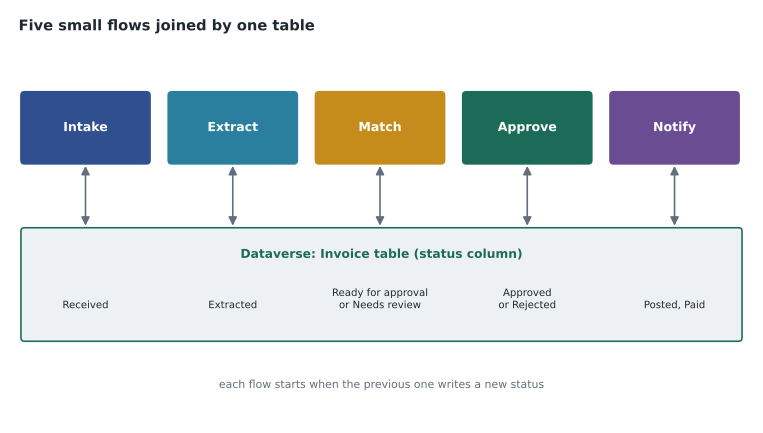
This design has several advantages. Each flow is short enough to understand. A failure in one step, such as extraction, leaves the invoice in a known status where a person or a retry can pick it up, instead of losing the whole run. Each flow can be tested, monitored and changed separately. And because the status lives in Dataverse, the clerks' model-driven app, Kwabena's reports and the supplier enquiries all read the same truth. The cost is a little more design up front and the need to make sure status changes cannot trigger loops, which is why Signe used the Dataverse trigger's selected-columns and filter options carefully.
Pattern 2: child flows for reusable logic
Some logic is needed in several places. At Lumenvale, finding the right budget holder for a cost centre and campus was needed by the Approve flow, by the clerks' "reassign approver" button and by a monthly report. Rather than copying the same five steps into three flows, Signe built a child flow: an instant flow with the "Manually trigger a flow" trigger and defined inputs, ending with a "Respond to a Power App or flow" action that returns outputs. Other flows call it with the "Run a Child Flow" action. Child flows must be in a solution, and they are one of the strongest reasons to build flows in solutions from the start, as lesson 9 explains.
Child flow: Finance - Find budget holder
  Trigger: Manually trigger a flow
    Inputs: CostCentre (text), Campus (text), Amount (number)
  List rows (Dataverse: Budget Holder)
    Filter: costcentre eq CostCentre and campus eq Campus and active eq true
  Condition: Amount greater than threshold for that holder
    Yes: Compose escalation holder
    No:  Compose primary holder
  Respond to a Power App or flow
    Outputs: ApproverEmail (text), ApproverName (text), Escalated (yes/no)
Pattern 3: event-driven, not polling by schedule
Makers new to automation often reach for a scheduled flow that runs every fifteen minutes, lists everything and checks what changed. That pattern works but wastes runs and adds delay. Where a push trigger exists, an automated flow that reacts to the event is usually better. Scheduled flows still have an important place: daily summaries, reminders for items that have waited too long, nightly reconciliations and clean-up jobs. Lumenvale's design used one scheduled flow, run each weekday at 7:00, to find invoices waiting more than five working days for approval and send reminders, which is exactly the kind of "nothing happened" condition an event trigger cannot detect.
Pattern 4: keep data in data stores, not in flows
Flows should move and transform data, not hold it. Values such as approval thresholds, mailbox addresses and site URLs belong in environment variables or in configuration tables, so they can change without editing the flow and can differ between test and production. Business data belongs in Dataverse or another proper store. And documents belong in a document library. When a flow needs to remember something across runs, such as the last time a reconciliation ran, it should write it to a table rather than relying on the flow's own history.
Worked problem
Choosing triggers for four requirements
Recommend a trigger type for each Lumenvale requirement: (a) start processing as soon as an invoice email arrives; (b) let a clerk re-run extraction on one invoice from the model-driven app; (c) send reminders for approvals waiting more than five working days; (d) update the supplier contact table when a supplier record changes in Dataverse.
Show solution
- (a) Automated: the Outlook trigger for new email in a shared mailbox, with a trigger condition for external senders with attachments.
- (b) Instant: a flow started from the app, for example from a command button that calls the flow for the selected row.
- (c) Scheduled: a recurrence each weekday morning that lists invoices with status Ready for approval and an approval sent date more than five working days ago.
- (d) Automated: the Dataverse "When a row is added, modified or deleted" trigger on the Supplier table, change type Modified, with selected columns limited to the contact fields.
Answer: Events use automated triggers, on-demand actions by people use instant triggers, and conditions that depend on time passing use scheduled triggers. Selected columns and filters keep automated Dataverse triggers from running more than necessary.
Building with Copilot
The Power Automate designer includes Copilot, which can create a flow from a description and modify an existing flow when you ask, for example "add a step that posts a Teams message when the condition is false". Signe used it to draft the Notify flow, then reviewed every step: Copilot had chosen the right connectors but left default action names, picked the wrong mailbox and skipped error handling. As with AI-built apps, the draft is a starting point, and the maker remains responsible for checking triggers, connections, inputs and failure paths before the flow goes anywhere near production.
Common mistakes
MistakeBuilding one long flow that does everything.
InsteadSplit the work into small flows with one job each, connected through status in a data store.
MistakePolling on a schedule when a push trigger exists.
InsteadReact to events with automated triggers and keep scheduled flows for time-based conditions.
MistakeCopying the same logic into several flows.
InsteadPut reusable logic in a child flow inside a solution.
MistakeHard-coding mailbox addresses and thresholds in actions.
InsteadUse environment variables or configuration tables.
Summary and key terms
- Cloud flows are automated, instant or scheduled, named after their triggers.
- Push triggers fire immediately; polling triggers check at intervals. Trigger conditions stop unwanted runs before they start.
- Evaluate connectors by tier, capabilities and limits, authentication and data policy grouping.
- Configure actions with dynamic content and expressions, rename them, and use data operations and pagination wisely.
- Give each flow one job and connect flows through status in Dataverse.
- Reuse logic through child flows, which require solutions.
- Keep configuration in environment variables and business data in proper data stores.
- Automated cloud flow
- A flow started by an event in a connected service.
- Instant cloud flow
- A flow started on demand by a person, an app or another flow.
- Scheduled cloud flow
- A flow started by a recurrence at set times.
- Trigger condition
- An expression that must be true for a trigger to start a run.
- Premium connector
- A connector that needs a premium Power Platform licence to use.
- Custom connector
- A connector an organization defines for its own or a third-party API.
- Child flow
- An instant flow in a solution that other flows call with inputs and outputs.
Practice problems
Work each problem on paper first, then reveal the answer to check.
Why did Signe split the invoice work into five flows?
Show answer
Each flow does one job, fails safely in a known status, and can be tested and changed separately, with Dataverse holding the shared status.
What does a trigger condition do?
Show answer
It evaluates an expression before a run starts, so unwanted events never start the flow.
Which kind of trigger suits a reminder for approvals that have waited too long?
Show answer
A scheduled trigger, because the condition depends on time passing rather than on an event.
What must be true for a flow to call a child flow?
Show answer
Both must be in a solution, and the child flow must use a manual trigger and respond with outputs.
Lesson quiz · 5 questions
Score 60% or more to complete this lesson.
Create a free account to save your progress, take quizzes and earn a certificate.