
MSBA-204 · Lesson 4 of 12 · 18 min
Data loss prevention for Exchange, SharePoint, Teams and endpoints
▶ Video coming soon A video version of this lesson is on the way.
The readiness plan had sketched Corvallin's first DLP policies: a two-rule health card policy and a separate policy for the Microsoft 365 Copilot location. This lesson goes deeper into how an administrator builds DLP policies for each workload, configures endpoint DLP, decides on modes and order, and, the part AB-650 calls out explicitly, reviews and responds to DLP alerts.
The structure of a DLP policy
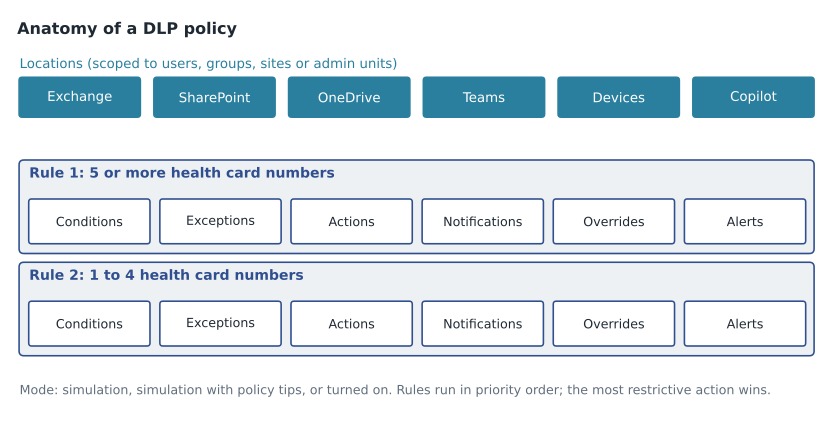
A DLP policy has locations and one or more rules. Locations are where it applies: Exchange email, SharePoint sites, OneDrive accounts, Teams chat and channel messages, devices, on-premises repositories, some non-Microsoft cloud apps and the Microsoft 365 Copilot location. Each location can be scoped to include or exclude users, groups, sites or accounts. Policies can also be scoped to administrative units, so a branch administrator can own a branch's policy. Microsoft provides templates for common regulations, such as health and privacy laws in many jurisdictions, but Teodor preferred a custom policy that used his tested SITs, because templates tend to include many types Corvallin does not need.
| Rule element | Examples | Notes |
|---|---|---|
| Conditions | Content contains SIT at high confidence, count 5 or more; content is shared with people outside the organization; label is Confidential / Clinical | Conditions can be grouped with AND, OR and NOT |
| Exceptions | Recipient domain is the contracted pharmacy | Keep exceptions narrow and documented |
| Actions | Restrict access or encrypt; block sharing; block with override; audit only | Actions available differ by location |
| User notifications | Policy tips in Outlook, Office and SharePoint; email to the user | Plain-language text reduces help desk calls |
| User overrides | Allow override with a business justification | Overrides and justifications are recorded |
| Incident reports and alerts | Alert severity, email to the privacy officer, alert thresholds | Aggregate alerts avoid one alert per message |
Rules inside a policy are processed in priority order. When content matches more than one rule, the most restrictive action applies, and when content matches several policies, the most restrictive policy's action wins. Corvallin's health card policy relied on this: the low-volume rule (one to four health card numbers) showed a tip and allowed override with justification, while the high-volume rule (five or more) blocked external sending and alerted the privacy officer. A message with twenty numbers matched both rules and was blocked.
Location by location
| Location | What DLP inspects | Typical actions | Points to remember |
|---|---|---|---|
| Exchange | Message body, subject and attachments | Block, encrypt, add a disclaimer, notify | Mail flow can be affected; test with a pilot group first |
| SharePoint and OneDrive | Files at rest and sharing events | Restrict access to the owner and people inside, block external sharing | Protection is applied after the service scans the file |
| Teams | Chat and channel messages, files shared in them | Block the message for external participants or everyone | Blocked messages show a notice to the sender and recipients |
| Devices | Activities on onboarded Windows and macOS devices | Audit, block with override, block | Needs device onboarding and endpoint settings |
| Microsoft 365 Copilot | Labelled content and sensitive prompts | Prevent processing of labelled items or prompts | Separate policy; other locations are disabled when this one is selected |
Teams DLP behaves differently from email in one way staff notice immediately: a blocked message is replaced for recipients with a notice that it was blocked, and the sender sees why. Corvallin's Teams rule blocked health card numbers in chats with external participants only; within the company, clinical chats legitimately contained them.
Endpoint DLP
Endpoint DLP extends policies to activities on devices: copying to USB drives, printing, uploading to cloud services, pasting into browsers, copying to network shares and using unallowed apps. Devices must first be onboarded to Purview, either through Microsoft Intune or with the same onboarding package as Microsoft Defender for Endpoint, and the portal's device list shows their status. Corvallin's laptops were already managed by Intune and onboarded to Defender, so Ama onboarded them to Purview with an Intune policy, starting with the six IT laptops.
Then Teodor configured endpoint DLP settings, which are shared by every endpoint rule:
| Setting | Purpose | Corvallin configuration |
|---|---|---|
| Restricted apps and app groups | Apps whose access to sensitive files is audited or blocked | Personal cloud sync clients and file transfer tools |
| Unallowed browsers | Browsers that cannot open sensitive files | Any browser other than Edge and Chrome with the Purview extension |
| Sensitive service domains | Websites where uploads or pastes are audited, warned or blocked | Generative AI sites, personal email and file-sharing sites |
| Printer groups | Printers treated differently, such as office printers | Head office and branch printers allowed; all others warn |
| Removable USB device groups | Approved encrypted USB drives | Only the encrypted drives issued to IT |
| Network share groups | Approved file shares | None; Corvallin has no file servers |
Endpoint rules choose an action per activity: audit, block with override or block. Microsoft recommends starting with audit to learn how people actually work. Corvallin's pilot audit showed that two head office staff used a personal file-sharing site to send large files to a vendor; the fix was a proper sharing process, not a block. For Chrome, the Microsoft Purview extension is needed so endpoint DLP can see browser activity.
Policy modes
Every DLP policy runs in one of three modes. Simulation evaluates content and reports matches without affecting anyone. Simulation with policy tips also shows users the tips, which teaches without blocking. Turned on enforces. Simulation results show matched items by location and rule, so policies can be tuned before enforcement. The plan for Corvallin was simulation for at least two weeks for each new policy, then tips for two weeks, then enforcement after the privacy officer reviewed the results.
# Security & Compliance PowerShell: check DLP policies and their mode
Connect-IPPSSession -UserPrincipalName teodor.admin@corvallincare.example
Get-DlpCompliancePolicy | Format-Table Name, Mode, Priority
Get-DlpComplianceRule -Policy "DLP-Health-Card" | Format-Table Name, Priority, BlockAccess
Reviewing and responding to DLP alerts
When a rule is configured to alert, matches generate DLP alerts. They appear on the Alerts page of the Data Loss Prevention solution in the Purview portal and, for organizations that use it, as alerts and incidents in the Microsoft Defender portal, where they can be correlated with other security signals. Each alert shows the policy and rule, the user, the location, the activity, the time and, for users with the right role, the matched content and SIT details. Alert thresholds can aggregate many matches into one alert, for example five matching activities in an hour, which keeps the queue usable.
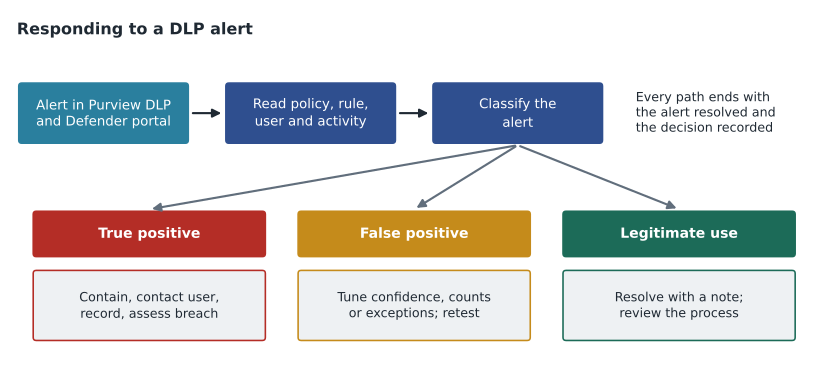
Corvallin wrote a short triage procedure for the privacy officer, who handles DLP alerts, with Teodor as backup:
| Step | Question | Action |
|---|---|---|
| 1. Read | Which rule fired, for whom, on what activity? | Open the alert details and the activity in activity explorer |
| 2. Classify | True positive, false positive or legitimate business use? | Check the content summary and ask the user if needed |
| 3. Contain | If true positive, is data still exposed? | Remove sharing, recall or revoke access, ask the recipient to delete |
| 4. Record | Does this need a privacy breach assessment? | Log it; escalate to the breach procedure in lesson 12 if so |
| 5. Tune | If false positive, why did it match? | Adjust confidence, counts or exceptions and retest |
| 6. Resolve | Is the alert finished? | Set status to resolved with a comment explaining the decision |
Worked problem
An alert on a Friday afternoon
An alert says a branch coordinator shared a OneDrive spreadsheet containing 48 health card numbers with an external address at a staffing agency. The high-volume rule restricted access automatically, and the coordinator overrode the block with the justification "agency needs schedule". What should the privacy officer do?
Show solution
- Confirm the facts in the alert and activity explorer: the file, the recipient, and whether the recipient opened it after the override.
- Contain: remove the external sharing link; the coordinator's schedule can be shared without client health numbers.
- Treat the override as a training issue, not misconduct, unless there is a pattern; the justification shows a real business need met the wrong way.
- Record the incident and assess under the breach procedure whether personal health information was actually accessed.
- Consider whether overrides should be allowed on the high-volume rule at all.
Answer: Contain by removing the link, check whether the file was opened, record and assess the incident, coach the coordinator and review whether the high-volume rule should allow overrides.
That example changed Corvallin's design: the high-volume rule no longer allowed overrides for external sharing. Overrides remained on the low-volume rule, where the most common justification was a pharmacy referral.
Writing user notifications that work
A policy tip is the only part of DLP most staff will ever see, so its wording matters as much as the rule. Microsoft's default text is accurate but generic. Teodor and the privacy officer rewrote each tip in plain language with three parts: what the message contains, why it matters and what to do instead. For the low-volume health card rule the tip read: "This email contains a client's health card number. Send it only to the client, their pharmacy or their care team. If this is a referral, choose Override and type the reason." The help desk received far fewer calls about the rewritten tips than about the defaults during the pilot, and the most common call was from people who wanted to know why the tip had not appeared, which usually meant they were outside the pilot scope.
Designing the Teams rule
Teams DLP needed more thought than email. Home-care coordinators chatted constantly with nurses about clients, so blocking health card numbers in internal chats would have stopped clinical work. But Teams also hosted chats with external participants: the contracted pharmacy, two physiotherapy clinics and, through shared channels, the provincial health authority's liaison. Teodor's rule applied to chat and channel messages only when they were shared with people outside the organization, blocked messages containing health card numbers or client IDs at high confidence, and showed a tip explaining how to share referral details through the secure referral process instead. Files shared in those chats were covered by the SharePoint and OneDrive locations, because Teams stores them there.
| Scenario | Rule result | Reason |
|---|---|---|
| Nurse messages a coordinator with a client ID | Allowed | Internal chat, clinical need |
| Coordinator posts a health card number in a chat with the pharmacy | Blocked with tip | External participant |
| Shared channel with the health authority receives a client list file | File access restricted by the SharePoint rule | Files in Teams live in SharePoint |
| Manager pastes 20 health card numbers into an internal chat | Allowed but audited | Internal; the endpoint and insider risk policies watch volume |
The last row was a deliberate gap. Internal sharing of large volumes was a concern, but the team decided to watch it through insider risk management rather than block clinical chat, and to revisit the decision after three months of data.
Measuring a DLP rollout
Teodor kept four numbers for each policy during simulation and tips: matches per week, the share that were false positives, overrides and their justifications, and help desk calls. The thresholds for moving to enforcement were agreed in advance with the privacy officer: false positives below one in twenty for a blocking rule, and no unresolved alert older than a week. Writing the thresholds down before seeing the data stopped the decision from becoming a matter of mood.
DLP and the Copilot location
The separate DLP policy for the Microsoft 365 Copilot location, introduced in the readiness plan, follows the same structure but with its own limits. Selecting that location disables the others in the same policy, so it is always a separate policy. Its rules can prevent Copilot from processing items with chosen sensitivity labels and can act on prompts that contain sensitive information. Changes can take up to four hours to apply. Teodor kept it in simulation until the Copilot pilot drew closer, and reviewed its matches alongside the email and file policies each week so the privacy officer saw one picture rather than separate reports.
Common mistakes
MistakeEnabling a block rule for the whole tenant on day one.
InsteadUse simulation, then tips, then enforcement, with a pilot scope first.
MistakeLeaving alerts unresolved because they were "only overrides".
InsteadReview every alert, resolve it with a comment and tune rules from what you learn.
MistakeConfiguring endpoint rules before onboarding devices and endpoint settings.
InsteadOnboard devices and define app, domain, printer and USB groups first.
MistakeUsing a regulation template unchanged.
InsteadUse tested custom SITs and only the types the organization actually holds.
Summary and key terms
- A DLP policy has locations and ordered rules with conditions, exceptions, actions, notifications, overrides and alerts.
- The most restrictive action wins when content matches several rules or policies.
- Endpoint DLP needs onboarded devices and shared settings for apps, browsers, domains, printers and USB devices.
- Policies run in simulation, simulation with tips, or turned on.
- DLP alerts appear in the Purview portal and the Defender portal and need a triage procedure that ends in resolution or tuning.
- DLP policy
- A set of locations and rules that detect and act on sensitive content.
- Policy tip
- A message shown to users in apps when content matches a DLP rule.
- User override
- Permission for a user to proceed despite a rule, usually with a justification.
- Endpoint DLP
- DLP for activities on onboarded Windows and macOS devices.
- Sensitive service domains
- Websites listed in endpoint settings where uploads and pastes are controlled.
- Alert threshold
- The number of matching activities in a period that generates one alert.
Practice problems
Work each problem on paper first, then reveal the answer to check.
A message matches a tip-only rule and a block rule. What happens?
Show answer
It is blocked; the most restrictive action applies.
Name two places DLP alerts can be reviewed.
Show answer
The DLP Alerts page in the Purview portal and the Microsoft Defender portal.
What is needed on Chrome for endpoint DLP to see browser activity?
Show answer
The Microsoft Purview extension.
Lesson quiz · 5 questions
Score 60% or more to complete this lesson.
Create a free account to save your progress, take quizzes and earn a certificate.