
MSBA-170 · Lesson 8 of 12 · 22 min
References: footnotes, citations and tables of contents
▶ Video coming soon A video version of this lesson is on the way.
In October 2026 Maple & Pine decided to apply for a provincial tourism grant to expand its festival work. The application asked for a twelve-page business case with sources for every statistic. Rosalind drafted the argument; Teo's job was to make it look like a professional report: footnotes for explanations, citations for every source, a bibliography at the end and a table of contents at the front. The references domain is only 5 to 10 percent of the MO-110 exam, but its tasks are very specific, and they are some of the most reliable marks on the exam for anyone who has practised them.
Footnotes and endnotes
A footnote is a note at the bottom of the page where its reference mark appears; an endnote collects at the end of the document or section. Both have two parts: the reference mark in the text, normally a superscript number, and the note text. Word numbers them automatically and renumbers when you add, delete or move one. The tools are in the References tab's Footnotes group: Insert Footnote (Alt+Ctrl+F), Insert Endnote (Alt+Ctrl+D), Next Footnote (a drop-down that also moves to next and previous endnotes) and Show Notes, which jumps between a reference and its note.
To delete a note, delete its reference mark in the text, not the note text; the note disappears and the others renumber. Deleting only the note text leaves an empty note and its number behind. That is one of the commonest mistakes in real documents, and an exam task saying "remove the footnote on page 3" expects the reference mark to be deleted.
The objective modify footnote and endnote properties points to the Footnote and Endnote dialog, opened with the Footnotes group's dialog box launcher. Its settings are:
| Setting | Choices | Example use |
|---|---|---|
| Location | Footnotes: Bottom of page or Below text. Endnotes: End of document or End of section | Below text puts the note right after the last line on a short page |
| Footnote layout: Columns | Match section layout, or 1–4 columns | Short notes in two columns save space |
| Number format | 1, 2, 3; a, b, c; i, ii, iii; *, †, ‡ and others | Endnotes in i, ii, iii to distinguish them from footnotes |
| Custom mark | Any typed character or a symbol | An asterisk for a single note on a title page |
| Start at | Any number or letter | Continuing numbering from a previous chapter file |
| Numbering | Continuous, Restart each section, Restart each page | Restart each page for legal documents |
| Apply changes to | Whole document or This section | A different format for an appendix section |
The dialog also has a Convert button that turns all footnotes into endnotes, all endnotes into footnotes, or swaps them. The grant guidelines asked for endnotes, so Teo wrote with footnotes, which are easier to check while drafting, and converted them at the end in one step. The appearance of the notes themselves is controlled by two styles: Footnote Text and Footnote Reference (and the matching endnote styles), which you can modify like any other style.
Citations and sources
A citation is a short reference in the text, such as (Harbourview Tourism Council, 2025), that points to a full entry in the bibliography. Word manages both through a source list. In the Citations & Bibliography group of the References tab you choose a Style (APA, MLA, Chicago and others; the list varies a little by version), then use Insert Citation > Add New Source to enter a source: its type (book, journal article, website, report and so on), author, title, year, publisher, URL and other fields. Word inserts the citation at the insertion point and stores the source.
The exam objective create and modify bibliography citation sources refers to the Source Manager, opened with Manage Sources. It shows two lists: the Master List of every source you have ever entered on this computer, and the Current List of sources in this document. You can copy sources between them, Edit a source, Delete it (from the current list only if it is not cited) and New to add one. A check mark shows sources cited in the document; a question mark shows placeholders. Insert Citation > Add New Placeholder inserts a citation with a name only, so you can keep writing and fill in the details later; Word reminds you with the question mark.
Worked problem
Adding and citing a report
The business case quotes a figure from a fictional source labelled in the exercise as "Island Visitor Survey 2025", a report by a provincial tourism body. Rosalind wants APA style. How does Teo cite it?
Show solution
- On the References tab, set Style to APA.
- Click at the end of the sentence with the figure and choose Insert Citation > Add New Source.
- Set Type of Source to Report, select Corporate Author and type the organization's name, then add the title, year and publisher. Choose OK.
- Word inserts the citation in parentheses. To add a page number, click the citation, open its drop-down and choose Edit Citation, then type the page.
- Later, use Manage Sources to correct the year if it changes; the citation and bibliography update when refreshed.
Answer: Choose the style, add the source through Insert Citation, and edit the citation for page numbers. Source details live in the Source Manager, so one correction fixes every citation.
Citations are content controls: when you click one, a frame appears with a drop-down offering Edit Citation (add pages or suppress the author, year or title), Edit Source, Convert citation to static text, and Update Citations and Bibliography. Changing the Style box changes every citation and the bibliography at once, which is the main reason to use Word's citations rather than typing them.
Bibliographies
Bibliography in the Citations & Bibliography group offers built-in formats with headings: Bibliography, References and Works Cited, plus Insert Bibliography without a heading. The bibliography lists every source in the current list that is cited, formatted in the chosen style and sorted as the style requires. It is a field inside a content control; when sources change, click it and choose Update Citations and Bibliography. Teo placed the bibliography on its own page after a page break, with the heading "References" because APA calls it that.
Tables of contents
A table of contents (TOC) lists headings and their page numbers. Word builds it from heading styles, which is why the vendor handbook in lesson 2 could not have one until Teo applied Heading 1 and Heading 2 in lesson 5. References > Table of Contents offers Automatic Table 1 and Automatic Table 2 (with different headings, "Contents" and "Table of Contents"), Manual Table (which you type yourself and which does not update) and Custom Table of Contents. The objectives are insert tables of contents and customize tables of contents.
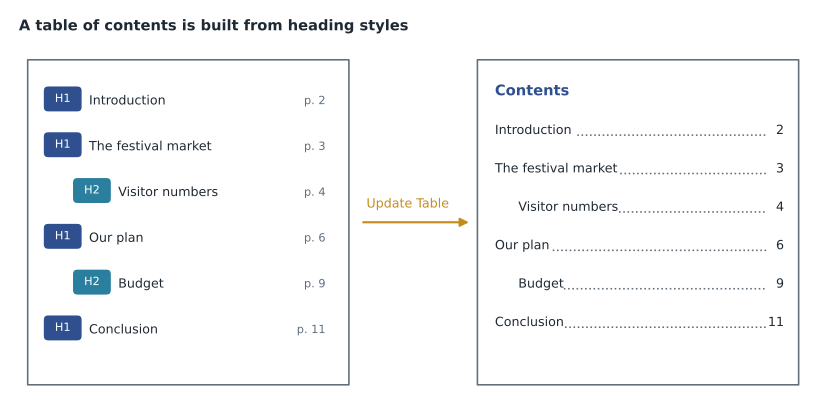
Custom Table of Contents opens the Table of Contents dialog. You can choose whether to show page numbers, right align page numbers, the tab leader (dots, dashes, a line or none), Formats (From template, Classic, Distinctive, Fancy, Modern, Formal, Simple), Show levels (how many heading levels to include, 3 by default), and whether to use hyperlinks instead of page numbers in Web Layout. Options lets you map other styles to TOC levels, such as including a custom Appendix Heading style at level 1. Modify changes the TOC 1, TOC 2 and other styles that format the entries.
A TOC does not update by itself. After editing, click inside it and choose Update Table (or press F9), then either Update page numbers only or Update entire table, which also picks up new, renamed or deleted headings. Remove Table of Contents at the bottom of the Table of Contents menu deletes it. In the grant application, Teo set Show levels to 2, chose a dot leader, and updated the entire table as the last step before saving the PDF.
| Element | Built from | Updates when |
|---|---|---|
| Table of contents | Heading styles (or mapped styles) | You choose Update Table |
| Bibliography | Cited sources in the current list | You choose Update Citations and Bibliography |
| Footnote and endnote numbers | Reference marks | Automatically |
| Captions and cross-references | Caption labels and targets | Fields update with F9 or on printing |
Captions and cross-references
Insert Caption in the References tab's Captions group adds a numbered label such as "Figure 3" or "Table 2" to a picture or table, with a choice of position (above or below) and label. Captions use the Caption style, and Insert Table of Figures lists them, an Expert exam topic. A cross-reference inserts text such as "see Table 2 on page 7" that updates when numbering changes. These are not separate Associate objectives, but Teo used both in the grant report because the reviewers would expect them.
Working with fields
Tables of contents, bibliographies, citations, page numbers and cross-references are all fields: instructions that Word replaces with results. Fields may show a grey background when clicked, depending on File > Options > Advanced > Field shading. Select all (Ctrl+A) and press F9 to update every field in the main text; open Print Preview to update many fields automatically. Alt+F9 toggles between field results and field codes, which is useful when you want to see why something displays oddly; press it again to return. If a TOC suddenly shows {TOC \o "1-3" \h \z \u}, someone has pressed Alt+F9.
Choosing between footnotes, endnotes and citations
The three tools solve different problems. Footnotes suit short explanations a reader may want while reading, such as a definition or a caveat. Endnotes suit longer notes that would clutter the page, and many publishers and funders prefer them. Citations with a bibliography suit sources: they identify where information came from in a consistent style. Some styles, such as Chicago notes and bibliography, use footnotes for citations; Word's citation tools insert in-text citations, so for note-style citations you insert a footnote and then a citation inside it.
Whatever you choose, be consistent within a document. The grant application used APA citations for every statistic, footnotes for three short clarifications that the funder's reviewers would want on the page, and no endnotes. That mix is common in business reports and easy for readers to follow.
Keeping references healthy
References break in predictable ways. A source entered twice in slightly different forms produces two bibliography entries; the Source Manager shows both, and you can delete the duplicate after changing citations to the remaining one. A citation converted to static text no longer updates. A table of contents copied from another document still points to that document's headings until you update it. A quick health check before sending a report is: update all fields, look at the bibliography for duplicates and placeholders, and check that the table of contents matches the headings in the Navigation pane.
Worked problem
Customizing a table of contents
The funder wants the contents page to show only main headings and second-level headings, with page numbers aligned at the right and a line of dashes between title and number, and the title "Contents" in the company's heading style. How does Teo set this up?
Show solution
- Insert Automatic Table 1, which has the heading "Contents".
- Choose References > Table of Contents > Custom Table of Contents.
- Set Show levels to 2, keep Right align page numbers selected and choose the dashed Tab leader. Choose OK and confirm replacing the table.
- Click the "Contents" heading and apply the style used for other main headings if the funder requires it.
Answer: Custom Table of Contents controls levels, alignment and leaders; the heading above the table is ordinary text that you can style.
Footnotes in practice
A few habits make notes easier to manage. Keep note text short; if a note grows beyond a few lines, the material probably belongs in the body or an appendix. Use the Footnote Text style to control note size and spacing rather than formatting notes one by one. If a document needs notes in one section only, such as an appendix, set Apply changes to: This section in the Footnote and Endnote dialog. And when combining chapters from different files, check that numbering continues correctly; the Start at box fixes a chapter that should begin at note 23.
Separators can be edited too. In Draft view, References > Show Notes opens the notes pane, where a drop-down lets you view and edit the Footnote Separator and Continuation Separator lines. Most documents never need this, but it explains where the short line above footnotes comes from.
Common mistakes
MistakeDeleting a footnote's text to remove it.
InsteadDelete the reference mark in the body text; the note goes with it and the rest renumber.
MistakeTyping citations by hand and changing style later.
InsteadInsert citations from sources; changing the Style box reformats them all.
MistakeExpecting a table of contents to update itself.
InsteadChoose Update Table, and Update entire table if headings changed.
MistakeUsing a Manual Table for a document that will change.
InsteadUse an automatic table based on heading styles.
MistakeLeaving placeholders in a finished document.
InsteadOpen Manage Sources, find question-marked placeholders and complete them.
Summary and key terms
- Insert footnotes and endnotes from References > Footnotes; delete them by deleting the reference mark.
- The Footnote and Endnote dialog sets location, number format, custom marks, starting number, numbering and conversion.
- Citations come from sources stored in the Source Manager; the Style box formats every citation and the bibliography.
- Bibliographies list cited sources; update them after source changes.
- Tables of contents are built from heading styles; customize levels, leaders and formats, and update after editing.
- Footnote
- A note printed at the bottom of the page that contains its reference mark.
- Endnote
- A note collected at the end of a document or section.
- Citation
- A short in-text reference to a source in the bibliography.
- Source Manager
- The Manage Sources dialog listing master and current sources.
- Placeholder
- A citation with a name only, to be completed with source details later.
- Table of contents
- A list of headings and page numbers generated from heading styles.
Practice problems
Work each problem on paper first, then reveal the answer to check.
How do you change all footnotes to endnotes?
Show answer
Footnote and Endnote dialog > Convert > Convert all footnotes to endnotes.
Where do you change the number of heading levels in a table of contents?
Show answer
References > Table of Contents > Custom Table of Contents > Show levels.
What does a question mark beside a source in the Source Manager mean?
Show answer
It is a placeholder whose details have not been completed.
What does Alt+F9 do?
Show answer
It toggles between field results and field codes.
Lesson quiz · 5 questions
Score 60% or more to complete this lesson.
Create a free account to save your progress, take quizzes and earn a certificate.