
MSBA-170 · Lesson 4 of 12 · 22 min
Inserting and formatting text
▶ Video coming soon A video version of this lesson is on the way.
Maple & Pine sends a one-page proposal letter to every couple who enquires about a wedding. Rosalind writes the content; the formatting, she admitted, was "whatever happened that day". Some letters used Calibri, some Aptos, some a script font a former employee loved. Teo's fourth Thursday was about character formatting, the formatting of the letters and words themselves, and about inserting text that is not on the keyboard. These skills sit in the exam's second domain, alongside paragraphs and sections, and they are the skills candidates use most often without thinking.
Inserting text
Typing is the obvious way to insert text, but Word offers several others that the exam expects you to know. Insert > Symbol opens a gallery of recently used symbols; More Symbols opens the Symbol dialog. Its Symbols tab shows every character in a font, with a Subset list to jump to Currency Symbols, Arrows or Latin-1 Supplement; its Special Characters tab lists typographic characters by name: em dash, en dash, nonbreaking space, nonbreaking hyphen, copyright, registered, trademark, section, paragraph, ellipsis and others, with their shortcut keys.
| Character | Use | Quick way in |
|---|---|---|
| Em dash — | A strong break in a sentence | Ctrl+Alt+Minus on the number pad, or two hyphens between words with AutoFormat |
| En dash – | Ranges: 9–11 a.m. | Ctrl+Minus on the number pad |
| Nonbreaking space | Keeps "10 a.m." or "Lot 42" together on one line | Ctrl+Shift+Space |
| Nonbreaking hyphen | Keeps a hyphenated name on one line | Ctrl+Shift+Hyphen |
| © ® ™ | Copyright, registered and trademark signs | AutoCorrect: (c), (r), (tm) |
| é, ñ, ü | Accented letters in names | Symbol dialog, or a keyboard layout that includes them |
AutoCorrect (File > Options > Proofing > AutoCorrect Options) fixes common typos as you type and replaces shortcuts with symbols: (c) becomes ©, and two hyphens between words become a dash. Its AutoFormat As You Type tab controls smart quotes, automatic bulleted and numbered lists, and ordinals such as 1st. Teo added an AutoCorrect entry so that typing mpe produced "Maple & Pine Events", which saved him a few hundred keystrokes a week. AutoCorrect entries are stored for Word on that computer, not in the document.
Text can also come from elsewhere. Insert > Object > Text from File inserts the contents of another Word document at the insertion point, which Teo used to bring the standard terms into each proposal. Insert > Date & Time inserts the date in a chosen format, with an Update automatically option that inserts it as a field. Pasting from the web or another document brings its own formatting, and the Paste Options button that appears after pasting (or Home > Paste drop-down) offers Keep Source Formatting, Merge Formatting, Keep Text Only and, for some content, Picture. Keep Text Only is the cure for "I pasted it and now the font is wrong".
Character formatting
Character formatting applies to selected characters. The Font group on the Home tab has the font and size boxes, Increase and Decrease Font Size, Change Case (Sentence case, lowercase, UPPERCASE, Capitalize Each Word, tOGGLE cASE), Clear All Formatting, Bold, Italic, Underline (with a drop-down of underline styles), Strikethrough, Subscript, Superscript, Text Effects and Typography, Text Highlight Color and Font Color. The Font dialog (Ctrl+D, or the group's launcher) adds effects that are not on the ribbon: double strikethrough, small caps, all caps, hidden, and on its Advanced tab, character spacing (expanded or condensed), scale, position and OpenType features such as ligatures.
Word's default body font in current Microsoft 365 Apps is Aptos, at 12 points, replacing Calibri 11 points, which had been the default since 2007. Older documents and templates keep whatever font they were made with. Rosalind decided that all client letters would use the default theme fonts, so the letters would follow the company theme if it ever changed. That decision needs styles and themes, which lesson 5 covers; for now, Teo learned to see the difference between a font chosen from the Theme Fonts section at the top of the font list (marked "Headings" and "Body") and a fixed font chosen from All Fonts.
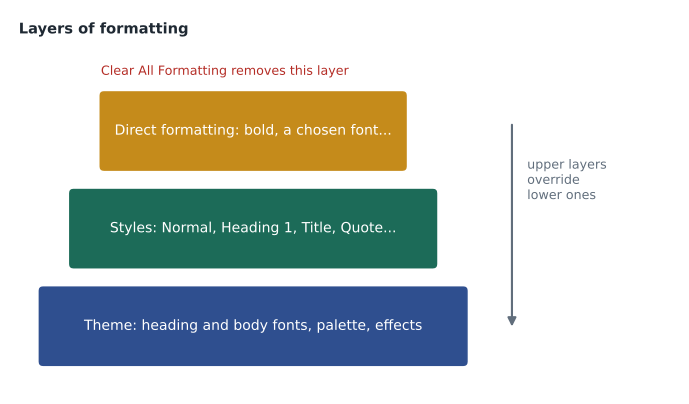
That layering explains how Clear All Formatting (the eraser A on the Home tab, or Ctrl+Space for character formatting alone) works. It removes direct formatting from the selection and returns the text to its style's formatting, usually Normal. It does not delete the text, and it does not remove highlighting, which Word treats separately. On the exam, "clear formatting" tasks expect exactly this button.
Text effects
Text Effects and Typography (the glowing A in the Font group) applies outline, shadow, reflection and glow to text, plus number styles, ligatures and stylistic sets for fonts that support them. A gallery at the top offers ready-made combinations. Text effects suit a title on a flyer or an event programme cover. They do not suit body text, and Rosalind's house rule was "no effects in client letters". On the exam, a task such as "apply the Fill: Blue, Accent color 1; Shadow text effect to the title" needs you to hover over gallery items until the ScreenTip shows the matching name, so read the names, not just the appearance.
Format Painter
Format Painter (the paintbrush in the Clipboard group) copies formatting from one place to another. Click in or select text with the formatting you want, click Format Painter once, then select the text to change. Double-click Format Painter to keep it on for several targets, and press Esc or click the button again to turn it off. If you select a whole paragraph including its paragraph mark before clicking Format Painter, it copies paragraph formatting too: alignment, indentation and spacing. If you select only a few characters, it copies character formatting only. The keyboard equivalents are Ctrl+Shift+C to copy formatting and Ctrl+Shift+V to paste it.
Worked problem
Making the proposal letters consistent with Format Painter
In a proposal letter, the package names "Garden Gold", "Harbour Classic" and "Lighthouse Premium" appear 14 times. Rosalind wants each formatted like the first one: bold, small caps and the dark teal theme colour. How should Teo do this quickly?
Show solution
- Format the first package name: Bold, then Ctrl+D and select Small caps, then Font Color > the dark teal swatch in Theme Colors.
- With the insertion point inside that formatted name, double-click Format Painter.
- Drag over each of the other 13 package names in turn. Each takes the formatting at once.
- Press Esc to turn off Format Painter.
Answer: Format one, double-click Format Painter and brush the rest. A character style would be even better for a document that will be updated often, which is the subject of lesson 5.
Highlighting, case and spacing
Text Highlight Color marks text with a coloured background, like a highlighter pen. It is useful for drafts ("check this date with the venue"), but it prints, and in documents for other people it can look unfinished. The Find and Replace dialog can find highlighted text through Format > Highlight, which is the fastest way to make sure none remains before a letter goes out. Remove highlighting by choosing No Color from the highlight drop-down.
Change Case changes the letters themselves, unlike the All caps effect in the Font dialog, which only changes how they display. If a heading was typed in capitals and you choose Sentence case, the letters really change; if a heading was typed normally with the All caps effect, clearing the effect shows the original letters. Shift+F3 cycles through UPPERCASE, lowercase and Capitalize Each Word for selected text. Character spacing (Font dialog, Advanced tab) widens or narrows the gap between letters; small amounts, such as expanded by 1 point, help a heading in capitals breathe.
Units and measures in text formatting
Font size is measured in points: 72 points to the inch. Body text is usually 10 to 12 points; headings 14 to 28 points. You can type sizes the list does not offer, such as 10.5, in the font size box. Increase Font Size (Ctrl+Shift+>) and Decrease Font Size (Ctrl+Shift+<) step through the standard sizes. When an exam task asks for a size, type it exactly; the task checks the value, not the method.
Proofing tools
The Editor pane (Review > Editor, or F7) checks spelling, grammar and, depending on your licence and settings, clarity, conciseness and formality suggestions. Red underlines mark spelling, double blue underlines mark grammar. Right-clicking a flagged word offers suggestions, Ignore All and Add to Dictionary. You can set the proofing language for selected text with Review > Language > Set Proofing Language, which is important for a bilingual document: marking French text as French stops the English checker flagging every word. On the Canadian site of the business, Rosalind sets English (Canada) as the proofing language for letters, so "colour" and "centre" are accepted.
Teo's practice documents taught him one more thing: Word Count (Review tab, Proofing group, or click the count on the status bar) shows pages, words, characters with and without spaces, paragraphs and lines, and whether to include text boxes, footnotes and endnotes. Grant applications and award nominations often set word limits, and Maple & Pine had once missed a tourism award shortlist because its entry was 40 words over.
Working with fonts sensibly
Font choice has practical consequences. Fonts that come with Microsoft 365, including the cloud fonts that download on demand, display correctly for any recipient using Word, while a font installed only on your computer may be substituted on someone else's screen, changing line breaks and page count. If a document must look identical everywhere, save it as PDF, or use File > Options > Save > Embed fonts in the file for Word documents that will be edited elsewhere, at the cost of a larger file. Rosalind's brand uses theme fonts that ship with Office, which removes the problem altogether.
Readability matters more than variety. Two typefaces, one for headings and one for body text, are enough for nearly any business document. Very light weights, condensed fonts and long passages in italics or capitals are harder to read, especially for people with low vision or dyslexia. Sizes below 10 points in body text make documents look crowded and fail some accessibility guidance. These are design habits rather than exam objectives, but the exam's documents follow them, and following them in your own work makes every other lesson in this course easier to apply.
Keyboard shortcuts for character formatting
Keyboard shortcuts make formatting faster than reaching for the mouse, and speed is valuable in a 50-minute exam. The most useful are Ctrl+B for bold, Ctrl+I for italic, Ctrl+U for underline, Ctrl+= for subscript, Ctrl+Shift+= for superscript, Ctrl+Shift+A for all caps, Ctrl+Shift+K for small caps and Ctrl+Space to remove character formatting. Each one toggles: press it again to remove the formatting. Teo printed a small card of shortcuts and kept it under his keyboard for the first month.
Worked problem
Cleaning up pasted text
A florist emails a description of a bridal package, and Teo pastes it into a proposal. It arrives in a blue 11-point Arial with yellow highlighting, while the proposal uses the theme body font. What is the fastest way to make it match?
Show solution
- Undo the paste (Ctrl+Z).
- Paste again with Home > Paste > Keep Text Only, or right-click and choose the Keep Text Only icon. The text takes the proposal's formatting.
- If the text is already in the document, select it, press Ctrl+Space to clear character formatting, and remove any highlight with Text Highlight Color > No Color.
Answer: Keep Text Only avoids the problem entirely; Ctrl+Space and No Color repair text that is already there.
Inserting the date and other quick content
Two small features save time in letters. Insert > Date & Time offers formats such as November 19, 2026 or 2026-11-19; select Update automatically only when the date should change every time the document opens, such as on a template, and leave it cleared for a letter that records when it was sent. Insert > Quick Parts > AutoText stores reusable chunks such as a signature block; type the first letters of an AutoText entry and press Enter when Word suggests it. Teo stored Rosalind's signature block, with her title and the company's phone number, as AutoText, so every proposal ended the same way.
Finally, remember Undo (Ctrl+Z) and Redo (Ctrl+Y). Word keeps a long undo history, and the Undo drop-down on the Home tab or Quick Access Toolbar lists recent actions so you can undo several at once. On the exam, undoing a mistaken formatting change is much faster than reversing it by hand.
Common mistakes
MistakePasting text from a web page and fixing its formatting by hand.
InsteadUse Paste Options > Keep Text Only so it takes the destination formatting.
MistakeUsing Clear All Formatting to remove highlighting.
InsteadHighlighting is removed with Text Highlight Color > No Color.
MistakeClicking Format Painter once and expecting it to stay on.
InsteadDouble-click it to apply formatting to several places; press Esc to stop.
MistakeTyping a hyphen for a range of times.
InsteadUse an en dash (9–11 a.m.), from the Symbol dialog's Special Characters tab or Ctrl+Minus on the number pad.
MistakeChoosing a gallery effect by appearance alone on the exam.
InsteadHover and read the ScreenTip name so it matches the task exactly.
Summary and key terms
- Insert > Symbol inserts symbols and special characters such as dashes, nonbreaking spaces and the copyright sign.
- Character formatting is in the Font group and the Font dialog (Ctrl+D), including small caps, hidden text and character spacing.
- Direct formatting sits on top of styles and themes; Clear All Formatting removes it but leaves highlighting.
- Format Painter copies formatting; double-click to apply it many times.
- Paste Options control whether pasted text keeps its source formatting; Editor and proofing languages check spelling and grammar.
- Character formatting
- Formatting applied to selected characters, such as font, size, bold and colour.
- Direct formatting
- Formatting applied to text by hand rather than through a style.
- Format Painter
- A tool that copies formatting from one selection and applies it to another.
- Nonbreaking space
- A space that keeps the words on either side on the same line.
- Text effects
- Outline, shadow, reflection and glow applied to text.
- Proofing language
- The language Word uses to check the spelling and grammar of selected text.
Practice problems
Work each problem on paper first, then reveal the answer to check.
What does Ctrl+D open?
Show answer
The Font dialog.
How do you apply the formatting of one word to six other words without clicking Format Painter six times?
Show answer
Double-click Format Painter, brush each word, then press Esc.
Which Paste Option discards the source formatting?
Show answer
Keep Text Only.
What is the difference between Change Case > UPPERCASE and the All caps effect?
Show answer
Change Case changes the letters themselves; All caps only changes how they display.
Lesson quiz · 5 questions
Score 60% or more to complete this lesson.
Create a free account to save your progress, take quizzes and earn a certificate.