
MSBA-170 · Lesson 10 of 12 · 21 min
Headers, footers and page numbers
▶ Video coming soon A video version of this lesson is on the way.
The grant application from lesson 8 had one more requirement in the funder's guidelines: every page after the cover must show the applicant's name and the page number, with roman numerals for the contents and executive summary and arabic numerals from the first chapter, starting at 1. Teo had already split the document into sections for other reasons. On the ninth Thursday he discovered that sections also control headers, footers and page numbering, which appear in the exam objective "insert and modify headers and footers" in the manage documents domain and come up in many tasks elsewhere.
Headers and footers
A header is the area in the top margin and a footer the area in the bottom margin. Whatever you put there repeats on every page of the section: a company name, a logo, a document title, a date, page numbers. Insert one from Insert > Header or Insert > Footer, which offer built-in designs (Blank, Blank (Three Columns), Austin, Facet, Grid, Ion and others) and Edit Header or Edit Footer. The fastest way into an existing header is to double-click in the top margin; double-click in the body, press Esc or choose Close Header and Footer to leave.
While you are working in a header or footer, the body text dims and the Header & Footer contextual tab appears. Its groups are: Header & Footer (Header, Footer and Page Number galleries), Insert (Date & Time, Document Info, Quick Parts, Pictures, Online Pictures), Navigation (Go to Header, Go to Footer, Previous, Next, Link to Previous), Options (Different First Page, Different Odd & Even Pages, Show Document Text), Position (Header from Top, Footer from Bottom, Insert Alignment Tab) and Close.
| Option | Effect | When to use it |
|---|---|---|
| Different First Page | The first page of the section gets its own header and footer, often left empty | Cover pages and letters on letterhead |
| Different Odd & Even Pages | Odd and even pages get separate headers and footers | Printed books, with page numbers on the outside edge |
| Link to Previous | The section uses the same header or footer as the section before | On by default; turn off to change a later section |
| Header from Top / Footer from Bottom | Distance of the header or footer from the page edge | Fitting a tall logo or a printer's limits |
| Show Document Text | Shows or hides the dimmed body text while editing | Concentrating on a busy header |
Content for headers and footers
Headers can contain anything a document can: text, pictures, tables and fields. Document Info inserts properties such as Author, File Name, File Path and Document Title; Quick Parts > Document Property offers more, including Company and Subject; Quick Parts > Field inserts any field. Because these are fields linked to the document's properties, changing the Title property in File > Info updates the header automatically. Teo inserted the Title property in the grant application's header and the company name typed as text, separated by a right-aligned alignment tab so the page number could sit at the right margin.
Placement uses tabs rather than spaces. The built-in header and footer styles already have a centre tab stop and a right tab stop, so pressing Tab twice moves to the right edge. Insert Alignment Tab in the Position group adds a tab that aligns to the margin or indent even if the margins change, which keeps a right-hand page number correctly placed in a landscape section.
Page numbers
Page Number (on the Insert tab or the Header & Footer tab) inserts a page number field at the Top of Page, Bottom of Page, in the Page Margins or at the Current Position, in a choice of designs such as Plain Number, Page X of Y, or Bold Numbers. Format Page Numbers opens a dialog with the Number format (1, 2, 3; i, ii, iii; a, b, c and others), Include chapter number (from a numbered heading style) and Page numbering: Continue from previous section or Start at. Remove Page Numbers deletes them.
A page number is a field, {PAGE}, so it shows the right number on every page. "Page X of Y" uses two fields, PAGE and NUMPAGES; in documents with a separately numbered front section, the SECTIONPAGES field gives the number of pages in the section, which is often what "of Y" should really say. Editing the digits by hand would turn nothing into a fixed number; always use the Page Number commands.
Sections and headers: Link to Previous
Each section has its own headers and footers, but new sections start linked to the previous one, showing "Same as Previous" on the right of the header area. While linked, a change in any section changes them all. To make a section different, click in its header or footer and turn off Link to Previous; from then on that section's header is independent. This one button is behind most questions people ask about headers: "why does changing the footer on page 10 change page 1?" and "why can I not have no number on the cover?"
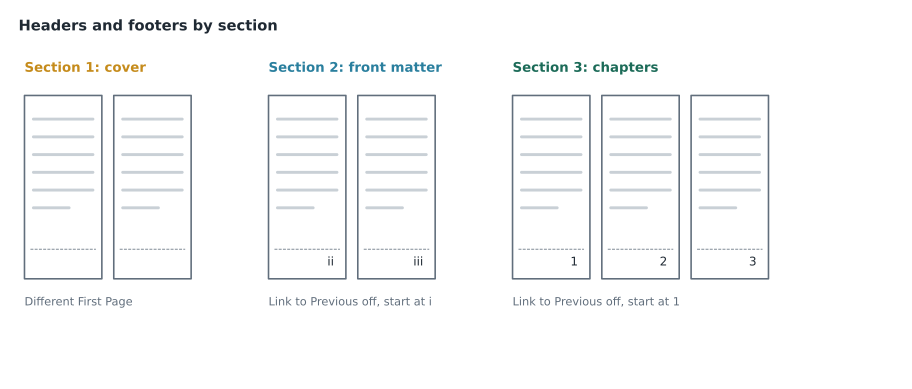
Headers and footers are linked separately. Turning off Link to Previous in a section's header does not unlink its footer, and with Different First Page or Different Odd & Even turned on, each of those headers and footers has its own link setting too. When a change spreads further than you intended, go to each header and footer in turn with Next and Previous and check for "Same as Previous".
Worked problem
Numbering the grant application
The application has three sections: a cover (section 1), the contents and executive summary (section 2) and the chapters (section 3). The cover needs no footer. Section 2 needs lowercase roman numerals starting at i. Section 3 needs arabic numerals starting at 1. Every footer shows "Maple & Pine Events" on the left and the page number on the right.
Show solution
- Double-click in the footer of section 2. Turn off Link to Previous. Type Maple & Pine Events, press Tab twice and choose Page Number > Current Position > Plain Number.
- Choose Page Number > Format Page Numbers. Set Number format to i, ii, iii and Start at to i.
- Choose Next to move to section 3's footer. Turn off Link to Previous so the next change does not alter section 2.
- In section 3, choose Format Page Numbers. Set Number format to 1, 2, 3 and Start at to 1.
- Choose Previous until you reach section 1's footer and delete its contents. Because section 2 is no longer linked to it, section 2 keeps its footer.
- Close Header and Footer and check the pages in Print Layout.
Answer: Unlink each later section before changing it, set Number format and Start at per section in Format Page Numbers, and clear the cover's footer last.
Different first page and odd and even pages
Different First Page is a section setting, so it applies to the first page of each section where it is selected. In a letter, it keeps the letterhead on page 1 only; in a report, it can leave the first page of each chapter section without a header. Teo used it on the grant application's cover section instead of a separate empty footer, which is cleaner: select Different First Page in section 1 and leave the first-page footer empty.
Different Odd & Even Pages applies to the whole document. It gives separate odd-page and even-page headers and footers, so page numbers can sit on the outside edge of a two-sided printed booklet: right-aligned on odd pages, left-aligned on even pages. When you turn it on, the existing header becomes the odd-page header and the even-page header starts empty, which surprises people the first time.
Watermarks and logos in the header
As lesson 3 mentioned, a watermark is stored in the header, which is why it appears on every page of a section and why unlinking a header can make a watermark appear on some pages and not others. Logos placed in the header can float behind or in front of text and be positioned anywhere on the page, a trick designers use for full-page letterhead backgrounds. Because headers are part of the page layout, the Accessibility Checker does not read them as main content; put anything important, such as a confidentiality notice, in the body as well.
Cover pages and building blocks
Insert > Cover Page adds a designed first page with placeholders for title, subtitle, author and date, many of them linked to document properties. Cover pages are building blocks, reusable pieces of content stored in templates; so are the built-in header, footer and page number designs. Inserting a cover page sets Different First Page so the cover has no header. Remove Current Cover Page at the bottom of the gallery removes it. The Associate exam may ask for a cover page; the Expert exam goes further into building blocks.
| Field | Shows | Inserted by |
|---|---|---|
| PAGE | The current page number | Page Number commands |
| NUMPAGES | The total pages in the document | Page X of Y designs |
| SECTIONPAGES | The pages in the current section | Quick Parts > Field |
| DOCPROPERTY Title (or the Title content control) | The document's Title property | Document Info or Quick Parts > Document Property |
| DATE | Today's date, updated when the field updates | Date & Time with Update automatically |
| FILENAME | The file's name, optionally with its path | Document Info > File Name |
Headers in different kinds of documents
Different documents use headers and footers differently. Letters on letterhead usually show the full letterhead on page 1 and only a small name and page number on later pages, which is exactly what Different First Page is for. Reports often show the title in the header and the page number in the footer. Contracts may carry a version number or "Confidential" on every page. Books printed on both sides alternate headers, with the chapter title on odd pages and the book title on even pages, using Different Odd & Even Pages and, in more advanced work, the StyleRef field to pull in the current chapter heading automatically.
Whatever the design, keep headers small and consistent. Large logos and busy headers push the body text down and make every page feel crowded. Maple & Pine's letter template uses a 0.5-inch header distance, a small logo and the company name on page 1, and only the company name and page number afterwards.
Removing headers and page numbers
Removing is as important as adding. Header > Remove Header and Footer > Remove Footer clear the current section's header or footer; if it is linked to other sections, they clear too, so unlink first when you want to remove it from one section only. Page Number > Remove Page Numbers deletes page number fields in the current header or footer and those linked to it. To start numbering on page 2 so that page 2 shows "1", combine Different First Page with Format Page Numbers > Start at 0 in that section; the first page carries the invisible number 0 and the second page shows 1.
Worked problem
A letter that numbers from page 2
Rosalind's three-page letters should have the full letterhead on page 1 with no page number, and "Maple & Pine Events, page 2" style footers on later pages. How does Teo set up the template?
Show solution
- Double-click in the header and select Different First Page.
- In the First Page Header, insert the full letterhead with the logo and address.
- Move to the ordinary footer (page 2) with Next, type Maple & Pine Events, page and insert Page Number > Current Position > Plain Number.
- Leave the First Page Footer empty and close the header and footer.
Answer: Different First Page gives page 1 its own header and footer; the regular footer with its page number field appears from page 2 onward, showing 2.
Common mistakes
MistakeChanging a later section's footer while it is still linked.
InsteadTurn off Link to Previous in that section first, for the header and footer separately.
MistakeTyping page numbers by hand.
InsteadInsert Page Number fields and set Start at in Format Page Numbers.
MistakeUsing spaces to push a page number to the right.
InsteadUse the right tab stop or an alignment tab.
MistakeCreating a separate empty footer for a cover.
InsteadSelect Different First Page for that section.
MistakeTurning on Different Odd & Even and assuming even pages kept the header.
InsteadFill in the new even-page header and footer as well.
Summary and key terms
- Insert headers and footers from the Insert tab or by double-clicking the margin; the Header & Footer tab holds the tools.
- Different First Page and Different Odd & Even Pages give pages their own headers and footers.
- Each section has its own headers and footers, linked to the previous section until Link to Previous is turned off.
- Page numbers are fields; Format Page Numbers sets the number format and Start at for each section.
- Document Info and Quick Parts insert properties such as Title and File Name that update automatically.
- Header
- The area in the top margin whose content repeats on each page of a section.
- Footer
- The area in the bottom margin whose content repeats on each page of a section.
- Link to Previous
- A setting that makes a section use the same header or footer as the section before.
- Different First Page
- A section option that gives the first page its own header and footer.
- Page number field
- A field that displays the current page number automatically.
- Alignment tab
- A tab that aligns text to the margin or indent even if the margins change.
Practice problems
Work each problem on paper first, then reveal the answer to check.
What does "Same as Previous" in a footer mean?
Show answer
The footer is linked to the previous section and will change with it.
Where do you make page numbering start at 1 in section 3?
Show answer
In section 3's footer, Page Number > Format Page Numbers > Start at 1.
Is Different Odd & Even Pages a section setting or a document setting?
Show answer
A document setting; Different First Page is a section setting.
Which field shows the total number of pages?
Show answer
NUMPAGES.
Lesson quiz · 5 questions
Score 60% or more to complete this lesson.
Create a free account to save your progress, take quizzes and earn a certificate.