
PYTH-101 · Lesson 10 of 12 · 24 min
Reading and writing files
▶ Video coming soon A video version of this lesson is on the way.
Every program so far has forgotten everything the moment it finished. Stock levels typed in on Monday were gone by Tuesday. Real tools keep their data in files: the till exports sales to a file, Theo keeps the coffee list in a spreadsheet saved as CSV, and the capstone in lesson 12 saves Ridgeline's stock between runs. This lesson shows how Python opens, reads and writes text files, how the with statement closes them safely, and how the standard library's csv and json modules handle the two file formats a small business meets most often.
File work introduces a new kind of problem: the outside world. A file might be missing, misnamed, in a different folder or full of unexpected lines. This lesson concentrates on the normal path; lesson 11 adds the error handling that makes file programs sturdy.
Files, paths and the with statement
A file is a named sequence of bytes stored on a disk. A text file holds characters, encoded as bytes, usually with UTF-8, and divided into lines by new-line characters. To use a file, a program opens it, reads or writes, and closes it. The built-in function open takes the file's name, or path, and a mode: 'r' to read (the default), 'w' to write, which creates the file or empties an existing one, and 'a' to append to the end.
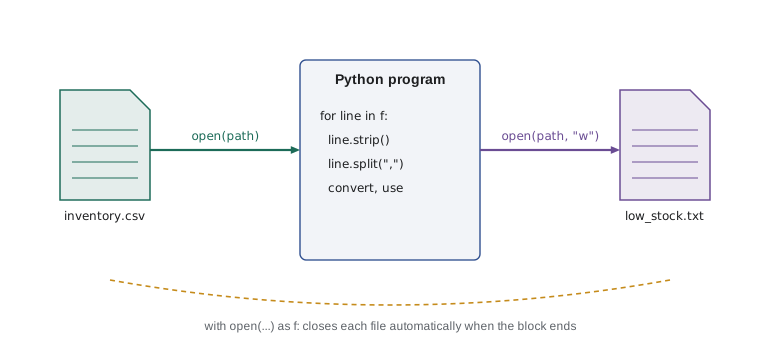
The with statement is the safe way to work with a file. It opens the file, runs the indented block, and closes the file automatically when the block ends, even if an error happens inside it. Closing matters: until a file is closed, written data may still be waiting in memory rather than saved on the disk, and an operating system limits how many files a program can have open. With with, you never have to remember.
with open("menu.txt", "w", encoding="utf-8") as f:
    f.write("drip coffee,3.25\n")
    f.write("latte,5.25\n")
    f.write("cappuccino,4.95\n")
with open("menu.txt", encoding="utf-8") as f:
    text = f.read()
print(text)
print(repr(text))drip coffee,3.25 latte,5.25 cappuccino,4.95 'drip coffee,3.25\nlatte,5.25\ncappuccino,4.95\n'
The write method does not add new lines by itself, so each string ends with \n. read returns the whole file as one string; repr shows the hidden new-line characters. Always pass encoding='utf-8' when opening text files. Recent versions of Python use UTF-8 by default, but being explicit keeps a program working the same way on every computer and with every version, and it guarantees that names such as Café survive the trip to the disk and back.
A path tells Python where a file is. A bare name such as menu.txt is relative: Python looks for it in the current working directory, usually the folder the program was started from. A path can include folders, such as data/sales.csv, and Python accepts forward slashes on every operating system, including Windows. The standard library's pathlib module treats paths as objects, which makes joining folders and checking whether a file exists easy; PYTH-120 uses it extensively. The listings on this page run in your browser's own small, temporary file system, so files you create there disappear when you reload the page.
Reading line by line
For most data files, you want to handle one line at a time. A file object can be looped over directly: for line in f: gives one line per iteration, including its new-line character at the end. Strip it with line.strip(), or line.rstrip('\n') if spaces at the ends matter. Looping over the file reads it gradually, so this works even for files far too big to read in one go.
with open("roast_log.txt", "w", encoding="utf-8") as f:
    f.write("B-0410 10.1\nB-0411 10.3\n\nB-0412 10.2\n")
total = 0.0
batches = 0
with open("roast_log.txt", encoding="utf-8") as f:
    for line in f:
        line = line.strip()
        if not line:
            continue                 # skip blank lines
        batch, kg = line.split()
        total += float(kg)
        batches += 1
print(f"{batches} batches, {total:.1f} kg roasted")3 batches, 30.6 kg roasted
The pattern in the loop, strip, skip blanks, split, convert, use, is the heart of almost every program that reads data. Blank lines at the end of files are extremely common, so the check for an empty line is not optional. Other useful methods are readline, which reads a single line, and readlines, which returns a list of all the lines, but the plain for loop is usually the clearest choice.
Writing files
Opening a file with mode 'w' creates it if it does not exist and empties it if it does, so be careful: opening an important file for writing by mistake erases it. Mode 'a' adds to the end instead, which is right for logs that grow over time. As well as write, you can pass file=f to print, which formats values with spaces and ends the line for you, just as it does on the screen.
stock = {"RC-101": 42, "RC-104": 9, "RC-105": 12}
with open("low_stock.txt", "w", encoding="utf-8") as out:
    print("Coffees below 15 bags", file=out)
    for code, bags in stock.items():
        if bags < 15:
            print(code, bags, file=out)
with open("activity.log", "a", encoding="utf-8") as log:
    log.write("2026-11-02 08:00 low-stock report written\n")
print(open("low_stock.txt", encoding="utf-8").read())Coffees below 15 bags RC-104 9 RC-105 12
The last line opens a file without with, purely to show the result in one line; in real programs, use with for every file. Run the listing twice in the page and then read activity.log: the low-stock file is replaced each time, while the log gains a line on each run, which is exactly the difference between 'w' and 'a'.
Try it yourself
Total from a sales file
The till has saved a file called cash_sales.txt with one sale amount per line; some lines are blank. Write a function file_total(path) that opens the file, adds up the amounts and returns the total rounded to 2 decimal places. For the file created by this exercise the total is 31.95.
The file is created for you before your code runs, so you only need to read it.
def file_total(path):
    total = 0.0
    return total

print(file_total("cash_sales.txt"))
CSV files
CSV, for comma-separated values, is the plain-text format that spreadsheets, tills and online shops all understand. Each line is a row, values are separated by commas, and the first row usually holds column names. Splitting on commas works for simple files, but breaks as soon as a value itself contains a comma, such as a coffee called Colombia, Huila, which CSV handles by putting the value in quotation marks. The csv module understands all of these rules, so use it for any real CSV file.
import csv
rows = [["sku", "name", "price", "stock"],
        ["RC-101", "Sunrise Blend", "18.50", "42"],
        ["RC-103", "Colombia, Huila", "19.75", "27"],
        ["RC-104", "Sumatra Dark", "20.25", "9"]]
with open("inventory.csv", "w", newline="", encoding="utf-8") as f:
    csv.writer(f).writerows(rows)
print(open("inventory.csv", encoding="utf-8").read())
with open("inventory.csv", newline="", encoding="utf-8") as f:
    for row in csv.DictReader(f):
        value = float(row["price"]) * int(row["stock"])
print(f"{row['sku']} {row['name']:<16}{value:>8.2f}")sku,name,price,stock RC-101,Sunrise Blend,18.50,42 RC-103,"Colombia, Huila",19.75,27 RC-104,Sumatra Dark,20.25,9 RC-101 Sunrise Blend 777.00 RC-103 Colombia, Huila 533.25 RC-104 Sumatra Dark 182.25
csv.writer turns lists into correctly quoted lines; notice how the name containing a comma was written in quotation marks. csv.DictReader reads each row as a dictionary keyed by the column names in the first row, so the code can say row['price'] instead of row[2], which keeps working even if someone adds a column to the spreadsheet. Every value comes back as a string, so convert numbers yourself. The csv documentation recommends opening CSV files with newline='', which lets the module handle line endings correctly on every platform.
JSON files
JSON, JavaScript Object Notation, is the standard format for structured data on the web and for saving program settings and state. It looks almost exactly like Python's dictionaries and lists: objects in curly braces with string keys, arrays in square brackets, numbers, strings, true, false and null. The json module converts between Python values and JSON text: json.dump writes a value to a file, and json.load reads it back.
import json
coffees = {
    "RC-101": {"name": "Sunrise Blend", "price": 18.50, "stock": 42},
    "RC-104": {"name": "Sumatra Dark", "price": 20.25, "stock": 9},
}
with open("ridgeline.json", "w", encoding="utf-8") as f:
    json.dump(coffees, f, indent=2)
print(open("ridgeline.json", encoding="utf-8").read())
with open("ridgeline.json", encoding="utf-8") as f:
    loaded = json.load(f)
print(loaded["RC-104"]["stock"] + 30)
print(loaded == coffees){
"RC-101": {
"name": "Sunrise Blend",
"price": 18.5,
"stock": 42
},
"RC-104": {
"name": "Sumatra Dark",
"price": 20.25,
"stock": 9
}
}
39
TrueUnlike CSV, JSON keeps numbers as numbers and nesting as nesting, so the dictionary of records from lesson 9 goes to the file and comes back unchanged, without any conversion code. The indent setting makes the file readable by people, which helps when you need to check or fix it by hand. JSON has a few limits: keys are always strings, and Python tuples come back as lists, but for saving and loading a program's data it is the simplest choice. The capstone saves Ridgeline's stock to ridgeline.json in exactly this way.
| Format | Best for | Python module | Values come back as |
|---|---|---|---|
| Plain text | Logs, simple lists, reports for people | Built-in open | Strings |
| CSV | Tables shared with spreadsheets and tills | csv | Strings (convert numbers yourself) |
| JSON | Structured data and a program's saved state | json | Dicts, lists, strings, numbers, True, False, None |
Worked problem
Turning the till's export into a daily summary
The till writes sales.csv with columns time, item, qty and price. Anita wants a script that reads it and writes summary.txt with the number of sales, the total revenue and the revenue per item, largest first. Plan the program.
Show solution
- Read: open sales.csv with newline="" and loop over csv.DictReader.
- For each row: amount = int(row['qty']) * float(row['price']); add it to a total and to a dictionary by_item using get with a default of 0.
- Count the rows as you go.
- Write: open summary.txt with mode "w" and print the count and total, then each item from sorted(by_item.items(), key=..., reverse=True) with f-strings.
- Check: build a small test file by hand where the totals are easy to work out, run the script and compare.
Answer: A read loop that accumulates totals, followed by a write block that prints the summary.
import csv
with open("sales.csv", "w", newline="", encoding="utf-8") as f:
    w = csv.writer(f)
    w.writerow(["time", "item", "qty", "price"])
    w.writerows([["08:02", "latte", 2, 5.25], ["08:05", "muffin", 1, 3.75],
                 ["08:11", "drip coffee", 3, 3.25], ["08:30", "latte", 1, 5.25]])
by_item = {}
total = 0.0
count = 0
with open("sales.csv", newline="", encoding="utf-8") as f:
    for row in csv.DictReader(f):
        amount = int(row["qty"]) * float(row["price"])
        by_item[row["item"]] = by_item.get(row["item"], 0) + amount
        total += amount
        count += 1
with open("summary.txt", "w", encoding="utf-8") as out:
    print(f"{count} sales, total {total:.2f}", file=out)
    for item, amount in sorted(by_item.items(), key=lambda p: p[1], reverse=True):
        print(f"  {item:<12}{amount:>7.2f}", file=out)
print(open("summary.txt", encoding="utf-8").read())4 sales, total 29.25 latte 15.75 drip coffee 9.75 muffin 3.75
Try it yourself
Save the low-stock list
Write a function save_low(stock, path, limit=10) that writes one line for each coffee in the dictionary stock whose count is below limit, in the form RC-104,9, in the dictionary's order, and returns how many lines it wrote.
With the starter data, save_low(stock, "low.csv") writes the single line RC-104,9 and returns 1.
stock = {"RC-101": 42, "RC-104": 9, "RC-105": 12}

def save_low(stock, path, limit=10):
    written = 0
    return written

print(save_low(stock, "low.csv"))
Common mistakes
MistakeOpening an existing file with "w" when you meant to add to it.
InsteadMode "w" empties the file; use "a" to append.
MistakeForgetting the new line when using write.
InsteadEnd each line with \n, or use print(..., file=f).
MistakeLeaving new-line characters on lines read from a file.
InsteadCall line.strip() before splitting or converting.
MistakeSplitting CSV lines on commas by hand.
InsteadUse the csv module, which handles quoted values that contain commas.
MistakeOpening files without with and forgetting to close them.
InsteadUse with open(...) as f: for every file.
MistakeLeaving out the encoding.
InsteadPass encoding="utf-8" for text files so they behave the same everywhere.
Summary and key terms
- open(path, mode, encoding="utf-8") opens a file; modes are "r" to read, "w" to write and "a" to append.
- with closes the file automatically, even if an error occurs.
- Loop over a file to read it line by line; strip each line and skip blank ones.
- write adds text exactly as given; print(..., file=f) adds spaces and a new line.
- The csv module reads and writes spreadsheet-style files correctly; DictReader gives each row as a dictionary.
- The json module saves and loads dictionaries and lists with json.dump and json.load.
- file
- A named sequence of bytes stored on a disk.
- path
- The name and location of a file, relative or absolute.
- mode
- How a file is opened: read, write or append.
- with statement
- A statement that sets up a resource such as a file and cleans it up afterwards.
- encoding
- The rule for turning characters into bytes; UTF-8 is standard.
- current working directory
- The folder relative paths are measured from.
- CSV
- Comma-separated values, a plain-text table format.
- DictReader
- A csv reader that returns each row as a dictionary keyed by column names.
- JSON
- A text format for structured data made of objects, arrays, strings and numbers.
- serialization
- Turning data in memory into a format that can be saved or sent, such as JSON.
Practice problems
Work each problem on paper first, then reveal the answer to check.
What happens to an existing file opened with mode "w"?
Show answer
It is emptied immediately, before anything is written.
Write a with block that prints every line of notes.txt without its new line.
Show answer
with open("notes.txt", encoding="utf-8") as f: for line in f: print(line.rstrip("\n"))
Why is csv.DictReader often better than csv.reader?
Show answer
Columns are found by name, so the code still works if the column order changes.
What does json.load return for a file containing {"stock": 9}?
Show answer
The dictionary {"stock": 9}.
Which mode adds lines to the end of a log?
Show answer
"a"
Why might float(line) fail on a line read from a file?
Show answer
The line may be blank or contain extra text; strip it and check it first.
Lesson quiz · 5 questions
Score 60% or more to complete this lesson.
Create a free account to save your progress, take quizzes and earn a certificate.