
NET-101 · Lesson 8 of 12 · 23 min
A structured troubleshooting method
▶ Video coming soon A video version of this lesson is on the way.
Troubleshooting is the heart of IT support. Users rarely arrive with a clear fault; they arrive with a symptom, often described in a hurry: the computer is broken, the printer is acting up, nothing works. Inexperienced technicians react by trying things at random, rebooting, reinstalling and swapping parts until something changes. Sometimes that works. More often it wastes time, creates new problems and leaves nobody knowing what was actually wrong. Experienced technicians follow a method. This lesson teaches the standard six-step troubleshooting method used across the industry and examined in CompTIA A+, along with the habits that make it work: good questions, careful theories, one change at a time and thorough notes.
The six steps
The method looks simple written down, which is part of its strength. It works on a frozen tablet, a failed drive, a slow network or a misbehaving printer, and it works whether you are an apprentice like Jordan or a senior engineer.
| Step | What it involves | Key questions |
|---|---|---|
| 1. Identify the problem | Gather information from the user, the device and any logs; reproduce the problem if possible; back up data before changes | What exactly happens? Since when? What changed? Who else is affected? |
| 2. Establish a theory of probable cause | List likely causes, starting with the obvious; question the obvious too | What could produce exactly these symptoms? |
| 3. Test the theory to determine the cause | Check the theory without making permanent changes; if it is wrong, form a new theory or escalate | Does the evidence confirm or rule out this cause? |
| 4. Establish a plan of action and implement the solution | Plan the fix, consider its effects on users and other systems, get approval if needed, then apply it | What is the least disruptive fix? Who needs to know? |
| 5. Verify full system functionality | Confirm with the user that everything works, not just the symptom; add preventive measures | Does everything work, and how do we stop this happening again? |
| 6. Document findings, actions and outcomes | Record the symptoms, cause, fix and time spent in the ticket and the knowledge base | Could someone else fix this next time from my notes? |
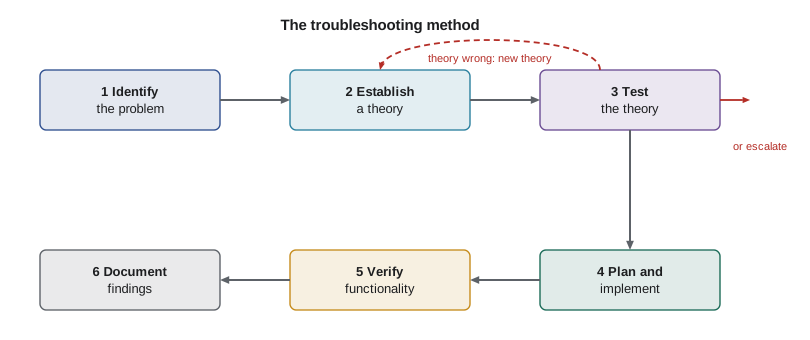
Two features of the method matter more than any others. First, it separates finding the cause from fixing it. Steps 1 to 3 are about understanding; nothing permanent should change until step 4. Second, it loops. When testing shows that a theory is wrong, you go back, form a new theory and test that. When you run out of theories, or the problem is beyond your access or skill, you escalate to someone who can help, passing on everything you have learned so they do not start from scratch.
Step 1: identifying the problem
Most troubleshooting time is saved or wasted in the first step. The goal is to replace a vague complaint with a precise description: what the user was trying to do, what they expected, what actually happened, any error messages word for word, when it started and whether anything changed around that time. A few well-chosen questions usually get there. Open questions, such as what were you doing when it happened, get the user describing; closed questions, such as does it happen on the other tablet too, pin down details.
The question what changed recently is the most powerful in IT support. Problems rarely appear out of nowhere: a Windows update installed overnight, a new app was added, a cable was moved during cleaning, a password expired, the internet provider worked on the line. Users often forget changes or do not think them relevant, so ask directly and check the evidence yourself: update history, recently installed programs, event logs and the ticket history for that device.
Whenever possible, reproduce the problem: watch it happen, or make it happen yourself. A problem you can reproduce can be tested; one you cannot is much harder. Find out the scope as well. One user or many? One device or several? One application or everything? A problem affecting every device at Ridgeline points at something shared, such as the internet connection or a cloud service, while one affecting a single device points at that device. Finally, before changing anything that could lose data, make sure the user's important files are backed up.
Steps 2 and 3: theories and tests
With a clear description, list the possible causes and rank them by likelihood and by how easy they are to check. Technicians are taught to question the obvious: is the device plugged in and switched on, is the cable connected at both ends, is the monitor on the right input, is the user signed in to the right account. These checks feel almost insulting, but they resolve a surprising number of tickets and take seconds. Ask about them tactfully: could you check that the cable is firmly in at the back of the printer is better than is it plugged in.
A useful way to organize theories is to work through the layers from lesson 1, either from the bottom up, starting with power and cables and working up to the application, or from the top down, starting with the application. Another approach is divide and conquer: split the system in half and test which half the fault is in. If a computer cannot reach a website, pinging the router tests the first half of the path; if the router answers, the fault lies beyond it.
Testing a theory means gathering evidence for or against it without changing things permanently. If you suspect a faulty cable, try a known-good one. If you suspect a failing power supply, test it with a power supply tester or swap in a known-good unit. If you suspect a recent update, check whether the problem started at the same time. Change one thing at a time and observe the result. Changing three things at once may fix the problem, but you will not know which change did it, and you may have introduced a new problem with the other two.
Steps 4 to 6: fixing, verifying and documenting
Once the cause is confirmed, plan the fix. Consider who will be affected and when: replacing the receipt printer at noon on a Saturday stops the cafe taking card payments with receipts, so it waits for a quiet moment unless the printer is completely dead. Larger changes, especially on shared systems, go through the organization's change management process, which records what will change, when, who approved it and how it will be undone if it goes wrong. ITSM-201 and the IT service management courses cover change management in detail.
After the fix, verify that the whole system works, not just the original symptom. If you replaced a network cable, check that the computer reaches the internet, the printer and the NAS. Ask the user to confirm, because they know what working normally looks like for their job. Then think about prevention: if a cable failed because a chair kept rolling over it, route it differently; if a disk filled up, set an alert before it happens again.
Finally, document. The ticket should record what the user reported, what you found, what you did, the cause and the result, written clearly enough that a colleague could understand it months later. Good documentation turns individual fixes into team knowledge: the second time a problem appears, the fix takes minutes. Jordan keeps Ridgeline's notes in a small knowledge base, with an article for each recurring issue.
Tickets, impact and priority
Ridgeline's support requests are tracked as tickets, each with a number such as HD-2041, the user, the device, a category, a short summary, a priority and a log of every action. A ticket system ensures nothing is forgotten, shows what is waiting, and builds a history of each device. ITSM-201 covers ticketing systems properly; here, the important idea is priority.
Priority decides which ticket gets worked on first, and it is usually calculated from two separate judgments. Impact is how much of the business is affected: one person, a team or the whole business. Urgency is how quickly the effect becomes serious: whether work can continue with a workaround or has stopped. A problem with high impact and high urgency, such as the point-of-sale system failing on a Saturday morning, is priority 1 and is worked on immediately. A cosmetic issue for one person with a workaround is priority 4 and can wait for Sam's weekly visit.
| Urgency high | Urgency medium | Urgency low | |
|---|---|---|---|
| Impact high (whole business) | P1 | P2 | P3 |
| Impact medium (a team or key function) | P2 | P3 | P4 |
| Impact low (one person) | P3 | P4 | P4 |
MATRIX = {
    ("high", "high"): 1, ("high", "medium"): 2, ("high", "low"): 3,
    ("medium", "high"): 2, ("medium", "medium"): 3, ("medium", "low"): 4,
    ("low", "high"): 3, ("low", "medium"): 4, ("low", "low"): 4,
}
tickets = [
    ("HD-2041", "Card readers not connecting at the counter", "high", "high"),
    ("HD-2042", "Anita's second monitor flickers", "low", "low"),
    ("HD-2043", "Label printer printing across label gaps", "medium", "high"),
]
for number, summary, impact, urgency in tickets:
print(f"{number} P{MATRIX[(impact, urgency)]} {summary}")HD-2041 P1 Card readers not connecting at the counter HD-2042 P4 Anita's second monitor flickers HD-2043 P2 Label printer printing across label gaps
Try it yourself
Ticket priority calculator
Write a function priority(impact, urgency) that returns the priority number 1 to 4 from Ridgeline's matrix, where impact and urgency are each "high", "medium" or "low". Then write sort_queue(tickets) that returns the tickets sorted by priority, most urgent first, keeping the original order for tickets with the same priority. Each ticket is a tuple (number, impact, urgency).
For the starter queue, sort_queue(queue) should return the tickets in the order HD-2050, HD-2052, HD-2051, HD-2053.
def priority(impact, urgency):
    return 4

def sort_queue(tickets):
    return tickets

queue = [("HD-2050", "high", "medium"), ("HD-2051", "low", "high"),
         ("HD-2052", "medium", "high"), ("HD-2053", "low", "low")]
print([t[0] for t in sort_queue(queue)])
Communicating while you troubleshoot
Technical skill is only half of troubleshooting; the other half is people. Users who report a problem are often stressed, because the problem is stopping their work. Listen without interrupting, let them finish describing the problem, repeat it back to confirm you understood, and avoid jargon. Tell them what you are going to do and roughly how long it will take, and keep them updated if it takes longer. Never blame the user, even when the cause was something they did; explain what happened and how to avoid it next time. Respect their privacy and their workspace: do not read their email or files, and ask before moving things on their desk. Lesson 11 returns to professional conduct.
Worked problem
Working the method on a real ticket
Ticket HD-2047: Kai reports that the roast profiler on ROAST-LT showed no temperature readings at the start of this morning's roast, although it worked yesterday. Walk through the six steps.
Show solution
- Identify: the profiler opens normally but shows Device not found. The logger's light is on. Asked what changed, Kai says Windows installed updates overnight. Device Manager shows the USB-to-serial adapter with a warning symbol. Only ROAST-LT is affected.
- Theories, most likely first: the update replaced or broke the adapter's driver; the USB cable or port is faulty; the logger itself has failed.
- Test: moving the adapter to another USB port gives the same warning, and the Windows update history shows a driver update for the adapter last night, so the driver theory fits the evidence. The logger's light shows it has power.
- Plan and implement: between roasts, roll back the driver in Device Manager to the previous version, which the maker recommends for this software, and pause driver updates for that device.
- Verify: the profiler shows live temperatures; Kai runs a short test roast and confirms the readings look normal. Preventive measure: Sam adds the adapter to the list of devices whose drivers are not updated automatically.
- Document: the ticket records the symptom, the cause (an automatic driver update), the rollback and the update block, and Jordan adds a knowledge base article titled Roast profiler shows Device not found after updates.
Answer: An overnight driver update broke the USB-to-serial adapter; rolling it back and blocking that update fixed it, and the documentation means the next occurrence takes minutes.
Common mistakes
MistakeStarting to change things before understanding the problem.
InsteadComplete steps 1 to 3 first; nothing permanent changes until the cause is confirmed.
MistakeChanging several things at once.
InsteadChange one thing at a time and observe the result, so you know what fixed it.
MistakeSkipping the obvious checks to look clever.
InsteadCheck power, cables, inputs and accounts first, tactfully.
MistakeForgetting to ask what changed recently.
InsteadAsk directly, then check update history, installed programs and logs yourself.
MistakeClosing the ticket when the symptom disappears.
InsteadVerify full functionality with the user and add preventive measures.
MistakeWriting ticket notes such as fixed it.
InsteadRecord symptoms, cause, actions and outcome clearly enough for a colleague to follow.
Summary and key terms
- The six steps are identify, theorize, test, plan and implement, verify and document.
- Finding the cause comes before fixing; the method loops back when a theory fails and escalates when needed.
- Ask what changed recently, find the scope of the problem and reproduce it if possible.
- Question the obvious, work through the layers, divide and conquer, and change one thing at a time.
- Plan fixes around the business and use change management for significant changes.
- Priority combines impact and urgency.
- Clear communication and thorough documentation are part of the job, not extras.
- troubleshooting method
- A structured process for finding and fixing problems.
- theory of probable cause
- A reasoned guess at what is causing the symptoms.
- escalation
- Passing a problem to someone with more access or expertise.
- reproduce
- Make a problem happen again in order to observe and test it.
- scope
- How many users, devices or services a problem affects.
- divide and conquer
- Splitting a system in half repeatedly to locate a fault.
- change management
- A process for planning, approving and recording changes.
- impact
- How much of the business a problem affects.
- urgency
- How quickly a problem's effect becomes serious.
- knowledge base
- A collection of articles recording known problems and fixes.
Practice problems
Work each problem on paper first, then reveal the answer to check.
What is the first step of the troubleshooting method?
Show answer
Identify the problem.
Why should only one change be made at a time?
Show answer
So that you know which change fixed the problem and do not introduce new ones.
Every device at Ridgeline loses internet access at once. Where should Jordan look first?
Show answer
At shared parts: the router, the internet connection and the provider's status, not individual devices.
A problem affects one person and has a simple workaround. What priority does Ridgeline's matrix give?
Show answer
P4: low impact, low urgency.
What should happen after a fix is applied but before the ticket is closed?
Show answer
Verify full system functionality with the user, add preventive measures and document.
Give an example of tactfully questioning the obvious.
Show answer
Could you check that the cable is firmly in at the back of the printer, rather than asking whether it is plugged in.
Lesson quiz · 5 questions
Score 60% or more to complete this lesson.
Create a free account to save your progress, take quizzes and earn a certificate.