
NET-101 · Lesson 10 of 12 · 23 min
Troubleshooting software, malware and performance
▶ Video coming soon A video version of this lesson is on the way.
Most support tickets are not about broken hardware. They are about software: an app that crashes, a computer that has become painfully slow, a browser full of pop-ups, a program that will not install, or a strange message that might be a virus. Software problems can be harder to pin down than hardware faults, because they leave no burnt smell or clicking noise, but the troubleshooting method from lesson 8 works just as well. This lesson covers application problems, performance problems, malware and the logs that tie them together.
Application problems
When one application misbehaves and everything else works, the problem is usually in that application, its settings, its data or the components it depends on. The common fixes form a ladder, from quick and harmless to slow and drastic. Close and reopen the app. Restart the computer, which clears memory and finishes pending updates. Check for updates to the app, since the bug may already be fixed. Check whether the problem affects one user or every user on that computer, which separates a damaged user profile or settings file from a problem with the installation itself. Repair the installation, an option most Windows apps offer under Installed apps in Settings. Finally, uninstall and reinstall. Climb only as far as needed, and note each step in the ticket.
Compatibility is a common cause of trouble after changes. An app built for an older version of Windows may not run correctly on a newer one, and Windows offers compatibility settings that make it behave as it would on an older version. Some apps depend on shared components, such as runtime libraries, which must be installed at the right version. Specialized business software often has a list of supported operating system versions; installing a major Windows feature update before the vendor supports it is a classic cause of a sudden outage. That is one reason Ridgeline delays feature updates for a few weeks, as lesson 5 described.
Mobile apps follow similar rules. If the point-of-sale app on a tablet freezes, force-close and reopen it, check for app and operating system updates, clear the app's cache, and as a last resort remove and reinstall it, which on a managed tablet can be pushed from the MDM console. Before reinstalling a business app, confirm that its data lives in the cloud, as Ridgeline's sales data does, rather than only on the device.
Performance problems
Slow is the most common and least specific complaint in IT support. The key question is slow at what, and since when. A computer that has always been slow may simply be underpowered for its job. One that became slow suddenly points to a change: an update, a new app, malware or a failing drive. One that slows down over the course of a day may be leaking memory or overheating. Windows Task Manager is the first tool to open: it shows which processes are using the processor, memory, disk and network right now, and which apps start automatically when the user signs in.
| What Task Manager shows | Likely cause | Typical fix |
|---|---|---|
| Processor near 100 in 100 from one process | A stuck or busy program, or malware | End the process, update or reinstall the program, scan for malware |
| Memory near full and disk busy | Too little RAM for the work; paging | Close programs, check for memory leaks, add memory |
| Disk at 100 in 100 for long periods on a hard drive | Slow or failing drive, indexing, updates | Check SMART, wait for updates, replace the hard drive with an SSD |
| Many apps in the startup list | Programs loading at every sign-in | Disable unneeded startup apps |
| Little free space on the system drive | Downloads, temporary files, old update files | Disk Cleanup or Storage Sense, move files to the NAS or cloud |
Free space matters more than most users realize. Windows needs room for updates, temporary files and its page file; with only a few gigabytes free, updates fail and performance suffers. Storage Sense in Settings removes temporary files automatically, and Disk Cleanup can remove old update files. Startup apps are another quiet drain: every app that loads at sign-in costs time and memory, and many install themselves into the startup list without asking. Disabling those that are not needed, such as updaters, chat apps that are rarely used and helper tools for devices not attached, often makes a noticeable difference.
Two built-in repair tools help when Windows itself seems damaged: the System File Checker, run as sfc /scannow, checks protected system files and replaces damaged ones, and the Deployment Image Servicing and Management tool, run as DISM /Online /Cleanup-Image /RestoreHealth, repairs the store of components that sfc copies from. Technicians often run DISM first and then sfc. Both run in an administrator Command Prompt or PowerShell, not in the browser.
> DISM /Online /Cleanup-Image /RestoreHealth
The restore operation completed successfully.

> sfc /scannow
Windows Resource Protection found corrupt files and successfully repaired them.
Reading logs
Logs turn vague problems into evidence. Windows records events in Event Viewer: the System log holds events from Windows and drivers, the Application log holds events from programs, and the Security log records sign-ins and security events. Each event has a level (information, warning, error or critical), a time, a source and an event ID. When an app crashes repeatedly, its crashes appear as Application errors with the app's name; when a disk is failing, disk errors appear in the System log; when a computer restarts unexpectedly, a critical Kernel-Power event records it. Looking for patterns, such as the same error at the same time each day, or a burst of errors starting on a particular date, is often the fastest route to a cause.
Logs can be exported as text, where the levels are often written in short capitals such as INFO, WARN and ERROR, and Jordan has started using small Python scripts to summarize them, counting errors by source to see what is going wrong most often. The listing below works on a short sample of exported events.
events = """2026-10-14 08:02:11 ERROR   Disk          The device has a bad block.
2026-10-14 08:02:40 WARN    Time-Service  Time sync failed.
2026-10-14 09:15:03 ERROR   Application   RoastProfiler.exe stopped working.
2026-10-14 09:15:59 ERROR   Application   RoastProfiler.exe stopped working.
2026-10-14 10:30:22 INFO    Service  Backup completed.
2026-10-14 11:47:08 ERROR   Disk          The device has a bad block."""

counts = {}
for line in events.splitlines():
    date, time, level, source = line.split()[:4]
    if level == "ERROR":
        counts[source] = counts.get(source, 0) + 1
for source, n in sorted(counts.items(), key=lambda kv: -kv[1]):
print(f"{source:<12} {n} error(s)")Disk 2 error(s) Application 2 error(s)
Try it yourself
Summarize a system log
Write a function summarize(log) that takes exported log text, one event per line in the form date time level source message, and returns a dictionary with the number of events at each level, for example {"ERROR": 2, "WARN": 1}. Then write first_error(log) that returns the time of the first ERROR event, or None if there are none.
Blank lines should be ignored.
log = """2026-10-15 07:58:02 INFO Service Backup started.
2026-10-15 08:04:19 WARN Disk Low free space on C:.
2026-10-15 08:31:45 ERROR Application ShippingApp.exe stopped working.

2026-10-15 09:02:13 ERROR Spooler Print job failed."""

def summarize(log):
    return {}

def first_error(log):
    return None

print(summarize(log))
print(first_error(log))
Malware
Malware is any software designed to harm a computer or its user, and recognizing it is part of every technician's job. Ransomware encrypts files and demands payment for the key. Trojans pretend to be useful software while doing something harmful. Spyware and keyloggers record what the user does and types, including passwords. Viruses attach themselves to files and spread when the files are shared, and worms spread across networks by themselves. Adware floods the user with advertisements and redirects the browser. Rootkits hide deep in the system to conceal other malware, and cryptominers use the computer's processor to mine cryptocurrency for someone else. Most malware arrives through people rather than technical tricks: a convincing email attachment, a fake software download, a malicious browser extension or a link to a fake sign-in page. CYB-101 covers security threats and defenses in depth.
| Symptom | Possible malware | Other possible causes |
|---|---|---|
| Pop-ups and browser redirects, changed home page | Adware, browser hijacker, malicious extension | Unwanted but legitimate software bundled with a free download |
| Files renamed with strange extensions and a ransom note | Ransomware | None: treat as an emergency |
| Processor busy and fans loud when the computer is idle | Cryptominer | Updates, indexing, a backup running |
| Antimalware disabled and cannot be turned back on | Malware protecting itself | A policy setting |
| Friends receive messages the user did not send | Compromised account or mail malware | Someone with the password; check sign-in history |
| Certificate warnings on familiar websites | Traffic interception | A wrong system date and time |
Most symptoms, you will see, have innocent explanations too; the method still applies. But some, especially ransom notes and files being encrypted, call for immediate action: disconnect the computer from the network at once, by unplugging the cable and turning off Wi-Fi, to stop the infection spreading to the NAS and other computers, and tell Sam straight away.
CompTIA teaches a standard malware removal procedure, and following it in order prevents common mistakes, such as cleaning a computer while it is still connected to the network or leaving an infected restore point behind.
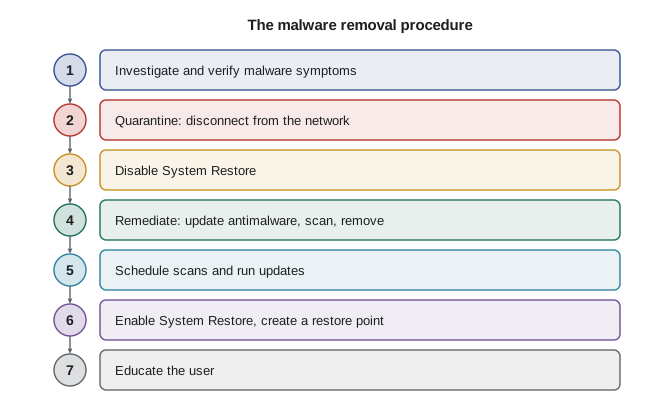
Remediation, step 4, may involve full scans with Microsoft Defender and a second-opinion scanner, offline scans that run before Windows loads so that malware cannot hide, and removing malicious browser extensions and startup entries. When a computer has been seriously compromised, especially with ransomware or a rootkit, the safest remediation is to back up the user's files, scan them, and do a clean install, then restore the files. The last step, educating the user, is not an afterthought: explaining in a friendly way how the malware probably arrived, and how to spot the next attempt, prevents repeat infections.
Prevention is far cheaper than removal. Ridgeline's defenses include automatic updates for Windows, apps and browsers; Microsoft Defender running on every computer; standard user accounts rather than administrators; multi-factor authentication on every work account; file extensions shown in File Explorer; email filtering; and backups with an immutable off-site copy, so that even successful ransomware cannot destroy the business's data.
Browser problems
Browsers are where users spend most of their time and where many problems appear. Slow or crashing browsers often have too many extensions, a corrupted cache or an outdated version. Pages that look broken may be fixed by clearing the cache and cookies for that site. Certificate warnings, which say the connection is not private, have several causes: a computer whose clock is wrong, which happens when the CMOS battery fails, a website whose certificate has expired, or an attacker intercepting traffic on an untrusted network. Users should never click through a certificate warning on a site where they sign in or pay. Unexpected extensions, a changed search engine or home page, and endless redirects are signs of adware or a browser hijacker; removing the extension and resetting the browser's settings usually fixes them.
Worked problem
A sudden slowdown on the shipping computer
Theo reports that OFFICE-02 became very slow this week, with its fan running constantly even when he is not using it. Task Manager shows an unfamiliar process called svchosts.exe using 85 in 100 of the processor. The browser also has a new extension called Coupon Helper. What should Jordan do?
Show solution
- Investigate: the genuine Windows process is svchost.exe; a near-identical name using most of the processor while idle, plus an unexpected extension, strongly suggests malware, probably a cryptominer installed with a fake browser add-on.
- Quarantine: unplug the network cable and turn off Wi-Fi so it cannot spread or send data; inform Sam.
- Disable System Restore so the infection is not saved in restore points, then remediate: update Defender offline from a USB drive, run a full scan and an offline scan, remove the extension and any startup entries.
- Schedule regular scans, reconnect, install all updates, re-enable System Restore and create a clean restore point; check whether Theo's work account shows suspicious sign-ins.
- Educate: show Theo where the extension came from (a coupon pop-up) and how to recognize such offers; document the incident.
Answer: A cryptominer arrived through a fake browser extension; following the removal procedure in order removed it safely, and educating Theo reduces the chance of a repeat.
Common mistakes
MistakeReinstalling an app first, before trying the quick steps.
InsteadClimb the ladder: reopen, restart, update, check other users, repair, then reinstall.
MistakeInstalling a Windows feature update before business software supports it.
InsteadCheck vendor support and test before rolling out feature updates.
MistakeCleaning malware while the computer is still on the network.
InsteadQuarantine first by disconnecting it from the network.
MistakeLeaving System Restore on during malware removal.
InsteadDisable it during cleaning, then re-enable it and create a clean restore point.
MistakeClicking through certificate warnings.
InsteadCheck the computer's date and time, and never sign in or pay on a site with a certificate warning.
MistakeSkipping user education after an infection.
InsteadExplain how the malware arrived and how to avoid it next time.
Summary and key terms
- Application fixes form a ladder: reopen, restart, update, check other users, repair, reinstall.
- Compatibility and vendor support matter, especially after feature updates.
- Task Manager shows processor, memory, disk and startup use; free space and startup apps affect performance.
- DISM and sfc repair damaged Windows system files.
- Event Viewer logs show patterns; summarizing logs reveals what fails most often.
- Malware includes ransomware, trojans, spyware, viruses, worms, adware, rootkits and cryptominers.
- Follow the seven-step malware removal procedure, starting with quarantine and ending with user education.
- Task Manager
- The Windows tool showing running processes and resource use.
- startup apps
- Programs that load automatically when a user signs in.
- sfc
- System File Checker, which repairs protected Windows files.
- DISM
- A tool that repairs the Windows component store.
- event level
- The severity of a logged event: information, warning, error or critical.
- malware
- Software designed to harm a computer or its user.
- ransomware
- Malware that encrypts files and demands payment.
- trojan
- Malware disguised as useful software.
- quarantine
- Isolating an infected system or file so it cannot spread.
- certificate warning
- A browser alert that a site's identity cannot be verified.
Practice problems
Work each problem on paper first, then reveal the answer to check.
An app crashes for one user but not for another user on the same computer. What does that suggest?
Show answer
A problem in that user's profile or settings rather than the installation.
Name the first step of the malware removal procedure.
Show answer
Investigate and verify malware symptoms.
Files on a computer suddenly have a new extension and a ransom note appears. What must happen immediately?
Show answer
Disconnect the computer from the network and inform the senior technician.
Every secure website shows a certificate warning on one computer. What simple cause should be checked first?
Show answer
The computer's date and time, which may be wrong because of a flat CMOS battery.
Which two commands repair Windows system files, and in what order are they usually run?
Show answer
DISM /Online /Cleanup-Image /RestoreHealth, then sfc /scannow.
A computer has 3 GB free on its system drive and updates keep failing. What should be done?
Show answer
Free up space with Storage Sense or Disk Cleanup and move files to the NAS or cloud.
Lesson quiz · 5 questions
Score 60% or more to complete this lesson.
Create a free account to save your progress, take quizzes and earn a certificate.