
NET-101 · Lesson 2 of 12 · 24 min
Processors, memory and storage
▶ Video coming soon A video version of this lesson is on the way.
When a computer feels slow, three components are almost always involved: the processor, the memory and the storage. Choosing a new computer for Ridgeline, deciding whether an upgrade is worth doing, or working out why Anita's desktop crawls at month end all come down to understanding these three parts and how they work together. This lesson explains what the numbers on a specification sheet mean, how to read them for a real purchase, and why a drive sold as 512 gigabytes shows up in Windows as something smaller.
The processor
A processor's job is to fetch an instruction from memory, decode what it means, execute it, and move on to the next one. That fetch, decode and execute cycle repeats billions of times a second. Three numbers describe how much work a processor can do: its clock speed, its number of cores and threads, and its cache.
Clock speed is measured in gigahertz, billions of cycles per second. A processor running at 4.5 GHz completes 4.5 billion cycles every second, and modern processors complete several instructions per cycle. Clock speed alone is a poor guide when comparing processors from different generations, because newer designs do more work in each cycle. Most processors also change their speed constantly: they drop to a low base speed when idle to save power and stay cool, and raise themselves to a higher boost speed when there is work to do, for as long as temperature and power allow.
A core is a complete processing unit able to run its own stream of instructions. A six-core processor can run six programs, or six parts of one program, truly at the same time. Many processors also offer simultaneous multithreading, which Intel calls Hyper-Threading, where each core runs two threads by filling gaps in its work; the operating system then sees twice as many logical processors as there are cores. Recent Intel processors and many phone and laptop chips mix two kinds of core: performance cores for demanding work and efficiency cores for background tasks and battery life. Windows assigns work to the right kind automatically.
Cache is a small amount of extremely fast memory built into the processor itself. Because even RAM is slow compared with the processor, the processor keeps copies of recently used instructions and data in levels of cache: a tiny, very fast level 1 cache for each core, a larger level 2 cache, and a shared level 3 cache measured in megabytes. A larger cache means the processor waits less often.
| Specification | Example: OFFICE-01 | What it means in practice |
|---|---|---|
| Cores and threads | 6 performance and 4 efficiency cores, 16 threads | Plenty of parallel work for office software and many browser tabs |
| Base and boost clock | About 2.5 GHz base, 4.6 GHz boost | Quiet and cool when idle, fast for short bursts of work |
| Cache | 20 MB level 3 | Fewer waits for memory |
| Integrated graphics | Yes | No separate graphics card needed for office work |
| Power rating | 65 W | Determines the cooler and affects the power supply needed |
The two main makers of processors for desktops and laptops are Intel and AMD, and both use the x86-64 instruction set, which is why the same Windows runs on either. Phones, tablets, Apple's Mac computers and a growing number of Windows laptops use processors based on the Arm instruction set instead, which is designed for efficiency. Software must be built for the instruction set it runs on; Windows on Arm and macOS can translate many x86 programs automatically, but specialized software, such as some printer drivers or the roast profiler's USB driver, may not work. That is one reason Sam checked driver support before recommending a laptop for Kai.
Processors produce heat, and they slow themselves down when they get too hot, a protective behavior called thermal throttling. A desktop whose cooler is clogged with dust, or a laptop used on a soft surface that blocks its air vents, can lose a large part of its performance this way without any error message. Lesson 9 shows how to spot throttling when troubleshooting.
Memory
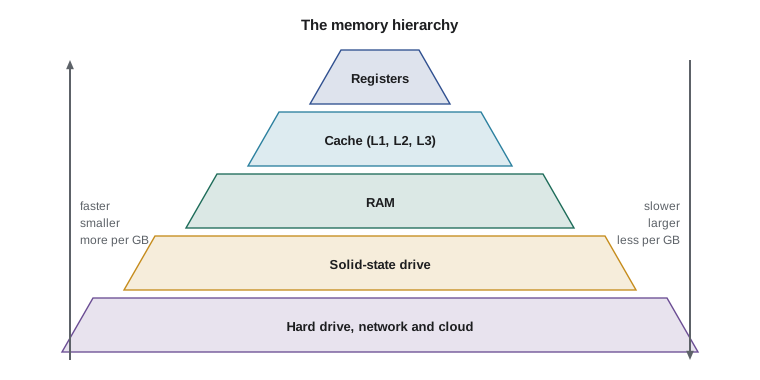
RAM holds the operating system, the programs that are running and the data they are working on. When there is not enough RAM for everything that is open, the operating system moves pages of memory that have not been used recently out to a file on the drive, called the page file in Windows or swap space in Linux and macOS. The drive is far slower than RAM, so a computer that is paging heavily slows to a crawl, with the drive busy and every switch between programs taking seconds. For most office work today, 8 GB is the bare minimum, 16 GB is comfortable, and 32 GB or more suits demanding work such as photo and video editing or running virtual machines.
Desktop memory comes on modules called DIMMs, which plug into slots on the motherboard; laptops use smaller modules called SO-DIMMs, or have memory soldered permanently to the board, in which case it can never be upgraded. Memory is sold in generations, called DDR4 and DDR5 for current computers, and each generation has a different notch position so that it physically cannot be fitted into the wrong slot. A motherboard supports only one generation. Speed is quoted in megatransfers per second, such as DDR4-3200 or DDR5-5600, and the computer runs all modules at the speed of the slowest.
Most computers use memory in dual-channel mode, where two modules are read at the same time, doubling the path to the processor. That is why two 8 GB modules usually perform better than a single 16 GB module, and why technicians install memory in matched pairs in the slots the motherboard manual specifies. Servers and some workstations use error-correcting code memory, ECC, which detects and fixes single-bit errors; ordinary desktops do not.
Storage
Storage keeps the operating system, programs and files when the power is off. Two technologies are in use. A hard disk drive, or HDD, stores data magnetically on spinning platters, read by heads on a moving arm. Hard drives are cheap per gigabyte and come in large sizes, but they are slow to find data, because the arm has to move and the platter has to rotate, and they are sensitive to knocks. A solid-state drive, or SSD, stores data in flash memory chips with no moving parts. SSDs are many times faster, especially at reading and writing many small files, use less power and survive being dropped. Replacing a hard drive with an SSD is the single most effective upgrade for an older computer: the time to start Windows can fall from minutes to seconds.
The way a drive connects matters as much as what is inside it. Older SSDs and all desktop hard drives use the SATA interface, which tops out at about 600 megabytes per second. Modern SSDs are usually NVMe drives, which connect directly to the processor through PCI Express lanes and plug into an M.2 slot on the motherboard. An NVMe drive on PCIe 4.0 can read at several thousand megabytes per second. The M.2 slot can be confusing, because some M.2 drives use SATA rather than NVMe, and a slot may support only one type; the motherboard manual says which.
| Drive type | Interface | Typical read speed | Best use |
|---|---|---|---|
| Hard disk drive (7,200 rpm) | SATA | About 150 to 250 MB/s | Cheap bulk storage, archives, network storage |
| SATA SSD | SATA | About 500 to 550 MB/s | Upgrading older computers without M.2 slots |
| NVMe SSD (PCIe 4.0) | M.2, PCI Express | About 5,000 to 7,000 MB/s | The main drive in new computers |
| NVMe SSD (PCIe 5.0) | M.2, PCI Express | Over 10,000 MB/s | High-end workstations |
SSDs do wear out, because each flash cell can be written only a limited number of times. Drives spread writes across all their cells and report their remaining life, and a modern SSD will usually outlast the computer it is in under normal office use. Hard drives fail in a different way: mechanically, often with warning signs such as clicking noises, slow file access and errors in the drive's self-monitoring data, known as SMART. Lesson 9 shows how to read that data. Either kind can fail without warning, which is why lesson 6 is about backups.
Bits, bytes and the two kinds of gigabyte
All data in a computer is stored as bits, each either 0 or 1. Eight bits make a byte, enough to store one character of plain English text. Larger quantities use prefixes, and here a source of endless confusion arises. Drive makers use decimal prefixes, where a kilobyte is 1,000 bytes, a megabyte 1,000,000 and a gigabyte 1,000,000,000. Operating systems such as Windows calculate with powers of two, where 1,024 bytes make a unit. The precise names for the binary units are the kibibyte (KiB), mebibyte (MiB) and gibibyte (GiB), but Windows labels them KB, MB and GB anyway.
So when Anita's new 512 GB drive appears in Windows as about 476 GB, nothing is missing. The drive holds 512,000,000,000 bytes, and dividing by 1,024 three times gives about 476.8 GiB, which Windows shows as 476 GB. The gap grows with size: a 4 TB drive in the network storage shows as about 3.63 TB. The calculation is easy to automate, which is what the next listing does.
def advertised_to_windows(gb):
    """Convert a drive size in decimal GB to the binary GiB that Windows reports."""
    total_bytes = gb * 1000 ** 3
    return total_bytes / 1024 ** 3

for size in (256, 512, 1000, 4000):
print(f"{size:>5} GB on the box -> {advertised_to_windows(size):8.1f} GB in Windows")256 GB on the box -> 238.4 GB in Windows 512 GB on the box -> 476.8 GB in Windows 1000 GB on the box -> 931.3 GB in Windows 4000 GB on the box -> 3725.3 GB in Windows
Network speeds add one more twist: they are measured in bits per second, not bytes. Ridgeline's internet plan is advertised at 500 megabits per second (Mbps), which is 62.5 megabytes per second (MB/s). When a user asks why a file downloads at 60 MB/s on a 500 Mbps connection, the answer is that the connection is working at full speed; the units are different. Watch for the lowercase b for bits and the capital B for bytes.
Try it yourself
Drive size converter
Write a function to_gib(size, unit) that takes a drive size as advertised and its unit, either "GB" or "TB" in decimal units, and returns the size in binary gibibytes rounded to one decimal place.
For example, to_gib(512, "GB") returns 476.8 and to_gib(4, "TB") returns 3725.3.
def to_gib(size, unit):
    # convert to bytes using decimal units, then divide by 1024 three times
    return size

print(to_gib(512, "GB"))
print(to_gib(4, "TB"))
Putting the three together
Performance depends on the weakest of the three parts for the work being done. Kai's roast profiler needs little processing power but must never pause while it records temperatures, so the laptop's SSD and enough memory matter more than its processor. Anita's month-end work involves a large accounting file and many browser tabs, so memory is the first thing to check. Theo's shipping PC runs one program at a time and is perfectly happy with modest parts. Matching the parts to the work saves money and gives users what they actually need.
Worked problem
Diagnosing a slow office computer
At month end Anita reports that OFFICE-01 takes several seconds to switch between the accounting program and the browser, and the drive activity light stays on. Task Manager shows memory 96 in 100 used (15.4 of 16 GB), processor about 20 in 100 busy and the SSD very busy. What is the likely cause and the fix?
Show solution
- Processor use is low, so the processor is not the bottleneck.
- Memory is almost full while the drive is busy and switching is slow: the classic sign of paging, where Windows moves memory pages to the page file on the drive.
- Short-term fix: close browser tabs and programs not in use, and check for a program using far more memory than expected.
- Long-term fix: OFFICE-01 has 16 GB in two 8 GB modules and four slots, so adding a matched pair of 8 GB DDR4-3200 modules gives 32 GB in dual channel.
Answer: The computer is short of memory and paging to the drive; a memory upgrade to 32 GB solves it, while the processor and SSD are adequate.
Try it yourself
Download time estimate
Write a function download_seconds(file_mb, link_mbps) that returns how many seconds a file of file_mb megabytes takes to download over a connection of link_mbps megabits per second, rounded to one decimal place. Remember that a byte is eight bits.
A 750 MB update over Ridgeline's 500 Mbps connection takes 12.0 seconds.
def download_seconds(file_mb, link_mbps):
    return round(file_mb / link_mbps, 1)

print(download_seconds(750, 500))
Common mistakes
MistakeComparing processors by clock speed alone.
InsteadCompare core counts, generation and benchmark results; newer designs do more work per cycle.
MistakeBuying a single memory module when the motherboard supports dual channel.
InsteadInstall matched pairs in the slots the manual specifies to get dual-channel performance.
MistakeAssuming a drive is faulty because Windows shows less space than the box.
InsteadDrive makers use decimal units and Windows uses binary units; 512 GB shows as about 476 GB.
MistakeConfusing megabits and megabytes when judging network speed.
InsteadDivide megabits per second by 8 to get megabytes per second.
MistakeFitting an M.2 SATA drive into a slot that supports only NVMe, or the reverse.
InsteadCheck the motherboard manual for which drive types each M.2 slot accepts.
MistakeUpgrading the processor to fix a computer that is actually short of memory.
InsteadCheck Task Manager first: high memory use with heavy drive activity points to RAM, not the processor.
Summary and key terms
- Processors are described by cores and threads, base and boost clock speeds and cache; clock speed alone is a poor comparison.
- Hot processors slow themselves down by thermal throttling.
- RAM holds running programs; when it runs out, the system pages to the drive and slows dramatically.
- DDR4 and DDR5 modules are not interchangeable; matched pairs give dual-channel performance.
- SSDs are far faster than hard drives; NVMe SSDs on PCI Express are faster than SATA SSDs.
- Drive makers use decimal units and Windows uses binary units, so drives look smaller in Windows.
- Network speeds are in bits per second; divide by 8 for bytes per second.
- core
- An independent processing unit within a CPU.
- thread
- A stream of instructions; with multithreading, each core runs two.
- cache
- Small, very fast memory inside the processor.
- thermal throttling
- A processor slowing itself down to avoid overheating.
- page file
- Space on the drive used when RAM is full; called swap on Linux and macOS.
- DIMM
- A desktop memory module; SO-DIMM is the smaller laptop version.
- dual channel
- Using two memory modules at once to double memory bandwidth.
- SSD
- A solid-state drive using flash memory with no moving parts.
- NVMe
- A fast storage protocol for SSDs that use PCI Express.
- SMART
- A drive's self-monitoring data, used to predict failures.
- gibibyte (GiB)
- 1,024 to the power of three bytes.
Practice problems
Work each problem on paper first, then reveal the answer to check.
A processor has 8 cores with multithreading. How many logical processors does Windows show?
Show answer
16, because each core runs two threads.
A user's laptop is fast in the morning and sluggish on hot afternoons on the sofa. What is the likely cause?
Show answer
Thermal throttling: blocked vents and warm air make the processor slow down to protect itself.
What size does a 2 TB drive show as in Windows, roughly?
Show answer
About 1.82 TB: 2,000,000,000,000 bytes divided by 1,024 four times.
Why might two 8 GB memory modules outperform one 16 GB module?
Show answer
Two modules run in dual-channel mode, doubling the path between memory and processor.
Ridgeline's connection is 500 Mbps. What is the fastest possible download rate in MB/s?
Show answer
62.5 MB/s, because 500 divided by 8 is 62.5.
What is the most effective upgrade for an old computer with a hard drive and enough memory?
Show answer
Replacing the hard drive with an SSD.
Lesson quiz · 5 questions
Score 60% or more to complete this lesson.
Create a free account to save your progress, take quizzes and earn a certificate.