
MSBA-300 · Lesson 4 of 12 · 19 min
Jobs, steps and runners
▶ Video coming soon A video version of this lesson is on the way.
By the fourth clinic the TrailCheck check workflow had grown to one long job with eleven steps, and Dmitri Kovac, the other web developer, wanted it split up. Spelling and link checks did not need the site to be built; the trail-report validator did not need the spelling tools; and a failure in step three meant waiting for nothing while steps four to eleven were skipped. "One job is easy to read," he said, "but it is slow and it hides which part failed." This session was about how jobs relate to each other, how steps behave inside a job, and where jobs actually run.
Jobs run in parallel by default
A workflow can contain many jobs. Unless you say otherwise, GitHub starts them all at the same time, each on its own runner. That is fast, but it means jobs cannot assume anything about each other: no shared disk, no guaranteed order. To make one job wait for another, add needs with the id of the job, or a list of ids. The dependent job starts only when every job it needs has finished successfully.
jobs:
  lint:
    runs-on: ubuntu-latest
    steps:
      - uses: actions/checkout@v5
      - run: npm ci && npm run lint
  test:
    runs-on: ubuntu-latest
    steps:
      - uses: actions/checkout@v5
      - run: npm ci && npm test
  build:
    needs: [lint, test]
    runs-on: ubuntu-latest
    steps:
      - uses: actions/checkout@v5
      - run: npm ci && npm run build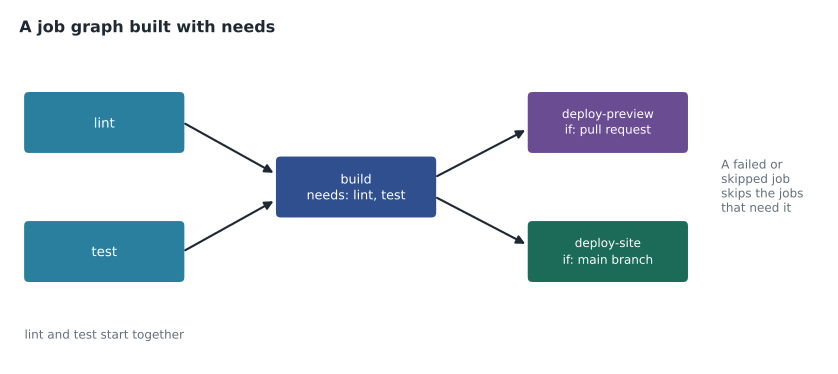
If a needed job fails or is skipped, the dependent job is skipped too, and so is everything that depends on it. The run page draws this as a graph, which is one of the quickest ways to see where a run went wrong. To run a job even when something it needs has failed, for example a job that posts a summary or cleans up, add a condition that uses a status function such as always() or failure(), covered in lesson 5.
Conditions on jobs and steps
The if key decides whether a job or a step runs at all. Its value is an expression, and for if you may leave out the dollar sign and double braces that wrap expressions elsewhere. A job condition such as github.ref == 'refs/heads/main' runs the job only on the main branch; github.event_name == 'pull_request' runs it only for pull requests. A job whose condition is false is shown as skipped, and a skipped job counts as successful for required status checks. That is the fix for the required-check problem from lesson 3: keep the workflow running for every pull request, and skip the expensive jobs inside it when only images changed.
Steps inside a job
Steps run one after another on the job's runner, in the same workspace. Each step is a separate process: a run step starts a new shell, so a variable you set with a plain export in one step is gone in the next. Files persist, the working directory persists, and environment files, covered in lesson 5, pass values forward deliberately.
A step fails when its command exits with a non-zero exit code or the action reports failure. By default, the first failed step stops the job: later steps are skipped unless their condition says otherwise, and the job is marked failed. Two keys change that behavior. continue-on-error on a step lets the job carry on and keeps the job successful even if that step fails, which suits optional checks. timeout-minutes on a step or a job cancels it after the given time; jobs default to 360 minutes, which is far too long for a four-minute workflow, so Tidewater set short timeouts everywhere.
| Setting | Where | Effect |
|---|---|---|
| if | Job or step | Runs it only when the expression is true; otherwise skipped |
| continue-on-error | Job or step | A failure does not fail the job or the run |
| timeout-minutes | Job or step | Cancels it after the given minutes; job default 360 |
| needs | Job | Waits for other jobs to succeed before starting |
| shell | Step or defaults | Chooses bash, pwsh, sh, cmd, python or a custom command |
| working-directory | Step or defaults | Directory in which run commands start |
Shells
Run steps use a shell. On Linux and macOS runners the default is bash, started with options that make the step fail as soon as a command fails; on Windows it is PowerShell Core, pwsh. You can set shell on a step, or for every step with defaults.run.shell at the workflow or job level. Choosing the shell explicitly avoids surprises when a job moves between operating systems, and it matters for quoting: a command that works in bash may mean something else in PowerShell.
defaults:
  run:
    shell: bash
    working-directory: site

jobs:
  validate:
    runs-on: windows-latest
    timeout-minutes: 10
    steps:
      - uses: actions/checkout@v5
      - name: Validate reports
        run: ./scripts/validate-reports.sh
      - name: Optional style report
        continue-on-error: true
        run: npm run style-report
Service containers
Some jobs need a dependency running alongside them, such as a database or a message queue. The services key starts Docker containers for the life of the job. Each service has an image, optional environment variables, port mappings and options such as a health check, so the job waits until the service is ready. When the job runs directly on the runner, map the service port to the host and connect to localhost; when the job itself runs in a container, services are reachable by their names on a shared network. Service containers need a Linux runner with Docker available.
jobs:
  integration:
    runs-on: ubuntu-latest
    services:
      db:
        image: postgres:17
        env:
          POSTGRES_PASSWORD: example
        ports:
          - 5432:5432
        options: >-
          --health-cmd "pg_isready -U postgres"
          --health-interval 5s
          --health-retries 10
    steps:
      - uses: actions/checkout@v5
      - run: npm run test:integration
        env:
          DATABASE_URL: postgres://postgres:example@localhost:5432/postgres
Running a whole job in a container
Instead of a service beside the job, you can run the job's steps inside a container with the container key. The runner starts the image you name and executes every run step inside it, which gives an exact, repeatable toolchain: the same image a developer uses locally can run in CI. Steps that use JavaScript or composite actions also work inside the job container. Like services, job containers need a Linux runner with Docker.
Concurrency: one at a time when it matters
Parallelism is usually good, but some things must not overlap. Two deployments of the same site racing each other can leave it half updated, and a pull request that receives three quick pushes wastes minutes testing the first two. The concurrency key, at workflow or job level, puts runs or jobs into a named group. By default, when a new run joins a group that already has one running, the new run waits as pending, and if another arrives, the older pending run is canceled so that only the newest waits. Setting cancel-in-progress to true cancels the running one instead, which is ideal for pull request checks where only the latest push matters.
GitHub has since added a queue option to concurrency. Its default value, single, keeps the classic behavior of at most one pending run; the value max lets up to 100 runs or jobs wait in order, which suits deployments where every change must ship and none may be skipped. Combining queue: max with cancel-in-progress: true is a validation error, because the two settings contradict each other. Group names are not case sensitive, and they usually include an expression such as the workflow name and the branch or pull request number so that unrelated branches do not block each other.
concurrency:
  group: check-${{ github.workflow }}-${{ github.event.pull_request.number || github.ref }}
  cancel-in-progress: true

jobs:
  deploy:
    if: github.ref == 'refs/heads/main'
    concurrency:
      group: pages-production
      queue: max
    runs-on: ubuntu-latest
    steps:
      - run: echo "deploying"
Runners
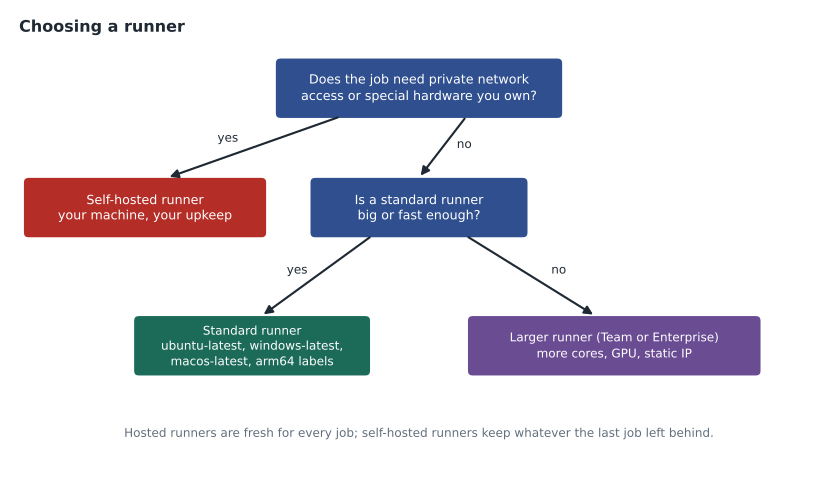
Every job names the runner it needs with runs-on. The value is a label, a list of labels that the runner must all have, or a runner group. For GitHub-hosted runners the label chooses the image and architecture.
| Label (examples) | What you get | Notes for late 2026 |
|---|---|---|
| ubuntu-latest | Current Ubuntu LTS image, x64 | Moved from Ubuntu 24.04 to 26.04 between October 19 and November 19, 2026 |
| ubuntu-24.04, ubuntu-26.04 | A pinned Ubuntu image, x64 | Pin to avoid surprises when latest moves |
| ubuntu-24.04-arm, ubuntu-26.04-arm | Ubuntu on Arm64 | Free for public repositories |
| windows-latest, windows-2025 | Windows Server 2025 | Moved to Visual Studio 2026 by default in June 2026 |
| windows-11-arm | Windows 11 on Arm64 | Now maintained by GitHub |
| macos-latest | Current macOS image, Apple silicon | Moved from macOS 15 to macOS 26 from June 15, 2026 |
The latest labels are convenient but they move. When ubuntu-latest switched to Ubuntu 26.04 in the autumn of 2026, some tools were updated or removed from the image, and workflows that relied on them broke without any change in the repository. The GH-200 outline mentions this directly: you are expected to account for runner image changes such as the Ubuntu 20.04 retirement and the windows-latest migration. Pinning a version label, and reading the image release notes, keeps a workflow stable; moving to the new image becomes a deliberate change with its own pull request.
Hosted runners
A GitHub-hosted runner is a new virtual machine for every job. It comes with a large set of preinstalled tools listed in the image's software list, it has administrator access so steps can install more, and it is destroyed when the job ends, so nothing leaks from one job to the next. The setup actions, such as setup-node and setup-python, install a specific language version from a tool cache quickly; package managers and container images fill the remaining gaps. Standard hosted runners offer fixed sizes; larger runners, available to GitHub Team and Enterprise customers, offer more CPU and memory, GPU machines, Arm and Windows variants, static IP address ranges and custom images, and are organized in runner groups.
Hosted runners connect to the internet from addresses that change, which matters when a job must reach a service that only accepts known addresses. Standard hosted runners cannot be given a fixed address; larger runners can be assigned static IP address ranges, and Azure private networking can connect larger runners to resources in an Azure virtual network. For a small team those needs are rare, but they are often the deciding factor for companies with locked-down databases or firewalls.
Self-hosted runners
A self-hosted runner is any machine on which you install and register GitHub's runner application at the repository, organization or enterprise level. It gets the default labels self-hosted, its operating system and its architecture, plus any custom labels you add, so a job can ask for runs-on: [self-hosted, linux, gpu]. Self-hosted runners can reach internal systems and keep caches and tools between jobs, and their minutes are not billed by GitHub in the way hosted minutes are. In exchange you own the machine: patching, scaling, monitoring, and above all cleaning up, because a job can leave files, processes and credentials behind for the next one. GitHub recommends against self-hosted runners for public repositories, where anyone can open a pull request that runs code on your machine; ephemeral runners that take one job and are then replaced reduce the risk for private use. The enterprise course covers runner groups and hardening in depth.
Worked problem
Choosing runs-on for each job
TrailCheck needs: a lint job (two minutes, no special needs); a test of the trail-report validator on Linux, Windows and macOS; and a job that uploads nightly photos to a file server on Tidewater's office network. Which runner suits each?
Show solution
- Lint: a standard hosted runner; ubuntu-latest or a pinned Ubuntu label is cheapest.
- Validator: three hosted labels, best written as a matrix (lesson 6); macOS minutes cost more, so keep that job short.
- Photo upload: the office file server is not on the internet, so a hosted runner cannot reach it; this needs a self-hosted runner on the office network, or a different design that pushes the files from inside the network.
Answer: Hosted Ubuntu for lint, a hosted matrix for the validator, and a self-hosted runner (or another design) for the internal file server.
Common mistakes
MistakeExpecting jobs to run in the order they appear in the file.
InsteadJobs run in parallel unless needs creates dependencies.
MistakeSetting a variable with export in one step and reading it in the next.
InsteadEach step is a new process; write to GITHUB_ENV to pass environment variables forward.
MistakeLeaving the default 360-minute timeout on short jobs.
InsteadSet timeout-minutes so a hung job stops quickly and does not waste minutes.
MistakeAlways using the latest labels and treating image changes as surprises.
InsteadPin versions where stability matters and plan migrations from the changelog notices.
Dmitri's split took one afternoon. The new check workflow had four jobs: lint, spelling, validator and build, with build needing the other three. A spelling failure no longer hid a validator failure, the whole run finished in two and a half minutes instead of four, and each job appeared as its own check on the pull request.
Summary and key terms
- Jobs run in parallel on separate runners; needs creates dependencies, and failed or skipped needs skip dependants.
- if on a job or step runs it only when an expression is true; skipped jobs count as successful for required checks.
- Steps run in order in one workspace; a failed step stops the job unless continue-on-error is set.
- timeout-minutes limits jobs (default 360) and steps; defaults.run sets shell and working directory.
- services start containers such as databases for the life of a job, with ports and health checks.
- runs-on chooses standard hosted, larger hosted or self-hosted runners; latest labels move, so pin when stability matters.
- needs
- A job key that makes the job wait for other jobs to succeed.
- Skipped job
- A job whose condition was false or whose needed job failed or was skipped.
- continue-on-error
- A setting that stops a job or step failure from failing the run.
- Service container
- A Docker container started for the duration of a job to provide a dependency.
- GitHub-hosted runner
- A fresh virtual machine managed by GitHub for each job.
- Larger runner
- A GitHub-hosted runner with more resources or features, for Team and Enterprise plans.
- Self-hosted runner
- A machine you manage that runs GitHub's runner application.
- Ephemeral runner
- A self-hosted runner that takes a single job and is then removed.
Practice problems
Work each problem on paper first, then reveal the answer to check.
A deploy job needs build, and build failed. What happens to deploy?
Show answer
It is skipped, unless its condition uses a status function such as always().
Which key makes every run step in a job use bash?
Show answer
defaults.run.shell set to bash at the job or workflow level.
Why is a self-hosted runner risky for a public repository?
Show answer
Anyone can open a pull request whose code then runs on your machine and may persist there.
Lesson quiz · 5 questions
Score 60% or more to complete this lesson.
Create a free account to save your progress, take quizzes and earn a certificate.