
MSBA-203 · Lesson 2 of 12 · 19 min
Defender for Office 365: anti-phishing and anti-malware policies
▶ Video coming soon A video version of this lesson is on the way.
The second chapter of Teodor's workbook began with an uncomfortable discovery. When he opened the threat policies in the Defender portal in October 2026, almost everything was still at Microsoft's defaults. The anti-spam, anti-malware and anti-phishing default policies had never been edited, no custom policy existed, and nobody had applied a preset security policy. The defaults are reasonable, but they are designed to suit every organization on earth, and Corvallin is not every organization. It is a care agency whose finance team pays dozens of suppliers, whose intake coordinators receive referrals from strangers every day, and whose executives' names appear on its public website.
This lesson covers the policies that inspect a message before it reaches an inbox: anti-spam and anti-malware from Exchange Online Protection, and the anti-phishing policies that Defender for Office 365 extends. Lesson 3 covers Safe Links and Safe Attachments, which add time-of-click and sandbox protection.
How a message is filtered
Every message sent to an Exchange Online mailbox passes through a sequence of checks. Connection filtering looks at the sending server's reputation and the organization's IP allow and block lists. Anti-malware scanning inspects attachments with several engines and the common attachments filter, which blocks file types that are rarely legitimate in email, such as executables and certain script and disk-image formats. Mail flow rules and other organization rules run next. Content filtering then scores the message for spam, bulk mail and phishing, and anti-phishing checks for spoofing and, with Defender for Office 365, impersonation. Safe Attachments and Safe Links run as part of this pipeline when they are licensed and configured. After delivery, zero-hour auto purge (ZAP) keeps watching: if Microsoft later learns that a delivered message is spam, phishing or malware, ZAP moves it out of the inbox, as long as the mailbox is in Exchange Online.
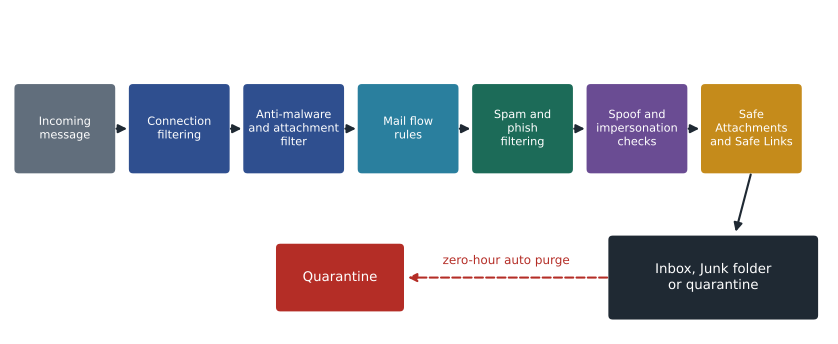
The outcome of filtering is one of a few verdicts, each with an action set in policy: deliver to the inbox, move to the Junk Email folder, quarantine, or reject. High-confidence phishing and malware are always quarantined in current Microsoft guidance, because users cannot be trusted to judge them.
Preset security policies
Microsoft offers two preset security policies, Standard and Strict, that bundle its recommended settings for anti-spam, anti-malware, anti-phishing, Safe Links and Safe Attachments into one assignment. Microsoft maintains the settings and updates them as threats change; administrators decide only who receives each preset, and, for anti-phishing, which users and domains to protect from impersonation. Standard suits most users. Strict is more aggressive, quarantining more mail and lowering thresholds, and suits people who are high-value targets, such as executives, finance staff and administrators.
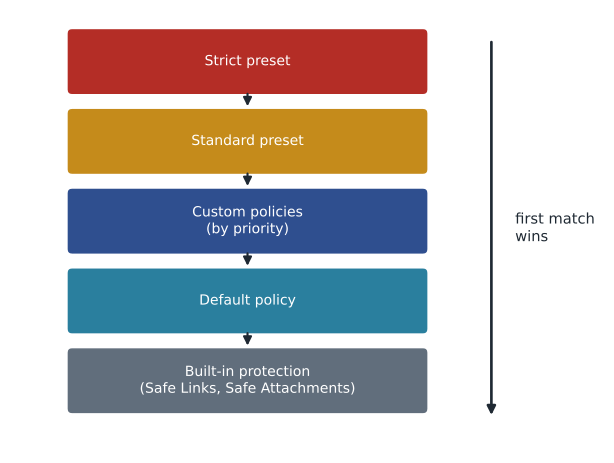
When more than one policy could apply to a user, Defender for Office 365 applies them in a fixed order of precedence. The Strict preset wins over the Standard preset, both win over any custom policies (which are processed in their own priority order), and custom policies win over the default policy. For Safe Links and Safe Attachments there is one more layer at the bottom: built-in protection, which Microsoft applies to all licensed users and which catches anyone not covered by another policy. A user receives the settings of the first policy that applies and no others, so policies do not add together.
Teodor's recommendation to Ines was short. Apply the Standard preset to everyone, so Microsoft keeps the settings current. Apply Strict to a group of priority accounts: the executive team, finance and billing staff, intake coordinators who handle referrals with attachments, and IT. Keep custom policies only where a real business need differs from the presets, and document each one. Ines approved it, and the change went live on Monday, October 19, 2026.
| Group | Members | Policy |
|---|---|---|
| CHC-Security-Strict | Executives, finance and billing, intake, IT (about 45 people) | Strict preset security policy |
| All users | Everyone else | Standard preset security policy |
| CHC-Referral-Inbox | The intake@ shared mailbox only | Custom anti-spam policy with a higher bulk threshold for a referral portal; the mailbox is excluded from the Standard preset so the custom policy can apply, documented in the decision log |
Priority accounts
Microsoft 365 also has a separate setting for priority accounts, a tag that administrators apply to up to a few hundred important users. Priority accounts receive differentiated protection in Defender for Office 365, and their alerts and reports can be filtered separately, so attacks on the chief executive stand out from routine noise. Tagging is not the same as assigning the Strict preset, so Teodor did both: the leadership team and the finance manager were tagged as priority accounts and placed in the Strict group.
Anti-phishing policies in detail
Anti-phishing policies hold several distinct protections. Understanding each one matters, because the AB-650 exam and real attacks test them separately.
| Protection | What it catches | Available in |
|---|---|---|
| Spoof intelligence | Messages that forge a sender address the sender is not authorized to use, based on SPF, DKIM, DMARC and composite authentication | Exchange Online Protection and Defender for Office 365 |
| Unauthenticated sender indicators | Shows a question mark on the sender photo or a "via" tag when the sender cannot be verified | Exchange Online Protection and Defender for Office 365 |
| User impersonation protection | Look-alike display names or addresses that imitate specific people, such as the chief executive | Defender for Office 365 |
| Domain impersonation protection | Look-alike domains such as corva11incare.example | Defender for Office 365 |
| Mailbox intelligence | Learns each user's normal correspondents to spot impersonation of people they actually talk to | Defender for Office 365 |
| Advanced phishing thresholds | How aggressively machine learning treats a message as phishing, from 1 (standard) to 4 (most aggressive) | Defender for Office 365 |
User impersonation protection works from a list of protected users, up to a few hundred per policy. With the Strict preset, Teodor added the executive director, the finance manager, the clinical director Dr. Marguerite Ostrander-Bey and the payroll lead, because those are the names an invoice-fraud attacker would imitate. Domain impersonation protection covers the organization's own domains automatically when chosen, and can add partner domains; Teodor added the domains of the two hospitals that send most referrals and the agency's bank. Trusted senders and domains can be excluded from impersonation checks when a legitimate partner is repeatedly flagged, but every exception weakens protection, so the workbook required Ines to approve each one.
Safety tips complete the picture. A first contact safety tip tells a user when someone writes to them for the first time, which is exactly the moment an invoice-fraud message arrives. Impersonation safety tips explain why a message looks suspicious. Teodor checked that both were on in the presets, then asked Ama to include a screenshot of each in the help desk's "what does this banner mean?" page.
Anti-malware policies
The anti-malware policy controls what happens to messages that contain malware. The settings that matter most are the common attachments filter and its list of file types, the action for matched files (usually quarantine the whole message), ZAP for malware, the quarantine policy that decides what users may do with quarantined malware (in Microsoft's recommended configuration, nothing: only administrators can release it), and administrator notifications for undelivered messages from internal senders, which can reveal an infected device inside the organization. Corvallin's presets covered these, so Teodor left the default anti-malware policy in place for anyone the presets might miss and added his IT mailbox to internal sender notifications.
Anti-spam and outbound spam
Inbound anti-spam settings control bulk mail thresholds, the action for each spam verdict and which users can see and release their own quarantined spam. Outbound anti-spam is just as important for an incident responder. The outbound spam policy sets limits on how many messages a user can send to external recipients per hour and per day, and what happens when a user exceeds them: Microsoft can restrict the user from sending until an administrator removes the restriction. In September the coordinator's compromised mailbox had tried to send a burst of fake invoices, and the outbound limits had tripped, which was one reason no money was lost. The Restricted entities page in the Defender portal lists users blocked this way, and releasing one is an administrator action that should happen only after the account is secured. Outbound policy also controls automatic external forwarding, which attackers abuse to copy mail out of a compromised mailbox. Microsoft blocks it by default; Teodor confirmed the setting and documented the only exception, a forwarding arrangement for a retired payroll mailbox that he then removed.
Connect-ExchangeOnline
Get-EOPProtectionPolicyRule | Format-Table Name, State, Priority
Get-AntiPhishPolicy | Format-Table Name, Enabled, PhishThresholdLevel, EnableMailboxIntelligence
Get-HostedOutboundSpamFilterPolicy | Format-Table Name, AutoForwardingMode, RecipientLimitExternalPerHour
Quarantine policies
Every verdict that sends a message to quarantine uses a quarantine policy, which decides what the recipient may do: nothing, request release, or release directly, and whether they receive a quarantine notification. Microsoft provides built-in quarantine policies, such as one that allows only administrators to act and one that allows full access, and administrators can create their own. Corvallin's rule was simple. Users may release their own spam, may request release of messages quarantined as phishing (Ama's team reviews requests), and can do nothing with high-confidence phishing or malware. Quarantine notifications were turned on, once a day, so staff could see referrals that had been held rather than phoning the help desk to ask whether a hospital's message had arrived.
Checking and tuning the configuration
Two tools keep a policy set honest. The configuration analyzer in the Defender portal compares the organization's custom and default policies with the Standard and Strict recommendations and lists every setting that is weaker, with a button to apply the recommended value. Teodor ran it before and after the October change; before, it listed more than forty weaker settings in the default policies, and afterwards only the documented intake@ exception remained. He scheduled a monthly run, because new settings appear as Microsoft adds protections and old custom policies drift.
The second tool is submissions. When filtering gets a message wrong, administrators can submit it to Microsoft for analysis from the Submissions page: a phishing message that reached an inbox as a false negative, or a legitimate hospital referral that was quarantined as a false positive. The result explains the verdict and, for false positives, can create a temporary allow entry in the Tenant Allow/Block List while Microsoft corrects its filters. Allow entries created this way expire automatically unless renewed, which is the right default: permanent allows are how attackers find a way around protection. Block entries for senders, domains, URLs and file hashes can be created directly by administrators and are a fast containment tool during an incident, as lesson 9 shows.
Users take part too. The built-in Report button in Outlook sends a message to Microsoft, to a reporting mailbox, or both, according to the user reported settings in the Defender portal. Corvallin chose both, so every report reached Microsoft for analysis and also appeared in the IT team's queue. Ama added one line to the staff newsletter that became the most quoted sentence of the autumn: "If an email makes you nervous, report it; you will never be in trouble for reporting."
Authentication of Corvallin's own mail
Anti-phishing policies protect Corvallin from forged mail; email authentication protects others from forged Corvallin mail. The MSBA-201 course set up SPF, DKIM and DMARC for corvallincare.example. Teodor added a step to the workbook: check the DMARC aggregate reports monthly, and once every legitimate sender passes, move the DMARC policy from quarantine to reject. A strict DMARC policy also makes spoof intelligence more effective for everyone who receives Corvallin's mail.
Worked problem
Which policy applies?
The finance manager is a member of CHC-Security-Strict, is included in the Standard preset as part of All users, and is also in the scope of an old custom anti-phishing policy called Finance-2023 with priority 0. Which anti-phishing settings does she receive?
Show solution
- Preset security policies are evaluated before custom policies, regardless of custom priority numbers.
- Between the presets, Strict is evaluated before Standard.
- She is in the Strict group, so the Strict preset is the first match.
- The first match is the only policy applied; Standard and Finance-2023 are ignored for her.
Answer: She receives the Strict preset settings. The custom Finance-2023 policy no longer affects her and can be reviewed for removal.
Common mistakes
MistakeAssuming that policies add together, so a user gets the strongest setting from each.
InsteadOnly the first policy that applies is used, in the order Strict, Standard, custom by priority, default, built-in.
MistakeAdding a busy partner to trusted senders the first time an impersonation warning appears.
InsteadInvestigate first; every exception weakens protection, so approve and document each one.
MistakeLetting users release their own malware or high-confidence phishing.
InsteadUse a quarantine policy that allows only administrators to release those verdicts.
MistakeUnblocking a user on the Restricted entities page as soon as they call.
InsteadSecure the account first; the restriction usually means it was compromised.
Summary and key terms
- Mail passes connection filtering, anti-malware, rules, content filtering and anti-phishing, and zero-hour auto purge keeps checking after delivery.
- Standard and Strict preset security policies apply Microsoft's recommended settings and are kept current by Microsoft.
- Policies are applied in a fixed order, Strict, Standard, custom, default and built-in protection, and only the first match applies.
- Anti-phishing combines spoof intelligence with Defender for Office 365 impersonation protection, mailbox intelligence and thresholds.
- Outbound spam limits and blocked external forwarding contain compromised mailboxes; quarantine policies control what users may release.
- Preset security policy
- A Microsoft-maintained bundle of recommended threat protection settings, in Standard or Strict levels.
- Zero-hour auto purge
- Removal of delivered messages that are later identified as spam, phishing or malware.
- Spoof intelligence
- Detection of senders using addresses they are not authorized to send from.
- Impersonation protection
- Detection of look-alike users or domains imitating protected people or organizations.
- Quarantine policy
- Settings that decide what recipients can do with quarantined messages and whether they are notified.
- Restricted entities
- Users blocked from sending email after exceeding outbound limits or being flagged as compromised.
Practice problems
Work each problem on paper first, then reveal the answer to check.
Why is the Standard preset usually better than a custom policy built from the same settings?
Show answer
Microsoft updates the preset settings as threats change, so the organization does not have to.
What does a first contact safety tip do?
Show answer
It warns a user that this sender has not written to them before.
Which setting stops a compromised mailbox from silently copying mail to an outside address?
Show answer
Blocking automatic external forwarding in the outbound spam policy.
Lesson quiz · 5 questions
Score 60% or more to complete this lesson.
Create a free account to save your progress, take quizzes and earn a certificate.