
MSBA-171 · Lesson 8 of 12 · 21 min
Formulas and cell references
▶ Video coming soon A video version of this lesson is on the way.
The quote sheet's line totals had been typed by hand for years: Rosalind worked out each amount on a calculator and typed the result. On the eighth Tuesday Dagny replaced every typed amount with a formula, and Teo learned the idea that the exam's fourth domain rests on: a formula refers to cells, and how it refers to them decides what happens when you copy it. The objective is "insert references": use relative, absolute and mixed references, and reference named ranges and named tables in formulas.
Writing a formula
A formula starts with an equals sign. It can contain numbers, cell references, operators, names and functions, and it shows its result in the cell while the formula bar shows the formula. Typing =D6*E6 in F6 multiplies the quantity in D6 by the unit price in E6. If either value changes, F6 recalculates.
You can type references, but pointing is safer: type the equals sign, click D6, type an asterisk, click E6 and press Enter. While you edit, Excel colors each reference and draws a box of the same color around the cell it refers to, a quick visual check. Press F2 on a formula cell to edit it in the cell with the same color coding.
Operators and their order
Excel follows the usual mathematical order of operations, and parentheses override it:
| Order | Operator | Meaning |
|---|---|---|
| 1 | ( ) | Parentheses: calculated first |
| 2 | - | Negation, as in a minus sign before a number |
| 3 | percent sign | Percent: divides by 100 |
| 4 | ^ | Exponent |
| 5 | * and / | Multiplication and division, left to right |
| 6 | + and - | Addition and subtraction, left to right |
| 7 | & | Joins text |
| 8 | = < > <= >= <> | Comparison, giving TRUE or FALSE |
=E18+E18*0.15            subtotal plus tax: multiplication happens first
=(E18+E19)*0.25          deposit on subtotal plus service charge
=E18*(1+TaxRate)         the same total using a name
=B2&" "&C2               first and last name joined with a space
=F6>5000                 TRUE if the line total is over 5,000
Relative references
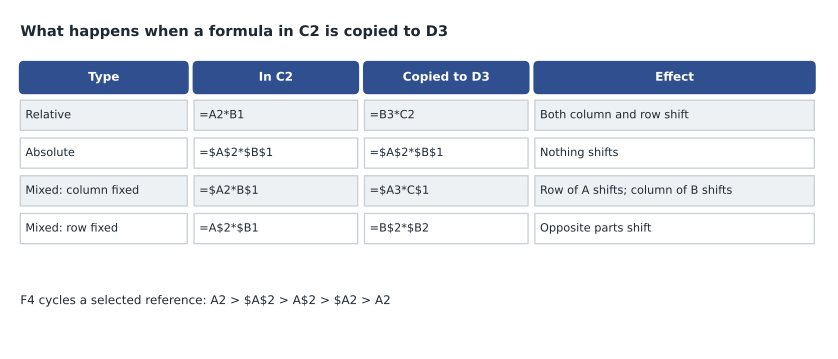
By default, references are relative. Excel stores them not as fixed addresses but as positions relative to the formula cell: =D6*E6 in F6 really means "the cell two to the left times the cell one to the left". When you copy F6 down to F7, the formula becomes =D7*E7, and so on down the list. That is exactly what Teo wanted for twelve line items: write the formula once, then double-click the fill handle.
Absolute references
Relative references break when every row must refer to the same cell. Teo's deposit column multiplied each line total by the deposit rate in cell H2. The first formula worked, but when he filled it down, the copies referred to H3, H4 and H5, which were empty, and the deposits showed as zero.
An absolute reference stays fixed when copied. You make one by putting a dollar sign before the column letter and before the row number. In formulas on this site, dollar-sign references appear only in listings like the one below. Select the reference while editing and press F4 to add the dollar signs instead of typing them.
G6:  =F6*$H$2     fill down ->   G7:  =F7*$H$2
                                  G8:  =F8*$H$2

Relative part (F6) moves with the formula; absolute part ($H$2) stays put.
A named cell (lesson 5) does the same job more readably: =F6*DepositPct copies down without any dollar signs, because names always refer to the same place.
Mixed references
A mixed reference fixes only the column or only the row. A dollar sign before the column letter fixes the column while the row can change; a dollar sign before the row number fixes the row while the column can change. Mixed references are for formulas copied both down and across, where one factor comes from a column of headings and the other from a row of headings.
Worked problem
A price grid with one formula
Rosalind wants a table of package prices for 50 to 200 guests. Guest counts are in A5:A20, and the per-guest rates for Harbor Classic, Garden Gold and Lighthouse Premium are in B4:D4. Write one formula in B5 that can be copied to the whole grid B5:D20.
Show solution
- In B5, the guest count must always come from column A, but its row should change: fix the column only.
- The rate must always come from row 4, but its column should change: fix the row only.
- Type the formula shown in the listing below, using F4 to cycle each reference to the right mixed form.
- Copy B5 across to D5 and down to row 20.
Answer: One formula fills the whole grid. Every cell multiplies its row's guest count by its column's rate.
B5:  =$A5*B$4
C5:  =$A5*C$4       (copied right: rate column moves, guest column stays A)
B6:  =$A6*B$4       (copied down: guest row moves, rate row stays 4)
D20: =$A20*D$4
Pressing F4 cycles a selected reference through all four forms in this order: relative, absolute, row fixed, column fixed, then back to relative. On a Mac keyboard the shortcut differs, but the exam runs on Windows.
Moving and copying formulas
Copying a formula (Ctrl+C and Ctrl+V, or the fill handle) adjusts relative references. Moving a formula by cutting and pasting, or by dragging the cell border, does not: the formula keeps pointing to the same cells. Likewise, if you move the cells a formula refers to, the formula follows them. Inserting rows or columns adjusts references automatically; deleting a cell a formula refers to produces the #REF! error.
References to other sheets and workbooks
A formula can refer to another worksheet by putting the sheet name and an exclamation mark before the cell: =Lists!B2. If the sheet name contains spaces, Excel wraps it in single quotation marks: ='Price List'!B2. The easiest way to create such a reference is to point: type the equals sign, click the other sheet's tab, click the cell and press Enter. A reference to another workbook adds the file name in square brackets, and Excel keeps the link to that file; Data > Edit Links manages such links. Maple & Pine kept all its quote data in one workbook to avoid them.
Structured references
Lesson 6 showed how formulas in tables use structured references such as [@Fee] and Bookings[Fee]. Here is how they compare with ordinary references when copied or filled:
| Reference | Behavior when filled down | Behavior when copied across |
|---|---|---|
| [@Fee] | Each row uses its own Fee value | Stays on Fee if copied with Ctrl+C and Ctrl+V; may shift if dragged |
| Bookings[Fee] | The whole column, always | May shift to the next column when dragged right |
| Bookings[[Fee]:[Fee]] | The whole column, always | Stays on Fee: the doubled form acts as absolute |
| A named range such as TaxRate | Always the same cell | Always the same cell |
The exam objective "use structured references in formulas" usually means writing a formula inside a table by clicking cells, which produces the [@Column] form, or referring to a whole column from outside the table. Typing an ordinary range such as E2:E413 in place of Bookings[Fee] gives the same answer today but fails as soon as the table grows, and an exam checker that expects a structured reference marks it wrong.
Error values
When a formula cannot produce a result, it shows an error value. A green triangle in the corner of the cell and an error button offer help. The errors you are most likely to meet:
| Error | Usual cause |
|---|---|
| #DIV/0! | Dividing by zero or by an empty cell |
| #NAME? | A misspelled function or a name that does not exist |
| #REF! | A reference to a cell that was deleted |
| #VALUE! | The wrong type of value, such as text in arithmetic |
| #N/A | A lookup did not find a value |
| #SPILL! | A dynamic array formula cannot spill because cells are in the way (lesson 9) |
| #### | Not an error: the column is too narrow for the number or date |
Teo's per-guest column showed #DIV/0! for three bookings with no guest count entered yet. Lesson 9 shows how IF can test for that before dividing.
Checking formulas
The Formulas > Formula Auditing group helps you understand formulas you did not write. Trace Precedents draws arrows from the cells a formula uses; Trace Dependents draws arrows to the cells that use the active cell; Remove Arrows clears them. Show Formulas (lesson 1) displays every formula on the sheet. Error Checking steps through errors one by one, and Evaluate Formula calculates a formula one step at a time, which is the best way to see why a long formula gives an unexpected answer. These are not all on MO-210, but they make the references in this lesson visible.
Calculation options
Excel normally recalculates every formula as soon as a value it depends on changes. Formulas > Calculation Options can set this to Manual, in which case the status bar shows Calculate and nothing updates until you press F9. Large models sometimes use manual calculation; if you inherit a workbook whose totals do not change when you edit values, check this setting first. It was set to Manual in an old Maple & Pine budget, which explained a year of complaints about "Excel being wrong".
Building the quote with references
By the end of the session the quote sheet had no typed amounts at all. Each line total multiplied quantity by unit price with relative references; the subtotal summed the line totals; the service charge, tax and deposit used names; the grand total added them up. Here is the finished calculation block, with the name or reference each line uses:
| Line | Calculation | Reference type used |
|---|---|---|
| Line totals | Quantity times unit price, filled down | Relative |
| Subtotal | Sum of the line totals | Named range LineTotals |
| Service charge | Subtotal times the service charge rate | Named cell ServiceCharge |
| Tax | Subtotal plus service charge, times the tax rate | Named cell TaxRate |
| Total | Subtotal plus service charge plus tax | Relative references to the lines above |
| Deposit due | Total times the deposit share | Named cell DepositPct |
Rosalind tested it the way she tested everything: she changed a quantity and watched every line below it change. Then she changed the tax rate on the Settings sheet and watched the tax and total change. For the first time in years, nobody needed a calculator to check a quote.
Formulas that refer to whole columns and rows
A reference can be a whole column, such as F:F, or a whole row, such as 4:4. =SUM(F:F) adds every number in column F, however many rows there are. That is convenient but risky: if the total itself sits in column F, the formula refers to its own cell and Excel warns of a circular reference. A circular reference is a formula that depends, directly or indirectly, on its own result; Excel shows a warning and the status bar names the cell. Structured references to table columns avoid the problem because a table's data area never includes the cells outside it.
Entering the same formula in many cells
To enter a formula in a whole selected range at once, select the range, type the formula for the first (active) cell, and press Ctrl+Enter instead of Enter. Every selected cell gets the formula, with relative references adjusted as if it had been filled. This is handy for non-adjacent selections where the fill handle cannot reach. Ctrl+D fills down from the cell above, and Ctrl+R fills right from the cell to the left.
Dates and times in formulas
Dates are serial numbers (lesson 4), so you can calculate with them directly: subtracting one date from another gives the number of days between them, and adding 30 to a date gives the date thirty days later. =TODAY() returns today's date and updates each day; =NOW() returns the date and time. The quote sheet's expiry line became the quote date plus thirty, and the bookings table's Days to event column subtracted TODAY() from the event date. Format the result as a number, not a date, when it represents a count of days.
Common mistakes
MistakeFilling down a formula that refers to a single rate cell with a relative reference.
InsteadMake the rate reference absolute with F4, or use a name.
MistakeTyping dollar signs in the wrong place in a mixed reference.
InsteadDecide which part must stay fixed and press F4 until only that part has a dollar sign.
MistakeTyping a cell range when a task asks for a structured reference.
InsteadClick the table column or type the table and column names.
MistakeCutting and pasting a formula and expecting its references to adjust.
InsteadMoving keeps references the same; copying adjusts relative ones.
MistakeTreating #### as an error in the formula.
InsteadWiden the column.
Summary and key terms
- Formulas start with an equals sign and follow the order of operations; parentheses come first.
- Relative references adjust when copied; absolute references (dollar signs, F4) stay fixed; mixed references fix the row or the column.
- Names and structured references are readable alternatives that adjust correctly as data changes.
- Sheet references use an exclamation mark; deleting referenced cells gives #REF!.
- Error values point to the problem; Formula Auditing and calculation options help diagnose formulas.
- Formula
- An expression starting with an equals sign that calculates a value.
- Relative reference
- A reference that adjusts when a formula is copied.
- Absolute reference
- A reference with dollar signs before column and row that stays fixed when copied.
- Mixed reference
- A reference with only the column or only the row fixed.
- F4
- The key that cycles a selected reference through relative, absolute and mixed forms.
- Error value
- A result such as #DIV/0! or #REF! showing why a formula cannot calculate.
- Precedent
- A cell that a formula refers to.
Practice problems
Work each problem on paper first, then reveal the answer to check.
What does =D6*E6 become when copied from F6 to F9?
Show answer
=D9*E9.
Which key adds dollar signs to a selected reference?
Show answer
F4.
In a grid formula copied across and down, which reference should fix only its column?
Show answer
The one that comes from a column of row headings, such as guest counts in column A.
What error appears when a formula refers to a deleted cell?
Show answer
#REF!
How do you refer to cell B2 on a sheet named Price List?
Show answer
With the sheet name in single quotation marks followed by an exclamation mark and B2.
Lesson quiz · 5 questions
Score 60% or more to complete this lesson.
Create a free account to save your progress, take quizzes and earn a certificate.