
MSBA-171 · Lesson 7 of 12 · 21 min
Sorting and filtering
▶ Video coming soon A video version of this lesson is on the way.
With the bookings in a table, Rosalind started asking questions she had never bothered to ask before. Which weddings next summer are over 120 guests? Which corporate clients have not booked since spring? What are the five biggest events of the year? On the seventh Tuesday Dagny showed Teo how to answer each one in seconds with sorting and filtering, the third part of the exam's tables domain: filter records, and sort data by multiple columns.
Sorting basics
Sorting rearranges rows by the values in one or more columns. In a table, click the filter button in a column heading and choose Sort A to Z or Sort Z to A (for text), Sort Smallest to Largest or Sort Largest to Smallest (for numbers), or Sort Oldest to Newest or Sort Newest to Oldest (for dates). The same commands are on Data > Sort & Filter and Home > Editing > Sort & Filter. In a plain range, click one cell in the column and use those buttons; Excel expands the sort to the whole block of data so that rows stay together.
That last point is the reason sorting can go badly wrong. If you select a single column and sort it, Excel shows a Sort Warning asking whether to Expand the selection or Continue with the current selection. Continuing sorts only that column, separating each value from the rest of its row. A client's name ends up beside another client's fee. Always expand, or better, sort tables, where Excel always keeps rows together.
Sorting by more than one column
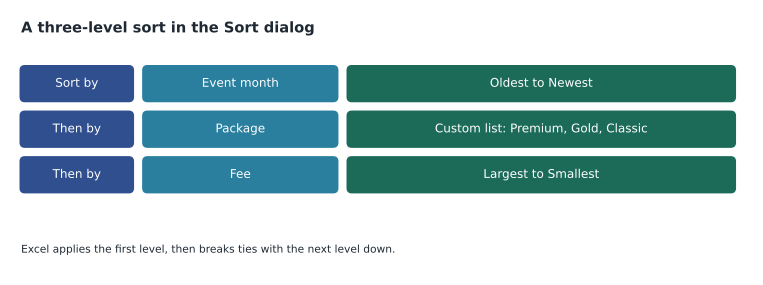
The exam asks specifically for sorting by multiple columns. Open Data > Sort to get the Sort dialog. Each line is a level: a column, what to sort on, and an order. Add Level adds another; Delete Level, Copy Level and the arrows manage them. Excel sorts by the first level, then uses the second to break ties, and so on.
Worked problem
A three-level sort for the planning meeting
Rosalind wants the bookings listed by event date, and within each date by package, and within each package with the largest fee first.
Show solution
- Click in the Bookings table and choose Data > Sort.
- Check that My data has headers is ticked.
- Sort by: Event date, Sort On: Cell Values, Order: Oldest to Newest.
- Add Level. Then by: Package, Order: A to Z.
- Add Level. Then by: Fee, Order: Largest to Smallest.
- Select OK.
Answer: Rows are ordered by date; bookings on the same date are grouped by package; within each package, the biggest fee comes first.
The Sort On list offers more than values: Cell Color, Font Color and Conditional Formatting Icon, each with an order choosing which color or icon goes on top or bottom. Dagny used Cell Color to bring the rows she had highlighted in orange, bookings with an unpaid deposit, to the top.
The Options button in the Sort dialog has two settings: Case sensitive and Orientation (sort top to bottom, the normal choice, or left to right, which reorders columns). My data has headers tells Excel whether the first row is headings that should stay put.
Custom sort orders
Alphabetical order is not always meaningful. Maple & Pine's packages run from most to least expensive as Lighthouse Premium, Garden Gold, Harbor Classic, and sorting them A to Z gives Garden, Harbor, Lighthouse, which means nothing. In the Sort dialog's Order list, choose Custom List and either pick an existing list (days of the week and months are built in) or type a new one with one entry per line and select Add. The custom list is saved on the computer and can be reused. File > Options > Advanced > Edit Custom Lists manages them.
Filtering
Filtering hides rows that do not meet a condition, without deleting or moving anything. Tables have filter buttons in their header rows by default. For a range, turn them on with Data > Filter or Ctrl+Shift+L. Click a filter button to see the AutoFilter menu: sort commands at the top, then a search box, a list of every distinct value with check boxes, and a submenu of conditions that depends on the column's data type.
| Column type | Filter submenu | Examples of conditions |
|---|---|---|
| Text | Text Filters | Equals, Does Not Equal, Begins With, Ends With, Contains, Does Not Contain |
| Numbers | Number Filters | Greater Than, Less Than, Between, Top 10, Above Average, Below Average |
| Dates | Date Filters | Tomorrow, This Week, Next Month, Last Quarter, Year to Date, Between, All Dates in the Period |
| Any | Filter by Color | Cell color, font color or conditional formatting icon |
Rosalind's first question, weddings next summer with more than 120 guests, needed three filters on three columns. Teo cleared Select All in the Event type list and checked Wedding; used Date Filters > Between for June 1 to August 31, 2027; and used Number Filters > Greater Than with 120 on Guests. Filters on different columns combine with AND: a row is shown only if it meets every one. The status bar showed "9 of 430 records found".
Custom AutoFilter
Choosing a condition opens the Custom AutoFilter dialog, which holds up to two conditions on one column joined by And or Or. "Guests greater than 120 Or less than 30" finds the very large and very small events in one step. Text conditions accept wildcards: the question mark stands for any single character and the asterisk for any run of characters, so Contains *Rotary* and Begins with North* both work. To search for a real question mark or asterisk, put a tilde in front of it.
Top 10 and average filters
Number Filters > Top 10 opens a small dialog: Top or Bottom, a number, and Items or Percent. Despite the name, you can choose any number: Top 5 Items on the Fee column answered Rosalind's third question. Above Average and Below Average need no settings. These filters are dynamic: if you edit a fee, the filter does not update until you reapply it with Data > Reapply (Ctrl+Alt+L).
Seeing and clearing filters
A filtered column's button changes to a funnel icon, and the row numbers of a filtered range turn blue, with gaps where rows are hidden. Point to a filter button to see a tooltip describing its filter. To remove one column's filter, open its menu and choose Clear Filter From followed by the column name. To remove every filter at once, choose Data > Clear. To remove the filter buttons themselves, choose Data > Filter again or uncheck Filter Button on the Table Design tab.
| Goal | Command |
|---|---|
| Clear one column's filter | Filter menu > Clear Filter From (column) |
| Clear all filters, keep buttons | Data > Clear |
| Reapply filters after data changes | Data > Reapply |
| Turn filter buttons on or off | Data > Filter (Ctrl+Shift+L) |
Working with filtered data
Filtered rows are hidden, not gone. Several things behave differently while a filter is on. Copying a filtered range copies only the visible rows, so you can paste a filtered list into an email or a new sheet. Deleting rows after selecting visible rows deletes only those rows. SUBTOTAL, used by the total row, includes only visible rows, while SUM includes everything. The status bar's Sum and Count also reflect only visible cells.
Dagny used this to answer the second question, corporate clients with no booking since spring. She filtered Event type to Corporate and Event date to before April 1, 2026, sorted by client, and copied the visible rows into a new sheet called Follow up for Teo to phone.
Slicers
Slicers are on-screen buttons that filter a table or PivotTable, and many people find them easier than filter menus. Click in a table and choose Table Design > Insert Slicer (or Insert > Slicer), tick one or more columns and select OK. Each slicer shows a button for every value; click one to filter, Ctrl+click to choose several, and use the Clear Filter button in the slicer's corner to reset it. A contextual Slicer tab formats the slicer's style, size and columns. Slicers are not a named MO-210 objective, but they make a filtered table easy for people like Rosalind to use without learning filter menus.
Sorting and filtering with formulas
Lesson 9 introduces SORT and UNIQUE, dynamic array functions that return a sorted list or a list of distinct values as a formula result in other cells, leaving the source untouched. They complement the commands in this lesson: commands rearrange or hide the data itself; the functions create a live, separate result. The related FILTER function returns only the rows that meet a condition. FILTER is not on MO-210, but SORT and UNIQUE are.
Sorting and filtering ranges that are not tables
Everything in this lesson works on plain ranges too, with a few cautions. The range must have one heading row and no blank rows or columns, or Excel sorts only part of it. Turn filters on with Data > Filter. Formulas outside the range that refer to cells inside it can give unexpected results after a sort, because the values have moved but references to specific cells have not. Converting the range to a table avoids most of these problems.
One more caution applies to both: merged cells prevent sorting if they are not all the same size, and Excel stops with a message asking you to unmerge. That is one reason lesson 4 suggested Center Across Selection.
Sorting and filtering together
Sorting and filtering work best together. Rosalind's planning meeting each Monday used a routine Teo wrote on a sticky note: clear all filters, filter Event date to Next Month, filter Status to anything but Canceled, then sort by Event date and Venue. In under a minute, the table showed next month's live events in date order, ready to project. Because the table's total row uses SUBTOTAL, it showed next month's fees and guest numbers at the same time.
| Question | Filters | Sort |
|---|---|---|
| What is happening next month? | Event date: Next Month; Status: not Canceled | Event date, then Venue |
| Which deposits are overdue? | Status: Overdue | Event date, oldest first |
| Who are our biggest corporate clients? | Event type: Corporate | Fee, largest first |
| Which weekends are full? | Event date: a weekend range | Venue, then Event date |
Filtering by selected cell
Right-click any cell in a table or filtered range and point to Filter for shortcuts that filter by that cell: Filter by Selected Cell's Value, Color, Font Color or Icon. Right-clicking a cell containing Harbor Classic and choosing Filter by Selected Cell's Value shows only Harbor Classic bookings, without opening any menu. The same right-click Sort submenu sorts by the selected cell's value, color or icon, and offers Custom Sort, which opens the Sort dialog.
Searching in the filter menu
Long columns have long value lists. The Search box in the filter menu narrows the list as you type, and a check box at the top, Add current selection to filter, lets you build a filter from several searches. Teo searched for "Rotary", checked the results and selected OK, then searched for "Lions", checked Add current selection to filter and selected OK again: the table showed both service clubs' bookings. Dates in the list are grouped by year and month, with plus signs to expand them, so you can tick a whole month at once.
Advanced Filter
The Data tab also has Advanced, which opens the Advanced Filter dialog. It uses a separate criteria range on the sheet, can express complex AND and OR combinations across columns, and can copy the results to another place, including only unique records. It is older and less friendly than AutoFilter and is not on MO-210, but you may see it in inherited workbooks. The UNIQUE and FILTER functions now do much of what it was used for.
Checking a sort or filter
Before trusting a sorted or filtered table, check three things: the status bar's record count, the funnel icons on the headings that show which columns are filtered, and the row numbers, which jump where rows are hidden. If a total seems wrong, compare the total row (visible rows only) with a SUM elsewhere (all rows). If a sort seems wrong, look for numbers stored as text: they sort before or after real numbers, and the green triangle in their cells gives them away.
Common mistakes
MistakeSelecting one column and choosing Continue with the current selection.
InsteadExpand the selection, or sort from inside a table, so rows stay together.
MistakeSorting packages alphabetically when they have a natural order.
InsteadUse Order > Custom List.
MistakeExpecting filters on two columns to combine with OR.
InsteadFilters on different columns combine with AND; use Custom AutoFilter for OR on one column.
MistakeAssuming Top 10 can only show ten items.
InsteadChange the number, or switch Items to Percent.
MistakeUsing SUM below a filtered list and expecting it to total only visible rows.
InsteadUse SUBTOTAL, as the total row does.
Summary and key terms
- Sort from a filter button, Data > Sort & Filter or the Sort dialog; keep rows together by expanding the selection.
- The Sort dialog sorts by several levels and by values, colors or icons, with custom list orders.
- Filters hide rows that fail a condition; filters on different columns combine with AND.
- Text, Number and Date Filters offer conditions; Custom AutoFilter allows two conditions with And or Or and wildcards.
- Clear, Reapply and Filter on the Data tab manage filters; copying and SUBTOTAL work on visible rows only.
- Sort level
- One column and order in the Sort dialog; lower levels break ties in higher ones.
- Custom list
- A user-defined order, such as package tiers, used for sorting and filling.
- Filter
- A condition that hides rows not meeting it, without deleting them.
- AutoFilter
- The drop-down filter menu in a heading cell.
- Wildcard
- A character in a text condition standing for any characters: ? for one, * for many.
- Top 10 filter
- A number filter showing the top or bottom n items or percent.
- Slicer
- A panel of buttons that filters a table or PivotTable.
Practice problems
Work each problem on paper first, then reveal the answer to check.
How do you sort by event date and then by fee within each date?
Show answer
Data > Sort with two levels: Event date first, then Fee.
Which shortcut turns filter buttons on or off for a range?
Show answer
Ctrl+Shift+L.
How do you show only clients whose names contain Rotary?
Show answer
Text Filters > Contains, and type Rotary.
What command removes all filters but keeps the buttons?
Show answer
Data > Clear.
Why might a filtered list not change after you edit a value?
Show answer
Filters are not automatically reapplied; use Data > Reapply.
Lesson quiz · 5 questions
Score 60% or more to complete this lesson.
Create a free account to save your progress, take quizzes and earn a certificate.