
MSBA-171 · Lesson 5 of 12 · 21 min
Named ranges
▶ Video coming soon A video version of this lesson is on the way.
The quote sheet had a formula in its total row that Teo could not read: it multiplied the subtotal by a cell called K2, on a sheet he had never opened. Dagny traced it. K2 on a hidden sheet held the tax rate, Vermont sales tax plus Burlington's local option tax. "Nobody remembers what K2 means," she said. "Give it a name and the formula explains itself." The fifth Tuesday was about named ranges, the second objective in the exam's cells-and-ranges domain: define a named range, and reference a named range.
What a name is
A defined name is a label that stands for a cell, a range, a constant value or a formula. Instead of a formula that multiplies the subtotal by a cell on a hidden sheet, you write one that multiplies by TaxRate. Names make formulas readable, make navigation faster, and make a workbook safer to change: if the tax rate moves to another cell, you update the name in one place and every formula that uses it follows.
Without a name:   =E18*Lists!K2
With a name:      =E18*TaxRate

Without a name:   =SUM(Quote!E6:E17)
With a name:      =SUM(LineTotals)
Most names refer to ranges, which is why the exam calls them named ranges. Excel also creates names for you: the print area from lesson 2 is stored as a name, Print_Area, and every Excel table has a name such as Table1 or Bookings (lesson 6).
Rules for names
Excel is strict about what a name can be:
| Rule | Allowed | Not allowed |
|---|---|---|
| First character | A letter, an underscore or a backslash | A digit: 2026Fees |
| Spaces | None; use underscores or capital letters | Tax Rate |
| Other characters | Letters, digits, periods and underscores | Hyphens, slashes, question marks |
| Cell addresses | Names that cannot be read as a reference | Q1, FY27 or R2C3, which look like cell references |
| Single letters | Most letters | C, c, R and r, which Excel reserves |
| Length | Up to 255 characters | Longer names |
| Case | Any; names are not case-sensitive | Two names differing only in case |
Good names describe what the range holds: TaxRate, DepositPct, Venues, LineTotals, Packages. Dagny's convention for Maple & Pine was capital letters at word starts and no underscores, which reads well in formulas.
Defining a name with the Name Box
The quickest method is the Name Box. Select the cell or range, click in the Name Box, type the name and press Enter. Teo selected Lists!K2, typed TaxRate in the Name Box and pressed Enter. Pressing Enter matters: if you click away instead, the name is not created. The Name Box method always creates a name with workbook scope.
Defining a name with Define Name
For more control, use Formulas > Defined Names > Define Name. The New Name dialog has four fields:
| Field | What it sets |
|---|---|
| Name | The name itself |
| Scope | Workbook, or one worksheet; a sheet-scoped name is recognized only on that sheet unless qualified with the sheet name |
| Comment | A description that appears in the Name Manager and as a tooltip when you type the name in a formula |
| Refers to | The cell, range, constant or formula the name stands for; it starts with an equals sign |
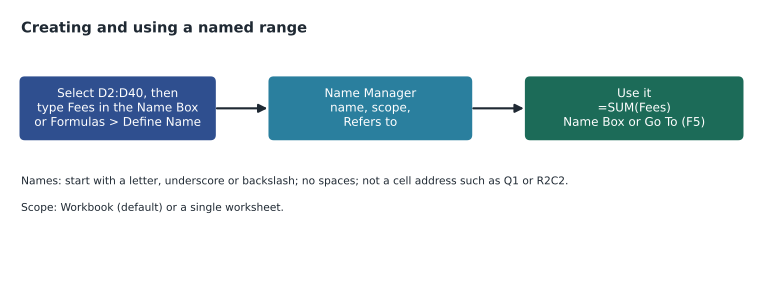
The Refers to box is filled in from your selection, written with absolute references, as the listing below shows. You can also type into it directly, which is how you name a constant that lives in no cell at all.
Name:       Venues
Scope:      Workbook
Comment:    Active venues for drop-down lists
Refers to:  =Lists!$A$2:$A$24

Name:       DepositPct
Refers to:  =0.25
Named constants are useful for values that rarely change and do not need to appear on a sheet, such as the standard deposit share. Dagny preferred keeping such values in visible, labeled cells on a Settings sheet so that anyone could see and update them, and naming those cells. Both approaches work in formulas.
Creating names from labels
When a range already has labels, Formulas > Defined Names > Create from Selection names many ranges at once. Select the whole block including the labels, choose Create from Selection, and tick where the labels are: Top row, Left column, Bottom row or Right column.
Worked problem
Naming three price columns in one step
The Packages sheet has the headings GardenGold, HarbourClassic and LighthousePremium in B1:D1, with prices for each service below them in rows 2 to 12. Create a name for each column's prices.
Show solution
- Select B1:D12, including the headings.
- Choose Formulas > Create from Selection.
- Make sure only Top row is checked and select OK.
- Open the Name Box drop-down to confirm the three new names.
Answer: Excel creates GardenGold for B2:B12, HarbourClassic for C2:C12 and LighthousePremium for D2:D12. If a heading contains a space, Excel replaces it with an underscore; if it starts with a digit, Excel adds an underscore in front.
The Name Manager
Formulas > Name Manager (Ctrl+F3) lists every name in the workbook with its current value, what it refers to, its scope and its comment. From here you can create a New name, Edit one (including renaming it, which updates every formula that uses it), or Delete it. The Filter button shows names scoped to the worksheet or workbook, names with errors, defined names only or table names only.
Names with errors are worth checking. If you delete the row or sheet a name refers to, its Refers to box shows the #REF! error, and every formula using the name breaks. When Dagny opened the Name Manager on the old vendor workbook, it listed fourteen names, five with #REF! errors left over from deleted sheets. She deleted those five after confirming no formula used them; Find with Look in set to Formulas showed none did.
Referencing a name in a formula
Once a name exists, you can use it anywhere you would use a cell reference. Type it directly, or start typing and pick it from the AutoComplete list, which shows names alongside functions with a different icon. Formulas > Use in Formula lists the names and inserts the one you pick. Pressing F3 while editing a formula opens the Paste Name dialog with the same list.
=E18*TaxRate                     tax on the subtotal
=SUM(LineTotals)                  total of the named line amounts
=COUNTA(Venues)                   how many active venues there are
=AVERAGE(GardenGold)              average price of Garden Gold services
=E19*DepositPct                   the deposit due
If you type a name that does not exist, the formula shows the #NAME? error. That is also what happens if you misspell a function, so when you see #NAME? check both. Names are absolute: copying a formula that uses TaxRate does not shift the reference the way a relative reference would (lesson 8), which is exactly what you want for a single rate.
Using names to navigate
Names are also bookmarks. Click the Name Box drop-down to see every range name and click one to select that range, even on another sheet. Go To (F5) lists the same names; choose one and select OK. The exam's navigation objective, from lesson 2, includes going to named cells, ranges and workbook elements, so this is a skill that counts twice.
Table names (lesson 6) do not appear in Go To's list, but they do appear in the Name Box drop-down, and typing a table name into the Name Box selects the table's data.
Applying names to existing formulas
If formulas were written before a name existed, they still show the cell reference. Formulas > Define Name > Apply Names replaces references with matching names. Select the cells to change, choose Apply Names, select the names to apply and select OK. Teo applied TaxRate to the quote sheet's old formulas, and the hidden-cell reference disappeared from view.
Scope in practice
Most names should have workbook scope, which means any sheet can use them. Worksheet scope is useful when several sheets need the same name for different ranges. Maple & Pine's monthly sheets, Jan to Dec, each had a total cell; giving each a sheet-scoped name MonthTotal meant the same formula, =MonthTotal*TaxRate, worked on every sheet. From another sheet you reach a sheet-scoped name by qualifying it with the sheet name, as in =Mar!MonthTotal. Scope cannot be changed in the Edit Name dialog, so to change it you create a new name with the right scope and delete the old one.
| Workbook scope | Worksheet scope | |
|---|---|---|
| Created by | Name Box, or Define Name with Scope set to Workbook | Define Name with Scope set to a sheet |
| Recognized | On every sheet | Only on its sheet, or elsewhere as SheetName!Name |
| Duplicates | One per workbook | One per sheet, so many sheets can reuse the name |
| Shown in Name Manager | Scope: Workbook | Scope: the sheet name |
Names and drop-down lists
Named ranges work well with data validation lists (Data > Data Validation > Allow: List), which are not on MO-210 but appear in almost every office workbook. Set Source to =Venues, and the Venue column on the bookings sheet shows a drop-down of exactly the active venues. When Rosalind added a new venue to the list and extended the name's range in the Name Manager, every drop-down updated. In lesson 6, turning the list into an Excel table makes this automatic: a name that refers to a table column grows as the table grows.
Checking your names on the exam
Exam tasks on names are precise. "Define a name TaxRate for cell K2 on the Lists worksheet" is checked by looking for that exact name, referring to that exact cell, usually with workbook scope. "Create named ranges from the top row of the Packages table" is checked by the set of names and their ranges. After every name task, open the Name Box drop-down or the Name Manager and confirm. If a name is wrong, Edit it in the Name Manager rather than creating a second name.
Watch also for tasks that say "reference the named range" in a formula. Typing the equivalent cell reference produces the right result but fails the task, because the checker reads the formula, not just the value.
Names in everyday Maple & Pine workbooks
By the end of the session the quote workbook had seven names, each listed in the Name Manager with a comment explaining it. Dagny printed the list for the office wall so that anyone building a new quote would use the same names:
| Name | Refers to | Used for |
|---|---|---|
| TaxRate | Settings sheet, the tax rate cell | Tax on every quote |
| DepositPct | Settings sheet, the deposit share cell | Deposit due on booking |
| ServiceCharge | Settings sheet, the service charge cell | Added to catered events |
| Venues | The Venue column of the Lists table | Drop-down list on quotes and bookings |
| Packages | The Package column of the Lists table | Drop-down list and summaries |
| LineTotals | The line total cells on the Quote sheet | The quote subtotal |
| QuoteDate | The date cell at the top of the Quote sheet | Expiry date 30 days later |
The names changed how people read formulas. The expiry date became =QuoteDate+30; the total became =SUM(LineTotals)*(1+TaxRate). When the province or state changed a tax rate, Dagny would change one cell, and every open quote and every future quote would follow.
Names and the formula bar's AutoComplete
Typing in a formula shows an AutoComplete list that mixes functions and names. Functions have an fx icon; defined names have a small label icon; table names have a table icon. Press Tab to accept the highlighted item. This is a quick way to check whether a name exists: start typing it after an equals sign and see whether it appears. If it does not, the name was never created, perhaps because Enter was not pressed in the Name Box, or it has worksheet scope on a different sheet.
Names that refer to formulas
A name can also refer to a formula, not just a cell or constant. Rosalind's standard rule was that a quote is valid for thirty days, so Dagny defined a name QuoteExpiry with Refers to set to the quote date plus thirty. Any cell on any sheet could then show the expiry with =QuoteExpiry. Named formulas are an advanced technique, used heavily with the LAMBDA function on the Expert exam, but it helps to recognize them when you see a name in the Name Manager whose Refers to box contains a calculation rather than an address.
Common mistakes
MistakeTyping a name in the Name Box and clicking away.
InsteadPress Enter to create the name.
MistakeUsing spaces or hyphens in names, or names like FY27 that look like cell references.
InsteadUse letters, digits, periods and underscores, starting with a letter or underscore, and avoid address-like names.
MistakeUsing a cell reference when the task says to reference a named range.
InsteadType the name in the formula; the checker reads the formula text.
MistakeLeaving names that show #REF! in the Name Manager.
InsteadFix or delete them after checking no formula depends on them.
MistakeTrying to change a name's scope in Edit Name.
InsteadCreate a new name with the right scope and delete the old one.
Summary and key terms
- A defined name labels a cell, range, constant or formula, making formulas readable and robust.
- Create names with the Name Box (press Enter), Define Name, or Create from Selection.
- The Name Manager (Ctrl+F3) edits, deletes and filters names and shows #REF! problems.
- Use names in formulas by typing them, Use in Formula or F3; #NAME? means a name or function is not recognized.
- Names have workbook or worksheet scope and double as navigation targets in the Name Box and Go To.
- Defined name
- A label for a cell, range, constant or formula, managed in the Name Manager.
- Named range
- A defined name that refers to a cell or range.
- Scope
- Where a name is recognized: the whole workbook or a single worksheet.
- Name Manager
- The Formulas tab dialog that lists, edits and deletes names.
- Create from Selection
- A command that names ranges using labels in an adjacent row or column.
- #NAME? error
- The error shown when a formula contains a name or function Excel does not recognize.
- Apply Names
- A command that replaces cell references in existing formulas with matching names.
Practice problems
Work each problem on paper first, then reveal the answer to check.
Which of these is a valid name: 2027Rates, Tax Rate, Tax_Rate, Q1?
Show answer
Tax_Rate.
What scope does a name created in the Name Box have?
Show answer
Workbook.
Which command creates names from the headings above several columns?
Show answer
Formulas > Create from Selection, with Top row checked.
What key opens the Paste Name dialog while editing a formula?
Show answer
F3.
What error appears if a formula uses a name that does not exist?
Show answer
#NAME?
Lesson quiz · 5 questions
Score 60% or more to complete this lesson.
Create a free account to save your progress, take quizzes and earn a certificate.