
MSBA-132 · Lesson 7 of 12 · 20 min
Sharing and apps in Power BI
▶ Video coming soon A video version of this lesson is on the way.
The report was ready, and twenty-two managers across three campuses needed to see it. Kwabena's first instinct was to add them all to the Student Success Analytics workspace, the way he had added Maribeth. Rupert Ellingsworth, who looked after Power Platform and Power BI governance for the college, asked him to wait. Adding readers to a workspace gives them access to everything in it, including half-finished experiments, and makes it easy for someone to edit a report by accident. Power BI offers several ways to share, and choosing the right one is as much a part of building a report as choosing the right chart.
Workspaces and roles
A workspace is the shared container where a team builds and maintains content. Each workspace has members, and each member has one of four roles.
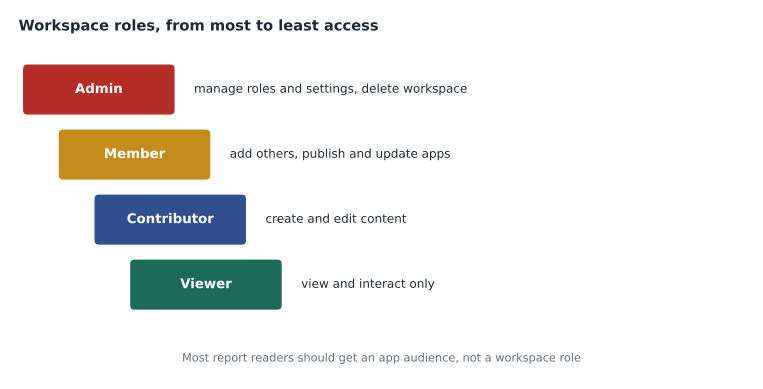
| Role | Can do | Typical holder |
|---|---|---|
| Admin | Everything, including changing roles and settings and deleting the workspace | The content owner and a backup |
| Member | Add people with lower roles, publish and update the workspace app, share items | Lead authors |
| Contributor | Create, edit and delete content, schedule refresh | Report authors |
| Viewer | View and interact with content, but not change it | A small group of reviewers |
Roles can be given to individual users, to Microsoft 365 groups, to security groups or to distribution lists, and giving them to groups is far easier to maintain than adding people one at a time. Kwabena made himself and a colleague from institutional research admins, so the workspace would never be left without an owner, and Maribeth a contributor. He did not add the twenty-two managers at all.
Every workspace other than My workspace has a license mode: Pro, Premium Per User, Fabric capacity or another capacity type. The license mode determines which features are available and, as lesson 3 explained, who can view the content. Student Success Analytics was a Pro workspace, so every member and every viewer needed a Pro license.
Ways to share
Power BI offers four main ways to give people access to a report, from the most limited to the broadest.
Sharing an item directly. The Share button on a report creates a link or sends an email. The author chooses who the link works for: specific people, people in the organization, or people with existing access, and whether recipients may reshare or build their own content from the semantic model. Direct sharing is quick and suits a one-off request, such as sending a draft to a reviewer. It becomes hard to manage at scale, because each item's access list has to be checked separately.
Giving a workspace role. Suits people who build or maintain the content, not people who only read it.
Publishing an app. An app packages selected content from a workspace for a wider audience, with its own navigation, and is covered in detail below. It is the recommended way to distribute finished content to many readers.
Embedding. Reports can appear inside Teams, SharePoint pages, websites and other applications, which lesson 9 covers.
Whatever the route, Power BI checks licenses when someone opens content. A link does not override the licensing rules: a manager with a free license still cannot open a report in a Pro workspace, even with a valid link.
Permissions on reports and semantic models
Sharing grants permissions. On a report, the basic permission is Read: open and interact with it. Reshare lets the recipient share it further. On a semantic model, Build permission lets someone create new reports on the model, connect to it from Excel, or query it. Build is separate from Read, so Kwabena could let the dean's office build its own charts on his model while keeping everyone else to read-only reports. The Manage permissions page on each item shows exactly who has which permission, and it is the first place to look when someone asks "why can I see this?" or "why can't I?"
Apps: workspace apps and org apps
An app is a polished, read-only package of content for people who consume rather than build. Readers find it under Apps in the Power BI service, in Teams or on the mobile app. They see a clean navigation pane with the pages the author chose, without the clutter of the workspace and without the risk of editing anything.
Power BI has two generations of app. The original workspace app allows one app per workspace. The author chooses which reports, dashboards and other items to include, sets the navigation, and publishes. Readers see changes only when the author publishes an update, which gives authors a safe place to work on a new version while readers keep using the old one. A workspace app can have audiences, so that different groups see different subsets of its content.
The newer org app is now generally available and can coexist with workspace apps. Org apps are a Microsoft Fabric item type, so a workspace can contain several of them, each packaging different content for a different group. Each org app supports up to 25 audiences. Org apps can include Power BI reports, paginated reports, real-time dashboards and some other Fabric items. When an org app gives someone access to a report, it can also give them the access they need on the underlying semantic model, and removing them revokes that access automatically. Readers do not install an org app; it appears in their Home page and the OneLake catalog. Microsoft has said that apps without audience management will not receive further improvements.
| Question | Workspace app | Org app |
|---|---|---|
| How many per workspace? | One | Several |
| When do readers see changes? | After the author publishes an update | As soon as the item is saved |
| Semantic model access | Managed separately by the author | Granted with the report and revoked automatically |
| How do readers find it? | They install it or it is pushed to them | It appears in Home, the OneLake catalog and Apps |
| Audiences | Yes | Yes, up to 25 per app |
One difference deserves care. Because org app readers see changes as soon as an item is saved, authors should keep work in progress out of items that an org app already includes, for example by developing in a separate workspace and promoting changes when ready. Lumenvale chose an org app for the managers, with three audiences, and a separate development workspace for Kwabena's drafts.
Worked problem
Designing audiences
Kwabena's org app contains three report pages: Hours, Attendance and Tutors. Deans should see Hours and Attendance. Campus coordinators need all three. The Student Success director needs all three plus the Tutor detail drill-through page. How many audiences does he need, and what does each see?
Show solution
- Deans: Hours and Attendance.
- Coordinators: Hours, Attendance and Tutors.
- Director: Hours, Attendance, Tutors and Tutor detail.
- Each audience is assigned a security group, such as Deans, Campus Coordinators and Student Success Leadership.
Answer: Three audiences, one per group, each mapped to a security group. Audiences control what appears in navigation; row-level security, covered in MSBA-261, controls which rows each person sees within a page.
That last point matters. An audience decides which items a person sees in the app's navigation. It does not hide rows of data. If coordinators should see only their own campus's sessions, the semantic model needs row-level security, which filters data by who is signed in. Audiences and row-level security work together; neither replaces the other.
Sharing outside the organization
Sometimes a report must reach people outside Lumenvale, such as a partner university or an external auditor. Power BI supports this through Microsoft Entra B2B guest users: the external person is invited as a guest in Lumenvale's tenant, signs in with their own organization's account, and is shared content like any internal user. Guests need a license, either assigned by the host organization or brought from their own, unless the content is on F64 or larger capacity. Tenant administrators control whether external sharing is allowed at all, and many organizations restrict it to specific security groups.
Publish to web: almost never
One option looks like sharing but is not. Publish to web creates a public link and embed code that anyone on the internet can open, with no sign-in and no security. Search engines can index it. It exists for genuinely public data, such as an open-data report a government agency wants on its website, and administrators can, and usually should, restrict it. Rupert's tenant settings allowed publish to web only for a small communications group, and the Student Success data never qualified. The secure alternatives for websites and portals are covered in lesson 9.
Exporting and sensitivity labels
Readers can often export data from a visual to Excel or CSV, export a report page to PDF or PowerPoint, or analyze a semantic model in Excel. Each of these takes data outside Power BI's controls, so administrators can limit them by tenant setting, and authors can limit export per report. Microsoft Purview sensitivity labels, such as Confidential, can be applied to Power BI items; when data is exported to Excel, PowerPoint or PDF, the label travels with the file and can enforce encryption. Lumenvale labeled the tutoring model Confidential because it contained student names, and Kwabena set the report to allow export of summarized data only.
A sharing checklist
Before sending the link to the managers, Kwabena ran through a short checklist he would use for every report afterwards:
- Is the content in a shared workspace with at least two admins, not in My workspace?
- Do all readers have the license the workspace's license mode requires?
- Are readers getting an app audience rather than a workspace role?
- Does row-level security limit rows where some readers should not see everything?
- Is the content labeled, and are export settings appropriate for the data?
- Is publish to web off for this content?
Watching how content is used
Sharing is not the end of the story. Every report and dashboard in the service has a usage metrics report, available to people who can edit the item, showing how many people viewed it, how often, from which platforms and which pages they used. Administrators can see usage across the whole tenant in the admin monitoring workspace. Kwabena checked the tutoring app's usage after a month and found that coordinators rarely opened the Hours page but used the Tutors page daily. He reordered the coordinators' audience so Tutors came first.
Usage metrics also help with cleanup. Content nobody has opened for months can be archived or deleted, which keeps workspaces tidy and stops people from stumbling on outdated reports. Lumenvale's governance group reviewed workspaces each term and asked owners to remove anything unused for two terms.
Worked problem
Choosing how to share
Choose a sharing method for each request: (a) Maribeth will help build the next version of the report; (b) a vice-president wants a quick look at a draft before a meeting tomorrow; (c) 22 managers need the finished report every week; (d) an auditor from the provincial ministry needs read-only access for a month.
Show solution
- (a) Someone who builds content: a Contributor workspace role.
- (b) A one-off look: share the item directly with that one person, read-only, without reshare.
- (c) A wide, ongoing audience: an org app with audiences.
- (d) An external person: invite them as a Microsoft Entra B2B guest, share read-only, check their license and remove access when the month ends.
Answer: Contributor role, direct share, org app, and guest access with an end date.
Common mistakes
MistakeAdding every report reader to the workspace as a member.
InsteadGive readers an app audience; keep workspace roles for people who build and maintain content.
MistakeAssuming a share link lets anyone open the report.
InsteadLinks still respect licenses and permissions; free users cannot open Pro workspace content.
MistakeUsing audiences to hide rows of data.
InsteadAudiences control navigation; use row-level security to filter rows by user.
MistakeUsing publish to web to share internal data quickly.
InsteadPublish to web is public to the whole internet; use apps, Teams or secure embedding instead.
Summary and key terms
- Workspace roles are Admin, Member, Contributor and Viewer; give roles to groups and keep at least two admins.
- Share items directly for one-off needs; use apps to distribute finished content to many readers.
- Read, Reshare and Build are separate permissions; Build lets people create content on a semantic model.
- Workspace apps are one per workspace; org apps allow several per workspace, up to 25 audiences each, and manage model access automatically.
- Audiences control navigation; row-level security controls rows.
- Guests can be shared content through Entra B2B; publish to web is public and should be restricted.
- Sensitivity labels and export settings protect data that leaves Power BI.
- Workspace role
- Admin, Member, Contributor or Viewer, controlling what someone can do in a workspace.
- Build permission
- Permission to create reports on, or query, a semantic model.
- Workspace app
- The original Power BI app, one per workspace, updated when the author publishes.
- Org app
- A Fabric item that packages workspace content; several per workspace, with audiences.
- Audience
- A group within an app that sees a chosen subset of the app's content.
- Row-level security
- Model rules that filter which rows each user can see.
- Publish to web
- A public link with no security, meant only for genuinely public data.
Practice problems
Work each problem on paper first, then reveal the answer to check.
Which workspace role can publish and update the workspace app but cannot delete the workspace?
Show answer
Member.
What is the difference between Read and Build permission on a semantic model?
Show answer
Read lets someone view reports that use it; Build lets them create new reports on it or query it, for example from Excel.
Why did Lumenvale keep Kwabena's drafts in a separate workspace from the org app?
Show answer
Org app readers see changes as soon as items are saved, so drafts in the same items would reach readers immediately.
Lesson quiz · 5 questions
Score 60% or more to complete this lesson.
Create a free account to save your progress, take quizzes and earn a certificate.