
LVT-220 · Lesson 10 of 12 · 22 min
Testing and troubleshooting connectivity
By the second week of commissioning on the Brightwater floor, most devices come up on the first try. The ones that do not are where an installer earns the trust of the owner's network team. A good troubleshooter finds the fault quickly, changes one thing at a time, and when the fault is not the installer's to fix, hands it over with enough information that the network team can fix it from their desk. A poor one swaps cords, reboots switches, blames the cable and leaves a list of devices that do not work. This lesson turns Dev's bottom-up rule into a procedure, covers the tools the crew uses, and shows how to read the switch's counters and the results of ping and other tests.
The bottom-up procedure
The procedure follows the layers from lesson 1, and stops at the first check that fails. First, the physical layer: is there a link light at the switch port and the device, and does the cable's certification report show a pass? Second, power, for PoE devices: does the switch show the device detected and drawing power? Third, the data link layer: what speed and duplex did the port negotiate, is the device's MAC address seen on the expected port and VLAN, and are the error counters clean? Fourth, the network layer: does the device have the planned address, mask and gateway, and can it reach the gateway? Fifth, services: can it resolve names and reach its server and time server? Only when all of these pass is the problem in the application itself.
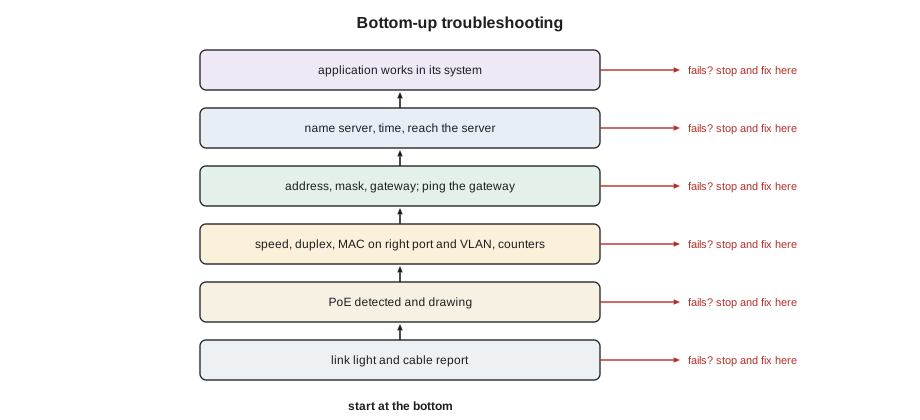
Each check has a typical tool and a typical fault, and the table summarizes them. The point of the order is efficiency: each check is quick, and a failure at one level makes everything above it irrelevant. A camera with no link light does not need its DNS settings checked.
| Check | Tool | Typical fault found |
|---|---|---|
| Link and cable | Link lights, certification report, cable tester | Unplugged or wrong cord, damaged link |
| Power | Switch PoE page, handheld PoE tester | Port limit, budget, open pair, non-PoE device |
| Speed, duplex, VLAN, errors | Switch port status, MAC table, counters | Two-pair cord, wrong port, duplex mismatch |
| Address and gateway | Device status page, discovery tool, ping | Wrong mask or gateway, no DHCP, duplicate |
| Services | Ping by name, device logs | Wrong name server, firewall, wrong time |
| Application | Recorder, controller, phone system | Wrong server address, credentials, license |
Tools the crew carries
The certification tester from LVT-130 can do more than certify. Most models have a network mode: plugged into an outlet, the tester links to the switch like a device would, reports the speed it negotiates, whether PoE is present and at what class, the switch name and port it is connected to from the discovery protocol, and the VLAN. It can get an address by DHCP and ping the gateway and a server. A network tester that does these checks without the certification functions is smaller and cheaper, and the crew carries several. With one, Maya can stand at an outlet in the ceiling and answer, in under a minute, the questions that otherwise need someone in the telecommunications room and someone at the network team's screen.
A laptop is the other tool. With a network cable and the right VLAN, it can ping, look up names, reach device setup pages and run the manufacturers' discovery tools. On owner networks, the crew's laptops are set to get addresses by DHCP and are connected only to ports the network team has prepared for them; a laptop with a fixed address picked at random is a duplicate address waiting to happen. Some owners, St. Brendan's among them, do not allow contractor laptops on the network at all, and the crew uses the network testers and the owner's own staff instead.
Ping and what it tells you
Ping sends a small echo request to an address and waits for the echo reply. If replies come back, the two ends can reach each other at the network layer, and the time each takes, the round-trip time, says something about the path. On a building network, replies from the gateway or a device on the same floor should come back in a millisecond or two. Pinging in order outward, first the device's own gateway, then the server, then a name, narrows down where a path fails.
No reply does not always mean no path. Some devices and firewalls are set not to answer ping, for security, and the network team will say which. A device that does not answer ping but streams video to the recorder is working. Ping results with occasional losses or long, variable times on a local network point to a problem worth chasing: a bad cord, a duplex mismatch, a loop, or a congested link. A short run of losses while a device restarts is normal.
# Ping log analyzer: loss, average and worst round-trip time, and jitter
logs = {
    "AP-6-04 to gateway": [0.6, 0.5, 0.7, 0.6, 0.5, 0.6, 0.7, 0.6, 0.5, 0.6],
    "CAM-6-02 to recorder": [0.9, 1.1, None, 0.8, 14.2, None, 1.0, 22.5, None, 0.9],
    "DC-6-03 to server": [None] * 10,
}
for name, samples in logs.items():
    got = [s for s in samples if s is not None]
    loss = 100 * (len(samples) - len(got)) / len(samples)
    if not got:
        print(f"{name:22s} 100 % loss: no path, or the target does not answer ping")
        continue
    avg = sum(got) / len(got)
    jitter = sum(abs(a - b) for a, b in zip(got, got[1:])) / max(1, len(got) - 1)
    flag = "ok" if loss == 0 and max(got) < 5 else "investigate"
print(f"{name:22s} loss {loss:3.0f} % avg {avg:5.1f} ms worst {max(got):5.1f} ms jitter {jitter:4.1f} ms {flag}")AP-6-04 to gateway loss 0 % avg 0.6 ms worst 0.7 ms jitter 0.1 ms ok CAM-6-02 to recorder loss 30 % avg 5.9 ms worst 22.5 ms jitter 11.7 ms investigate DC-6-03 to server 100 % loss: no path, or the target does not answer ping
The analyzer shows three patterns. The access point's replies are steady at under a millisecond: a healthy path. The camera loses three replies in ten, and some of the rest take twenty times longer than they should: something is wrong between the camera and the recorder, probably near the camera because other devices on the same switch are clean. The door controller does not answer at all, which could mean no path or a controller set not to answer; the next check is whether the access server sees it.
Reading the switch's counters
Every switch port keeps counters: frames and bytes sent and received, and errors of several kinds. The error counters are the most useful for the installer. CRC or frame check sequence errors count frames that arrived damaged, as lesson 2 explained: a physical problem, or a duplex mismatch. Runts and giants count frames too short or too long, often from the same causes. Collisions and late collisions should be zero on any modern full-duplex link; late collisions in particular are the signature of a duplex mismatch, where one end thinks it can send whenever it likes and the other is waiting its turn. Input or output discards count frames dropped because the port was busy, a sign of congestion rather than a fault.
Counters only mean something when compared over time. Omar clears the counters on a port, or notes the values, Maya runs traffic for a few minutes, and then they look at what changed. A handful of errors from the moment a cord was plugged in is normal; errors that keep rising are not.
# Interface counter check: errors, duplex mismatch and congestion
ports = {
    "Gi1/0/15 CAM-6-04": {"speed": "100M", "duplex": "half", "crc": 412, "late_coll": 57, "discards": 0, "frames": 180000},
    "Gi1/0/25 AP-6-01":  {"speed": "2.5G", "duplex": "full", "crc": 0, "late_coll": 0, "discards": 3, "frames": 2400000},
    "Gi1/0/41 DC-6-02":  {"speed": "100M", "duplex": "full", "crc": 0, "late_coll": 0, "discards": 0, "frames": 9000},
    "Gi1/0/07 desk":     {"speed": "1G",   "duplex": "full", "crc": 1880, "late_coll": 0, "discards": 0, "frames": 950000},
}
for name, c in ports.items():
    notes = []
    if c["late_coll"] > 0 or (c["duplex"] == "half" and c["crc"] > 0):
        notes.append("duplex mismatch likely: set both ends to auto")
    elif c["crc"] / max(1, c["frames"]) > 1e-4:
        notes.append("CRC errors rising: check cords, terminations and nearby power cables")
    if c["discards"] / max(1, c["frames"]) > 1e-3:
        notes.append("discards: congestion")
print(f"{name:20s} {c['speed']:>4s} {c['duplex']:4s} " + ("clean" if not notes else "; ".join(notes)))Gi1/0/15 CAM-6-04 100M half duplex mismatch likely: set both ends to auto Gi1/0/25 AP-6-01 2.5G full clean Gi1/0/41 DC-6-02 100M full clean Gi1/0/07 desk 1G full CRC errors rising: check cords, terminations and nearby power cables
The camera on port 15 shows half duplex, CRC errors and late collisions together: the classic duplex mismatch. Its setup page, when Maya checks it, shows the network port set by hand to 100 Mb/s full duplex, a setting someone made at the factory or in a previous job. The switch port, left on auto, could not detect the camera's duplex and assumed half. Setting the camera back to auto clears every error. The desk port on port 7 shows CRC errors with no collisions at full duplex: a physical fault, which turns out to be a crushed patch cord under a desk leg.
Common faults and how they show
Most faults the crew meets fall into a short list, and each has a recognizable pattern. A wrong patch shows as a device on the wrong VLAN, with a wrong-subnet or 169.254 address, and its MAC address on an unexpected port. A two-pair cord or damaged pair shows as a link at 100 Mb/s where 1 Gb/s or faster was expected. A duplex mismatch shows as late collisions and CRC errors with poor but not zero performance. A missing DHCP relay shows as every DHCP device on one VLAN with 169.254 addresses. A wrong gateway shows as a device that reaches its own subnet but nothing else. A port shut down by security or loop protection shows as a link that comes up and goes dark seconds later, with a message in the switch's log. And a device on its factory address shows as something that answers at 192.168.something and nowhere in the plan.
A few faults look like network faults but are not. A PoE device that keeps restarting may be on a port with too low a power limit, as lesson 6 showed. A camera whose image freezes every few minutes may have a firmware fault. A door controller that logs events late may have the wrong time. An access point that shows online but whose users complain may simply be in the wrong place. The bottom-up order catches all of these in turn.
Intermittent faults
Faults that come and go are the hardest. The approach is to collect evidence over time rather than at one moment: leave a ping running for an hour and save the log, ask the network team to keep the port's counters and log messages, and note when the fault occurs. Patterns in time are clues. A fault every morning at nine may be a load problem when everyone arrives. A fault on hot afternoons may be a long link in a hot ceiling, as lesson 2 suggested for Hartwell. A fault when a particular machine starts, such as an elevator or a large motor nearby, points at interference or a grounding problem, which LVT-330 covers.
Juniper Point has one such case. An intercom on the twelfth floor drops its connection for a few seconds, two or three times a day. Ping logs show losses at the same times, the counters show CRC errors in bursts, and the times match the building's garbage chute compactor starting in the room behind the intercom's riser enclosure. The cable from the enclosure to the intercom runs in a bundle tied to the compactor's power conduit. Re-routing it away from the conduit, as the separation rules require, ends the dropouts.
Handing a fault to the network team
When the bottom-up checks show that a fault is in the network team's equipment or configuration, the installer's job is a clear handover. A good report names the device and its outlet, the switch and port, and lists what was checked and what each check showed: link speed and duplex, PoE class and power, the MAC address and where it appears, the address, mask and gateway the device has, which pings succeed and which fail, and any message on the device or switch. It says what the installer has already tried and ruled out. With that report, Omar can usually find the cause in a few minutes, and he does not need to send someone back to the ceiling.
Maya keeps a fault log on the commissioning sheets: each fault, when it was found, what it was, who fixed it and how. At the end of the job, the log shows how many faults were patching, how many cords, how many settings and how many in the network team's equipment, and the next job's plan improves because of it. On Brightwater, the largest group is device settings left from the factory, which is why the crew now checks speed, duplex and time zone on every device before it leaves the shop.
Worked problem
A camera with a slow, broken picture
CAM-6-04 shows on the recorder, but its picture freezes and breaks up. The ping log to it shows losses and long times. Its outlet's certification report is a pass. What should Maya check, in order?
Show solution
- Link and power: the link light is on and the camera draws its normal power, so the cable and PoE are working.
- Speed and duplex: the switch port shows 100 Mb/s half duplex, with CRC errors and late collisions rising.
- That pattern is a duplex mismatch. She checks the camera's network settings: fixed at 100 Mb/s full duplex.
- She sets the camera to auto-negotiate. The port renegotiates at 100 Mb/s full duplex and the counters stop rising.
Answer: The picture is clean and the ping log shows no losses. She records the fault and the fix, and adds the duplex check to the shop setup list.
Common mistakes
MistakeStarting troubleshooting at the application.
InsteadCheck from the bottom up and stop at the first check that fails.
MistakeReading error counters once.
InsteadNote or clear them, run traffic, and see whether they rise.
MistakeConcluding a device is dead because it does not answer ping.
InsteadSome devices and firewalls block ping; check the device in its own system.
MistakeUsing a laptop with a fixed address picked at random.
InsteadUse DHCP on a port the network team prepared, or a network tester.
MistakeReporting only that a device does not work.
InsteadReport what each check showed and what has been ruled out.
Summary and key terms
- Troubleshoot from the bottom up: link, power, speed and VLAN, address and gateway, services, then application.
- Network testers and certification testers in network mode show speed, PoE, switch port, VLAN, DHCP and ping from the outlet.
- Ping shows whether a path exists and how steady it is; some devices do not answer ping.
- Rising CRC errors mean a physical fault or duplex mismatch; late collisions point to a duplex mismatch.
- Intermittent faults need evidence over time, and patterns in time are clues.
- Hand faults to the network team with what each check showed and what has been ruled out.
- Ping
- A test that sends an echo request and times the reply.
- Round-trip time
- The time for a ping request to reach a device and the reply to return.
- Jitter
- Variation in round-trip time from one packet to the next.
- Late collision
- A collision detected late in a frame; on modern links it signals a duplex mismatch.
- Discards
- Frames dropped because a port was too busy.
- Network tester
- A handheld tool that links to a switch and reports speed, PoE, VLAN, address and reachability.
Practice problems
Work each problem on paper first, then reveal the answer to check.
A port shows late collisions and CRC errors at half duplex. What is the likely cause?
Show answer
A duplex mismatch: one end is fixed and the other on auto.
Every DHCP device on VLAN 60 has a 169.254 address. Which check failed, and whose fix is it?
Show answer
DHCP for that VLAN, usually the relay or scope; the network team's.
A device reaches its gateway but not the server by name. What is next?
Show answer
Check its name server setting and whether it can reach the server by address.
What should a fault report to the network team include?
Show answer
Device, outlet, switch port, what each check showed and what was ruled out.
Lesson quiz · 5 questions
Score 60% or more to complete this lesson.
Create a free account to save your progress, take quizzes and earn a certificate.