
LVT-220 · Lesson 1 of 12 · 20 min
Networks from the installer's view
For three terms Maya Okonkwo has pulled, terminated, spliced and certified cable. Every one of the 348 links on the Kellerman Building's sixth floor has a passing test report, and the backbone strands to the entrance room are on file with their loss and OTDR traces. Now the floor is about to come alive. Brightwater Insurance's IT team will bring switches, and Cobalt Line has been hired to mount the wireless access points, cameras, card readers, phones and displays, connect them, power them and prove that each one works. This course is about that last step: the network that runs over the cabling, seen from the point of view of the technician who connects the devices.
Dev Malhotra puts it simply on Maya's first morning in the new term. Cabling is the road. The network is the traffic, the traffic lights and the street addresses. An installer does not need to design the traffic system, but needs to know enough to put a device on the right road, give it the right address, power it, and prove it can reach where it is going. When something does not work, the installer needs to be able to tell whether the problem is in the cable, in the device, or in the network the owner manages, and to describe it in words the owner's IT team will understand.
What a network is
A network is a set of devices that exchange data over shared links. In a building, most of it is Ethernet: devices connect by copper or fiber to switches, switches connect to each other and to routers, and routers connect the building to other networks and the internet. Every device has an interface with a hardware address, gets an IP address so it can be reached, and speaks protocols, agreed rules for how data is packaged, sent and acknowledged. The cabling the crew certified is the physical part of this; everything else is configuration, software and the equipment at each end.
Data moves in small pieces. A camera does not send a video stream as one long signal; it breaks the stream into packets of up to about 1,500 bytes, puts an address on each, and sends them one after another. Switches look at the addresses and forward each packet toward its destination. Because the packets are small and independent, many devices can share the same links and switches, each getting its turn. That sharing is why a network can carry a phone call, a camera stream and a file download on the same cable at the same time, and also why one device that floods the network can slow everyone else down.
Layers: a way to divide the problem
Network engineers describe networks in layers, each depending on the one below it. The most common description is the seven-layer OSI model, but installers mostly use the bottom four, and a simpler picture works for troubleshooting. At the bottom is the physical layer: cable, connectors, light and voltage, the work of the first three LVT courses. Above it is the data link layer, where Ethernet frames carry hardware addresses between devices on the same link and switches forward them. Above that is the network layer, where IP addresses let packets travel between different networks through routers. Then comes the transport layer, which manages conversations between programs, and finally the applications themselves: video, voice, door control, web pages.
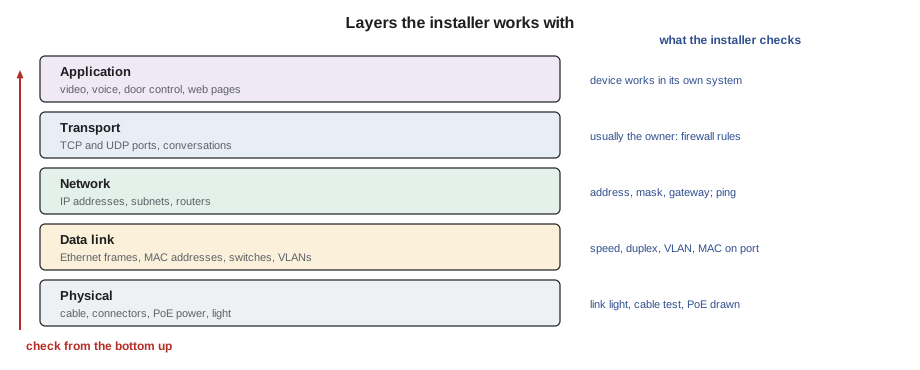
The layers matter because a problem at a lower layer stops everything above it, and a problem at a higher layer can look like a cable fault to someone who does not check. A camera with no picture might have a broken cable (physical), be plugged into a switch port on the wrong VLAN (data link), have the wrong IP address (network), or have the right address but the wrong video settings (application). Dev's rule is to check from the bottom up: is there a link light, does the device have an address, can it reach its gateway, and only then is the problem in the application. Lesson 10 turns this rule into a procedure.
| Layer | What lives there | What the installer checks | Typical fault |
|---|---|---|---|
| Physical | Cable, connectors, PoE power, light | Cable test, link light, PoE power drawn | Open pair, bad termination, wrong cord |
| Data link | Ethernet frames, MAC addresses, switches, VLANs | Link speed and duplex, MAC seen on the right port, VLAN | Wrong VLAN, port disabled, speed mismatch |
| Network | IP addresses, subnets, routers, gateways | Address, mask and gateway; ping the gateway | Wrong subnet, duplicate address, no DHCP |
| Transport | TCP and UDP ports, sessions | Usually the owner's job: firewall rules | Blocked port |
| Application | Video, voice, access control, web interface | Device works in its own software | Wrong server address, wrong credentials, wrong firmware |
Who does what on a project
On a commercial job, the network is usually the owner's. At Kellerman, Brightwater's IT manager, Lucia Ferreira, and her network engineer, Omar Haddad, design the network: they choose the switches, decide which VLANs and subnets each kind of device uses, and configure the core and access switches. Cobalt Line's scope, written in the contract and the specification, is to supply and mount the access points and cameras, mount the card readers and door hardware that Cobalt Line's security team wires, install the phones and displays the tenant supplies, connect everything to the patch panels and switch ports in the port map, and commission each device: confirm it powers up, gets the right address, and works. Omar configures the switches; Maya connects the devices and reports what she sees.
That division is common, but not universal. On a small office job, the low-voltage contractor might supply and configure a small switch as well. On a large campus like Riverside, the school board's own network team configures everything and the contractor connects only what it is told. The specification decides, and Colette Brennan reads every network clause before a job starts so the crew knows exactly where its scope ends. Configuring the owner's switch without permission, even to fix an obvious mistake, is not the installer's call: it is a change to someone else's system, and it can break things the installer cannot see.
The installer still needs to understand the network, because the installer is often the first person to find a problem. Omar cannot see from his desk that a ceiling access point was mounted beside a metal duct, or that a camera is plugged into port 23 instead of port 32. Maya can. The more clearly she can say what she sees, the faster the fault is fixed, and the less time the crew spends waiting on ladders.
Bits, bytes and rates
Network speeds are given in bits per second, and file and storage sizes in bytes; one byte is eight bits. A 1 Gb/s link carries up to about a billion bits a second, which is 125 million bytes a second, before overhead. Camera streams are given in megabits per second, storage in gigabytes or terabytes, and switch capacity in gigabits per second. Mixing the two units is one of the most common mistakes in planning: a 4 Mb/s camera stream is half a megabyte a second, not four. The short calculator below converts between them and estimates how long a file takes to cross a link.
# Bits, bytes and transfer time
def mbps_to_mbytes(mbps):
    return mbps / 8
def transfer_seconds(size_megabytes, link_mbps, efficiency=0.94):
    # efficiency allows for frame headers and gaps between frames
    return size_megabytes * 8 / (link_mbps * efficiency)
for rate in (4, 8, 100, 1000):
    print(f"{rate:5d} Mb/s = {mbps_to_mbytes(rate):7.2f} MB/s")
print()
firmware_mb = 180      # an access point firmware image
for link in (100, 1000, 2500):
    t = transfer_seconds(firmware_mb, link)
    print(f"{firmware_mb} MB over {link:4d} Mb/s: about {t:5.1f} s")
day = 4 * 3600 * 24 / 8 / 1000    # a 4 Mb/s camera for 24 hours, in GB
print(f"one 4 Mb/s camera for a day: {day:.1f} GB") 4 Mb/s = 0.50 MB/s
8 Mb/s = 1.00 MB/s
100 Mb/s = 12.50 MB/s
1000 Mb/s = 125.00 MB/s
180 MB over 100 Mb/s: about 15.3 s
180 MB over 1000 Mb/s: about 1.5 s
180 MB over 2500 Mb/s: about 0.6 s
one 4 Mb/s camera for a day: 43.2 GBThe figures show why speed matters to installers. A firmware update that takes fifteen seconds on a gigabit link takes two and a half minutes on a 100 Mb/s link, and if the link has negotiated down to 100 Mb/s because of a bad pair, every access point on the floor takes ten times longer to update. They also show why storage fills up: a single camera at 4 Mb/s writes over 40 GB a day.
The pieces of a building network
A building network has a small number of parts that the installer meets on every job. Access switches sit in the telecommunications rooms and have a port for every outlet that is in use; they are usually 24 or 48 ports, with PoE on some or all of them. Uplinks connect the access switches to a distribution or core switch, often over the fiber backbone. Routers and firewalls connect the building to other sites and the internet, and decide what traffic may pass between networks. Servers, either in the building or in the cloud, run the applications: the camera recorder, the door access software, the phone system, the network management system.
At the edge are the end devices: computers, phones, access points, cameras, card reader controllers, displays, printers and sensors. Most of the devices Cobalt Line installs are powered by the switch through the cable itself, using Power over Ethernet, which lesson 6 covers. That makes the access switch the power supply for much of the security and wireless system, and its power budget becomes part of the installer's design check.
The Brightwater device list
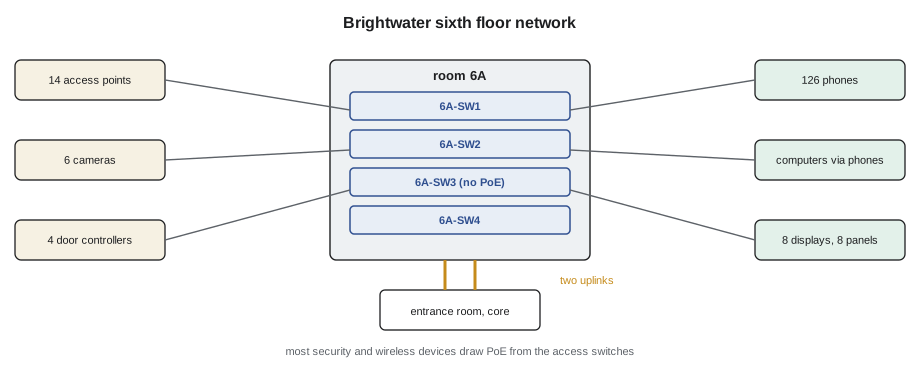
Sanjay Iyer's design for the floor, from LVT-120, included 348 cables. The device list Colette receives from Brightwater shows what will plug into them. Of the 348, 192 serve desks in eight pods, where each desk gets a phone and a computer through two outlets. Another 28 serve the 14 ceiling access points, two cables each. Six serve cameras, four serve the card reader door controllers, eight serve meeting room displays, and the rest serve offices, meeting rooms, printers and building systems. Not every outlet is used on day one; the spares are patched only when a device needs them.
Maya's first job is to turn the device list into a count of switch ports and PoE power. Brightwater's switches are 48-port access switches, two with full PoE and one without, and the IT team wants to know whether that is enough. A simple count, done before anyone climbs a ladder, catches the projects where the switches were ordered from an early drawing and are now too small.
# Brightwater sixth floor: devices on day one and switch ports needed
devices = {
    "desk phones (PoE)": 96,
    "desk computers": 96,
    "office and meeting phones (PoE)": 30,
    "wireless access points (PoE, 2 ports each)": 14 * 2,
    "cameras (PoE)": 6,
    "door controllers (PoE)": 4,
    "displays": 8,
    "printers": 4,
}
poe = sum(n for name, n in devices.items() if "PoE" in name)
total = sum(devices.values())
print(f"ports in use on day one: {total}")
print(f"of which need PoE:       {poe}")
switch_ports = 3 * 48
print(f"switch ports available:  {switch_ports}  spare: {switch_ports - total}")
print(f"PoE ports available: {2 * 48} short by: {max(0, poe - 2 * 48)}")ports in use on day one: 272 of which need PoE: 164 switch ports available: 144 spare: -128 PoE ports available: 96 short by: 68
The count shows the problem Dev expected. Brightwater needs 164 PoE ports but has ordered only 96, and the total of 272 ports in use is well over the 144 the three switches provide. The phones in the desk pods share each desk's outlets with the computers: most desk phones have a small switch built in, so the computer plugs into the phone and both use one port, which is what the IT team intends. Colette sends the count to Lucia, who confirms the phone pass-through plan and adds a fourth PoE switch to the order. That conversation in week one saves a return trip in week five.
How this course runs
The lessons follow the order in which Maya meets the network on the Brightwater floor. Lessons 2 to 5 cover how Ethernet, switches and IP addressing work, enough to read a port map and an IP plan and to understand what the switch is doing. Lesson 6 covers PoE and power budgets. Lessons 7 and 8 cover mounting and connecting access points and the other IP devices. Lesson 9 covers the racks, patching and records in room 6A. Lesson 10 is testing and troubleshooting, and lesson 11 is the security habits that keep the devices Cobalt Line installs from becoming the weak point of the owner's network. The capstone commissions the whole floor.
Along the way, the course visits the other jobs: St. Brendan's Hospital, where the network carries nurse call and patient monitoring alongside everything else, Juniper Point's condo tower, with its intercoms and access control, the Hartwell warehouse's high-bay wireless, and Riverside's school network. Each shows a different way the same principles apply.
What the installer brings
The installer brings three things to the network that nobody else on the project does. The first is a certified physical layer: every cable tested, labeled and documented, so that when a device does not work, the cable can be ruled out in seconds by looking up its test report. The second is knowledge of the building: where every outlet is, which ceiling has which obstruction, which room is still under construction. The third is careful observation on site: the link light color, the PoE indicator, the label on the patch cord, the MAC address on the device's sticker. A network engineer can configure a switch from anywhere; only someone standing in the room can see those things.
Dev adds a fourth: patience. A network device that does not come up on the first try usually has a simple problem, and the fastest way to find it is to check each layer calmly, in order, writing down what each check shows. Rebooting things at random, swapping cords without recording which was which, and guessing at settings make simple problems hard. The habit of working methodically, which the crew built during cable certification, carries straight over to commissioning.
Common mistakes
MistakeAssuming a device that does not work has a cable fault.
InsteadCheck the cable's test report and link light first, then the address, then the application; most faults are above the cable.
MistakeConfiguring the owner's switch without permission.
InsteadReport what you see; let the owner's network team change their own equipment.
MistakeMixing up megabits and megabytes.
InsteadSpeeds are in bits per second, sizes in bytes; divide bits by eight.
MistakeCounting switch ports only at the end of the job.
InsteadCount ports and PoE power from the device list before installation starts.
MistakeSwapping cords and rebooting devices at random.
InsteadChange one thing at a time and record each step.
Summary and key terms
- A network carries data between devices in small packets over shared links; switches forward them and routers connect networks.
- Layers divide the problem: physical, data link, network, transport and application; check from the bottom up.
- On most commercial jobs the owner designs and configures the network; the installer mounts, connects and commissions devices and reports what is seen.
- Speeds are in bits per second and sizes in bytes; eight bits make one byte.
- Access switches in the telecommunications rooms often power devices with PoE, so port counts and power budgets are part of the installer's check.
- A certified physical layer lets the installer rule out the cable quickly and focus on the layers above.
- Network
- A set of devices exchanging data over shared links.
- Packet
- A small unit of data with addressing information, sent independently through the network.
- Switch
- A device that forwards Ethernet frames between ports by hardware address.
- Router
- A device that forwards packets between different IP networks.
- Layer
- One level of a model that divides network functions, from physical cable to application.
- End device
- A device at the edge of the network, such as a camera, phone or computer.
- Uplink
- A link from an access switch to a higher-level switch.
Practice problems
Work each problem on paper first, then reveal the answer to check.
A camera streams at 6 Mb/s. How many megabytes is that per second?
Show answer
0.75 MB/s, because 6 divided by 8 is 0.75.
A camera has a link light but no picture. Which layers might be at fault?
Show answer
The data link (VLAN), network (address) or application (settings) layers; the physical layer is probably fine.
Whose job is it to configure the access switches at Kellerman?
Show answer
Brightwater's network team; Cobalt Line connects devices and reports what it sees.
Why does a desk phone with a built-in switch save ports?
Show answer
The computer plugs into the phone, so both use one switch port and one outlet.
Lesson quiz · 5 questions
Score 60% or more to complete this lesson.
Create a free account to save your progress, take quizzes and earn a certificate.