
COMP-119 · Lesson 4 of 12 · 23 min
Review: infrastructure
▶ Video coming soon A video version of this lesson is on the way.
Infrastructure is the largest Tech+ domain, roughly a quarter of the exam, and it is the one where Noor's years at the circulation desk help most. She has unjammed receipt printers, swapped keyboard cables and reset the branch Wi-Fi more times than she can count. Lorna warns her that experience can be a trap as well as a help. Exam questions use precise terms, and a candidate who "just knows" how to fix the printer may still hesitate between two technically correct-sounding answers if the vocabulary is not sharp. This review walks through the domain's areas with that in mind, focusing on the comparisons the exam likes to test, and Lorna has asked Dez to host one session in the server room so that the networking part has real equipment to point at.
What domain 2 covers
Domain 2 brings together almost everything physical and connected. It covers the types of computing devices and their purposes; the internal components of a computer; storage devices and their characteristics; peripherals and the interfaces used to connect them; networking concepts, devices and addressing; internet service types; small wireless networks; and the basics of virtualization and cloud computing. COMP-110 lessons 1 and 3 to 7 and lesson 10 taught these in detail. On the exam they appear mostly as short scenarios: a user needs something, and you choose the device, connection, storage type or service that best fits.
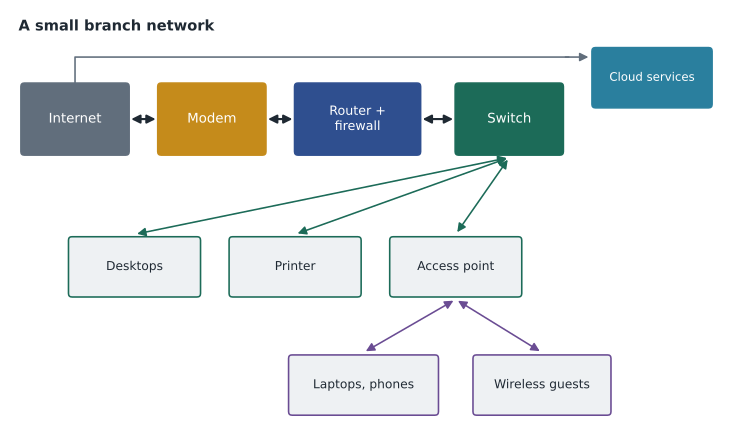
Dez's tour makes the vocabulary physical. The fiber line from the provider ends at a small box on the wall; the router beside it connects the library's network to the internet and filters traffic; a rack of switches below carries cables to every floor; access points on the ceilings of the reading rooms carry the Wi-Fi; and the three virtualization hosts sit in the next rack, running the library's servers as virtual machines. Each device has one job, and Noor labels a photo of the rack with those jobs to use as a revision card.
Devices and components
Device questions ask you to match a need to a device type. A desktop is easy to upgrade and suits fixed workstations; a laptop suits staff who move; a tablet or phone suits touch, cameras and long battery life; a server provides services such as files, email or databases to other computers; a workstation is a powerful desktop for demanding work; and IoT devices such as smart thermostats and cameras are small network-connected computers with a single job. When a question asks which device is best, look for the requirement that rules the others out: portability, upgradeability, battery life, or the need to serve many users at once.
Component questions test what each internal part does. The motherboard connects everything; the CPU runs instructions; RAM holds the programs and data in use and is lost when power is removed; storage keeps data without power; the graphics processing unit draws images and speeds up some calculations; the power supply converts mains power to the voltages the parts need; and firmware such as UEFI starts the computer and hands control to the operating system. Performance scenarios are common: a computer that slows down badly when many programs are open needs more RAM; one that is slow only in demanding graphics work needs a better GPU; one that takes minutes to start and open files may benefit most from replacing a hard disk drive with a solid-state drive.
| Symptom in the question | Most likely bottleneck | Usual best answer |
|---|---|---|
| Slows down when many tabs or programs are open; disk constantly busy | Not enough RAM | Add RAM |
| Slow to start and open files; old spinning drive | Storage speed | Replace the HDD with an SSD |
| Smooth office work, but video editing stutters | Graphics processing | Add or upgrade a dedicated GPU |
| Every task is slow and the processor runs at full load for long periods | CPU | A faster processor or a newer computer |
| Random shutdowns under load | Power or cooling | Check the power supply and cooling |
Storage
Storage questions compare speed, capacity, durability and cost. Hard disk drives use spinning platters and moving heads; they are cheap per terabyte but slower and more fragile. Solid-state drives use flash memory with no moving parts and are much faster; NVMe SSDs, which connect directly to the PCI Express bus, are faster still than SATA SSDs. Optical discs, flash drives and memory cards are removable media. Network-attached storage and cloud storage keep data on another system reached over the network. Questions often ask about local versus network versus cloud storage: local is fastest and works offline, network storage is shared within an organization, and cloud storage can be reached from anywhere and is managed by a provider.
File systems appear here too. NTFS is the standard Windows file system, with permissions and support for very large files. FAT32 is widely compatible but cannot store a single file larger than 4 GB. exFAT removes that limit while staying compatible with many devices, which is why it is common on large flash drives and memory cards. APFS is the modern macOS file system and ext4 is common on Linux. The classic exam scenario is a user who cannot copy a large video file to a flash drive: the drive is formatted FAT32, and reformatting it as exFAT solves the problem, after the existing data has been backed up.
Peripherals and interfaces
Interface questions test what each connector carries. USB connects most peripherals and comes in Type-A and the smaller, reversible Type-C; Type-C can carry data, power and often video. HDMI and DisplayPort carry digital video and audio; VGA is an older analog video connector; DVI is an older digital video connector. RJ-45 is the connector on Ethernet network cables; RJ-11 is the smaller telephone connector used by DSL. Wireless interfaces include Bluetooth for short-range devices such as headsets and keyboards, near-field communication (NFC) for very short-range taps such as contactless payment, and Wi-Fi for networking.
Installing a peripheral usually involves connecting it, letting the operating system find and install a driver or installing the maker's driver, and then configuring it. A peripheral that is detected but does not work properly usually needs a correct or updated driver. Printers deserve special attention because they combine connections, drivers, queues and consumables; questions may ask about print queues that are stuck, network printers that change IP address, or the best way to share a printer among many users.
Networking
Networking questions center on what each device does and how addressing works. A modem connects the building to the internet service provider's network. A router forwards traffic between networks, such as between the branch network and the internet, and in small offices usually also provides network address translation (NAT), a firewall and DHCP. A switch connects wired devices within one network and forwards traffic to the right port. A wireless access point connects wireless devices to the wired network. A firewall filters traffic according to rules. Many home and small office products combine several of these roles in one box, so exam questions name the role, not the box.
Every device on an IP network needs an IP address, and every network adapter has a MAC address, a hardware identifier assigned by the maker. IPv4 addresses are written as four numbers from 0 to 255, such as 192.168.1.20; IPv6 addresses are longer and written in hexadecimal groups separated by colons. The private IPv4 ranges, used inside organizations and homes, are 10.0.0.0 to 10.255.255.255, 172.16.0.0 to 172.31.255.255 and 192.168.0.0 to 192.168.255.255. An address beginning with 169.254 is a link-local address that a computer gives itself when it cannot reach a DHCP server, so seeing one is a strong clue that DHCP has failed. DHCP hands out addresses automatically; DNS translates names such as a website address into IP addresses. If websites fail by name but work by IP address, DNS is the problem.
Worked problem
Reading a network symptom
A public computer at the branch shows the address 169.254.37.12 and cannot reach any websites, not even by IP address. Other computers on the same switch work normally. What is the most likely cause, and what should be checked first?
Show solution
- A 169.254 address means the computer gave itself a link-local address because it did not receive one from DHCP.
- Other computers on the same switch are working, so the DHCP server and the switch as a whole are probably fine.
- The problem is therefore probably specific to this computer's connection: its cable, its switch port or its network adapter settings.
- Check the cable and link lights first, then try a different switch port, then check that the adapter is set to obtain an address automatically.
Answer: The computer did not get an address from DHCP. Check its cable and port first, then its adapter settings.
Internet service types are compared on speed, latency and availability. Fiber is very fast with low latency where it is available. Cable uses the cable television network and is fast but shared among neighbors. DSL uses telephone lines and slows with distance from the exchange. Cellular, including 5G, suits mobile and temporary sites such as the bookmobile. Satellite reaches remote areas; traditional geostationary satellite has high latency because the signal travels about 36,000 km each way, while low Earth orbit satellite services have much lower latency. Fixed wireless uses radio links between towers and buildings.
Wireless networks
Wi-Fi questions focus on bands, standards and security. The 2.4 GHz band reaches further and passes through walls better but is slower and more crowded; the 5 GHz band is faster with shorter range; the 6 GHz band, used by Wi-Fi 6E and Wi-Fi 7, offers the most room and speed at the shortest range. Wi-Fi generations are named Wi-Fi 4, 5, 6, 6E and 7. For security, WPA3 is the current recommended standard, WPA2 is still common, and WEP and the original WPA are obsolete and insecure. A secure small network uses a strong administrator password on the router, current firmware, WPA3 or at least WPA2 with a long passphrase, and a separate guest network so that visitors cannot reach staff devices.
Virtualization and cloud
Virtualization lets one physical computer run several virtual machines, each with its own operating system. A type 1 hypervisor runs directly on the hardware and is used on servers, like the three hosts in the central library's server room; a type 2 hypervisor runs as an application on top of an ordinary operating system and is used on desktops for testing. Containers share the host's operating system kernel and package only an application and what it needs, so they are lighter than virtual machines.
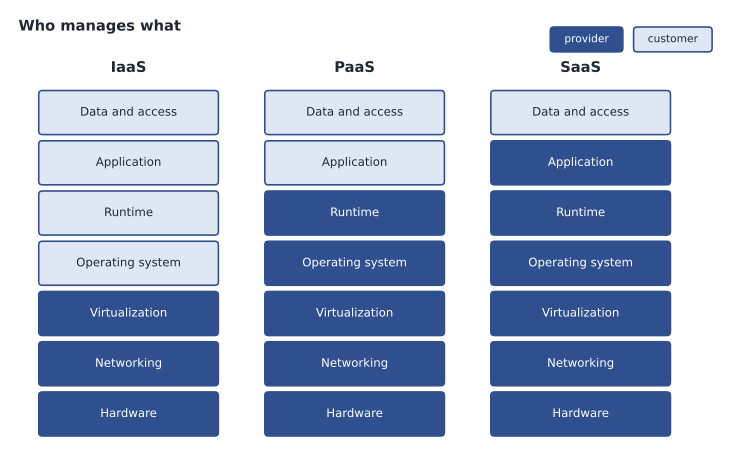
Cloud questions test the service models and deployment models. In infrastructure as a service (IaaS), the provider supplies virtual machines, storage and networking, and the customer manages the operating system and everything above it. In platform as a service (PaaS), the provider also manages the operating system and runtime, and the customer manages the application and data. In software as a service (SaaS), the provider runs the whole application, as with the library's hosted email and room-booking system. Deployment models are public cloud, private cloud, hybrid cloud (a mix, which describes the library) and community cloud. The deciding question in most scenarios is who manages what.
Studying the largest domain efficiently
Because infrastructure is so broad, it rewards comparison tables more than any other domain. Noor builds one table per area: devices, components, storage types, file systems, connectors, network devices, internet services, Wi-Fi bands and cloud models. Each row names an item and the single feature that distinguishes it from its neighbors. When she can fill a blank copy of each table from memory, she moves on. Lorna adds one warning: do not overstudy specifications. Tech+ does not expect exact cable lengths, transfer rates of every USB version or the details of every Wi-Fi standard. It expects recognition, comparison and good choices in simple scenarios.
Common mistakes
MistakeCalling a combined home router box a "modem" in every role.
InsteadName the role: modem, router, switch, access point or firewall.
MistakeIgnoring a 169.254 address.
InsteadIt means the computer did not get an address from DHCP.
MistakeChoosing FAT32 for a drive that must hold large video files.
InsteadFAT32 cannot store files over 4 GB; use exFAT or NTFS.
MistakeAssuming SaaS means the provider is responsible for everything.
InsteadThe customer still owns its data and controls who can access it.
MistakeRecommending WEP or WPA because a device supports nothing better.
InsteadReplace or isolate devices that cannot use WPA2 or WPA3.
Summary and key terms
- Infrastructure is the largest Tech+ domain and is best studied through comparison tables.
- Match performance symptoms to components: RAM, storage, GPU, CPU or power.
- FAT32 has a 4 GB file limit; exFAT and NTFS do not.
- Routers connect networks, switches connect devices within one, and access points connect wireless devices.
- DHCP assigns addresses, DNS resolves names, and a 169.254 address signals a DHCP failure.
- In IaaS, PaaS and SaaS responsibility moves toward the provider, but data stays the customer's responsibility.
- Router
- A device that forwards traffic between networks.
- Switch
- A device that connects wired devices within one network.
- Access point
- A device that connects wireless devices to a wired network.
- DHCP
- A service that assigns IP addresses and settings automatically.
- DNS
- A service that translates names into IP addresses.
- Link-local address
- An address in the 169.254 range that a computer assigns itself when DHCP fails.
- Type 1 hypervisor
- Virtualization software that runs directly on server hardware.
- SaaS
- A cloud model in which the provider runs the whole application.
Practice problems
Work each problem on paper first, then reveal the answer to check.
A computer slows badly with many tabs open and the disk is always busy. What upgrade helps most?
Show answer
More RAM.
Why might a 5 GB file fail to copy to a flash drive?
Show answer
The drive may be formatted FAT32, which cannot hold files over 4 GB.
Which connector carries analog video?
Show answer
VGA.
Which device connects wired computers within one network?
Show answer
A switch.
Websites load by IP address but not by name. Which service has failed?
Show answer
DNS.
Which Wi-Fi band reaches furthest through walls?
Show answer
2.4 GHz.
In which cloud model does the customer manage the operating system?
Show answer
IaaS.
Lesson quiz · 5 questions
Score 60% or more to complete this lesson.
Create a free account to save your progress, take quizzes and earn a certificate.