
VIS-120 · Lesson 9 of 12 · 27 min
Non-destructive editing, versions and proxy workflows
Editing is where most of the creative work in a digital workflow happens, and how edits are stored matters as much as the edits themselves. A workflow that overwrites originals makes mistakes permanent and closes off future reinterpretation; one that stores every decision as adjustable instructions lets you revisit, refine and reuse your work for years. This lesson covers non-destructive editing in raw processors, sidecars and catalogues, virtual copies and versions, presets and batch processing, layered and smart editing in pixel editors, versioning and project files, and the proxy and transcoding workflows that make high-resolution video practical to edit.
Destructive and non-destructive editing
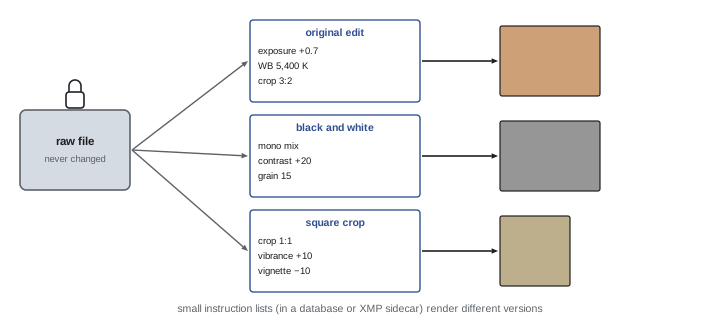
Destructive editing changes the pixels of a file directly: brighten a JPEG and save it, and the original values are gone. Non-destructive editing records adjustments as instructions that are applied to a preview and to exports, while the original file remains untouched. Raw processors are inherently non-destructive, because a raw file must always be rendered from the original sensor data; the edits (exposure +0.7, white balance 5,400 K, a crop and some local adjustments) are stored as a short list of parameters. This is called parametric editing. Its advantages are considerable: edits can be changed or removed at any time in any order, several interpretations of the same image can coexist without duplicating the large original, and improved processing engines can re-render old images with better results.
Where edits are stored
Parametric edits live in one of three places. In catalogue-based software such as Lightroom Classic and Capture One, they are stored in the catalogue database. They can also be written to XMP sidecar files alongside raw files (for example IMG_0001.CR3 with IMG_0001.xmp), or embedded inside DNG, JPEG and TIFF files. Sidecars allow edits to travel with the images when files are moved to another computer or opened in compatible software; however, other applications interpret edits differently, so a Lightroom edit opened in another raw processor will not look identical, and some settings will be ignored. Sidecars must be kept with their raw files; separating or renaming one without the other loses the edits. Session-based software, such as Capture One sessions, stores everything in a self-contained folder per job, convenient for studio and tethered work.
Virtual copies, snapshots and history
A virtual copy is a second set of edit instructions for the same original file, displayed as a separate image in the catalogue. It allows a colour and a black and white version, or a horizontal and a square crop, without duplicating the raw file. Snapshots record the state of an image's edits at a particular moment so that it can be returned to later, and the history panel records each step. Using these tools freely encourages experimentation, because nothing is lost.
Presets, profiles and batch processing
Presets save combinations of settings that can be applied to other images with one click: a consistent house look for a wedding photographer, lens and noise corrections for a particular camera, or export settings for a client's specifications. Camera profiles and creative profiles affect the starting interpretation of raw data. Batch processing applies edits to many images at once, and synchronizing settings across a series ensures consistency, for example applying the same white balance and exposure to every image from a studio session. A good workflow edits one representative image carefully, synchronizes its settings to similar images, then fine-tunes individual frames. Presets are starting points, not finishes: images shot in different light need individual adjustment.
Worked problem
Batch editing a studio session
A product shoot produced 240 images under constant studio lighting with a grey card frame at the start. Describe an efficient editing workflow.
Show solution
- Import with a metadata template and the studio camera profile.
- Set white balance on the grey card frame with the eyedropper; adjust exposure and contrast to target values.
- Apply lens corrections and any standard sharpening and noise settings.
- Synchronize these settings to all 240 images.
- Review each image for individual issues (dust, small exposure differences) and retouch selects in a pixel editor if needed, then export with a saved export preset.
Answer: Calibrate on the reference frame, synchronize settings to the series, then refine individually and export with a preset.
Non-destructive editing in pixel editors
Some tasks require a pixel editor such as Photoshop, Affinity Photo or GIMP: compositing, advanced retouching, removing complex objects, and design work. Pixel editors can also be used non-destructively. Adjustment layers apply curves, levels, colour balance and other corrections as separate layers that can be changed or masked at any time. Layer masks hide or reveal parts of layers without erasing pixels. Retouching on a separate empty layer, using healing tools set to sample all layers, keeps the original intact beneath. Smart objects embed a raw file or other image so that filters and transforms can be adjusted later, and the embedded raw can be re-edited. A layered file saved as PSD or TIFF preserves all of this. The cost is file size, often several times that of a flattened image, which is why layered masters are kept for important images while exports are flattened.
Round-tripping, sending an image from a raw processor to a pixel editor and back, creates a new TIFF or PSD file alongside the raw original. Naming conventions should distinguish such derivatives (for example _edit.psd), and the catalogue should stack them with their originals.
Versioning and project files
Projects evolve through many iterations, and clients often ask to return to an earlier version. Versioning means saving successive versions with incrementing names rather than overwriting, for example Poster_v01.psd, Poster_v02.psd, with a clear record of which version was approved. Video and design projects use the same approach for project files: Edit_v12.prproj or Grade_v05.drp. Automatic versioning and cloud services that keep file histories add protection, but explicit, meaningful versions remain the clearest system. Old versions can be archived or pruned after a project is complete. The worst habit is a folder full of files named final, final2, final_really and final_USE_THIS, which leaves everyone unsure which file is current.
Proxy workflows for video
High-resolution camera files, especially Long GOP H.264 or H.265 footage and raw formats, can be very demanding to decode, and editing them smoothly on a laptop may be impossible. A proxy workflow creates lightweight copies of every clip, typically low-resolution ProRes Proxy, DNxHR LB or H.264 files, and edits with them. Because each proxy is linked to its original clip by name, timecode and metadata, the editing software can switch back to the full-resolution originals for colour grading and final export. Proxies also make it practical to share media with remote editors over the internet, because they are a fraction of the size.
Alternatively, footage can be transcoded to an intermediate codec such as ProRes 422 or DNxHR HQ, which edits smoothly at full resolution and is often used as the master media for the rest of the project. Transcoding uses more storage than proxies but avoids switching between media, and it converts camera files into a consistent format for mixed-camera projects. Optimized media and render caches in editing software serve similar purposes for specific sections of a timeline. The keys to any of these workflows are preserving original clip names, timecode and folder structure, so that media can be relinked reliably.
| Approach | Storage cost | Editing performance | When to use |
|---|---|---|---|
| Edit camera originals | None extra | Poor for Long GOP and raw on modest computers | Light codecs, powerful workstations |
| Proxies | Low (often 5–15 % of originals) | Very smooth; switch to originals for finishing | Laptops, remote editing, high-resolution raw |
| Transcode to intermediate | High (often larger than originals) | Smooth at full quality | Mixed cameras, long-form projects |
| Optimized media / render cache | Medium | Smooth for selected clips | Heavy effects and grading sections |
Worked problem
Estimating proxy storage
A project has 20 hours of UHD H.265 footage at 150 Mbps. Proxies are created in ProRes Proxy at 1,920 × 1,080, about 45 Mbps. Compare storage of originals and proxies.
Show solution
- Originals: 150 × 3600 / 8000 = 67.5 GB/h; × 20 h = 1,350 GB.
- Proxies: 45 × 3600 / 8000 = 20.25 GB/h; × 20 h = 405 GB.
- Proxies take about 30 % of the original size in this case, because H.265 is already highly compressed.
- Lighter proxies (H.264 at 10 Mbps, or quarter resolution) would take about 90 GB, suitable for remote sharing.
- Keep originals on fast storage for finishing; proxies can live on a laptop drive.
Answer: About 1.35 TB of originals and 405 GB of ProRes Proxy files (or about 90 GB with lighter H.264 proxies).
Collaboration and handoffs
Many projects involve several people: photographers and retouchers, editors and colourists, designers and art directors. Handoffs require agreed file formats, colour spaces and naming, clear instructions, and a way to exchange large files. Video projects exchange timelines using formats such as XML, AAF and EDL, which describe edits by referencing media by name and timecode, so the receiving system can relink to its own copy of the media; this is why consistent clip names are essential. Review and approval platforms let clients comment on specific frames or images, keeping feedback organized and tied to versions. Documenting decisions, such as which grade or retouch was approved, avoids confusion when work is revisited months later.
Retouching ethics and transparency
Non-destructive workflows make extensive editing easy, which raises questions about how much editing is appropriate. In photojournalism and documentary work, codes of ethics, such as those of news agencies and press photographers' associations, permit only adjustments that do not change the content or meaning of an image: modest exposure, contrast and colour corrections, cropping that does not mislead, and dust removal. Adding, removing or moving elements is prohibited. Commercial and fashion work allows extensive retouching, but some jurisdictions and platforms now require disclosure of altered body images in advertising, and generative AI tools that add or replace content raise new disclosure expectations. Keeping original files and edit histories, and using Content Credentials (Lesson 8) where available, provides a transparent record of what was changed.
Performance and hardware
Editing performance depends on hardware as well as workflow. Raw processing and photo editing benefit from fast processors, plenty of memory (32 GB or more for large files and many layers), fast SSDs for catalogues, previews and cache files, and capable graphics processors, which many applications now use for rendering, AI masking and noise reduction. Video editing depends heavily on the GPU and on hardware decoding support for the codecs in use: a computer with hardware decoding for H.265 10-bit 4:2:2 may play camera files smoothly, while a more powerful machine without it struggles. Checking which codecs your hardware decodes efficiently can guide both capture settings and the decision to use proxies.
Templates and standards for teams
When several people edit images or footage for the same client or publication, written standards keep results consistent: target white balance and exposure ranges, skin tone guidance, retouching limits, crops and aspect ratios, colour space and sharpening for exports, and naming. Shared presets and templates distributed to the team, with version numbers, put these standards into practice. A brief style guide with before-and-after examples is often more effective than a long written specification, and it helps new team members learn the house style quickly.
Backing up the catalogue or project file after every significant editing session is just as important as backing up the originals, because hours of careful adjustments live there. Losing a catalogue does not lose the images, but it can lose weeks of editing work that would take as long again to redo.
Common mistakes
MistakeOverwriting original files with edits.
InsteadEdit non-destructively and keep originals untouched.
MistakeSeparating raw files from their XMP sidecars.
InsteadMove and back up sidecars with their raw files.
MistakeApplying a preset and exporting without review.
InsteadUse presets as starting points and refine individually.
MistakeNaming files final, final2, final_really.
InsteadUse numbered versions and record which is approved.
MistakeRenaming camera clips after creating proxies.
InsteadPreserve names and timecode for reliable relinking.
Summary and key terms
- Non-destructive editing stores adjustments as instructions; originals stay intact.
- Edits live in catalogues, XMP sidecars or embedded metadata.
- Virtual copies and snapshots allow multiple versions without duplication.
- Presets and synchronization speed consistent batch editing.
- Adjustment layers, masks and smart objects keep pixel editing reversible.
- Numbered versions make approvals and rollbacks clear.
- Proxies and intermediates make high-resolution video editable.
- Non-destructive editing
- Editing that leaves the original unchanged.
- Parametric editing
- Storing edits as adjustable parameters.
- Virtual copy
- Additional edit settings for the same original.
- Preset
- Saved combination of settings.
- Adjustment layer
- Layer applying a correction non-destructively.
- Layer mask
- Mask controlling where a layer is visible.
- Smart object
- Embedded content that stays editable.
- Versioning
- Saving successive numbered versions.
- Proxy
- Lightweight copy of a video clip for editing.
- Relinking
- Reconnecting a project to media files.
Practice problems
Work each problem on paper first, then reveal the answer to check.
Why are raw processors inherently non-destructive?
Show answer
Raw data must always be rendered from the original.
Name three places parametric edits are stored.
Show answer
Catalogue, XMP sidecar, embedded in DNG/JPEG/TIFF.
What does a virtual copy save?
Show answer
Storage, by reusing the original file.
What is the first step in batch editing a studio session?
Show answer
Set white balance and exposure on a reference frame.
Name two non-destructive tools in pixel editors.
Show answer
Adjustment layers, masks, smart objects.
Why name versions v01, v02?
Show answer
To track iterations and approvals clearly.
What is a proxy?
Show answer
A lightweight copy linked to the original clip.
Storage of 10 h at 100 Mbps?
Show answer
450 GB.
When is transcoding to an intermediate preferred?
Show answer
Mixed cameras, long projects, full-quality smooth editing.
Name two timeline exchange formats.
Show answer
XML, AAF, EDL.
Lesson quiz · 5 questions
Score 60% or more to complete this lesson.
Create a free account to save your progress, take quizzes and earn a certificate.