
MSBA-172 · Lesson 10 of 12 · 19 min
Transitions and animations
▶ Video coming soon A video version of this lesson is on the way.
Rosalind's old decks had a different transition on every slide: one spun, the next rippled, the next checker-boarded. "It looked like we were trying to sell the effects," Dagny said kindly. In the tenth session Teo learned to use movement on purpose: transitions to mark a change of section, animations to reveal a point at the right moment, and Morph to make a single smooth change. The "apply transitions and animations" domain is worth 10 to 15 percent of the exam, and its tasks are quick if you know the Animation Pane.
Transitions
A transition is the effect between one slide and the next. It belongs to the slide it leads into: a transition set on slide 5 plays as the show moves from slide 4 to slide 5. Transitions are on the Transitions tab, in the Transition to This Slide gallery, grouped into Subtle (such as Morph, Fade, Push, Wipe, Split, Reveal, Cut, Random Bars, Shape, Uncover, Cover and Flash), Exciting (such as Fall Over, Drape, Curtains, Wind, Prestige, Fracture, Crush, Peel Off, Page Curl, Airplane, Origami, Dissolve, Checkerboard, Blinds, Clock, Ripple, Honeycomb, Glitter, Vortex, Shred, Switch, Flip, Gallery, Cube, Doors, Box, Comb, Zoom and Random) and Dynamic Content (Pan, Ferris Wheel, Conveyor, Rotate, Window, Orbit and Fly Through), which keep the background still and move only the content.
The exam objective names basic and 3D transitions. Many of the Exciting transitions, such as Cube, Box, Doors, Gallery, Flip, Switch and Vortex, move the slide in three dimensions, while Subtle transitions are flat. Exam tasks simply name the transition to apply, so knowing the gallery is enough.
| Setting | Where | Effect |
|---|---|---|
| Apply a transition | Transitions > Transition to This Slide gallery | Sets the effect into the selected slides |
| Effect Options | Transitions > Effect Options | Direction or variant, such as From Left or Vertical |
| Sound | Transitions > Timing > Sound | Plays a sound with the transition |
| Duration | Transitions > Timing > Duration | Length of the transition in seconds |
| Apply To All | Transitions > Timing > Apply To All | Copies the current slide's transition and timing to every slide |
| Advance on mouse click | Transitions > Timing > Advance Slide | Moves on when the presenter clicks |
| Advance after | Transitions > Timing > Advance Slide | Moves on automatically after a set time |
| Preview | Transitions > Preview | Plays the transition in the slide pane |
Effect Options change the variant: Push can come From Bottom, From Left, From Right or From Top; Shape can be Circle, Diamond, Plus, In or Out. Duration sets the speed in seconds, such as 01.25. The Advance Slide check boxes control when the next slide appears: On Mouse Click (the default) and After, with a time. Both can be on at once, in which case the slide advances at the time or on a click, whichever comes first. A small star under a thumbnail shows that a slide has a transition or animation; clicking it previews.
For the wedding show deck, Teo applied Fade with a 1-second duration to every slide using Apply To All, then gave the first slide of each section a Push from the right so the audience could feel a new part beginning. To apply a transition to a whole section at once, click the section header in the thumbnail pane to select its slides, then choose the transition.
Morph
Morph is a special transition. When two consecutive slides share objects, Morph animates the changes between them: objects move, resize, rotate and recolour smoothly, and text can morph by Objects, Words or Characters (Effect Options). The usual method is to duplicate a slide, change the second copy (move a photo, enlarge a heading, rotate a 3D model, zoom into part of a map) and apply Morph to the second slide.
PowerPoint matches objects across slides automatically by type and content. To force a match between objects that differ, give both the same name in the Selection Pane, starting with two exclamation marks, such as "!!Cake". Morph needs a current version of PowerPoint; in older versions it plays as a Fade. Teo used Morph for the cake model in lesson 7 and for a venue map that zoomed from the whole town to the harbour.
Animations
An animation moves or changes an object within a slide. Animations are on the Animations tab, and there are four kinds, colour-coded in the gallery:
| Kind | Colour | Purpose | Examples |
|---|---|---|---|
| Entrance | Green | Brings an object onto the slide | Appear, Fade, Fly In, Float In, Split, Wipe, Shape, Wheel, Random Bars, Grow & Turn, Zoom, Swivel, Bounce |
| Emphasis | Yellow | Draws attention to an object already on the slide | Pulse, Color Pulse, Teeter, Spin, Grow/Shrink, Desaturate, Darken, Lighten, Transparency, Object Color, Underline, Bold Flash, Wave |
| Exit | Red | Removes an object from the slide | Disappear, Fade, Fly Out, Float Out, Split, Wipe, Shape, Wheel, Shrink & Turn, Zoom, Swivel, Bounce |
| Motion Paths | Lines | Moves an object along a path | Lines, Arcs, Turns, Shapes, Loops, Custom Path |
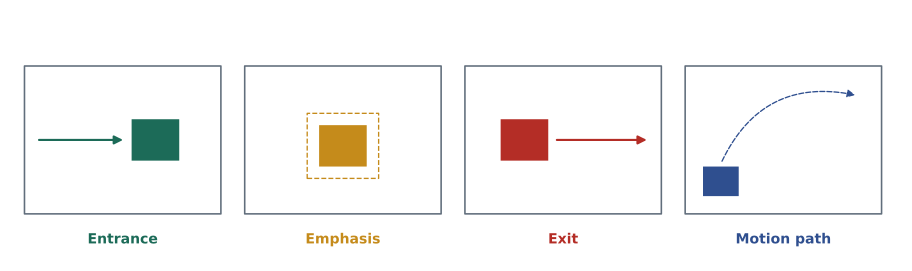
Select an object and click an effect in the Animation gallery; More Entrance Effects and the equivalent items at the bottom of the gallery open longer lists. Clicking a new effect in the gallery replaces the object's existing animation. To add a second effect to the same object, such as an entrance followed by an emphasis, use Advanced Animation > Add Animation. Animation Painter copies an object's animations to other objects, the way Format Painter copies formatting.
Effect Options depend on the effect: Fly In has directions, Wheel has spokes, Shape has shapes. For text, Effect Options also offer a Sequence: As One Object, All at Once or By Paragraph. By Paragraph reveals bullets one at a time, which is the classic way to build a list as you talk.
Timing and the Animation Pane
Each animation has three timing settings in the Timing group: Start, Duration and Delay. Start has three values. On Click waits for the presenter's click. With Previous starts at the same time as the previous animation (or when the slide appears, if it is first). After Previous starts when the previous animation finishes. Duration sets how long the effect takes, and Delay waits a set time before starting.
The Animation Pane (Advanced Animation > Animation Pane) lists every animation on the slide in order. Each row shows a number for click-started effects, an icon for its kind and the object's name from the Selection Pane. A timeline bar shows its duration and delay. Selecting a row selects its animation; the arrow on a row opens a menu with Start options, Effect Options, Timing and Remove. The Effect Options dialog has three tabs: Effect (direction, smoothing, sound, after-animation dimming, and animate text all at once, by word or by letter), Timing (start, delay, duration, repeat and triggers) and Text Animation (group text by paragraph level).
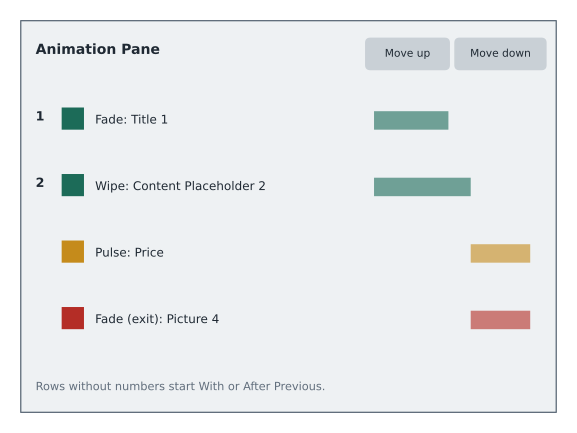
Reordering is a named exam objective. In the Animation Pane, select an animation and click the Move Up or Move Down arrows, or drag the row. On the ribbon, Timing > Reorder Animation has Move Earlier and Move Later. Numbers update as you move items. Click Play From (or Play Selected) at the top of the pane to preview.
Worked problem
Building the package slide
On the Garden Gold slide, Rosalind wants the photo to fade in when the slide appears, then the three bullets to wipe in from the left one at a time on her clicks, and finally the price to pulse once, automatically, after the last bullet. How does Teo set it up?
Show solution
- Select the photo, choose Fade, and set Start to With Previous so it plays when the slide appears.
- Select the bullet placeholder, choose Wipe, set Effect Options to From Left and Sequence By Paragraph. Leave Start as On Click.
- Select the price text box, choose Pulse, and set Start to After Previous.
- Open the Animation Pane and check the order: photo, three bullets, price. Use Move Up or Move Down if needed, then preview.
Answer: Fade With Previous for the photo, Wipe From Left By Paragraph on click for the bullets, and Pulse After Previous for the price, checked in the Animation Pane.
Motion paths
A motion path moves an object along a line. Choose one from the Motion Paths section of the gallery, such as Lines, Arcs, Turns, Shapes or Loops, or Custom Path to draw your own (click to add points, double-click to finish). The path appears as a dotted line, with a green arrow at the start and a red arrow at the end, and a faded ghost of the object shows where it will finish.
Effect Options for a path set its direction and offer Edit Points, to reshape it, Reverse Path Direction, and Locked or Unlocked, which decides whether the path moves with the object when you drag the object. You can also drag the end points of a path to change where it starts or ends, and drag the path itself to move it. The Effect Options dialog adds Smooth start, Smooth end and Bounce end on the Effect tab. Teo used a short motion path to slide a ring icon along a curved line from "engaged" to "married" on the timeline slide.
Triggers
A trigger makes an animation start when the presenter clicks a particular object, rather than on the next click anywhere. In Advanced Animation > Trigger, choose On Click of and pick the object, or On Bookmark to start the animation when a video or audio clip reaches a bookmark (lesson 9). Triggered animations appear in their own section of the Animation Pane under a "Trigger:" heading. Triggers are useful for interactive slides, such as a menu of package icons that each reveal a description, but they can surprise a presenter who clicks elsewhere expecting the next item.
Animating charts, SmartArt and 3D models
Charts and SmartArt graphics can be animated as one object or in parts. After applying an entrance effect, Effect Options offer As One Object, All at Once, One by One, and for charts By Series or By Category; for SmartArt, By Level at Once or By Level One by One. Building a chart by category lets the audience see each festival year appear in turn. 3D models have their own effects, Arrive, Turntable, Swing, Jump & Turn and Leave, as described in lesson 7.
Using movement well
The Maple & Pine rule became: one transition style for the deck, a different one only for section starts, entrance animations only when the timing of a reveal matters, and no exit animations unless something genuinely leaves. Audiences remember content, not effects. Animations also affect accessibility: very fast or flashing motion can be uncomfortable, and screen readers announce the content regardless of animation, so the slide must still make sense in its final state.
Removing and replacing movement
Clearing effects is as testable as adding them. To remove a transition, select the slide and choose None at the start of the Transition gallery; with Apply To All afterwards, it removes transitions from every slide. To remove an animation, select its row in the Animation Pane and press Delete, or select the object and choose None in the Animation gallery, which removes all of that object's effects. To change an effect while keeping its timing, select it in the Animation Pane and click a different effect in the gallery: the new effect takes the old one's place and keeps its Start, Duration and Delay.
Older decks often hide animations on objects nobody can find, such as a transparent text box that flies in. The Animation Pane names every animated object, and selecting a row selects the object on the slide, even if it is hidden behind something else. Teo cleaned up Rosalind's old pitch by opening the pane on each slide, deleting every effect that did not serve a reveal, and setting the rest to Fade or Wipe with consistent durations of half a second.
Common mistakes
MistakeClicking a second effect in the gallery to add it to an object.
InsteadThe gallery replaces the effect; use Add Animation to add another.
MistakeSetting a transition on the slide that comes before the effect.
InsteadA transition belongs to the slide it leads into.
MistakeUsing With Previous when the effect should wait for the previous one to finish.
InsteadWith Previous starts together; After Previous starts when the previous effect ends.
MistakeReordering animations by deleting and reapplying them.
InsteadUse Move Up and Move Down in the Animation Pane, or Move Earlier and Move Later.
Summary and key terms
- Transitions play into the slide they are set on; Effect Options, Duration, Sound, Apply To All and Advance Slide control them.
- Morph animates changes between two similar slides; matching objects can be forced with !! names.
- Animations are entrance, emphasis, exit or motion paths; Add Animation adds more than one; Animation Painter copies them.
- Start On Click, With Previous or After Previous, plus Duration and Delay, set timing; the Animation Pane shows and reorders effects.
- Motion paths can be edited, reversed and locked; triggers start animations on a click of an object or a bookmark.
- Transition
- An effect between one slide and the next, set on the slide it leads into.
- Morph
- A transition that animates differences between two consecutive slides.
- Entrance effect
- An animation that brings an object onto the slide.
- After Previous
- An animation start setting that waits for the previous effect to finish.
- Animation Pane
- A pane listing every animation on a slide with its order, kind and timing.
- Trigger
- An object click or bookmark that starts an animation.
Practice problems
Work each problem on paper first, then reveal the answer to check.
How do you make every slide use the same transition and duration?
Show answer
Set it on one slide and click Transitions > Apply To All.
Which command adds an emphasis effect to an object that already has an entrance effect?
Show answer
Animations > Advanced Animation > Add Animation.
How do you reveal bullets one at a time?
Show answer
Apply an entrance effect to the placeholder and set Effect Options > Sequence > By Paragraph.
What do the green and red arrows on a motion path mean?
Show answer
Green marks the start of the path and red marks the end.
Lesson quiz · 5 questions
Score 60% or more to complete this lesson.
Create a free account to save your progress, take quizzes and earn a certificate.