
MSBA-172 · Lesson 1 of 12 · 22 min
The PowerPoint workspace
▶ Video coming soon A video version of this lesson is on the way.
Maple & Pine Events sells its work with pictures. A couple choosing a wedding package wants to see the garden ceremony set-up, the harbour-view reception and the lantern-lit dessert table, and a corporate client deciding on a staff retreat wants a clear agenda and a budget slide. For years Rosalind Achebe-Hart built those pitches herself, late at night, by copying an old presentation and typing over it. The results worked, but every deck looked a little different, fonts drifted from slide to slide, and nobody else on the team could fix one without breaking it.
Teo Marchetti-Ruiz, the office coordinator, had already worked through Word for his Microsoft Office Specialist (MOS) Associate goal. PowerPoint was the third exam on his plan, after Excel, but Rosalind asked him to start the PowerPoint sessions early: the spring wedding shows were coming, and she wanted one well-built sales deck the whole team could use. The Thursday afternoon sessions moved from the meeting table to the big screen. Teo opened PowerPoint, and Rosalind asked the question this lesson answers: what is everything on this screen, and which parts does the exam care about?
The MO-310 exam at a glance
Exam MO-310: Microsoft PowerPoint (Microsoft 365 Apps) earns the Microsoft Office Specialist: PowerPoint Associate (Microsoft 365 Apps) certification. Microsoft Learn lists it as current, with no retirement date, at the intermediate level and with a 60-month renewal period. Like the other MOS exams it is delivered through Certiport, either at an authorized testing centre or through online proctoring, and Microsoft recommends registering with a personal Microsoft account rather than a work or school account, so the certification follows you if you change jobs.
The exam is performance-based. Instead of answering questions about PowerPoint, you work inside PowerPoint itself, completing tasks in a series of short projects within 50 minutes. Each project opens a presentation file and lists several tasks, such as "Apply the Facet theme to the presentation" or "On slide 4, change the chart type to Clustered Bar". The scoring engine checks the finished file, so it cares about the result, not the route you took. Scores run on a scale up to 1,000, and 700 is the usual passing mark for MOS exams. Results appear as soon as you finish.
Microsoft publishes the skills measured as five domains with weight ranges. They tell you where to spend study time.
| Domain | Weight | What it covers |
|---|---|---|
| Manage presentations | 20–25 percent | Slide, handout and notes masters; slide size, views and properties; print settings; slide shows and Presenter View; protecting, inspecting and exporting |
| Manage slides | 10–15 percent | Inserting slides from outlines, other decks and Summary Zoom; hiding slides; backgrounds; headers, footers and slide numbers; sections |
| Insert and format text, shapes and images | 25–30 percent | Text formatting, columns and lists; hyperlinks and zoom links; pictures, screenshots and screen clippings; shapes, ink and alt text; ordering, aligning and grouping |
| Insert tables, charts, SmartArt, 3D models and media | 15–20 percent | Tables and table styles; charts; SmartArt and list conversion; 3D models; audio, video and screen recordings |
| Apply transitions and animations | 10–15 percent | Basic and 3D transitions; effect options and timing; animating text, graphics and 3D models; motion paths; reordering animations |
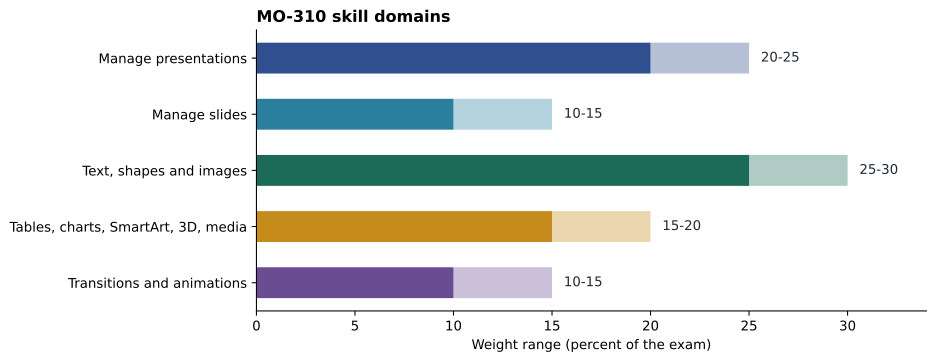
Two things stand out. First, the largest single domain is about content on the slide: text, pictures, shapes and how they are arranged. Second, "manage presentations" is mostly about the slide master and about getting a presentation out of PowerPoint in the right form, whether that is a printed handout, a PDF, a video or a protected file. A candidate who can make pretty slides but has never opened the slide master will lose a large share of the marks.
MO-310 is one of three exams for the Microsoft Office Specialist: Associate (Microsoft 365 Apps) certification, which requires passing three Associate exams from different programs, at least one of them a Microsoft 365 Apps exam. Teo's three are Word (MO-110), Excel (MO-210) and PowerPoint (MO-310). Each exam also earns its own single-program certification, so passing MO-310 alone makes him a PowerPoint Associate.
The PowerPoint window
When PowerPoint opens a presentation, the default view is Normal view. It has three working areas. On the left is the slide thumbnail pane, a vertical strip of small images of every slide. In the middle is the slide pane, where you edit the current slide. Below the slide pane is the notes pane, where speaker notes go; it can be collapsed to a thin bar, and the Notes button on the status bar shows or hides it.
Across the top is the ribbon, PowerPoint's command area, organized into tabs. Each tab is divided into groups, and many groups have a small dialog box launcher in the corner that opens the full dialog or pane for that group. Above or below the ribbon sits the Quick Access Toolbar, which you can customize with commands you use often, and at the very top is the title bar with the file name and the Search box (sometimes labelled "Tell me what you want to do"). Typing a command name into Search is a legitimate exam technique when you cannot remember where something lives.
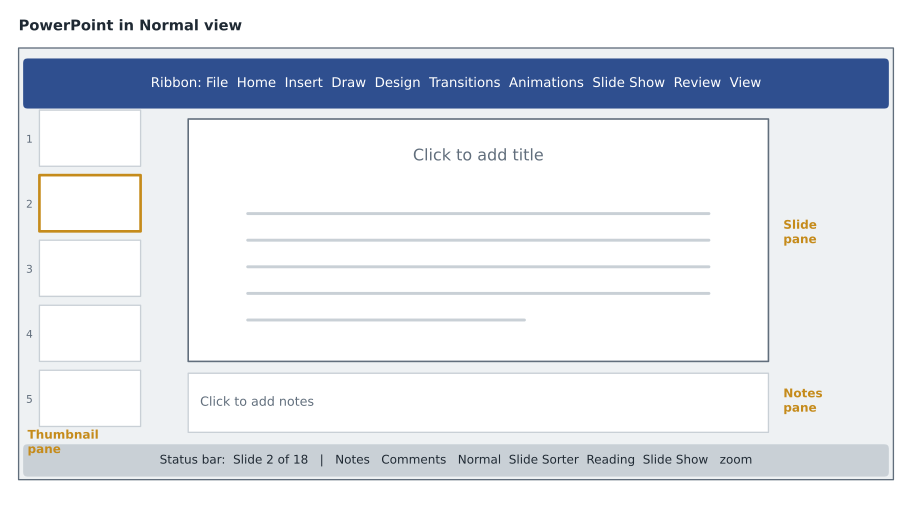
At the bottom is the status bar. On the left it shows the slide number ("Slide 3 of 18") and sometimes accessibility status; on the right are the Notes and Comments buttons, the view buttons (Normal, Slide Sorter, Reading View and Slide Show) and the zoom slider with a Fit slide to current window button. Right-clicking the status bar lets you choose which indicators appear.
The ribbon tabs
Every MO-310 task maps to a tab. Learning which tab owns which job is the fastest way to save time in the exam.
| Tab | Main jobs | Examples you will use |
|---|---|---|
| File (Backstage view) | Files, printing, sharing, export, options | New, Open, Info, Save As, Print, Export, Options |
| Home | Everyday editing | New Slide, Layout, Reset, Section, font and paragraph formatting, Arrange, Quick Styles |
| Insert | Adding content | Table, Pictures, Screenshot, Shapes, Icons, 3D Models, SmartArt, Chart, Zoom, Link, Header & Footer, Video, Audio, Screen Recording |
| Draw | Digital ink | Pens, highlighter, eraser, Ink to Shape, Ink to Text |
| Design | The look of the whole deck | Themes, Variants, Slide Size, Format Background, Designer |
| Transitions | Effects between slides | Transition gallery, Effect Options, Duration, Apply To All, Advance Slide |
| Animations | Effects within a slide | Animation gallery, Effect Options, Add Animation, Animation Pane, Trigger, timing |
| Slide Show | Presenting | From Beginning, Custom Slide Show, Set Up Slide Show, Hide Slide, Rehearse Timings, Record |
| Record | Recording narrated shows and screen recordings | Record from current slide, Screen Recording, Export to Video |
| Review | Checking and collaboration | Spelling, Accessibility, Comments, Compare, Protect |
| View | Views and masters | Normal, Outline View, Slide Sorter, Notes Page, Slide Master, Handout Master, Notes Master, Ruler, Gridlines, Guides |
The ribbon also shows contextual tabs that appear only when something is selected. Select a picture and the Picture Format tab appears. Select a shape or text box and you get Shape Format. Tables bring Table Design and Layout; charts bring Chart Design and Format; SmartArt brings SmartArt Design and Format; video and audio bring Video Format and Playback or Audio Format and Playback. If you cannot find a command for an object, check that the object is actually selected. Many candidates waste a minute hunting for Crop because they clicked beside the picture rather than on it.
Depending on the PowerPoint version, the Record tab may not appear by default; it can be turned on in File > Options > Customize Ribbon. The exam environment uses a standard installation, so stick to the default tab names when you study, and use Search if a command is not where you expect.
Views
PowerPoint has several views, and the exam tests that you can switch between them and know what each is for. They are on the View tab in the Presentation Views group, and the most common are also on the status bar.
| View | Use it to | How to open |
|---|---|---|
| Normal | Edit slides one at a time with thumbnails and notes | View > Normal or status bar |
| Outline View | Read and edit the text of every slide as an outline | View > Outline View |
| Slide Sorter | See many slides at once; reorder, hide, duplicate and manage sections | View > Slide Sorter or status bar |
| Notes Page | See one slide with its notes as they will print | View > Notes Page |
| Reading View | Play the show inside the PowerPoint window | View > Reading View or status bar |
| Slide Show | Present full screen | Slide Show tab, F5 (from start) or Shift+F5 (from current slide) |
| Slide Master, Handout Master, Notes Master | Edit the designs behind slides, handouts and notes pages | View > Master Views group |
Outline View is underrated. It shows only the text that sits in title and content placeholders, as a hierarchy: each slide title is a top-level line and its bullets are indented beneath it. Pressing Tab demotes a line and Shift+Tab promotes it, and promoting a bullet all the way to the top level turns it into a new slide. Text typed into an ordinary text box does not appear in Outline View, which is one of several reasons to keep slide text in placeholders.
Rosalind's old decks were full of text boxes. When Teo opened one in Outline View, three of the slides showed no title at all. "That is why the screen reader on the client's laptop announced 'slide 4, untitled'," he said. They would fix that properly in later sessions with layouts and the accessibility checker.
Backstage view and options
The File tab opens Backstage view, a full-screen area for working with the file rather than its content. Its main pages are Home, New, Open, Info, Save and Save As (or Save a Copy for files stored in OneDrive or SharePoint with AutoSave on), Print, Share, Export and Close, with Account and Options at the bottom.
The Info page is where several exam tasks start. It shows the file's properties (title, tags, author and more), the Protect Presentation menu (always open read-only, encrypt with password, mark as final where available), Inspect Presentation (Check for Issues: Inspect Document, Check Accessibility, Check Compatibility) and Manage Presentation, which lists earlier versions. PowerPoint Options controls application-wide settings, such as the default save location, proofing options, the ribbon and the Quick Access Toolbar.
Worked problem
Finding three commands fast
In his first practice project Teo is asked to (1) show the gridlines, (2) open the slide master and (3) set the author property to Rosalind Achebe-Hart. Which tab or page holds each command?
Show solution
- Gridlines are a display setting, so they live on the View tab, Show group: select the Gridlines check box.
- The slide master is one of the master views, also on the View tab, Master Views group: Slide Master.
- Document properties belong to the file, so open File > Info. Under Related People, add the name in the Author box, or open Properties > Advanced Properties and edit the Summary tab.
Answer: View > Show > Gridlines; View > Master Views > Slide Master; File > Info > Related People > Author (or Advanced Properties).
Working with files
A new presentation can start from File > New, which offers a Blank Presentation, built-in themes and online templates. PowerPoint's modern file format is .pptx; .ppsx is a PowerPoint Show that opens straight into Slide Show view; .potx is a template; .pptm and .potm can contain macros. Older .ppt files open in Compatibility Mode, shown in the title bar, and File > Info offers Convert to upgrade them.
When a file is stored in OneDrive or SharePoint, AutoSave saves changes continuously and enables co-authoring. On a local drive, save with Ctrl+S and use Save As to choose a different format or location. In the exam, the project files are local, and the scoring engine reads whatever state the file is in when you move on, so you do not need to save after each task unless the task asks you to save a separate file.
Keyboard and selection skills
Speed matters in a 50-minute exam, and a handful of shortcuts pay for themselves. Ctrl+M inserts a new slide after the current one. Ctrl+D duplicates a selected object or slide. Ctrl+Z undoes and Ctrl+Y redoes. F5 starts the show from the beginning, Shift+F5 from the current slide, and Esc ends it. Ctrl+Shift+C and Ctrl+Shift+V copy and paste formatting.
Selecting objects is its own skill. Click an object to select it, Shift+click or Ctrl+click to add more, or drag a marquee around several objects. Tab cycles through the objects on a slide, which is handy when one object hides behind another. The Selection Pane (Home > Arrange > Selection Pane, or on any Format tab) lists every object on the slide by name, lets you select hidden ones, rename them, hide them with the eye icon and change their stacking order by dragging. Exam tasks often refer to objects by the names shown in the Selection Pane, such as "Picture 3" or "Title 1".
Accessibility from the start
Accessibility appears in several MO-310 objectives: adding alt text, inspecting a presentation for accessibility issues and using slide layouts so content reads in the right order. PowerPoint's Accessibility Checker (Review > Check Accessibility, or File > Info > Check for Issues) lists errors, such as missing alternative text or missing slide titles, and warnings, such as hard-to-read text contrast or a reading order that may not make sense. Selecting an item explains why it matters and offers a fix.
Building accessibly is also faster. Titles in title placeholders give every slide a name in navigation, in Outline View and in the PDF bookmarks you export. Alt text written while inserting a picture takes seconds; written at the end, it takes an afternoon. Rosalind's reason for caring was practical: two of Maple & Pine's regular clients have staff who use screen readers, and a provincial tourism board that funds the spring festival asks for accessible materials.
How to study for a performance exam
Because MO-310 is hands-on, reading about a command is not enough. For each objective, Teo and Rosalind agreed on a pattern: read the explanation, do the task in a practice file, undo it, and do it again without notes. After a few sessions he kept a short list of "where is it" items, commands he had looked for more than once, and rehearsed those at the start of each session.
The exam also rewards reading carefully. Tasks name exact slides, objects and settings: "On slide 6, apply the Wipe entrance animation to the picture with the From Left effect option" contains four separate requirements. Doing three of them earns nothing. Reading the whole task before clicking, and checking each requirement at the end, is the single most useful exam habit.
Common mistakes
MistakeLooking for Picture Format commands without the picture selected.
InsteadContextual tabs appear only when the object is selected; click the object first.
MistakeTyping slide text into text boxes instead of placeholders.
InsteadUse layouts and placeholders so text appears in Outline View, slide titles and the reading order.
MistakeSearching the ribbon for Slide Master on the Design tab.
InsteadAll three master views are on the View tab, Master Views group.
MistakeCompleting most parts of a task.
InsteadRead the whole task and check every named slide, object and option before moving on.
Summary and key terms
- MO-310 is a 50-minute, performance-based Certiport exam with five domains; text, shapes and images carry the most weight (25–30 percent).
- Normal view has the thumbnail pane, the slide pane and the notes pane; the status bar holds Notes, Comments, view buttons and zoom.
- Contextual tabs such as Picture Format and Shape Format appear only when an object is selected.
- Views and all three master views are on the View tab; File opens Backstage view for properties, protection, inspection, printing and export.
- The Selection Pane lists, names, hides and reorders every object on a slide.
- Normal view
- PowerPoint's default editing view, with thumbnails, the slide pane and the notes pane.
- Contextual tab
- A ribbon tab that appears only when a particular kind of object is selected.
- Backstage view
- The File tab's full-screen area for saving, printing, protecting, exporting and options.
- Outline View
- A view that shows the text in title and content placeholders as an editable hierarchy.
- Selection Pane
- A pane listing every object on the current slide, used to select, rename, hide and reorder them.
- Performance-based exam
- An exam in which you complete tasks in the real application rather than answer questions about it.
Practice problems
Work each problem on paper first, then reveal the answer to check.
Which domain of MO-310 carries the highest weight?
Show answer
Insert and format text, shapes and images, at 25–30 percent.
Where are the slide master, handout master and notes master?
Show answer
View tab, Master Views group.
What shortcut starts a slide show from the current slide?
Show answer
Shift+F5.
Why might a slide show as untitled to a screen reader?
Show answer
Its title was typed into a text box rather than the title placeholder, or the title placeholder was deleted.
Lesson quiz · 5 questions
Score 60% or more to complete this lesson.
Create a free account to save your progress, take quizzes and earn a certificate.