
MSBA-132 · Lesson 2 of 12 · 19 min
Business rules
▶ Video coming soon A video version of this lesson is on the way.
A week after the tutoring tables went live, the first complaints arrived. A tutor at one campus had marked twelve sessions as Completed without entering how long they lasted, so Kwabena's total hours were short. Another had entered 600 minutes for a single session when she meant 60. Maribeth could have sent everyone a reminder email, but reminders fade. She wanted the data itself to refuse mistakes. In Dataverse, the simplest tool for that job is a business rule.
What a business rule is
A business rule is a piece of logic attached to a Dataverse table and built in a visual designer, with no code. It checks one or more conditions about the values in a row and then carries out actions: setting or clearing a value, showing an error, making a column required or optional, showing or hiding it, locking or unlocking it, or offering a recommendation. Business rules suit simple, everyday validation and form behaviour. They are not meant for complex calculations, integrations with other systems or long-running processes; other Dataverse tools handle those, and this lesson ends by comparing them.
Business rules are created from the table in the Power Apps maker portal. You open the table, choose Business rules, and the designer opens with a condition already on the canvas. You drag further conditions and actions from the Components pane, set their properties, validate the rule, save it and activate it. A rule does nothing until it is activated, and to change an active rule you deactivate it first.
Conditions and actions
A condition compares a column with a value, with another column or with a formula, and can combine several checks with AND or OR. Each condition has a true branch and can have a false branch. Actions hang off those branches.
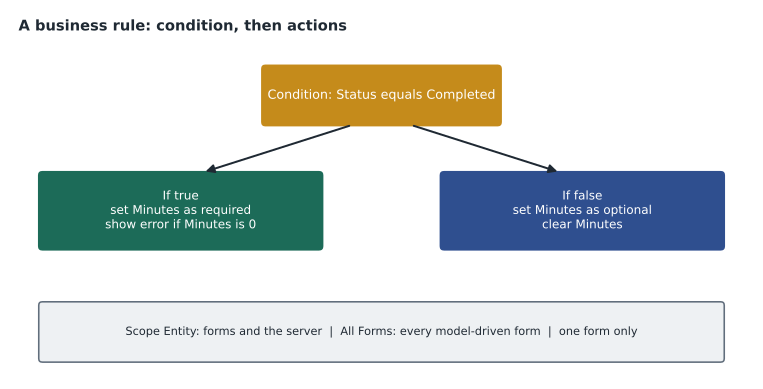
The designer offers these actions:
| Action | What it does | Works in |
|---|---|---|
| Set column value | Puts a value, another column's value or a simple formula into a column | Every scope |
| Clear column value | Empties a column | Every scope |
| Set default value | Supplies a value when the row is new | Every scope |
| Show error message | Stops the save and shows a message next to a column | Every scope |
| Set business required | Makes a column required, recommended or optional on the form | Forms only |
| Set visibility | Shows or hides a column on the form | Forms only |
| Lock or unlock | Makes a column read-only or editable on the form | Forms only |
| Recommendation | Suggests a value and lets the user apply it | Forms only |
Maribeth's rule reads: if Status equals Completed, then set Minutes as business required, and if Minutes is less than 1 or greater than 240, show the error "Enter the session length in minutes, between 1 and 240." If Status is anything else, Minutes becomes optional. She added a second rule that locks the Tutor column once a session is Completed, so that history cannot quietly be reassigned.
Scope: where a rule runs
The most important setting in a business rule is its scope, chosen from a list at the top of the designer. Scope decides where the rule takes effect.
- Entity (the label still uses the old word for table): the rule applies to model-driven forms and is also enforced when data is saved through other routes, such as canvas apps, imports and flows. This is the scope to choose when a rule must protect the data no matter how it arrives.
- All Forms: the rule applies to every model-driven form for the table, but not to data saved in other ways.
- A specific form: the rule applies only to the one form chosen.
Because form-only actions such as show, hide and lock have no meaning outside a form, a rule with Entity scope can only use the actions that work everywhere: setting, clearing and defaulting values and showing error messages. Canvas apps that use the table respect rules at Entity scope, but the show, hide, lock and recommendation actions are not available there.
Maribeth's tutors entered sessions through a canvas app on their phones as well as through a model-driven app at the front desk. A rule scoped to All Forms would have caught front-desk mistakes and missed every phone entry. She therefore split her logic. The validation (minutes between 1 and 240 when completed) went into a rule with Entity scope, so every route was covered. The form behaviour (make Minutes required, lock Tutor) went into a rule scoped to All Forms.
How rules run
On a model-driven form, a rule runs when the form loads and again whenever a column the rule refers to changes, so users see errors and requirement changes immediately. Rules at Entity scope are also enforced on the server when a row is saved, which is what protects data entered through other routes. Microsoft's documentation describes business rules mainly as client-side form logic and also notes that table-scope rules generate synchronous server-side processing; for practical purposes, remember that only Entity scope protects data saved outside model-driven forms.
Limitations to know
Business rules are deliberately simple, and their documentation lists limits that are easy to trip over:
- A rule on a form only fires if every column it refers to is on that form. If Minutes is not on the form, a rule that checks Minutes does nothing there.
- Some column types are not supported, including choices (multi-select), file and language columns.
- Editable grids support only some actions, and editable subgrids do not run business rules.
- Changing or activating a rule does not update existing rows. Rows saved before the rule existed keep whatever values they had.
- Microsoft recommends no more than about 150 rules per table, because each one adds processing.
- Rules run before form scripts that run when the form loads, which matters if a developer later adds JavaScript to the same form.
The fourth point mattered to Kwabena. The twelve completed sessions with no minutes were still in the table after the rule was activated. He built a view of Completed sessions with an empty Minutes value, sent it to the campus coordinators and asked them to fill in the gaps. Rules prevent new mistakes; they do not repair old ones.
Testing a rule
Before activating a rule in production, test it in a developer or test environment with the kinds of data people really enter. Maribeth's test plan for the minutes rule had five cases: a completed session with 60 minutes (should save), a completed session with no minutes (should be blocked on the form), a completed session with 600 minutes (should show the error), a booked session with no minutes (should save) and a completed session entered through the phone app with 0 minutes (should be refused by the server). The last case caught her first version, which she had accidentally scoped to All Forms.
| Test case | Expected result | What it proves |
|---|---|---|
| Completed, 60 minutes, front-desk form | Saves | Normal data passes |
| Completed, no minutes, front-desk form | Blocked: Minutes is required | Form behaviour works |
| Completed, 600 minutes, front-desk form | Error message shown | Validation range works |
| Booked, no minutes | Saves | The rule only applies to completed sessions |
| Completed, 0 minutes, phone canvas app | Refused on save | Entity scope protects other routes |
Other options for business logic
The PL-900 study guide asks candidates to describe the options for business logic in Dataverse, including Power Fx. Business rules are only one of them, and choosing well saves trouble later.
| Option | Good for | Skill needed |
|---|---|---|
| Business rules | Simple validation, defaults and form behaviour | Low code, visual designer |
| Formula columns | Values calculated from other columns with Power Fx | Low code, Excel-like formulas |
| Calculated and rollup columns | Older ways to calculate values and totals of related rows | Low code |
| Power Automate cloud flows | Actions when data changes, approvals, notifications, other systems | Low code |
| Low-code plug-ins | Server-side logic written in Power Fx that runs inside Dataverse | Low code, Power Fx |
| Plug-ins | Complex synchronous server logic in C# | Professional developer |
| Business process flows | Guiding users through stages of a process on a form | Low code |
A good rule of thumb is to work down the list. If the requirement is "this value must be in a range" or "this column is required when that one has a certain value", a business rule is enough. If it is "show hours as minutes divided by 60", a formula column is cleaner than a rule that sets a value. If it is "email the coordinator when a student misses a second session", that is a cloud flow. If it is "check the student's balance in the finance system before saving", that is professional developer territory.
Minutes / 60Kwabena was pleased with that choice for a reporting reason. A value calculated by a formula column is always consistent with its inputs, whereas a value set by a rule can drift if someone edits Minutes through a route the rule does not cover. For data that feeds reports, consistent beats clever.
Business rules and reporting
It is tempting to treat business rules as a form-design detail, but they shape the quality of everything built on the table. Power BI reports will read the tutoring data in later lessons, and every validation rule now means fewer blanks, fewer impossible values and less cleaning in Power Query. Kwabena kept a short document listing each rule, its scope and the date it was activated, so that anyone reading a report later could tell which data was protected by which rule and from when.
A second rule: defaults and recommendations
Not every rule is about stopping mistakes. Many save typing. Most tutoring sessions at Lumenvale last 50 minutes, so Maribeth added a rule with Entity scope that sets a default value of 50 for Minutes when a new session is created. Tutors can still change it, but the common case needs no entry at all, and because the default is set at Entity scope it also applies to sessions created in the phone app.
She also tried a recommendation, a form-only action that shows a light bulb beside a column with a suggestion the user can accept or ignore. When a session's Course Section belonged to a math course, the rule recommended setting Subject area to Mathematics. Recommendations are gentle: nothing is forced, but the right answer is one click away. They suit situations where the data usually follows a pattern but legitimate exceptions exist, such as a math tutor occasionally helping with a statistics assignment for a nursing course.
Rules can also combine conditions. A single condition can check several columns joined with AND, and a rule can chain conditions, so that a second condition runs only on the true branch of the first. Long chains become hard to read, though, and Microsoft's guidance is to keep each rule focused on one purpose. Maribeth's convention was to name each rule after what it protects, such as "Completed sessions need minutes" and "New sessions default to 50 minutes", so that anyone opening the table's list of rules could tell what each one did without opening it.
Worked problem
Designing a rule from a requirement
The Student Success office says: "No-show sessions should never have minutes recorded, and if a tutor marks a session as a no-show, any minutes already entered should be removed." Design a business rule, including its scope.
Show solution
- Condition: Status equals No-show.
- True branch action: clear the Minutes column value.
- Clearing a value works in every scope, and sessions are also edited in the phone app, so choose Entity scope.
- Test: mark a completed session with 60 minutes as a no-show on the form and in the app, and check that Minutes is cleared after saving.
Answer: A rule with Entity scope: if Status equals No-show, clear Minutes. Entity scope makes it apply to the canvas app as well as model-driven forms.
Common mistakes
MistakeScoping a validation rule to All Forms and assuming it protects the data.
InsteadUse Entity scope when data also arrives through canvas apps, imports or flows; form scopes only affect model-driven forms.
MistakeExpecting a new rule to fix existing rows.
InsteadRules affect new and edited rows; find and correct older rows with a view, a bulk edit or a flow.
MistakeForgetting to activate the rule after saving it.
InsteadValidate, save and then activate; deactivate an active rule before editing it.
MistakeUsing a rule that sets a value for something a formula column could calculate.
InsteadPrefer formula columns for calculated values; they stay consistent with their inputs.
Summary and key terms
- A business rule checks conditions on a row and runs actions, built in a visual designer without code.
- Actions include setting, clearing and defaulting values, showing errors, and on forms, requiring, showing, hiding, locking and recommending.
- Scope decides where a rule runs: Entity covers forms and data saved by other routes; All Forms and a single form only affect model-driven forms.
- Canvas apps respect Entity-scope rules but cannot use show, hide, lock or recommendation actions.
- Rules must be activated, only fire on forms that contain their columns, and do not update existing rows.
- Other logic options include formula columns, cloud flows, low-code plug-ins, plug-ins and business process flows.
- Business rule
- No-code logic on a Dataverse table that checks conditions and runs actions.
- Scope
- The setting that decides whether a rule runs on one form, all forms, or forms and the server.
- Business required
- A requirement level that forms enforce before a row can be saved.
- Recommendation
- A business rule action that suggests a value the user can apply.
- Formula column
- A column whose value is calculated with Power Fx from other values.
- Activate
- Turning a saved business rule on so that it runs.
Practice problems
Work each problem on paper first, then reveal the answer to check.
Which scope should a rule use if tutors also enter sessions through a canvas app?
Show answer
Entity, so the rule is also enforced when data is saved outside model-driven forms.
Name two actions that only work on forms.
Show answer
Any two of: set business required, show or hide a column, lock or unlock a column, recommendation.
A rule refers to Minutes, but Minutes is not on the quick-create form. What happens on that form?
Show answer
The rule does not fire there, because a rule only runs on forms that include every column it refers to.
Lesson quiz · 5 questions
Score 60% or more to complete this lesson.
Create a free account to save your progress, take quizzes and earn a certificate.