
LVT-220 · Lesson 2 of 12 · 22 min
Ethernet frames, speeds and media
Almost every wired device the crew connects speaks Ethernet. The name covers a family of standards, all published by the IEEE as parts of 802.3, that define how bits are put on copper or fibre, how they are grouped into frames, and how devices share links. Ethernet has gone from 10 Mb/s on thick coaxial cable in the early 1980s to 400 Gb/s and beyond on fibre, but the frame a camera sends today would be recognized by the equipment of forty years ago. This lesson covers what is in a frame, the speed and media types the crew meets, and how two ends of a link agree on how to talk to each other, which is where many installation faults show up.
The Ethernet frame
Data on an Ethernet link travels in frames. Each frame starts with a preamble, a pattern of alternating bits that lets the receiver lock on to the signal, and a start-of-frame delimiter. Then come two six-byte addresses: the destination MAC address, which says which device the frame is for, and the source MAC address, which says which device sent it. Next is a two-byte field that says what kind of data the frame carries, most often IP. If the frame belongs to a VLAN, a four-byte tag is inserted before that field, as lesson 3 explains. Then comes the payload, the data itself, between 46 and 1,500 bytes on a standard network. Last is a four-byte frame check sequence, a checksum the receiver uses to detect frames damaged on the way.
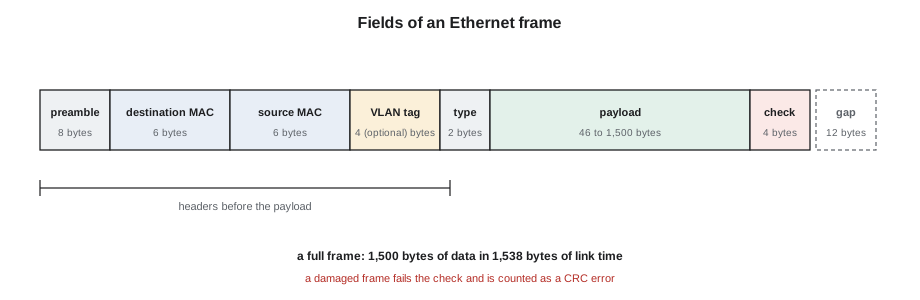
The frame check sequence matters to installers because a damaged frame is thrown away, and the switch counts it. A port that shows a rising count of frame check sequence errors, often shown as CRC errors, almost always has a physical problem: a poor termination, a damaged cord, interference from a power cable, or a mismatch between the two ends. Lesson 10 shows how those counters are read. A certified link with clean terminations should show no CRC errors at all, or only a handful during the moment a cord is plugged in.
The overhead in each frame also explains why a 1 Gb/s link never delivers a full gigabit of data. A full-size frame carries 1,500 bytes of payload but occupies 1,538 bytes of link time once the preamble, headers, checksum and the gap between frames are counted. Small frames are worse: a voice packet with a payload of 200 bytes still carries the same 38 bytes of overhead, plus the IP and transport headers inside the payload.
# Ethernet frame overhead and the best-case data rate on a link
PREAMBLE, HEADER, FCS, GAP = 8, 14, 4, 12
def efficiency(payload, vlan_tag=False):
    tag = 4 if vlan_tag else 0
    wire = PREAMBLE + HEADER + tag + payload + FCS + GAP
    return payload / wire
for payload in (46, 200, 512, 1500):
    e = efficiency(payload)
    print(f"payload {payload:5d} bytes: {100 * e:5.1f} % of link time is data, "
          f"{1000 * e:6.1f} Mb/s on a gigabit link")
frames = 1e9 / ((8 + 14 + 1500 + 4 + 12) * 8)
print(f"full-size frames per second on 1 Gb/s: {frames:,.0f}")payload 46 bytes: 54.8 % of link time is data, 547.6 Mb/s on a gigabit link payload 200 bytes: 84.0 % of link time is data, 840.3 Mb/s on a gigabit link payload 512 bytes: 93.1 % of link time is data, 930.9 Mb/s on a gigabit link payload 1500 bytes: 97.5 % of link time is data, 975.3 Mb/s on a gigabit link full-size frames per second on 1 Gb/s: 81,274
MAC addresses
Every Ethernet interface has a MAC address, a 48-bit number usually written as six pairs of hexadecimal digits, such as 00:1A:2B:3C:4D:5E. The first three bytes identify the manufacturer, a block the IEEE assigns called an organizationally unique identifier, and the last three are a serial number the manufacturer assigns. The address is printed on a label on most devices, often with a barcode, and the crew photographs or scans it before the device goes into the ceiling. Lesson 3 explains how switches use MAC addresses, and why the label is one of the most useful records on the job.
Speeds and media
Ethernet speeds are named by a number, the medium and sometimes a reach. 1000BASE-T is gigabit Ethernet over four pairs of twisted copper; 10GBASE-T is 10 Gb/s over twisted pair; 1000BASE-SX is gigabit over multimode fibre at short reach, and 10GBASE-LR is 10 Gb/s over singlemode at long reach. The BASE means baseband signalling, a detail that no longer matters, and the letters after it name the medium. The table lists the copper types the crew sees and the cable each needs for a full 100 m channel.
| Name | Speed | Pairs used | Cable for a 100 m channel | Typical use |
|---|---|---|---|---|
| 100BASE-TX | 100 Mb/s | 2 | Category 5e or better | Older devices, many cameras, door controllers, sensors |
| 1000BASE-T | 1 Gb/s | 4 | Category 5e or better | Computers, phones, most access points |
| 2.5GBASE-T | 2.5 Gb/s | 4 | Category 5e or better | Wi-Fi 6 and Wi-Fi 7 access points |
| 5GBASE-T | 5 Gb/s | 4 | Category 6 or better | High-capacity access points |
| 10GBASE-T | 10 Gb/s | 4 | Category 6A | Servers, uplinks, some access points |
| 10BASE-T1L | 10 Mb/s | 1 | Single pair, up to 1,000 m (3,280 ft) | Industrial and building sensors |
The 2.5 and 5 Gb/s types, defined in IEEE 802.3bz in 2016, exist because of wireless. A modern access point can carry more than a gigabit of traffic from its users, but most buildings have Category 5e or 6 cabling that cannot run 10GBASE-T at full length. The intermediate speeds run over that existing cable and use the same connectors, so an access point upgrade does not always need new cable. Brightwater's cabling is Category 6A throughout, so any of these speeds will work, but the access points Lucia has chosen have 2.5 Gb/s ports, and so do the PoE switches.
Fibre types appear on uplinks between switches and on long links such as Riverside's gymnasium and the Hartwell warehouse. The pluggable transceivers that carry them, small modules called SFPs and their faster relatives, are matched to the fibre type, the connector and the reach. A short-reach multimode transceiver on a singlemode backbone, or two transceivers of different wavelengths at the two ends, gives no link even though the fibre tests perfectly. Hollis Tran's rule from LVT-210 applies: check the transceiver's label against the strand type and the far end before you plug it in.
Auto-negotiation
When two copper Ethernet interfaces are connected, they exchange short bursts of signal that advertise what each can do: which speeds and whether it can send and receive at the same time, called full duplex. They then choose the best mode they have in common. This auto-negotiation happens in a second or two, every time a cable is plugged in or a device restarts. A gigabit access point connected to a gigabit switch port settles on 1000 Mb/s full duplex. A device that can only do 100 Mb/s settles at 100 Mb/s with the same switch port.
Auto-negotiation also detects some cable problems. Gigabit and faster speeds need all four pairs. If one pair is open or badly terminated, the two ends often fall back to 100 Mb/s, which needs only two pairs, and the link comes up as if nothing were wrong, only slower. An access point that should run at 2.5 Gb/s but shows 100 Mb/s on the switch is the classic sign of a damaged pair, a cord with only two pairs, or a termination that failed after the certification test. The link light colour on many switches shows the speed, and Maya learns to glance at it on every port she connects.
Duplex is the other half of the negotiation. Full duplex means both ends send at the same time on different pairs or by echo cancellation; half duplex means they take turns, an old mode needed only on shared media. Modern links are always full duplex. The problem comes when one end is set by hand to a fixed speed and duplex and the other is left on auto: the auto end cannot detect the duplex of a fixed partner and assumes half, and the link runs with a duplex mismatch. It works, but badly, with collisions and errors that grow with traffic. Lesson 10 shows how to recognize it from the switch's counters. The fix is almost always to set both ends to auto.
# Auto-negotiation: what speed will two ends agree on?
ORDER = ["10G", "5G", "2.5G", "1G", "100M", "10M"]
def agree(a, b, pairs_ok=4):
    common = [s for s in ORDER if s in a and s in b]
    if pairs_ok < 4:      # gigabit and faster need four good pairs
        common = [s for s in common if s in ("100M", "10M")]
    return common[0] if common else "no link"
switch = {"2.5G", "1G", "100M", "10M"}
ap = {"5G", "2.5G", "1G", "100M"}
camera = {"100M", "10M"}
print("switch to access point:          ", agree(switch, ap))
print("switch to camera:                ", agree(switch, camera))
print("switch to access point, bad pair:", agree(switch, ap, pairs_ok=3))switch to access point: 2.5G switch to camera: 100M switch to access point, bad pair: 100M
Link lights and what they mean
Every switch port and most devices have one or two indicator lights at the jack. Their meaning varies by manufacturer, and the switch's quick-start guide or front-panel label is the reference, but the usual pattern is that a steady light means a link is established, flashing means traffic, and the colour shows the speed: often green for the highest speed the port supports and amber for a lower one. A second light, or a different colour, may show PoE. No light at all means no link: no device, no cable, a broken pair, a device that is powered off, or a port the network team has disabled.
Link lights are the fastest check an installer has, and they cost nothing. On the Brightwater floor, Maya's routine when she connects an access point is to watch the switch port: the PoE light should come on within a second or two, the link light a little later as the access point boots, and the colour should show the expected speed. If any of the three is wrong, she stops and looks before moving to the next device. That habit catches a mispatched cord before it becomes a missing access point on someone's report.
Cables, cords and speed
The certified permanent link is only part of the channel. The patch cords at each end, the cord in the ceiling to an access point and any equipment cords complete it, and a poor cord limits the whole link. Cords must be at least the same category as the permanent link; a Category 5e cord in a Category 6A channel can hold a 10GBASE-T or 5GBASE-T link down to a lower speed. The crew uses factory-made cords from the cabling manufacturer's warranty system, of the category the design names, and does not make its own. Cords with only two pairs, sold for telephone and older Ethernet use, sometimes turn up in a device box; they limit any link to 100 Mb/s and do not carry four-pair PoE.
Length matters too. The channel limit of 100 m includes the cords, and a long cord added at a device can push a link that was certified near its limit over the edge. At Hartwell, where the far end of the warehouse was beyond 90 m from the room, LVT-120 used a fibre-fed enclosure rather than stretching copper. Maya checks the length on the certification report of any link that fails to come up at full speed; a long link with a long cord is a likely cause.
Temperature matters on long links in hot ceilings. LVT-120 explained that insertion loss rises with temperature and the standards derate the length allowed in hot spaces. A link certified on a cool day in a 35 °C ceiling will run hotter in summer, and a high-speed link that was marginal can start dropping to a lower speed. The Hartwell training room route, 83 m in a hot ceiling, is one that Hollis notes for a recheck in August.
Energy-efficient Ethernet and other features
Modern Ethernet has features that can confuse a technician who does not know they exist. Energy-efficient Ethernet, from IEEE 802.3az, lets a link sleep briefly when there is no traffic, saving power; some older devices handle it badly and drop their link or lose packets, and the network team may turn it off on certain ports. Link aggregation bundles two or more links between switches into one logical link for more capacity and resilience; an access point with two ports may use it, or may use the second port only for extra PoE power. Spanning tree, covered in lesson 3, blocks some links on purpose to prevent loops, so a port with a link light and no traffic may be working exactly as intended. When something looks odd, the installer's first question to the network team is whether it is a feature or a fault.
Worked problem
A slow access point at Brightwater
After mounting access point AP-6-09, Maya sees on the switch that its port has negotiated 100 Mb/s instead of 2.5 Gb/s. The access point's second port is not yet connected. The permanent link 6A-F07 passed certification at 8 m (26 ft). What should she check, in order?
Show solution
- Auto-negotiation fell back to a two-pair speed, so suspect a pair problem first.
- Check the patch cords at both ends: are they the design's Category 6A four-pair cords? Replace each with a known good cord.
- If the link is still at 100 Mb/s, the permanent link may have been damaged after certification, for example by another trade in the ceiling. Retest it with the certification tester.
- If the cable passes, ask Omar whether the switch port is configured to a fixed speed.
Answer: She finds a grey two-pair cord from the access point box at the ceiling end. With a Category 6A cord, the port comes up at 2.5 Gb/s.
Common mistakes
MistakeTreating a link that comes up at 100 Mb/s as working.
InsteadCheck the speed against what the device and port support; a fallback usually means a pair fault or a two-pair cord.
MistakeUsing cords from device boxes without checking them.
InsteadUse the design's factory-made cords of the right category with four pairs.
MistakeSetting one end of a link to a fixed speed and duplex.
InsteadLeave both ends on auto-negotiation unless the network team specifies otherwise.
MistakeIgnoring CRC errors on a switch port.
InsteadRising CRC errors usually mean a physical fault; find it.
MistakePlugging in a fibre transceiver without checking its type.
InsteadMatch the transceiver to the strand type, connector and far end.
Summary and key terms
- Ethernet frames carry destination and source MAC addresses, a type field, a payload of up to 1,500 bytes and a checksum.
- Frame overhead means no link carries its full rated speed in data; small frames are least efficient.
- Copper speeds from 100 Mb/s to 10 Gb/s run on twisted pair; 2.5 and 5 Gb/s were added for access points on existing cable.
- Auto-negotiation chooses the best common speed and duplex; a fallback to 100 Mb/s often means a pair problem.
- A duplex mismatch comes from one end fixed and one on auto; set both to auto.
- Link lights show link, activity, speed and often PoE; read them on every connection.
- Cords complete the channel and must match the category, have four pairs and fit within the length.
- Frame
- The unit of data on an Ethernet link, with addresses, payload and a checksum.
- MAC address
- A 48-bit hardware address assigned to an Ethernet interface.
- Frame check sequence
- The checksum at the end of a frame used to detect damage.
- Auto-negotiation
- The exchange that lets two ends choose a common speed and duplex.
- Full duplex
- Sending and receiving at the same time.
- Duplex mismatch
- A fault where one end runs full duplex and the other half duplex.
- Transceiver
- A pluggable module that converts between electrical signals and light for a fibre link.
Practice problems
Work each problem on paper first, then reveal the answer to check.
How much overhead does a full-size frame carry on the wire?
Show answer
38 bytes: preamble, headers, checksum and the interframe gap.
An access point rated for 2.5 Gb/s links at 1 Gb/s. Is that a fault?
Show answer
Not necessarily; check whether the switch port supports 2.5 Gb/s. If both do, check the cords and cable.
What do rising CRC errors on a port usually mean?
Show answer
A physical problem: termination, cord, interference or a mismatch.
Which Ethernet type uses a single pair over long distances for sensors?
Show answer
10BASE-T1L.
Lesson quiz · 5 questions
Score 60% or more to complete this lesson.
Create a free account to save your progress, take quizzes and earn a certificate.