
MSBA-260 · Lesson 12 of 12 · 18 min
Case study: combining sales files from many stores
▶ Video coming soon A video version of this lesson is on the way.
At the end of term, the vice-president of finance asked campus services for one thing: a single view of sales across every outlet in the college. Lumenvale has nine outlets across its three campuses: a bookstore and two cafés at Downtown campus, a bookstore, a café and a print shop at Lakeshore campus, and a bookstore, a café and a vending contract at Ridgeview campus. Each outlet exports a weekly sales file. They had never been combined. Kwabena volunteered, partly because it would use everything he had learned since September. This lesson walks through his solution from the first look at the files to a published, refreshing model, and it doubles as a review of the whole course.
The files
The outlet managers saved their exports to a SharePoint document library called Outlet Sales, in folders by campus. Kwabena started, as always, by looking before building. He connected with the SharePoint folder connector to the site, which returned every file in every library, and filtered Folder Path to the Outlet Sales library. There were 214 files. Profiling the file list itself, with a quick Group By on Extension, showed 205 .xlsx files, 6 .csv files from the vending company, and 3 stray files: a .docx of notes, a .tmp lock file and a copy named Sales_Week12 (old).xlsx.
| Finding in the files | Decision |
|---|---|
| Two formats: Excel from eight outlets, CSV from vending | Two separate combine queries, appended afterwards |
| Stray .docx, .tmp and old-copy files | Filter by extension and exclude names containing (old) |
| Two title rows above the headers in the Excel files | Remove top rows in Transform Sample File |
| Column names vary: Amount, Total, Sale Amt; Date, Txn Date | Rename known variants with MissingField.Ignore |
| The Lakeshore campus café writes decimals with a comma | Convert with the correct culture for that outlet |
| Outlet named differently in each file | Use the file's folder and name to look up an Outlet ID |
Step 1: filter the file list
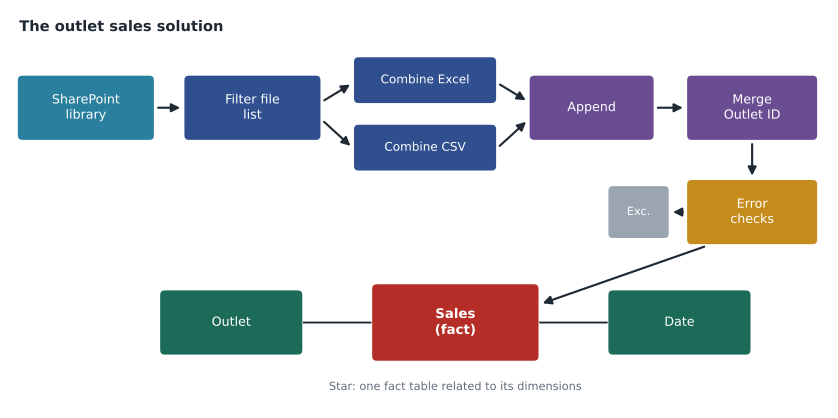
In the main query for the Excel files, Kwabena kept only rows where Extension is .xlsx and the name starts with Sales_ and does not contain (old). Every filter here is on file metadata, so it is cheap. He also kept Folder Path, which contains the campus folder name, and Name, which contains the outlet and week, before combining, because the combine replaces the file list with file contents. This is the defensive step that the stray files would otherwise have broken.
let
    Source = SharePoint.Files("https://yourtenant.sharepoint.com/sites/CampusServices", [ApiVersion = 15]),
    OutletLibrary = Table.SelectRows(Source, each Text.Contains([Folder Path], "/Outlet Sales/")),
    ExcelOnly = Table.SelectRows(OutletLibrary, each [Extension] = ".xlsx"
        and Text.StartsWith([Name], "Sales_") and not Text.Contains([Name], "(old)"))
in
    ExcelOnly
Step 2: combine and shape every file
He used Combine Files on the Content column with a typical Downtown campus bookstore file as the sample, choosing the sheet called Export. Power Query created the helper queries from lesson 7. In Transform Sample File he added the shaping every file needed: remove the two title rows, promote headers, rename the known column variants to standard names with MissingField.Ignore, keep only the standard columns with Remove other columns, and Trim and Clean the text columns. Because these steps live in the function, every new weekly file is shaped the same way automatically.
In the main query, after the combine, Source.Name identified each row's file, and Kwabena had kept Folder Path. Two steps parsed them: the campus from the folder path, and the outlet short name and week number from the file name, which followed the pattern Sales_[outlet]_Week[number].xlsx. He used Column from examples to extract the outlet short name and checked the M it produced.
Step 3: the CSV files and the append
The vending company's CSV files had different columns entirely: MachineID, Timestamp, Product, Price. Kwabena built a second combine query for them, with its own Transform Sample File, and shaped the result to the same standard columns: Date (from Timestamp, using the date part), Outlet Short Name (a fixed value, VEND-RDG, for the Ridgeview campus contract), Item and Amount. Only then did he append the two combined queries into one. Because append lines up columns by name (lesson 5), standardizing names in both queries first was essential.
Step 4: types and the locale problem
With everything in one table, he set data types deliberately: Date as Date, Amount as Fixed decimal number, Quantity as Whole number, text columns as Text. For the Lakeshore campus café, the conversion needed care: its amounts were text with a comma decimal separator. Converting the whole column with one locale would break the other outlets. So in Transform Sample File he kept Amount as text, and in the main query he added a custom column that chose the culture by outlet, using try ... otherwise to return null for anything that still failed (lesson 10). Then he replaced the text column with the number.
#"Amount as Number" = Table.AddColumn(Appended, "Amount Value",
    each try Number.From([Amount], if [Outlet Short Name] = "CAFE-LKS" then "fr-FR" else "en-CA")
         otherwise null, Currency.Type)
Step 5: the Outlet dimension and keys
The fact table needed a key to an Outlet dimension that listed each outlet once with its campus, type and manager. Campus services kept that list in a SharePoint list, which Kwabena connected to as its own query. The list had an Outlet ID and a Short Name; the sales files had only the short name. He merged the fact query with the Outlet query on Short Name using a Left outer join, expanded Outlet ID, then ran a Left anti merge to list any sales rows whose short name matched no outlet. There was one: the print shop's files used PRINT-LKS while the list had PRT-LKS. Campus services corrected their list, and the anti join came back empty.
Before trusting the merge, he checked the Outlet list's Short Name with column distribution: 9 rows, 9 distinct, 9 unique. Had a short name appeared twice, the merge would have duplicated sales rows and inflated every total (lesson 5).
Step 6: errors and quality checks
Kwabena created a reference to the appended query called Sales Exceptions, which kept rows where Amount Value was null, Date was null or Outlet ID was null, and added a column naming the problem. He loaded it as a small table in the model so a report page could show campus services what needed fixing each week. The main Sales fact query removed nothing silently: rows with a null amount stayed in, so totals could be reconciled with the exceptions page.
Worked problem
Reconciling the first full load
After the first full load, the Sales table has 61,480 rows. The Sales Exceptions table has 37 rows, all with a null amount. Campus services' own summary says the outlets recorded 61,480 transactions with total sales of 1,284,600 dollars. The model's total is 1,283,910 dollars. Does the model reconcile?
Show solution
- Row counts match: 61,480 in both.
- The difference in sales is 1,284,600 - 1,283,910 = 690 dollars.
- The 37 exception rows have null amounts, so they contribute nothing to the model's total.
- If those 37 transactions average about 18.65 dollars, they account for 37 x 18.65 = 690.05 dollars, essentially the whole gap.
Answer: Yes, once the 37 exceptions are accounted for. The rows are not lost, only their amounts are unreadable, and the exceptions page tells campus services exactly which ones to fix at source.
Step 7: shape for the model
The final Sales fact table kept only what measures and relationships needed: Date, Outlet ID, Item, Quantity and Amount. Outlet names, campuses and managers lived in the Outlet dimension, and dates related to the college's shared Date table, which already came from the certified enrollment dataflow (lesson 9). He turned off Enable load for the two combine queries, the helpers and the appended staging query, so the model showed only Sales, Sales Exceptions and Outlet. In the Queries pane he grouped everything as Parameters, Staging, Facts, Dimensions and Checks.
| Query | Enable load | Role |
|---|---|---|
| Outlet Files Excel, Outlet Files CSV | Off | Combine each file format |
| Transform Sample File (two), Sample File, parameters | Off | Folder-combine helpers |
| Sales Staging | Off | Appended, typed, outlet keys added |
| Sales | On | Fact table |
| Sales Exceptions | On | Quality page |
| Outlet | On | Dimension |
Step 8: storage mode, folding and refresh
Every source was a file or a SharePoint list, so nothing folded and DirectQuery was not an option; files never fold (lesson 8). The data was small, about 60,000 rows a term, so Import was the obvious mode (lesson 2). Because the files lived in SharePoint Online, the published model needed no gateway: Kwabena signed in with an organizational account in the model's data source settings, set the SharePoint and SharePoint list sources to Organizational privacy, and scheduled a refresh every morning at 7 a.m. after the outlets uploaded their files (lesson 11).
He added one parameter, LibraryPath, holding the SharePoint folder path, so the same model could be pointed at a test library for changes. The parameter was visible in the semantic model's settings after publishing (lesson 7).
Step 9: hand-over
Rupert's sign-off required a short document. Kwabena's covered the sources and their owners, the folder rules (which files are included and why), the known column variants and where they are renamed, the Lakeshore campus culture rule, the meaning of the exceptions page, the refresh schedule and who receives failure emails. It also listed what would break the model: a new outlet not added to the Outlet list, a file saved with a new column name not in the rename list, or a file saved outside the library.
Mapping the case study to the exam
Every step in this case study corresponds to PL-300 skills in the *Prepare the data* group:
| Exam skill | Where it appeared |
|---|---|
| Identify and connect to data sources; choose between Direct Lake, DirectQuery and Import | SharePoint folder connector; Import chosen (steps 1 and 8) |
| Change data source settings, credentials and privacy levels | Organizational account and privacy level after publishing (step 8) |
| Create and modify parameters | LibraryPath (step 8) |
| Evaluate data; resolve inconsistencies, nulls and import errors | File profiling, culture conversion, exceptions table (steps 1, 4 and 6) |
| Select data types; create and transform columns | Types and Column from examples (steps 2 and 4) |
| Merge and append; create keys | Append of two formats; outlet merge and anti join (steps 3 and 5) |
| Create fact and dimension tables; configure data loading | Sales, Outlet and load settings (step 7) |
| Reference or duplicate queries | Sales Exceptions as a reference (step 6) |
What Kwabena would do next
When the college's Fabric lakehouse matured, Rupert planned to move the outlet sales preparation into a Dataflow Gen2 that wrote a Delta table each morning, so that the finance team's Direct Lake model and Kwabena's model could both use the same cleaned sales (lesson 9). The Power Query would move almost unchanged. The next course in the PL-300 program, Modeling Data and Writing DAX, starts where this one ends: with clean fact and dimension tables ready to be related and measured.
Reviewing the design with Rupert
Before publishing, Kwabena walked Rupert through the queries in the order they ran. Rupert asked three questions that are worth asking of any Power Query solution. What happens when a new outlet opens? A new file appears in the library, but its short name is not in the Outlet list, so the anti join check flags it and campus services adds the outlet. What happens when an export changes its layout? The rename list handles known variants; anything else fails loudly with a missing-column error, which is the right behavior. And how long does refresh take as files accumulate? About a minute today; when it passes ten minutes, the preparation moves to a Dataflow Gen2 that appends only new files. Rupert signed it off, and the vice-president had her single view of sales before the holiday break.
Lessons from the case study
Looking back, Kwabena noted that very little of the work was clever. Most of it was careful: filtering files, standardizing names, checking keys, keeping errors visible and writing things down. That is what data preparation is like in practice, and it is what the exam rewards.
Common mistakes
MistakeCombining every file in a library without filtering.
InsteadFilter by extension, name pattern and folder before combining.
MistakeAppending different file formats before standardizing their columns.
InsteadShape each format to the same column names and types, then append.
MistakeDropping rows that fail to convert.
InsteadKeep them, load an exceptions table and reconcile totals with the source.
MistakeLoading staging and helper queries into the model.
InsteadTurn off Enable load and keep the model to facts, dimensions and checks.
Summary and key terms
- Profile and filter the file list before combining; keep folder and file names you need.
- Shape every file in Transform Sample File; standardize names before appending different formats.
- Convert types deliberately, using the right culture per source where needed.
- Check lookup keys before merging and use an anti join to find unmatched rows.
- Load a star of facts and dimensions, keep an exceptions table, and document sources, rules and refresh.
- Exceptions table
- A small table of rows that failed quality checks, loaded for follow-up.
- Staging query
- An intermediate query that is not loaded but feeds the final tables.
- Reconciliation
- Checking the model's counts and totals against an independent source.
- Outlet dimension
- The table describing each outlet once, related to sales by Outlet ID.
- Culture
- The language and region setting used to read numbers and dates from text.
Practice problems
Work each problem on paper first, then reveal the answer to check.
Why did Kwabena keep Folder Path and Name before combining?
Show answer
The combine replaces the file list with contents; he needed them to identify campus, outlet and week.
Why was no gateway needed for the outlet sales model?
Show answer
All sources were in SharePoint Online, a cloud source.
What would break the model, according to the hand-over document?
Show answer
A new outlet missing from the Outlet list, a new column name not in the rename list, or a file saved outside the library.
Lesson quiz · 5 questions
Score 60% or more to complete this lesson.
Create a free account to save your progress, take quizzes and earn a certificate.