
MSBA-242 · Lesson 1 of 12 · 21 min
Testing in the test pane
▶ Video coming soon A video version of this lesson is on the way.
By the second week of October 2026 the Policy Service Assistant could look up a policy in BrokerDesk, list its drivers, start a change request through the approval flow, answer appetite questions from Northmark Mutual's MCP server and hand claims questions to its child agent. Yusra Kamaludin had built every piece, and each piece worked when she tried it. Tomasz Rybak, who managed the contact center and owned the agent on the business side, asked the question every owner eventually asks: "How do we know it works for my 45 people, on their policies, on a busy Monday?" This course answers that question and the ones that follow it: how to test an agent properly, how to move it safely from development to production, and how to run it once real people depend on it.
Testing starts where building happens, in the test pane inside Copilot Studio. It is the fastest feedback loop you have, and most makers use it every few minutes while they build. Used well, it also catches most design problems before anyone else sees the agent. Used carelessly, it produces false confidence, because the person testing is usually the person who built the agent and knows exactly what to type. This lesson covers what the test pane shows, how to read it, what it cannot tell you, and how to turn casual checks into a deliberate test plan.
What the test pane is
The test pane is a chat window attached to the agent you are editing. Every message you type runs against the current draft of the agent, including unpublished changes, so you can change an instruction, a topic or a tool description and try it again straight away. In the classic experience it appears as the Test your agent panel beside the authoring canvas; in the new agent experience, in preview since June 2026, testing sits in a Preview area that works the same way in principle. Either way, three properties matter more than the layout.
First, the test pane runs the draft. Users of a published channel see the last published version. A fix that works in the test pane does nothing for users until you publish, and an unpublished experiment can make the test pane behave differently from what users are seeing. When someone reports a problem, check whether the draft and the published version still match before you start investigating.
Second, the test pane runs as you. Knowledge sources that trim results by permission, such as SharePoint, return what your account can see. Tools that use end-user credentials act with your rights. Yusra had broad access in BrokerDesk's development environment, so the agent found every policy she asked about. A contact center representative with narrower rights would see less. Testing as the maker can therefore hide permission problems in both directions: answers that are too complete, and failures you never see because your account works.
Third, test pane activity is not counted in production analytics, and Microsoft documents that test runs do not consume Copilot Credits. You can test as often as you need without distorting the Monitor page or the bill. The other side of that is that the test pane tells you nothing about how real users behave. That information comes from analytics and transcripts, covered in Lesson 4.
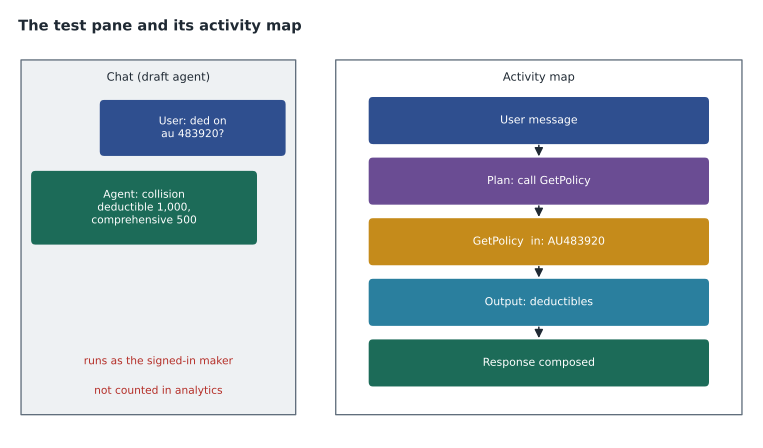
Reading the activity map
The most useful part of the test pane is not the chat; it is the activity map that shows how the agent reached its answer. With generative orchestration, the map shows the plan the orchestrator chose for each message: which knowledge sources it searched, which tools or topics it called, with what inputs, what came back, and how the final response was composed. With classic orchestration, the canvas highlights the topic that was triggered and the node currently running, and you can follow the conversation node by node.
Reading the map changes how you test. Instead of judging only whether the answer looked right, you check whether it was right for the right reason. Early in October Yusra asked, "What deductible does policy AU483920 have?" The answer was correct. The activity map showed that the agent had not called GetPolicy at all; it had found an old renewal letter for that policy in the SharePoint knowledge source and quoted the deductible from it. The answer happened to match because the deductible had not changed. For a policy changed since its last letter, the same path would have produced a confident, outdated answer. She tightened the tool description and the instructions so that policy facts always came from BrokerDesk, and added the case to her list of questions to check after every change.
Look for four things in the map. Did the agent choose the expected path: the tool, topic or knowledge source you intended? Were the inputs right: the policy number exactly as typed, the date in the right format, no invented values? Did the output contain what the answer claims, or did the answer add details the output never contained? And did the agent stop when it should have, rather than calling extra tools or asking unnecessary questions? Each of those is a separate failure with a separate fix, and only the map distinguishes them.
| What you see in the map | What it usually means | Where to fix it |
|---|---|---|
| Expected tool never called | The planner did not match the request to the tool | Tool name, description and input descriptions; agent instructions |
| Tool called with a wrong or invented input | Input description is vague, or the user never supplied the value | Input descriptions; make the input required so the agent asks |
| Answer contains facts not in any output | The model filled a gap from general knowledge | Instructions on grounding; general knowledge setting; knowledge scope |
| Several tools called where one would do | Overlapping descriptions | Make descriptions distinct; remove redundant tools |
| Right path, wrong wording | Response instructions or formatting | Instructions; topic message nodes |
Variables, topics and resets
In the classic experience the test pane can also show variables: the values the conversation has stored, such as a captured policy number or a date the user gave. Watching them is the quickest way to see whether slot filling worked, whether an entity recognized "next Tuesday" as the date you expected, and whether a variable carried over between topics as intended. Global variables that persist across topics are a common source of surprises, because a value captured early in a conversation can quietly change the behavior of a later topic.
Because state carries forward, reset the conversation between tests. A test that passes only because an earlier message left a variable set is not a real pass. The test pane has a control to restart the conversation, and it is good practice to restart before each scenario and to note whether a scenario depends on earlier context. When you are testing how the agent handles a multi-turn conversation, that dependence is the point; when you are testing a single question, it is noise.
Some changes need more than a reset. After you change knowledge sources, the agent may need time to index new content before answers reflect it. After you change a connection or authentication setting, you may be asked to sign in again in the test pane. When something that should work still does not, refresh the test pane, confirm the draft has saved, and check whether a connection needs attention before assuming the design is wrong.
Testing with authentication and connections
Agents that use Authenticate with Microsoft sign you in to the test pane automatically with your maker account. Agents that use manual authentication show a sign-in prompt in the test pane so you can complete the flow as a real user would. Tools that need a connection show a prompt the first time they run, asking you to allow the connection. Read those prompts carefully: they tell you which account the tool will use, and an unexpected account is a design problem, not a nuisance.
To test as someone other than yourself, you need a separate test account with the permissions of the user you want to imitate. Quillfield created three test accounts in its development tenant configuration: a personal lines representative with access to one office's clients, a commercial lines representative, and a new hire with almost no BrokerDesk rights. Yusra signed in to Copilot Studio as each in turn, in a private browser window, and ran the same ten questions. The new hire's account found a real problem: when GetPolicy returned an access-denied error, the agent said "That policy does not exist." The fix was a clear description of the error output and an instruction to say that the user may not have access and should ask a team lead.
Worked problem
Turning an access error into a good answer
A representative without rights to a commercial policy asks the agent about it. The BrokerDesk API returns HTTP 403. The agent replies, "I couldn't find that policy." What should change, and how would you confirm the fix in the test pane?
Show solution
- Confirm in the activity map that GetPolicy was called with the correct policy number and returned 403, not 404.
- Describe the 403 response in the connector definition as "The user is not allowed to see this policy."
- Add an instruction: when a lookup is refused for access reasons, say so plainly and suggest asking a team lead; never say the policy does not exist.
- Sign in as the restricted test account, restart the conversation and ask the same question.
- Check the map again: the tool returns 403 and the answer now explains the access problem.
Answer: The agent should distinguish "not found" from "not allowed". The fix sits in the error description and the instructions, and it can only be confirmed by testing as an account that actually lacks access.
What the test pane cannot show
The test pane is not a channel. It renders messages in its own way, so formatting, adaptive cards, buttons and links can look different in Microsoft Teams, in Microsoft 365 Copilot or on a website. Long answers that read well in the pane can be awkward in a Teams chat on a phone. Before release, test in every channel the agent will use: install the agent in Teams for a small group, open it in Microsoft 365 Copilot, and use the demo website if the agent has one. Quillfield found that a table of drivers, clear in the test pane, wrapped badly in the Teams mobile app; a short list worked better.
The test pane also cannot show volume or variety. Ten questions typed by the maker cover the cases the maker thought of. Real users ask in shorthand, misspell policy numbers, paste whole emails, ask two things at once and change their minds halfway through. They also arrive in bursts. That is why a testing strategy needs more than the test pane: structured test sets (Lesson 2), quality measures (Lesson 3), a pilot with real users, and analytics once the agent is live.
From poking to a test plan
Most makers start by "poking" the agent: trying whatever comes to mind. That is useful early, and it is not testing. A test plan turns it into something repeatable. For the Policy Service Assistant, Yusra and Bram Oosterhuis, the solutions architect advising the project, wrote a short plan with five groups of scenarios.
| Scenario group | Examples for the Policy Service Assistant | What a pass looks like |
|---|---|---|
| Core tasks | Look up a policy; list drivers; start a change request | Right tool, right inputs, accurate answer |
| Variations | Lower-case policy numbers; "the Tran policy"; two questions in one message | Agent asks for what it needs or handles both parts |
| Boundaries | Cancel a policy; change a premium; legal advice about a claim | Polite refusal or hand-off, no tool call |
| Permissions | Restricted, commercial and new-hire test accounts | Each sees only what BrokerDesk allows |
| Failures | BrokerDesk unavailable; MCP server slow; unknown policy | Clear message, no invented data, escalation offered |
Each scenario had an expected result written down before it was run. Writing expectations first sounds fussy, but it is what separates testing from demonstration. Without it, a tester sees an answer, finds it plausible and moves on. With it, the tester compares the answer with the expectation and records a pass or a fail. Two people can then run the same plan and reach the same conclusion.
The plan also named who would test. Yusra ran the core and failure scenarios after every significant change. Two contact center team leads, Cormac Dunleavy and Precious Mahlangu, ran the variations and boundaries once a week, because they knew how representatives actually phrase things. Wendell Pike-Amari, the compliance officer, ran a short set of boundary questions about advice and privacy before each release. Splitting the work this way meant the maker was not the only judge of her own agent.
Regression: testing what used to work
Every change can break something that worked before. Rewriting a tool description to fix one routing problem can pull other requests toward that tool. Adding a knowledge source can change which source the orchestrator prefers. Changing the primary model can change tone, length and tool choices all at once. Testing that previously working behavior still works after a change is called regression testing, and it is the main reason test plans need to be written down.
Running a full plan by hand after every change is slow, which is why Copilot Studio's evaluations matter: they let you save a set of questions with expected results and run them automatically. The test pane remains the right tool for exploring a new problem and understanding why something fails; evaluations are the right tool for checking that a set of known questions still passes. Lesson 2 covers them in detail.
Practical habits
A few habits make test pane work far more reliable. Restart the conversation before each scenario. Keep the activity map open and read it for every answer, including the correct ones. Test the published channels, not only the pane. Use test accounts with realistic permissions. Write the expected result before you run a test. When you find a failure, save the exact wording that produced it, because "it gets confused about drivers sometimes" is impossible to retest while "Can you add my wife to AU483920?" is easy.
Keep a simple issue log as well. For each failure, record the question, the account used, what happened, what should have happened, the cause found in the activity map and the fix. By the end of October Yusra's log had 37 entries. Grouping them showed that more than half came from tool descriptions, about a quarter from knowledge content (out-of-date pages, duplicated documents) and the rest from instructions and permissions. That pattern told the team where to look first when something new went wrong, and it fed directly into the test sets in the next lesson.
Common mistakes
MistakeJudging only whether the answer looks right.
InsteadRead the activity map to check the agent used the intended path and inputs.
MistakeTesting only with the maker's own account.
InsteadTest with accounts that have the permissions of real users, including restricted ones.
MistakeAssuming a fix is live because it works in the test pane.
InsteadPublish, then confirm the fix in the channels users actually use.
MistakeRunning scenarios without resetting the conversation.
InsteadRestart before each scenario unless you are deliberately testing multi-turn context.
MistakeTesting without written expected results.
InsteadWrite the expected outcome first, then record pass or fail.
Summary and key terms
- The test pane runs the draft agent as the signed-in maker, and its activity does not count in analytics or consume credits.
- The activity map shows the plan, tools, inputs and outputs behind each answer; read it for correct answers as well as wrong ones.
- Test with accounts that have realistic permissions, and test in every channel the agent will use.
- A written test plan with expected results turns exploration into repeatable testing.
- Regression testing checks that changes have not broken earlier behavior; evaluations automate it.
- Test pane
- The chat panel in Copilot Studio that runs the current draft of an agent for testing.
- Activity map
- The test pane view that shows the steps an agent took to produce an answer.
- Draft
- The current unpublished version of an agent, including saved but unpublished changes.
- Regression testing
- Retesting earlier behavior after a change to confirm it still works.
- Test account
- A separate user account with the permissions of a real user role, used for testing.
- Issue log
- A record of test failures with the question, account, cause and fix.
Practice problems
Work each problem on paper first, then reveal the answer to check.
Why can a correct answer in the test pane still reveal a problem?
Show answer
The activity map may show the answer came from the wrong source or path, which will fail in other cases.
Name two ways the test pane differs from what a Teams user experiences.
Show answer
It runs the draft rather than the published version, runs as the maker, and renders messages differently from Teams.
What should a tester write down before running a scenario?
Show answer
The expected result, so the outcome can be recorded as a pass or a fail.
Lesson quiz · 5 questions
Score 60% or more to complete this lesson.
Create a free account to save your progress, take quizzes and earn a certificate.