
MSBA-170 · Lesson 2 of 12 · 23 min
Navigating and managing documents
▶ Video coming soon A video version of this lesson is on the way.
The second Thursday began with a 46-page document: Maple & Pine's vendor handbook, which every caterer, florist and audio-visual company signs before working an event. It had grown for nine years without an owner. Rosalind wanted the handbook brought up to date before the 2027 season, and Teo wanted practice moving through a long document quickly, which is exactly what the first objectives of the MO-110 exam ask for: search for text, link to locations within documents, move to specific locations and objects, and manage documents from creation to saving.
Creating and opening documents
Every Word document starts somewhere. File > New offers a Blank document and a gallery of templates: résumés, newsletters, reports, calendars and many more, with a search box for online templates. A template is a file, saved with the .dotx extension (or .dotm if it contains macros), that holds starting text, styles, page setup and sometimes building blocks. When you create a document from a template, Word makes a new document based on it; the template itself stays unchanged for the next person. Maple & Pine's proposal template, for example, contains the company letterhead in the header, the house styles and placeholder sections for scope, schedule and price.
File > Open lists recent documents and the places you can browse: OneDrive, SharePoint sites the organization uses, This PC and other locations. You can pin a document to the top of the Recent list with the pin icon beside it, which Teo did for the vendor handbook. Word opens documents from the internet or email attachments in Protected View, a read-only sandbox, until you choose Enable Editing in the yellow or red message bar. Protected View is a security feature and should not be turned off casually.
When a document is stored in OneDrive or SharePoint, the AutoSave switch in the title bar saves every change within seconds, and Version History (File > Info, or the file name in the title bar) lists earlier versions you can open or restore. For a document saved on the local disk, AutoSave is off and you save with Ctrl+S; AutoRecover, set in File > Options > Save, saves recovery information every few minutes in case Word closes unexpectedly. The difference matters at work: an AutoSaved cloud document has no "I didn't save it" escape hatch, so practice on a copy.
The Navigation pane
The fastest way around a long document is the Navigation pane. Open it from the View tab (Show group, Navigation Pane) or with Ctrl+F. It has three tabs at the top. Headings lists every paragraph formatted with a built-in heading style, indented by level; click a heading to jump there, drag it to move the whole section with its text, or right-click to promote, demote, insert a new heading, or delete a section. Pages shows thumbnails of each page. Results lists every match for whatever you type in the search box at the top of the pane, with surrounding text.
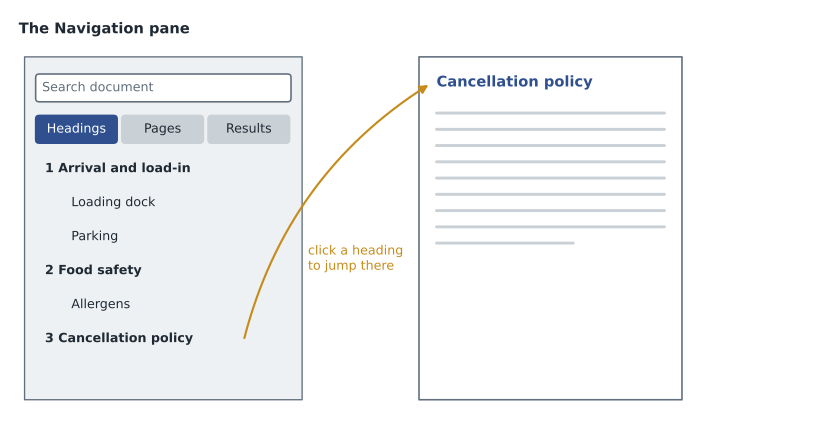
The vendor handbook's Navigation pane showed almost nothing under Headings: only three entries. The other "headings" had been made by typing bold 14-point text rather than applying a heading style, so Word did not recognize them. That single observation became a lesson in why styles matter, which Teo would come back to in lesson 5. For now he searched instead.
Searching for text
Typing in the Navigation pane's search box highlights every match in yellow and lists them under Results. The magnifying glass drop-down beside the box offers Options (match case, find whole words only, use wildcards, sounds like, find all word forms, ignore punctuation and white space) and searches for objects rather than text: Graphics, Tables, Equations, Footnotes/Endnotes and Comments. Selecting Tables, for example, steps through each table in turn, which is one way of meeting the objective "move to specific locations and objects".
For more control, use Find and Replace (Home tab, Editing group, or Ctrl+H). Its Find tab finds text one occurrence at a time; Replace changes it; Go To jumps to a page, section, line, bookmark, comment, footnote, endnote, field, table, graphic, equation, object or heading. Choose More >> to reveal search options and the Format and Special buttons. Format lets you find or replace formatting itself: every word in 12-point Times New Roman, every paragraph with the Heading 3 style. Special lets you find invisible characters such as paragraph marks (^p), tab characters (^t) and manual page breaks (^m).
| Task | Best tool | How |
|---|---|---|
| See every place a word appears | Navigation pane | Ctrl+F, type the word, read the Results list |
| Change one word to another throughout | Replace | Ctrl+H, enter both words, Replace All (or Replace one at a time) |
| Find only "Event" with a capital E | Replace or Find with options | More >>, select Match case |
| Stop "event" also matching "events" and "eventual" | Find options | Select Find whole words only |
| Remove double paragraph marks used as spacing | Replace with Special | Find ^p^p, replace with ^p |
| Jump to page 31 | Go To | Ctrl+G, Page, type 31, Go To |
| Step through every table | Go To or Navigation pane | Go To > Table > Next, or search drop-down > Tables |
Worked problem
Replacing a company name safely
The handbook refers to Maple & Pine's former name, "Maple Events", 63 times, but one paragraph about the company's history must keep the old name. How should Teo update the document?
Show solution
- Press Ctrl+H. In Find what, type Maple Events; in Replace with, type Maple & Pine Events.
- Choose More >> and select Match case, so a phrase such as "maple events" in a recipe note is not changed.
- Rather than Replace All, choose Find Next and Replace for each match, or Replace All and then return to the history paragraph and restore the old name.
- Afterwards, search for the new name in the Navigation pane and scan the Results list to check every change in context.
Answer: Use Replace with Match case, and either replace one at a time or Replace All and then fix the one exception. The Navigation pane confirms the result.
Replace All is fast but blunt. Teo learned that the hard way during practice when he replaced "PA" (for "public address system") with "sound system" and found later that "PAID" had become "sound systemID". Find whole words only would have prevented it. On the exam, task wording usually tells you exactly what to replace, but the options still matter: if a task says "replace all instances of the word", whole words is often the safe interpretation.
Linking to locations within a document
A long document becomes much easier to use when readers can click to the part they need. Word offers three tools. A bookmark (Insert tab, Links group, Bookmark) gives a name to a location or a selection; names must start with a letter and cannot contain spaces, so Teo named the cancellation policy section Cancellation_Policy. A hyperlink (Insert > Links > Link, or Ctrl+K) can point to a web address, an email address, another file, or a Place in This Document: a heading, a bookmark, or the top of the document. A cross-reference (References tab, Captions group, Cross-reference, or Insert > Links > Cross-reference) inserts text such as "see page 14" or "see Table 3" that updates when the document changes.
The exam objective "link to locations within documents" is about the first two: inserting a bookmark, and inserting a hyperlink to a heading or bookmark. When you choose Place in This Document in the Insert Hyperlink dialog, Word shows a tree with Top of the Document, Headings and Bookmarks. Only text formatted with heading styles appears under Headings, which again explains why the handbook's fake headings caused trouble. You can also type ScreenTip text, which appears when someone hovers over the link.
To follow an internal link in Word you usually press Ctrl and click; a plain click selects the link text for editing. In a PDF saved from Word, internal hyperlinks and bookmarks carry across, so readers can click them directly. Rosalind wanted exactly that for the handbook: a contents list at the front where each line jumps to its section, and a "Back to contents" link at the end of each section pointing to a bookmark named Contents.
Moving to specific places and objects
Besides Go To, Word has keyboard shortcuts that make long documents manageable. Ctrl+Home goes to the start of the document and Ctrl+End to the end. Ctrl+Up and Ctrl+Down move a paragraph at a time. Shift+F5 returns to the last places you edited, even just after opening the document, which is handy when you were interrupted. The browse buttons below the vertical scroll bar have been removed from recent versions, so use Go To with Next and Previous to browse by object type.
The Navigation pane's Pages tab is the visual way to move: thumbnails show where tables, pictures and blank pages are. Teo found two blank pages in the handbook this way. Turning on Show/Hide revealed why: a run of empty paragraphs in one place and a manual page break directly before a section break in another. He deleted the empty paragraphs and the redundant break, and the page count dropped from 46 to 44 without changing a single word.
Managing document windows and recovery
Working on two documents at once is common at Maple & Pine: copying clauses from the old handbook into the new one, for instance. The View tab's Window group offers New Window, Arrange All, Split, View Side by Side, Synchronous Scrolling and Switch Windows. If Word closes unexpectedly, it shows a Document Recovery pane next time it opens, listing AutoRecover versions; save the one you want under a new name. For files you closed without saving, File > Info > Manage Document > Recover Unsaved Documents may help, but only for documents that were never saved at all.
Version history deserves a word because it is often confused with tracking changes. Version history keeps whole copies of the document at intervals for files in OneDrive or SharePoint; you can open an old version, compare it, or restore it. Track Changes (lesson 11) records each individual edit inside one document so a reviewer can accept or reject it. Rosalind used both: track changes while vendors reviewed the handbook, and version history as the safety net.
Opening other file types
Word opens more than its own formats. File > Open reads .docx, .docm, .dotx and older .doc files, Rich Text Format (.rtf), plain text (.txt), OpenDocument Text (.odt) and web pages, and it can open a PDF for editing by converting it into an editable document. That conversion is a best effort: simple text-heavy PDFs come through well, while complex layouts with columns, forms and graphics often need tidying afterwards. Word warns you before converting and leaves the original PDF unchanged. Maple & Pine receives many venue contracts as PDFs, and Teo found that opening one in Word to quote a clause was faster than retyping it, as long as he checked the result against the original.
Documents created in older versions open in Compatibility Mode, shown after the file name in the title bar. Some newer features are disabled until you convert the document with File > Info > Convert, which upgrades it to the current format. Converting can slightly change the layout of complicated documents, so Rosalind's rule is to convert only when you need a newer feature, and to keep the original until the converted version has been checked.
Keeping long documents under control
Long documents are easier to manage when their structure is obvious. Besides headings and the Navigation pane, Word offers Outline view (View > Outline), which shows the document as a collapsible outline of heading levels. You can collapse everything to level 1 to see the chapter list, drag a heading with its plus sign to move a whole chapter, and use Promote and Demote to change levels. Outline view works on the same heading styles as the Navigation pane, so it is another reason to use them consistently.
In Print Layout you can also collapse and expand sections under a heading by hovering to the left of the heading and clicking the small triangle. Collapsed headings are a display convenience, but they can hide content from someone reviewing the document, which is why the Document Inspector in lesson 11 checks for them. Teo collapsed every section of the vendor handbook except the one he was editing, which made scrolling much calmer.
Worked problem
Moving a section with the Navigation pane
Rosalind wants the "Cancellation policy" section of the handbook moved so it comes straight after "Payment terms". Both are Heading 1 sections several pages apart. What is the quickest reliable way to move it with all its text?
Show solution
- Open the Navigation pane (Ctrl+F) and select the Headings view.
- Drag the "Cancellation policy" heading up the list and drop it directly below "Payment terms" (not inside it).
- Word moves the heading and every paragraph beneath it up to the next Heading 1.
- Check page numbers and any table of contents, which may need updating afterwards.
Answer: Drag the heading in the Navigation pane. Cutting and pasting the text would also work, but dragging moves the whole section in one step and cannot leave stray paragraphs behind.
Common mistakes
MistakeUsing Replace All without checking options.
InsteadSet Match case and Find whole words only when they matter, or replace one occurrence at a time.
MistakeExpecting a hyperlink to show headings made with bold text.
InsteadOnly paragraphs with heading styles appear under Headings; otherwise insert a bookmark first.
MistakeNaming a bookmark "Cancellation Policy".
InsteadBookmark names cannot contain spaces; use Cancellation_Policy or CancellationPolicy.
MistakeClicking a link in Word and wondering why nothing happens.
InsteadCtrl+click follows a link in Word; a plain click places the cursor in the link text.
MistakeTurning off Protected View to save a click.
InsteadLeave it on; choose Enable Editing only for files you trust.
Summary and key terms
- Templates (.dotx) supply starting content, styles and layout; documents made from them leave the template unchanged.
- The Navigation pane (Ctrl+F) shows headings, page thumbnails and search results, and can find graphics, tables, comments and more.
- Find and Replace (Ctrl+H) supports match case, whole words, formatting and special characters such as ^p; Go To (Ctrl+G) jumps to pages, sections, bookmarks and objects.
- Bookmarks name locations; hyperlinks can point to a place in the document, including headings and bookmarks.
- AutoSave and version history protect cloud documents; AutoRecover and Document Recovery protect local ones.
- Template
- A .dotx file that new documents are based on, holding starting text, styles and layout.
- Navigation pane
- A side pane with Headings, Pages and Results views for moving around a document.
- Bookmark
- A named location or selection in a document that hyperlinks and cross-references can point to.
- Hyperlink
- Clickable text or an object that opens a web page, file, email message or a place in the same document.
- Protected View
- A read-only mode for files from the internet or other risky locations until you enable editing.
- Version history
- Saved earlier copies of a cloud-stored document that you can open or restore.
Practice problems
Work each problem on paper first, then reveal the answer to check.
What special code finds a paragraph mark in Find and Replace?
Show answer
^p
Why might a heading not appear in the Insert Hyperlink dialog under Headings?
Show answer
It is formatted manually rather than with a built-in heading style.
Which shortcut opens Go To?
Show answer
Ctrl+G (or F5).
Give one difference between version history and track changes.
Show answer
Version history stores whole earlier copies; track changes records individual edits for review inside one document.
Lesson quiz · 5 questions
Score 60% or more to complete this lesson.
Create a free account to save your progress, take quizzes and earn a certificate.