
MSBA-170 · Lesson 11 of 12 · 22 min
Inspecting, saving and sharing documents
▶ Video coming soon A video version of this lesson is on the way.
The grant application was nearly finished, but before it left the office it had to go through Rosalind's "outbox routine": two colleagues review it with comments and tracked changes, Teo removes every trace of the review and any personal information, the document passes the accessibility and compatibility checks, and it goes out as a PDF with the right properties. On the tenth Thursday Teo learned the routine step by step. It covers the last parts of the manage documents domain (save and share, inspect for issues) and the whole manage document collaboration domain (comments and tracked changes).
Comments
A comment is a note attached to a place in the text, shown in the right margin or in the Comments pane. Insert one with Review > New Comment or Ctrl+Alt+M, or by right-clicking selected text. In current Microsoft 365 Apps, comments are modern comments: each one is a thread where people can reply, use @mentions to notify colleagues by email, react, resolve the thread when the issue is dealt with, and reopen it if needed. You post a modern comment with the Post button or Ctrl+Enter.
| Objective | How |
|---|---|
| Add comments | Select text, Review > New Comment (Ctrl+Alt+M), type, Post |
| Review and reply to comments | Review > Previous / Next, or the Comments pane; Reply in the thread |
| Resolve comments | The thread's More options (…) > Resolve thread |
| Delete comments | Review > Delete > Delete, or Delete All Comments in Document; or the thread's … > Delete thread |
Resolving and deleting are different. A resolved comment remains in the document, collapsed and marked as resolved, so the discussion history is kept; it can be reopened. A deleted comment is gone. Rosalind's routine resolves comments during review and deletes all of them at the end, because clients and funders should never see internal discussion. Delete All Comments in Document does that in one step.
Track changes
Track Changes (Review > Track Changes, Ctrl+Shift+E) records every insertion, deletion, move and formatting change as a revision, marked with the reviewer's name and time. The drop-down offers For Everyone or Just Mine in documents stored in the cloud. The Display for Review box controls how revisions are shown: Simple Markup (a red line in the margin where changes are), All Markup (every insertion underlined, deletions struck through or in balloons), No Markup (the document as it would be if all changes were accepted) and Original (as if all were rejected). Changing the display never accepts or rejects anything.
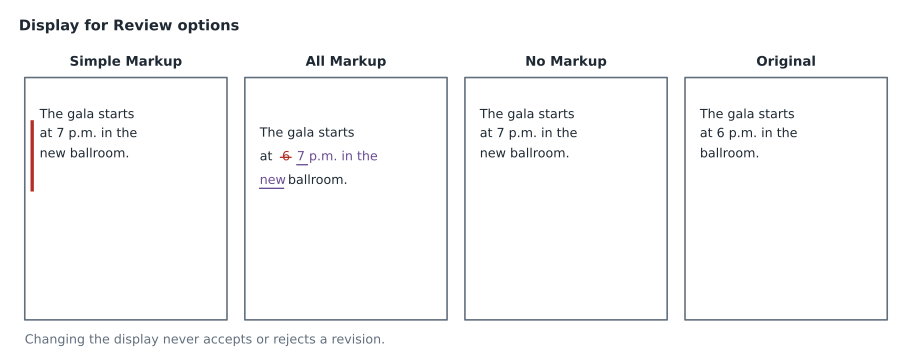
To review, use Previous and Next in the Changes group to move from revision to revision, and Accept or Reject each. Each button's drop-down offers Accept and Move to Next, Accept All Changes Shown, Accept All Changes, Accept All Changes and Stop Tracking, and the matching reject commands. Show Markup filters what is displayed by type (insertions and deletions, formatting, comments) and by reviewer, so you can, for example, accept all of Dagny's changes while leaving Rosalind's for later: show only Dagny's, then Accept All Changes Shown. The Reviewing Pane lists every revision with its author.
The objective lock and unlock change tracking refers to Track Changes > Lock Tracking. You type a password (optional, and it is not a security measure, simply a deterrent) and nobody can turn off tracking without it; Lock Tracking again with the password unlocks it. Rosalind locks tracking before sending a contract to a vendor for comments so every edit they make is recorded. Stronger controls are in Restrict Editing (Review > Protect), which can allow only tracked changes, only comments, or only filling in forms, with an optional password.
Worked problem
Accepting one reviewer's changes
Dagny and Rosalind both reviewed the grant application with track changes on. Dagny's edits are all to the budget tables and Rosalind has approved them; Rosalind's own edits still need discussion. How does Teo accept only Dagny's changes?
Show solution
- On the Review tab, set Display for Review to All Markup.
- Choose Show Markup > Specific People and clear the check mark beside Rosalind, leaving only Dagny.
- Choose Accept > Accept All Changes Shown.
- Choose Show Markup > Specific People > All Reviewers to show Rosalind's revisions again.
Answer: Filter by reviewer, then Accept All Changes Shown. Accept All Changes would have accepted Rosalind's too.
Inspecting the document
Before a document leaves the organization, Word can check it for three kinds of problem. All are in File > Info > Check for Issues (or Inspect Document): Inspect Document, Check Accessibility and Check Compatibility.
The Document Inspector looks for content people may not want to share: comments, revisions and versions; document properties and personal information such as the author's name and the names of reviewers; task pane add-ins; embedded documents; macros, forms and ActiveX controls; collapsed headings; custom XML data; headers, footers and watermarks; invisible content; and hidden text. Choose Inspect, read the results, and choose Remove All beside each category you want cleaned. Some removals cannot be undone, so Word suggests saving a copy first. The exam objective locate and remove hidden properties and personal information is exactly this.
The Accessibility Checker (also Review > Check Accessibility) lists Errors, Warnings and Tips with explanations and one-click fixes: missing alternative text, tables without header rows, headings that skip levels, poor color contrast, unclear hyperlink text, and objects not in line with text. It runs as you work if you enable Keep accessibility checker running while I work, and the status bar shows the result. Check Compatibility lists features that will be lost or changed if the document is opened in older versions of Word, which matters when you save in the .doc format or in Compatibility Mode.
| Checker | Finds | Fix |
|---|---|---|
| Document Inspector | Comments, revisions, personal information, hidden text, invisible content, headers and footers | Remove All per category |
| Accessibility Checker | Missing alt text, missing table headers, heading problems, contrast, link text | Recommended actions in the pane |
| Compatibility Checker | Features unsupported in earlier Word versions | Change the feature, or accept the loss when saving in an older format |
Document properties
Properties are information about the file: Title, Subject, Tags (keywords), Categories, Comments, Author, Manager, Company and dates. Edit the common ones on File > Info, in the column on the right, by clicking the value; Show All Properties reveals more, and Properties > Advanced Properties opens the full dialog with Summary, Statistics and Custom tabs. The exam objective modify basic document properties usually means setting the Title, Tags or Author. Properties show in search results and in header and footer fields from lesson 10, so setting the Title to "Festival Expansion Grant Application 2027" also updated the application's header.
Saving in other formats
File > Save As (or Save a Copy for cloud files with AutoSave) lets you choose the file type. The exam objective save documents in alternative file formats usually involves PDF, a template, plain text or an older Word format.
| Format | Extension | Use |
|---|---|---|
| Word Document | .docx | The standard editable format |
| Word Macro-Enabled Document | .docm | Documents containing macros |
| Word Template | .dotx | A reusable starting point |
| Word 97–2003 Document | .doc | Very old versions; opens in Compatibility Mode |
| Fixed layout for sending and printing | ||
| OpenDocument Text | .odt | Other office suites such as LibreOffice |
| Rich Text Format | .rtf | Basic formatting readable by many programs |
| Plain Text | .txt | Text only, no formatting |
| Web Page | .htm, .html | Publishing as a web page |
When saving as PDF, the Options button in the Save As dialog lets you choose the page range, whether to include document properties, document structure tags for accessibility, and create bookmarks using headings, which turns the heading styles from lesson 5 into PDF bookmarks. Optimize for chooses Standard (publishing online and printing) or Minimum size. File > Export > Create PDF/XPS does the same thing from a different door. Exported PDFs keep internal hyperlinks from lesson 2.
Printing
File > Print (Ctrl+P) shows a preview and the print settings: Printer, Printer Properties, and Settings for which pages (all, current page, custom range such as 1-3, 7), one-sided or two-sided printing, collation, orientation, paper size, margins and pages per sheet. Print Markup under the first settings box controls whether comments and tracked changes print. The exam objective modify print settings typically asks for a page range, a number of copies, two-sided printing or a pages-per-sheet setting. These settings apply to the print job, not the document, so they are not saved with the file except where they mirror page setup.
Sharing electronically
The Share button at the top right of the window shares a document stored in OneDrive or SharePoint: you choose people, set whether they can edit or can view, and Word sends a link. Copy link creates a link with chosen permissions. Send a copy attaches the document as a Word file or PDF to an email instead of sharing the original. File > Share offers similar choices, and for a document stored locally Word asks you to upload it before sharing a link. The exam objective share documents electronically is usually satisfied by sharing or sending as an attachment or PDF as the task describes.
Teo's outbox routine for the grant application ended like this: delete all comments, accept all approved changes and turn off tracking, run the Document Inspector and remove personal information, run the Accessibility Checker and fix everything it found, set the Title and Tags properties, update the table of contents, and save a PDF with bookmarks created from headings. He wrote it on a card and put it beside the domain list on his monitor.
Comparing and combining documents
Sometimes a reviewer edits a copy without track changes. Review > Compare > Compare takes an original and a revised document and creates a new document showing every difference as tracked changes, which you can then accept or reject in the usual way. Combine merges revisions from several reviewers' copies into one document. Rosalind once received a vendor contract back with "a few small edits" and no tracking; Compare showed 23 changes, including one to the cancellation fee. Compare is not an Associate exam objective, but it is the safety net behind the collaboration domain.
Protecting documents
The Protect Document button on File > Info offers several levels of protection. Always Open Read-Only asks readers whether to open the file read-only. Encrypt with Password requires a password to open the file at all; if the password is lost, the document cannot be recovered, so store it safely. Restrict Editing allows only certain kinds of editing. Add a Digital Signature signs the document to show it has not changed since signing. Mark as Final sets the document to read-only and tells readers it is final, but anyone can choose Edit Anyway; it is a signal, not a lock. Choose the level that matches the risk: Maple & Pine encrypts documents containing clients' personal information and marks proposals as final.
Worked problem
Preparing a contract for vendor review
A vendor will review Maple & Pine's service contract. Rosalind wants every change the vendor makes recorded, wants the vendor able to add comments, and does not want the vendor to switch tracking off. How does Teo prepare it?
Show solution
- Run the Document Inspector and remove internal comments and personal information first.
- Turn on Track Changes, then choose Track Changes > Lock Tracking and enter a password.
- Alternatively, use Review > Restrict Editing, allow only Tracked changes, and choose Yes, Start Enforcing Protection.
- Save and send the file; when it comes back, unlock tracking with the password and review each revision.
Answer: Clean the document, then lock tracking (or restrict editing to tracked changes) so every vendor edit is recorded and tracking cannot be turned off.
Saving versions and file names
Good file habits support the collaboration tools. Use clear names that sort well, such as 2027 Grant Application - v3 - reviewed, or rely on version history in OneDrive and SharePoint instead of keeping many copies. When you must keep separate copies, Save a Copy creates one without changing which file you are working in. Before sending, check the file name itself: the recipient sees it, and "FINAL final edits Teo" does not inspire confidence. Rosalind's rule is that anything leaving the office is a PDF named with the company name, the document title and the date.
Also check the Properties a recipient will see in a PDF: the Title appears in the PDF reader's title bar when the Document properties option is included, which is another reason to set the Title property carefully.
Common mistakes
MistakeSwitching to No Markup and sending the document.
InsteadNo Markup only hides revisions; accept or reject them before sending.
MistakeResolving comments and assuming they are gone.
InsteadResolved comments stay in the file; delete them before sharing externally.
MistakeTreating the Lock Tracking password as security.
InsteadIt only prevents tracking being turned off; use Restrict Editing or encryption for real protection.
MistakeSkipping the Document Inspector.
InsteadRun it to remove personal information, hidden text and leftover revisions.
MistakeSaving as .doc to make a file easier to open.
InsteadUse .docx for Word users and PDF for everyone else; .doc loses features.
Summary and key terms
- Modern comments are threads you can reply to, resolve, reopen and delete; Delete All Comments in Document removes them all.
- Track Changes records revisions; Display for Review changes only the view; Accept and Reject finalize revisions; Lock Tracking keeps tracking on.
- Check for Issues offers Inspect Document, Check Accessibility and Check Compatibility.
- Set properties on File > Info; save in .docx, .dotx, .pdf, .odt, .rtf, .txt and other formats with Save As or Export.
- Print settings set ranges, copies, sides and pages per sheet; Share and Send a copy distribute documents electronically.
- Modern comment
- A threaded comment that supports replies, mentions and resolving.
- Revision
- A tracked insertion, deletion, move or formatting change.
- Simple Markup
- A review display that shows clean text with margin marks where changes are.
- Document Inspector
- A tool that finds and removes hidden and personal information.
- Accessibility Checker
- A tool that finds content that may be hard for people with disabilities to read.
- Compatibility Mode
- The mode in which Word opens documents saved in older formats.
Practice problems
Work each problem on paper first, then reveal the answer to check.
What is the difference between resolving and deleting a comment?
Show answer
A resolved comment stays in the document and can be reopened; a deleted comment is removed.
How do you stop others turning off Track Changes?
Show answer
Review > Track Changes > Lock Tracking, with an optional password.
Where do you remove the author's name from a document's properties?
Show answer
File > Info > Check for Issues > Inspect Document > Document Properties and Personal Information > Remove All.
Which PDF option turns headings into PDF bookmarks?
Show answer
Create bookmarks using: Headings, in the PDF Options dialog.
Lesson quiz · 5 questions
Score 60% or more to complete this lesson.
Create a free account to save your progress, take quizzes and earn a certificate.