
MSBA-112 · Lesson 1 of 12 · 20 min
Drafting documents in Word
▶ Video coming soon A video version of this lesson is on the way.
By the middle of October 2026, Quillfield Insurance Brokers had a new problem, and it was a good one. Hamish Quarrington's Tuesday prompt clinics had taught people in the Omaha head office to write complete prompts in Copilot Chat, and the support desk no longer heard "it gave me a generic answer" every day. What it heard instead was "I know how to ask, but where do I ask?" Staff wanted to use Copilot where their work actually happened: in a Word letter, an Excel claims report, a PowerPoint deck for a client, an inbox of two hundred unread messages, a Teams meeting that ran long. Celestine Nwachukwu-Hale, the chief operating officer, asked Hamish to follow the clinics with something more hands-on. He called it *Copilot at your desk*: short, undated working sessions in which he sat beside a colleague, opened the file they were really working on, and used Copilot inside the app. This course follows those sessions.
MSBA-112 covers the third skill area of Exam AB-730: Microsoft AI Business Professional, drafting and analyzing business content by using AI. MSBA-110 explained what generative AI is and how Microsoft 365 Copilot reaches work data; MSBA-111 taught prompts, conversations, saved prompts and the Researcher and Analyst agents; MSBA-119 reviews everything for the exam. Published summaries of the AB-730 study guide describe this skill area in five threads: drafting documents and communications from scratch or from existing documents, producing summaries and insights from long documents or meeting notes, moving data and insights between Microsoft 365 apps, using Copilot in meetings for summaries, agendas and follow-up tasks, and using Copilot Pages to collaborate and store knowledge. The twelve lessons work through those threads app by app and finish with a full case study.
Where Copilot lives in Word
In Word for Microsoft 365 on Windows and Mac, and in Word for the web, Copilot appears in three places. The first is the Copilot icon that appears in the margin or at the start of an empty line, which opens a small prompt box for drafting new content at that point in the document. The second is the Copilot button on the mini toolbar that appears when you select text, which offers options for rewriting, summarizing or changing the selected content. The third is the Copilot pane, opened from the Copilot button on the Home tab, where you can chat about the whole document, ask questions, request changes and, in current versions, let Copilot edit the document directly. Exact button positions change from release to release, so Microsoft's own support articles describe them in general terms; the habits in this lesson do not depend on where a button sits this month.
Copilot in Word needs a Microsoft 365 Copilot license for the full experience, because it reads work content such as the files you reference. Microsoft has also brought some in-app capabilities to people who only have Copilot Chat, with web grounding rather than work grounding, and those differences come up again in lesson 11. If Copilot does not appear at all, the usual reasons are that your subscription does not include it or that your organization's settings turn it off, and the support articles send users to their administrator rather than offering a workaround.
Drafting from a prompt
The simplest use is drafting: you describe what you need and Copilot writes a first version into the document. At the first desk session, Solveig Etxeberria, a commercial lines account executive, needed a letter to Pemberton Bakery recommending three improvements after a risk survey of its production floor: a cleaning schedule for the oven exhaust hoods, guards on a dough sheeter, and better storage for flour sacks near an exit. She had been staring at a blank page for twenty minutes. Hamish asked her to say out loud what the letter had to do, then type exactly that.
Her prompt read: "Draft a letter to the owner of Pemberton Bakery recommending three risk improvements from last week's survey: a monthly cleaning schedule for the oven exhaust hoods, fixed guards on the dough sheeter, and moving flour storage away from the rear exit. Explain briefly why each matters for fire, injury and insurance, keep a supportive tone, and end by offering a call to discuss timing." The four parts from MSBA-111 are all there: the goal (draft a letter), the context (an owner, a recent survey, a supportive relationship), the source (the three recommendations she supplied) and the expectations (brief reasons, tone, closing offer). Copilot produced a one-page letter in a few seconds.
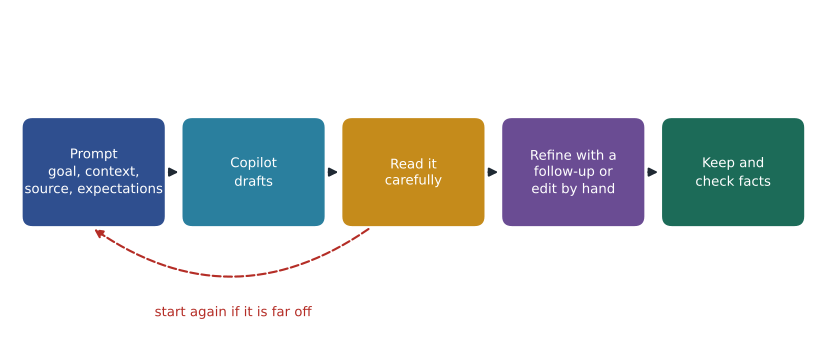
Hamish pointed out what happened next, because it is the part beginners skip. Copilot does not simply drop text into the page and leave. The draft appears with options to keep it, regenerate it or refine it with a follow-up instruction such as "make the second paragraph shorter" or "add a sentence about the insurer's survey requirements". Solveig asked for one change, "explain the dough sheeter risk in plain words, the owner is not technical", kept the result and then edited two sentences herself. The whole letter took six minutes, most of which was her reading carefully.
Drafting from existing documents
A blank-page prompt can only use what you put in it and what the model already knows in general. The more useful pattern at work is to ground the draft in your own files. In the Copilot prompt box in Word you can reference documents you have access to, usually by typing a forward slash or using the attachment option and picking a file from OneDrive or SharePoint. Microsoft's support articles describe this as drafting from, or starting from, an existing document. Copilot then uses the content of those files as the basis for the new text.
Solveig's second request that morning showed the difference. The risk surveyor's full report was a twelve-page file in the Pemberton client folder. Instead of retyping the recommendations, she asked: "Using the attached survey report, draft a one-page summary for the client of the three recommendations rated high priority, with the surveyor's reasons in plain language." Copilot pulled the right three items, including a detail she had forgotten, that the surveyor had photographed the blocked exit. Because the source was named, she also knew where to check every sentence, which is the habit lesson 9 builds on.
| Starting point | What you give Copilot | Best for | Main risk |
|---|---|---|---|
| Prompt only | A description of the document you need | Simple letters, outlines, first drafts of familiar content | Generic wording and invented specifics |
| Prompt plus referenced files | Instructions and one or more existing documents | Summaries, client letters based on reports, proposals built from notes | Errors copied from the source, or the wrong file chosen |
| Existing document open in Word | The document itself, through the pane | Restructuring, adding sections, updating an older version | Changes you did not notice if you do not review them |
You can reference more than one file. A proposal might draw on a client's previous year's renewal summary, a new quote and a set of meeting notes. When you do, say how the files relate: "Use the 2025 renewal summary for background, the attached quote for the new premiums and coverage, and my meeting notes for the client's concerns." Without that sentence, Copilot has to guess which file is authoritative when they disagree, and an older document can quietly win. Copilot only uses files you are allowed to open; referencing a file never gives you or the model access to content your permissions would otherwise block.
Letting Copilot edit the document
Through 2025 and 2026 Microsoft made the Copilot pane in Word more active. Its roadmap describes the default chat experience in Word as able to edit the document directly, with every change reviewable and reversible and an option to turn this behavior off; it lists the change for general availability in March 2026. Microsoft also describes an Agent Mode in Word, Excel and PowerPoint that works through multi-step edits alongside you and shows what it is doing and why. In practice this means you can ask the pane for changes that span the whole document: "add a section on business interruption after the property section", "make all headings sentence case", "turn the list of deductibles into a table".
Direct editing is powerful and deserves the same care as letting a colleague edit your file. Hamish's rule at the desk sessions was simple: ask for one kind of change at a time, read what changed, and undo anything you would not have written yourself. Microsoft's description stresses that changes are reviewable and reversible, but nobody reviews changes they do not notice. For documents that other people have already approved, such as a policy wording or a signed agreement, Wendell Pike-Amari, Quillfield's compliance officer, asked staff to make a copy before letting Copilot edit, so the approved version stays untouched.
Structure first, then prose
For longer documents, Hamish taught a two-step approach that saves a great deal of rework. First ask Copilot for an outline: the headings and a one-line description of each section. Read the outline, move or delete sections, and add anything missing. Only then ask Copilot to draft section by section. A bad outline produces a bad document no matter how well each paragraph reads, and fixing structure in an outline takes seconds, while fixing it in ten pages of prose takes an afternoon.
Worked problem
Outline before drafting
Gus Tremblay-Okoro, a claims advocate, has to write a four-page guide for commercial clients on what to do in the first 48 hours after a property loss. How should he use Copilot in Word?
Show solution
- Ask for an outline only: "Create an outline for a client guide on the first 48 hours after a commercial property loss. Audience: small business owners. Include safety, notifying the insurer, protecting the property and keeping records."
- Review the outline against Quillfield's claims procedure and add the missing section on contacting the broker before hiring contractors.
- Draft one section at a time, referencing the claims procedure document for each section.
- Read each section and correct anything that conflicts with the procedure before moving on.
Answer: An outline first, then section-by-section drafting grounded in the procedure document. Gus fixed the structure once, in the outline, instead of rewriting finished pages.
What Copilot drafts well, and what it does not
Copilot is good at producing a sensible first draft of familiar business writing: letters, internal memos, procedures, proposals, summaries, frequently asked questions and job descriptions. It is also good at reusing material: turning a set of notes into prose, turning a report into a client summary, turning a long email thread into a decision memo. It is weaker in three areas that matter at an insurance broker. It can produce specific-sounding facts, such as a deductible amount, a policy clause or a regulation, that are not in your sources. It may not know your firm's own rules unless they are in a file you reference. And it writes in a confident, polished voice that can make a weak argument look stronger than it is.
None of those weaknesses mean Copilot should not be used. They mean the person who sends the document is still its author. At Quillfield the rule was written into the AI-use policy that Wendell drafted in September: anything that goes to a client is checked by the person who sends it, and anything that states coverage, price or a legal requirement is checked against the source document. Lesson 10 returns to how firms set those rules.
Prompts that work in Word
Hamish collected the drafting prompts that worked best during the first sessions into a short list in Quillfield's shared prompt library in OneNote, marked with an owner and the date last checked. Each prompt names its source and its expectations, and each uses placeholders so that a colleague can reuse it without copying another client's details.
| Task | Reusable prompt pattern |
|---|---|
| Client letter from a report | Using [report], draft a one-page letter to [client contact] explaining [topic] in plain language. Keep a [tone] tone and end with [next step]. |
| Internal memo from notes | Turn my notes in [file] into a memo for [audience] with headings for background, decision needed and options. Under 400 words. |
| Procedure from an email thread | Using the attached email thread, draft step-by-step instructions for [task]. Number the steps and list who is responsible for each. |
| Section of a proposal | Draft the section on [topic] for the proposal, using [quote file] for figures and [meeting notes] for the client's priorities. Say "not found" if a figure is missing. |
The last pattern contains the instruction from MSBA-111 that proved most valuable in Word: tell Copilot to say "not found" rather than fill a gap. A proposal with an obvious gap is safe; a proposal with an invented premium is not.
Accessibility and formatting
A draft is not finished when the words are right. Copilot writes into the document using its current formatting, and it can apply headings, lists and tables when you ask. Using real Word styles for headings, rather than bold text, matters more than it looks: it gives screen reader users a way to navigate, it lets Word build a table of contents, and, as lesson 4 explains, it helps Copilot in PowerPoint understand the structure when the document becomes a presentation. Hamish's last habit for the session was to ask Copilot, "apply Heading 1 and Heading 2 styles to the section titles", then run Word's accessibility checker before sending.
How AB-730 tests drafting
Expect scenario questions that describe a worker who needs a document and ask which approach fits best: drafting from a prompt, drafting from referenced files, or editing an existing document through the pane. The answers that score are the ones that ground the draft in the right source and keep a human review step. Questions may also test that referencing a file respects existing permissions and that a draft can be kept, regenerated or refined.
Common mistakes
MistakeAsking for a client document from a prompt alone when the facts are in a report.
InsteadReference the report so the draft is grounded in it and easy to check.
MistakeReferencing several files without saying which one is authoritative.
InsteadState how the files relate, for example which one supplies the current figures.
MistakeLetting Copilot edit an approved document directly.
InsteadWork on a copy and review every change before keeping it.
MistakeDrafting a long document in one prompt.
InsteadAgree an outline first, then draft section by section.
Summary and key terms
- Copilot in Word can draft at the cursor, transform a selection, or work with the whole document in the pane.
- Grounding a draft in referenced files makes it more accurate and easier to check; Copilot only uses files you can open.
- Copilot can edit documents directly; changes are reviewable and reversible, but only if you review them.
- For long documents, agree an outline before drafting section by section.
- The person who sends a document remains its author and checks its facts against the sources.
- Draft with Copilot
- Copilot writing new content into a document from a prompt, which you then keep, regenerate or refine.
- Grounding
- Basing a response on specific sources, such as referenced files, rather than general knowledge.
- Copilot pane
- The side panel in Word where you chat with Copilot about the whole document or ask it to make changes.
- Agent Mode
- Microsoft's name for Copilot working through multi-step edits in Word, Excel or PowerPoint while showing its steps.
- Outline
- A list of headings and short section descriptions agreed before drafting the full text.
- Word styles
- Named formats such as Heading 1 that give a document a structure software and screen readers can use.
Practice problems
Work each problem on paper first, then reveal the answer to check.
Name the three places you can start Copilot in Word.
Show answer
At the cursor to draft new content, from the mini toolbar on selected text, and in the Copilot pane for the whole document.
Why should a prompt that references several files say how they relate?
Show answer
So Copilot knows which source is authoritative when they disagree, and an older file does not quietly win.
What is the advantage of an outline before drafting?
Show answer
Structural problems are fixed once, quickly, before any prose is written.
Lesson quiz · 5 questions
Score 60% or more to complete this lesson.
Create a free account to save your progress, take quizzes and earn a certificate.