
MSBA-251 · Lesson 2 of 12 · 20 min
Model-driven app design: forms, views and site maps
▶ Video coming soon A video version of this lesson is on the way.
The dispatch office at Lakeshore is a narrow room with two desks, a radio charger and a wall map of the three campuses with coloured pins. Signe sat with the two dispatchers, Bronwyn and Kofi, for a morning before designing anything. They did not need a pretty app. They needed to see every open job, sort it three ways, open a record, change two fields and move on, a hundred times a day. That is the work model-driven apps are designed for.
Signe had already built the tables in the Facilities Dev environment with Maribeth: Work Request (what someone asked for), Work Order (the job a technician does), Asset (a boiler, a fume hood, a walk-in freezer), Location (a campus, building and room, linked to the Building and Room tables Signe had already designed for the facilities inspection solution), and Parts Used. A work request can become one work order; an asset has many work orders; a location has many assets. The companion course on Dataverse data modelling covers those design choices. This lesson turns the tables into an app.
How a model-driven app is put together
A model-driven app is a container that brings together components that already exist in Dataverse. The maker does not draw screens. Instead, the maker chooses which tables appear, which forms people use to read and edit a row, which views list rows, which charts and dashboards summarize them, and how the site map arranges navigation. The platform renders all of this consistently on desktop, tablet and phone, applies the user's security roles and runs the table's business rules.
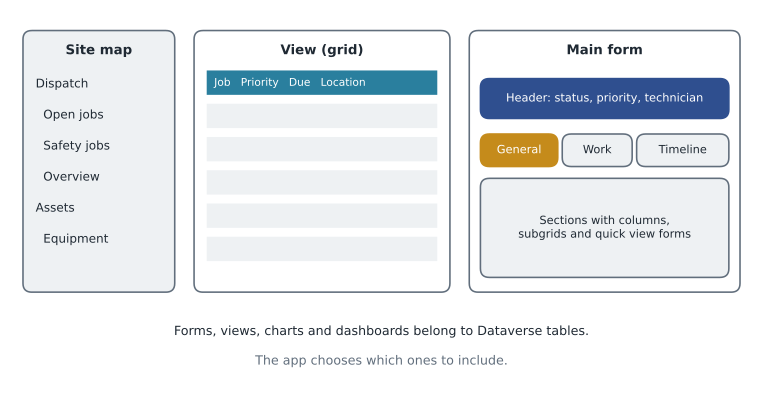
Because forms and views belong to the table rather than the app, the same Work Order main form can appear in Facilities Hub and in any other app that includes the table. That is efficient, and it means a change to a shared form affects every app that uses it. Signe created dedicated forms for the dispatch app so later changes for other apps would not surprise the dispatchers.
Forms
Dataverse offers several form types. The main form is the full editing experience for a row. A quick create form is a short form for adding a row without leaving the current screen. A quick view form shows read-only details of a related row inside another form, for example the asset's make, model and last service date inside a work order. A card form is a compact layout used in some lists and on smaller screens.
| Form type | Purpose | Facilities example |
|---|---|---|
| Main | Full view and edit of a row | Work Order main form for dispatchers |
| Quick create | Add a row quickly from a lookup or the New button | Log a phone request in four fields |
| Quick view | Show read-only details of a related row | Asset details inside a work order |
| Card | Compact summary in lists and narrow layouts | Work order card on a phone |
A main form is organized into a header, which holds a few key fields that stay visible, and tabs, each containing sections with columns, subgrids, quick view forms and other components. A good main form puts what people check most in the header, groups the rest by task and keeps the first tab short so the form loads quickly. Signe's Work Order form had Status, Priority, Assigned Technician and Due Date in the header; a General tab with the request details, location and asset; a Work tab with technician notes, photos and parts used; and a Timeline showing emails, notes and activity. She moved a rarely used Costing section to a third tab.
The form designer lets a maker drag columns from the table onto sections, set labels, mark fields as required or read-only on the form, hide fields, add a subgrid of related rows and set properties such as the number of columns in a section. Required on the form is different from required at the column level: the column setting applies everywhere the data is entered, including imports and flows, while the form setting affects only that form. Signe made Location required at the column level because no work order makes sense without one.
Business rules and form logic
Many form behaviours do not need code. Business rules are configured in a designer and can show or hide a column, make it required or optional, set or clear a value, lock or unlock a field, validate data and show an error message. A rule scoped to the table runs on the server as well as on forms, so it also applies to data entered through other channels; a rule scoped to a form runs only there. Signe added a rule: if Category is Gas or Fume Hood, set Priority to Critical and lock it, and show a message that safety jobs cannot be downgraded without the facilities coordinator.
Business process flows add a guided stage bar across the top of the form, such as Triage, Scheduled, In Progress, Completed. AB-410 covers configuring them in its logic domain, and the companion automation course covers them in depth. For the dispatch app Signe added a four-stage flow so new dispatchers could see what each stage required.
Views
A view is a saved query that lists rows of a table with chosen columns, filters and sort order. Model-driven apps show views in grids. Public views are created by makers and shared with everyone who can see the table; personal views are created by users for themselves; system views such as the quick find, lookup and associated views serve special purposes. The quick find view decides which columns the search box searches, so choosing its find columns well makes search useful.
| View | Filter | Columns and sort |
|---|---|---|
| Open Work Orders | Status is not Completed or Cancelled | Priority (critical first), Due Date, Location, Technician |
| My Assigned Jobs | Assigned Technician equals current user, status open | Due Date ascending |
| Unassigned Safety Jobs | Priority is Critical and Technician is empty | Created On ascending |
| Overdue | Due Date is before today and status open | Due Date ascending |
| Completed This Month | Completed On is this month | Completed On descending |
Views can use relative date filters such as "this month" or "older than 7 days", and filters on related tables, for example work orders whose asset is a boiler. The modern grid lets users filter and sort columns, edit cells inline where the maker allows it, group rows and, with Copilot features turned on, search the view in natural language. Signe made Open Work Orders the default view and set the editable grid on for Status and Technician only, so dispatchers could reassign jobs without opening each record.
Charts and dashboards
A chart visualizes the rows of a view, such as open work orders by building or by priority. A dashboard places several charts, lists and other components on one page. A classic dashboard is built in the designer; an interactive experience dashboard adds visual filters and streams that let a user click a chart segment to filter the lists. Dashboards can also embed Power BI reports when deeper analysis is needed. AB-410 includes creating and configuring model-driven app charts and dashboards in its app domain.
Delphine's dashboard, Facilities Overview, had four tiles: open jobs by priority, open jobs by campus, jobs completed per week for the last eight weeks, and a list of unassigned safety jobs. Kwabena Asante-Lowe, the colleges' data analyst, offered to build a richer Power BI report later from the same tables.
The site map and composing the app
The site map defines the navigation pane: areas (switched from the bottom of the pane), groups within an area, and subareas that open a table's view, a dashboard, a custom page, a generative page or a web resource. The modern app designer lets the maker add pages and arrange navigation in one place. When composing the app, the maker adds pages for each table, chooses which forms, views, charts and dashboards to include for each, and then validates and publishes the app. Validation warns about missing components, such as a table with no form included.
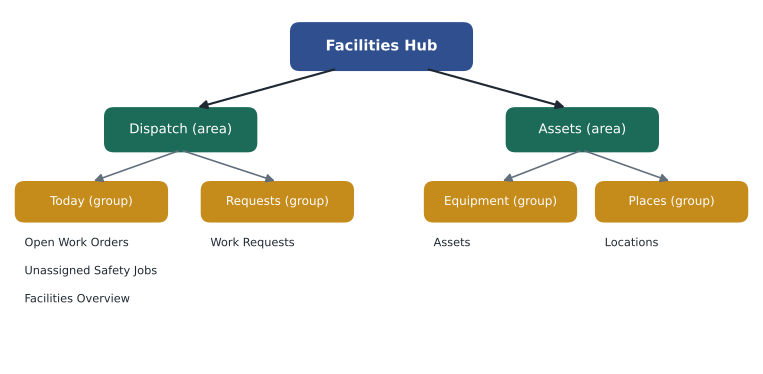
Including only the forms and views a persona needs keeps the app focused. If an app includes no specific views for a table, users see all the table's views, which can be confusing. Signe included five work order views, two forms and the Facilities Overview dashboard. The header and navigation refresh that Microsoft made generally available as an opt-in in 2026 gave the app a simpler, more modern look, with a condensed header that leaves more space for forms.
Access to apps, forms and views
AB-410 asks builders to configure access to model-driven apps and to their forms and views. Access works in layers. To open the app, a user must be assigned a security role that is associated with the app; in the app designer or the admin center, the maker shares the app with roles. To see rows, the user's roles must grant read privilege on the tables. To see a particular form, the form can be restricted to certain security roles; users without those roles see a fallback form. Views are not restricted by role in the same way, but users only ever see rows they have privileges to read.
| Layer | Controlled by | Facilities setting |
|---|---|---|
| Open the app | Security roles associated with the app | Facilities Dispatcher and Facilities Manager roles |
| Read and change rows | Table privileges in security roles | Dispatchers: organization-level read and write on work orders |
| Which main form appears | Form security roles and form order | Costing form shown only to Facilities Manager |
| Which views are offered | Views included in the app | Five work order views |
| Sensitive columns | Column security profiles | Contractor rates secured |
Signe created two roles in the solution: Facilities Dispatcher and Facilities Manager. The technician role would come with the canvas app. Rupert reminded her that security roles must travel in the solution too, or the app will arrive in test with nobody able to open it.
Worked problem
Diagnosing a missing form
A new dispatcher can open Facilities Hub and see work orders, but she sees a plain default form instead of the Work Order dispatch form. Other dispatchers see the correct form. What is the most likely cause?
Show solution
- She can open the app and read rows, so app access and table privileges are in place.
- Seeing a different main form suggests form-level security: the dispatch form is restricted to certain roles.
- Check her security roles. She has a generic Basic User role but not Facilities Dispatcher.
- Assign the Facilities Dispatcher role, or add her role to the form's enabled roles if that is intended.
Answer: She lacks the security role that the dispatch form is enabled for, so the app shows the fallback form.
Charts in practice
A chart in a model-driven app always draws from a view, so the view decides which rows are counted. The Open Work Orders by Priority chart used the Open Work Orders view; if a dispatcher switched the grid to Overdue, the same chart would show only overdue jobs by priority. That behaviour is useful once people understand it and confusing before they do, so Signe gave each chart a title that named its view. Charts can be column, bar, line, pie, funnel or tag charts, and a chart can group by a column and by a date period such as week or month. System charts belong to the table and are available to everyone who can see it; users can also create personal charts.
| Chart | View it draws from | Grouping |
|---|---|---|
| Open jobs by priority | Open Work Orders | Priority |
| Open jobs by campus | Open Work Orders | Location campus |
| Jobs completed per week | Completed in the last eight weeks | Completed On, by week |
| Safety jobs waiting | Unassigned Safety Jobs | Category |
Editable grids and keyboard work
The dispatchers spent most of their day in grids, so Signe paid attention to how the grid behaved. In the modern grid, a maker can allow inline editing for chosen columns, so a dispatcher can change Status or Assigned Technician directly in the list and save without opening the form. Lookups in the grid can be filtered so the technician list shows only active technicians. Rows can be grouped, for example by campus, and columns resized and reordered by users. Because the dispatchers worked mostly with the keyboard, she tested every common task without a mouse: moving between rows, opening a record, changing a field and saving. Two shortcuts saved them the most time: the search box at the top of every view, and the ability to open a record in a new window so they could compare two jobs side by side.
Signe also set the default sort on each view deliberately. A dispatcher looking at Open Work Orders needs critical jobs at the top, and then the oldest due dates. Leaving the sort to chance meant newly created jobs appeared first, which buried the urgent ones. Small decisions like this decide whether people trust the app in their first week.
Signe kept a short design log for the app: each form, view and chart, why it existed and who had asked for it. When Kofi later asked for a sixth view, she could see that an existing one almost met the need, and adjusted its filter instead of adding another.
Common mistakes
MistakeEditing a shared main form for one app without checking other apps that use it.
InsteadForms belong to tables; create dedicated forms or check every app that includes the form.
MistakeRelying on form-level required fields to protect data quality.
InsteadUse column-level requirements or table-scoped business rules for rules that must apply everywhere.
MistakeIncluding every view and form in the app.
InsteadInclude only what the persona needs; unfiltered lists confuse users.
MistakeForgetting to share the app with security roles.
InsteadAssociate the app with roles, and include the roles in the solution.
By Friday the dispatchers were clicking through Facilities Hub in the test environment. Kofi's verdict was practical: "It is faster than the spreadsheet if I never have to scroll sideways." Signe moved two columns.
Summary and key terms
- A model-driven app composes Dataverse forms, views, charts, dashboards and pages, arranged by a site map, and the platform renders the layout.
- Main, quick create, quick view and card forms serve different purposes; main forms use a header, tabs and sections.
- Business rules give no-code form and table logic; table-scoped rules also run on the server.
- Public views define filtered, sorted lists; the quick find view decides what search covers; charts and dashboards summarize data.
- Access depends on security roles associated with the app, table privileges, form security roles and column security.
- Main form
- The full form used to view and edit a Dataverse row in a model-driven app.
- Quick view form
- A read-only display of a related row inside another form.
- View
- A saved query that lists rows with chosen columns, filters and sort order.
- Site map
- The navigation structure of a model-driven app: areas, groups and subareas.
- Business rule
- No-code logic that shows, hides, requires, sets or validates columns on forms or at table level.
Practice problems
Work each problem on paper first, then reveal the answer to check.
What is the difference between a public view and a personal view?
Show answer
Makers create public views for everyone who can see the table; users create personal views for themselves.
A business rule must also apply to rows created by a flow. What scope should it have?
Show answer
Table scope (entity), so it runs on the server as well as on forms.
Name the three parts of a site map.
Show answer
Areas, groups and subareas.
Lesson quiz · 5 questions
Score 60% or more to complete this lesson.
Create a free account to save your progress, take quizzes and earn a certificate.