
MSBA-174 · Lesson 11 of 12 · 26 min
Macros basics
▶ Video coming soon A video version of this lesson is on the way.
By mid-November Dagny had noticed that some of her own work was repetitive in a way no style or building block could fix. Every client proposal ended the same way: accept all tracked changes, delete all comments, update every field, check that the ClientName property was filled in, and save a PDF next to the document. Teo did it by hand and sometimes forgot a step. A macro can record that sequence once and replay it with one click. The exam objective create and modify macros asks you to record, name and edit simple macros and to copy macros to other documents or templates. It does not expect you to write programs from scratch, but it does expect you to recognize and make small changes to the code a recording produces.
What a macro is
A macro is a series of commands stored as Visual Basic for Applications (VBA) code. Word can create the code for you by recording: you start the recorder, perform the steps, and stop it, and Word writes the VBA. You can then run the macro from the Macros dialog, a keyboard shortcut or a button on the Quick Access Toolbar.
Where a macro is stored decides who can use it and what file type you need.
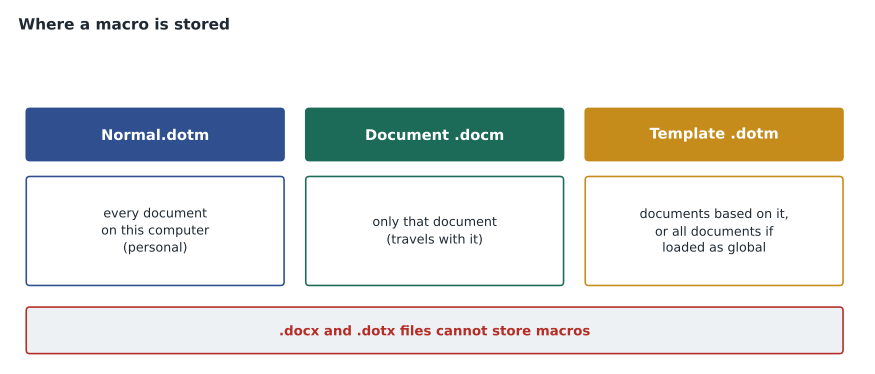
| Store in | Available | File type |
|---|---|---|
| All Documents (Normal.dotm) | In every document you open on this computer | Normal.dotm is already macro-enabled |
| The current document | Only in that document | Must be saved as .docm |
| A template | In documents based on the template, or in all documents if loaded as a global template | Must be saved as .dotm |
If you record a macro in a .docx and then save, Word warns that the VB project cannot be saved in a macro-free document and offers to save as a macro-enabled file instead. Choosing No saves the .docx without the macro. On the exam, read the task carefully: "store the macro in the current document" almost always means you must also save the file as a .docm.
Recording a macro
Choose Developer > Code > Record Macro (also View > Macros > Record Macro, or the macro icon on the status bar). The Record Macro dialog asks for:
| Setting | Notes |
|---|---|
| Macro name | Starts with a letter; letters, numbers and underscores only; no spaces |
| Assign macro to: Button | Opens Quick Access Toolbar options so you can add a button for the macro |
| Assign macro to: Keyboard | Opens Customize Keyboard so you can press a new shortcut and click Assign |
| Store macro in | All Documents (Normal.dotm), the current document or an open template |
| Description | Saved as a comment at the top of the macro's code |
After you click OK, the pointer shows a cassette icon and every command you choose is recorded. The Stop Recording and Pause Recording buttons appear in the Code group and on the status bar. Two limitations matter. First, the recorder records commands, not mouse movements in the text: you cannot select text by dragging while recording, so use the keyboard (Shift with arrow keys, Ctrl+A, Ctrl+Home) to move and select. Second, it records exactly what you did, including mistakes, so plan the steps before you start.
Worked problem
Recording the "client-ready" routine
Dagny wants a macro called ClientReady, stored in the proposal template, assigned to Ctrl+Alt+R, that accepts all changes, deletes all comments and updates all fields in the body. How does she record it?
Show solution
- Open the proposal template (.dotm) itself, and a proposal document created from it with some changes and comments.
- In the proposal document, Developer > Record Macro. Name: ClientReady. Store macro in: the proposal template. Description: Accept changes, delete comments, update fields.
- Click Keyboard, press Ctrl+Alt+R in Press new shortcut key, set Save changes in to the template, click Assign and Close.
- Perform the steps: Review > Accept > Accept All Changes; Review > Delete > Delete All Comments in Document; Ctrl+A, F9, then Ctrl+Home.
- Click Stop Recording, then save the template.
Answer: The macro is stored in the template, so every proposal based on it can run it with Ctrl+Alt+R. Saving the template stores the macro.
Running and managing macros
Open Developer > Code > Macros (Alt+F8) to see the Macros dialog. The Macros in box chooses which projects to list (all active templates and documents, Normal.dotm, a particular document or template). The buttons are Run, Step Into (runs one line at a time in the editor), Edit (opens the code in the Visual Basic Editor), Create, Delete and Organizer. To add a button for an existing macro, open File > Options > Quick Access Toolbar, choose Macros in Choose commands from, select it, click Add and use Modify to give the button an icon and a friendly name such as "Client ready".
Editing a simple macro
Click Edit in the Macros dialog (or Developer > Visual Basic, Alt+F11) to open the Visual Basic Editor. The Project Explorer on the left lists open projects: Normal, each open template and each open document. Recorded macros are stored in a module, usually called NewMacros. Double-click it to see the code.
Sub ClientReady()
'
' ClientReady Macro
' Accept changes, delete comments, update fields
'
    ActiveDocument.Revisions.AcceptAll
    ActiveDocument.DeleteAllComments
    Selection.WholeStory
    Selection.Fields.Update
    Selection.HomeKey Unit:=wdStory
End Sub
Every macro starts with Sub followed by its name and empty parentheses and ends with End Sub. Between them, each line is one instruction. Even without knowing VBA you can make the kinds of change the exam expects: rename a macro by changing the name after Sub (and in any button or shortcut that calls it), delete a step by deleting its line, change a value such as a font size, colour or text inside quotation marks, or add a comment by starting a line with an apostrophe. After editing, choose File > Save in the editor (it saves the project's host document or template) and close the editor.
Worked problem
A small edit
Rosalind decides that proposals should keep their comments until the final PDF, so the ClientReady macro must stop deleting comments. The rest should stay. How does Dagny change it without recording again?
Show solution
- Developer > Macros, choose ClientReady and click Edit.
- Find the line ActiveDocument.DeleteAllComments.
- Type an apostrophe at the start of the line so it becomes a comment (or delete the line).
- File > Save in the Visual Basic Editor, close the editor, and test the macro on a copy of a proposal.
Answer: Commenting out one line removes that step. Testing on a copy confirms the change before anyone relies on it.
Sub InsertSignature()
' Inserts the MP Signature Block building block at the insertion point
    Application.Templates(ActiveDocument.AttachedTemplate.FullName). _
        BuildingBlockEntries("MP Signature Block").Insert _
        Where:=Selection.Range, RichText:=True
End Sub
Copying macros to other documents and templates
The Organizer from lesson 6 has a second tab for macros: Macro Project Items. Open it with Developer > Macros > Organizer (or Developer > Document Template > Organizer). As with styles, the left and right lists show two files; Close File and Open File choose any document or template. Select a module, such as NewMacros, and click Copy. Macros are copied by module, not one by one, so everything in the module goes together. Rename renames a module; Delete removes one.
Worked problem
Sharing the macros with the run sheet template
Dagny's macros are in the NewMacros module of the proposal template. The run sheet template needs them too. How does she copy them?
Show solution
- Developer > Macros > Organizer, Macro Project Items tab.
- On the left, Close File, then Open File and choose the proposal template (.dotm). On the right, Close File, Open File, and choose the run sheet template (saved as .dotm).
- Select NewMacros on the left and click Copy. If the run sheet template already has a NewMacros module, rename one first to avoid overwriting.
- Close the Organizer and save the run sheet template.
Answer: The module is copied with all its macros. The run sheet template must be a .dotm to keep them.
A keyboard shortcut is stored where you chose Save changes in when assigning it, separately from the macro. If you copy a macro to another template, assign the shortcut there too through File > Options > Customize Ribbon > Keyboard shortcuts: Customize, choosing Categories: Macros.
Macro security in practice
Lesson 1 covered the Trust Center. With macros of your own it becomes practical. Macro-enabled templates in a trusted location run without prompts. The same template emailed to someone else will show the security bar, or be blocked if it came from the internet, until it is placed in a trusted location or unblocked in the file's Properties in File Explorer. Digital signatures (a certificate applied through Tools > Digital Signature in the Visual Basic Editor) let organizations trust macros by publisher, but setting them up is an administrator's task. Maple & Pine kept its .dotm templates in the single trusted folder from lesson 1 and never emailed them.
Macros also have limits worth knowing. They do not run in Word for the web or on most mobile devices, so a proposal finished in a browser will not offer the ClientReady button. And macros can do harm: never enable content in a file from an unknown sender just because it asks you to. That advice is part of Maple & Pine's annual security reminder, and it is the reason Microsoft blocks internet macros by default.
Testing and troubleshooting a macro
Recorded macros sometimes stop with an error. When that happens, Word shows a dialog with End and Debug. Debug opens the Visual Basic Editor with the failing line highlighted in yellow. Common causes in recorded macros are simple: the macro expects a selection that is not there, it refers to a style or bookmark that the current document does not have, or it tries to accept changes in a protected document. Click Reset (the square button on the editor toolbar) to stop the macro, fix the cause in the document or the code, and run it again.
Step Into in the Macros dialog (or F8 in the editor) runs one line at a time, which lets you watch the document change as each instruction runs. It is the best way to understand what a recording actually captured, and Dagny used it to find that her first recording of ClientReady had captured a stray Ctrl+End she had pressed by habit.
| Recorded line | What it does |
|---|---|
| Selection.WholeStory | Selects the whole main text (Ctrl+A) |
| Selection.Fields.Update | Updates the fields in the selection (F9) |
| Selection.HomeKey Unit:=wdStory | Moves to the start of the document (Ctrl+Home) |
| ActiveDocument.Revisions.AcceptAll | Accepts all tracked changes |
| ActiveDocument.DeleteAllComments | Deletes all comments |
| Selection.Style = ActiveDocument.Styles("MP Body") | Applies a style |
| ActiveDocument.Save | Saves the document |
Adding a macro to the ribbon
Besides the Quick Access Toolbar, a macro can have a button on a custom ribbon group. In File > Options > Customize Ribbon, select a tab on the right, click New Group (and Rename it, for example "Maple & Pine"), choose Macros in Choose commands from, select the macro and click Add, then Rename it to give it a friendly name and an icon. Dagny added a Maple & Pine group to the Home tab with buttons for ClientReady and InsertSignature, and exported the customization with Import/Export so Teo could import it on his computer.
Worked problem
Renaming a macro safely
Rosalind asks for the ClientReady macro to be called FinalizeProposal, and it already has a Quick Access Toolbar button and the shortcut Ctrl+Alt+R. What must Dagny change?
Show solution
- In the Visual Basic Editor, change Sub ClientReady() to Sub FinalizeProposal() and save.
- Remove the old toolbar button (it points to a macro name that no longer exists) and add a new one for FinalizeProposal.
- Reassign Ctrl+Alt+R in Customize Keyboard to FinalizeProposal, saving changes in the template.
- Save the template and test both the button and the shortcut.
Answer: The name after Sub is the macro's name. Buttons and shortcuts refer to that name, so they must be reassigned after renaming.
Common mistakes
MistakeRecording a macro in a document and saving it as .docx.
InsteadSave as .docm (document) or .dotm (template), or store the macro in Normal.dotm.
MistakeSelecting text with the mouse while recording.
InsteadUse keyboard selection; the recorder does not record mouse selection in text.
MistakeUsing spaces in a macro name.
InsteadUse letters, numbers and underscores, starting with a letter.
MistakeCopying one macro at a time in the Organizer.
InsteadMacros are copied by module.
MistakeEditing a macro and closing without saving its host template.
InsteadSave in the Visual Basic Editor, or save the template in Word.
Summary and key terms
- Macros are VBA code; record them with Developer > Record Macro, choosing a name, a store location and optionally a button or shortcut.
- Store in Normal.dotm for yourself, in a .docm for one document, or in a .dotm template for documents based on it.
- Run, edit, delete and organize macros from the Macros dialog (Alt+F8).
- Simple edits in the Visual Basic Editor: rename after Sub, delete or comment out lines, change values.
- Copy macros between files by module with the Organizer's Macro Project Items tab; trusted locations let them run.
- Macro
- A stored series of commands, written in VBA, that can be run as one action.
- VBA
- Visual Basic for Applications, the programming language of Office macros.
- Module
- A container of VBA code in a project, such as NewMacros.
- Visual Basic Editor
- The window for viewing and editing macro code, opened with Alt+F11.
- .docm
- A macro-enabled Word document.
- Macro Project Items
- The Organizer tab for copying macro modules between files.
Practice problems
Work each problem on paper first, then reveal the answer to check.
What file type stores macros in a template?
Show answer
.dotm.
Which shortcut opens the Macros dialog?
Show answer
Alt+F8.
How do you remove one step from a recorded macro?
Show answer
Edit it in the Visual Basic Editor and delete or comment out the line.
How are macros copied to another template?
Show answer
By module, on the Macro Project Items tab of the Organizer.
Lesson quiz · 5 questions
Score 60% or more to complete this lesson.
Create a free account to save your progress, take quizzes and earn a certificate.