
MSBA-171 · Lesson 3 of 12 · 24 min
Importing data
▶ Video coming soon A video version of this lesson is on the way.
Maple & Pine's online booking form saved every enquiry to a comma-separated file, and once a week someone copied that file into the season bookings workbook by hand. It took forty minutes, and in August a pasted column had shifted by one row, so three couples received another couple's tasting appointment. On the third Tuesday Dagny set out to replace the copying with an import. The exam objective here is short, "import data from text files" and "import data from online sources", but the tools behind it are worth learning properly.
Text files: CSV and tab-delimited
A delimited text file stores a table as plain text. Each line is a row, and a character called the delimiter separates the columns: a comma in a CSV (comma-separated values) file, a tab in a tab-delimited .txt file, sometimes a semicolon or a vertical bar. The first line usually holds the column headings. Here are the first lines of the booking form export:
EnquiryID,Received,Client,Event type,Event date,Guests,Package,Email
Q-1081,2026-09-01 08:14,Alder and Moss,Wedding,2027-06-12,110,Garden Gold,hello@aldermoss.example
Q-1082,2026-09-01 10:02,Northshore Rotary,Corporate,2026-11-20,60,Harbour Classic,events@nsrotary.example
Q-1083,2026-09-02 13:47,"Okafor, Bianca",Wedding,2027-08-28,140,Lighthouse Premium,b.okafor@mail.example
You can simply open a CSV file in Excel with File > Open, and Excel splits it into columns. That is fine for a quick look, but the result is a plain range with no link to the file, Excel guesses every data type, and leading zeros or long numbers may be changed. Importing gives you control and a connection you can refresh.
Importing with Get Data
The import tools live in the Data tab's Get & Transform Data group, and they all use Power Query, Excel's data-preparation engine. To import a text file:
Worked problem
Importing the booking enquiries
Import enquiries.csv into the season bookings workbook as a table on a new worksheet.
Show solution
- On the Data tab, select From Text/CSV (or Get Data > From File > From Text/CSV).
- Browse to enquiries.csv and select Import.
- In the preview window, check File Origin (65001: Unicode UTF-8), Delimiter (Comma) and Data Type Detection (Based on first 200 rows).
- Check that the preview shows eight columns with the headings in the first row.
- Select Load.
Answer: Excel adds a worksheet named after the query, enquiries, and loads the data there as an Excel table connected to the file. The Queries & Connections pane opens and shows the query with the number of rows loaded.
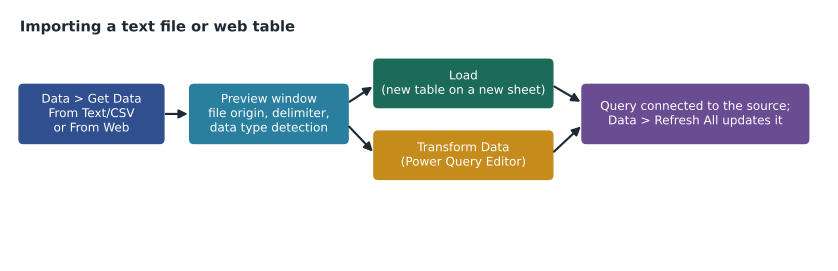
The preview window has three settings at the top:
| Setting | What it controls | When to change it |
|---|---|---|
| File Origin | The character encoding of the file | Accented names such as Pellerin or Ruiz appear garbled; choose UTF-8 |
| Delimiter | The character that separates columns | The file uses semicolons, tabs or a custom character |
| Data Type Detection | How Excel guesses column types: first 200 rows, the entire dataset, or not at all | A column changes type far down the file, or you want everything kept as text |
At the bottom are three buttons: Load, Transform Data and the arrow beside Load, which opens Load To. Load To lets you choose how the data appears: as a Table, a PivotTable Report, a PivotChart, or Only Create Connection, and whether it goes on a new worksheet or a cell you choose on an existing sheet. On the exam, read the task closely: "import into cell A3 of the Enquiries worksheet" means Load To with Existing worksheet, not plain Load.
Transforming before loading
Transform Data opens the Power Query Editor, a separate window where you clean the data before it reaches the sheet. You do not need to master Power Query for MO-210, but a few steps come up constantly, and each one is recorded as an applied step in the Query Settings pane so it replays every time the query refreshes:
| Step | Where in the editor | Why |
|---|---|---|
| Use First Row as Headers | Home > Transform | The headings came in as a data row |
| Remove Columns | Home > Manage Columns, or right-click a column heading | Columns you do not need, such as an internal ID |
| Change Type | Click the type icon in a column heading | Dates read as text, or numbers that must stay text, such as postal codes |
| Filter rows | The arrow in a column heading | Keep only some rows, such as event dates from 2027 |
| Split Column | Home > Transform > Split Column | One column holds two things, such as date and time |
| Rename | Double-click a column heading | Clearer names for the sheet |
Dagny used three steps. She split the Received column at the space into a date and a time, removed the time, and changed the EnquiryID column's type to text so that a value like Q-1081 would never be misread. Then Home > Close & Load sent the result to the sheet. Close & Load To offers the same choices as Load To.
Each step shows in the Applied Steps list; select one to see the data at that point, or the X beside it to delete it. The steps are saved in the query, not in the sheet. Typing into the loaded table does not change the query, and the next refresh overwrites typed changes in the query's columns, which is another reason to fix problems in Power Query rather than on the sheet.
Refreshing imported data
The point of an import is that you can refresh it. Next Monday, the new enquiries.csv replaces the old one in the same folder; Teo opens the workbook and selects Data > Refresh All (Ctrl+Alt+F5), or right-clicks inside the table and chooses Refresh. Power Query reads the file again, replays the applied steps and reloads the table. The forty-minute copy job became a ten-second refresh.
The Queries & Connections pane (Data > Queries & Connections) lists every query in the workbook. Right-click a query to Edit it in Power Query, Refresh it, Duplicate, Delete or open its Properties. Properties include Refresh every n minutes, Refresh data when opening the file and Enable background refresh. Rosalind wanted the bookings workbook to refresh when it opened, so Teo set that option.
If the source file moves, the refresh fails with a message that it cannot find the file. Data > Get Data > Data Source Settings lists every source, and Change Source points the query at the new location without rebuilding it.
Importing from online sources
The second import objective is data from the web. Maple & Pine kept an eye on the provincial tourism office's public table of festival dates. Data > From Web asks for a URL, connects, and opens the Navigator, which lists every table it found on the page, such as Table 0 and Table 1, plus suggested tables. Select a table to preview it, then choose Load or Transform Data exactly as with a text file.
Worked problem
Importing a festival calendar from a web page
An exam task gives a URL and says: "Import the table named Festivals from the web page into a new worksheet."
Show solution
- Select Data > From Web.
- Paste the URL in the Basic box and select OK. If asked, choose Anonymous access for a public page and Connect.
- In the Navigator, select Festivals and check the preview.
- Select Load.
Answer: The table loads on a new sheet as a query connected to the page; Refresh All reloads it if the page changes.
Web imports work best on pages that present data in genuine HTML tables. Pages that build their content with scripts may show no tables, and a page that changes its layout can break the query. For public data that is updated regularly, many organizations publish CSV files or data feeds, which you can import with From Web by pasting the file's URL.
Other online sources sit under Data > Get Data: From Online Services (SharePoint Online lists, Dynamics 365, Salesforce and others), From Database, From Azure and more. The exam's online-source objective is satisfied by From Web, but it helps to know where the others are.
Importing data that is already in the workbook
Power Query can also start from a range on a sheet. Data > From Table/Range turns the selected range into a table, if it is not one already, and opens it in Power Query. That is useful for cleaning a pasted list. For MO-210, though, cleaning data on the sheet is more often done with the tools in the next lesson.
The legacy Text Import Wizard
Older Excel versions imported text with a three-step Text Import Wizard, and some people still prefer it. It is hidden by default. To show it, open File > Options > Data and, under Show legacy data import wizards, check From Text (Legacy). It then appears under Data > Get Data > Legacy Wizards. Step 1 chooses Delimited or Fixed width and the start row; step 2 chooses delimiters and the text qualifier (usually the quotation mark); step 3 sets each column's format, including Text for codes with leading zeros and Do not import column (skip). The wizard's cousin, Data > Text to Columns, splits a column that is already on the sheet, using the same choices. MO-210 tasks are written so that either method can succeed, but Get Data is the method to learn first.
Choosing data types carefully
Most import trouble comes from types. Excel and Power Query try to be helpful, and sometimes they are wrong:
| Problem | Cause | Fix |
|---|---|---|
| Postal or ZIP codes lose leading zeros | Detected as whole numbers | Change the column type to Text before loading |
| Long numbers such as card or account numbers end in zeros | Excel keeps only 15 significant digits for numbers | Import as Text |
| Dates appear as text or in the wrong order | The file uses a different date order from your regional settings | In Power Query, Change Type > Using Locale and choose the file's locale |
| Names with accents are garbled | Wrong file origin (encoding) | Choose UTF-8 in the preview |
| Everything lands in column A | Wrong delimiter | Choose the correct delimiter in the preview |
Dagny had one rule: any column that is a code, rather than a quantity you would add up, should be text. Enquiry IDs, phone numbers and postal codes are codes. Guests and fees are quantities.
Where the imported table fits in
After the import, the enquiries table is a normal Excel table, so everything in lessons 6 and 7 applies to it: styles, total rows, sorting and filtering. You can add calculated columns to the right of the query's columns, and they survive a refresh. What you should not do is rename or delete the query's own columns on the sheet; change them in Power Query instead. Teo added a column called Days to event that subtracted today's date from the event date, and after the next refresh the column was still there, filled for the new rows.
Checking an import
An import that runs without an error message is not necessarily right. Dagny taught Teo three quick checks. First, compare row counts: the Queries & Connections pane shows how many rows each query loaded, and the file itself can be opened in Notepad to see roughly how many lines it has. Second, select a numeric column in the loaded table and read the status bar: if Sum is missing and only Count appears, the numbers came in as text. Third, look at the ends of the table, not just the top: Ctrl+Down Arrow jumps to the last row, where truncated or merged lines usually show up.
The Power Query Editor has its own checks on the View tab: Column quality shows the share of valid, error and empty values under each column heading, Column distribution shows how many distinct and unique values a column has, and Column profile shows statistics for the selected column. A red bar under a heading means some values failed to convert to the column's type. Right-click the column and choose Keep Errors to see them, or Replace Errors to substitute a value. On the enquiries file, the Guests column showed three errors: the booking form had let people type "about 80". Dagny replaced the errors with blanks and added a note to the form designer to accept numbers only.
| Check | Where | What a problem looks like |
|---|---|---|
| Rows loaded | Queries & Connections pane | Fewer rows than lines in the file |
| Numbers stored as text | Status bar on a selected column | Only Count shows; green triangles in the cells |
| Conversion errors | Power Query > View > Column quality | A red bar and an Error figure under the heading |
| Encoding | Names with accents | Odd characters in place of letters such as é |
| Last rows | Ctrl+Down Arrow in the table | A summary or blank line imported as data |
Importing for the exam
MO-210 import tasks usually give you the file in a known folder, such as Documents, and tell you where the data should go and sometimes what to name it. They rarely ask for Power Query transformations beyond what the preview handles, but they do check the details: the data must be in the right sheet, starting at the right cell, with the headings in the first row. If a task says "import the tab-delimited file as a table", check that the Delimiter shows Tab in the preview and that the result is a table, with the Table Design tab available when you click inside it. If a task names a connection or query, rename it in the Queries & Connections pane by right-clicking and choosing Rename. After the import, glance at the column types: dates should be right-aligned like numbers, not left-aligned like text.
Common mistakes
MistakeOpening the CSV file and copying its contents into the workbook each week.
InsteadImport it once with From Text/CSV and use Refresh All.
MistakeChoosing Load when the task asks for the data at a specific cell.
InsteadUse Load To and choose Existing worksheet and the cell.
MistakeFixing imported values by typing over them on the sheet.
InsteadChange the data in Power Query so the fix survives the next refresh.
MistakeLeaving codes such as postal codes as numbers.
InsteadChange their type to Text before loading.
MistakeLooking for the Text Import Wizard on the Data tab without enabling it.
InsteadTurn on From Text (Legacy) in File > Options > Data first.
Summary and key terms
- Delimited text files separate columns with a character such as a comma or a tab.
- Data > From Text/CSV and From Web open a preview, then Load, Load To or Transform Data.
- The Power Query Editor records cleaning steps that replay on every refresh.
- Refresh All reloads every query; Queries & Connections and Data Source Settings manage them.
- Treat codes as text: leading zeros, long numbers and dates in other formats are the usual import problems.
- Delimiter
- The character that separates columns in a text file.
- CSV
- Comma-separated values, a plain-text table format.
- Power Query
- Excel's engine for importing and transforming data, opened through Get Data.
- Applied step
- A recorded transformation in a query that replays on every refresh.
- Load To
- The import option that chooses the output type and location.
- Refresh All
- The Data tab command that reloads every query and connection in the workbook.
- File origin
- The character encoding chosen when importing a text file.
Practice problems
Work each problem on paper first, then reveal the answer to check.
Which command imports a CSV file through Power Query?
Show answer
Data > From Text/CSV (Get Data > From File > From Text/CSV).
How do you load imported data starting at cell A3 of an existing worksheet?
Show answer
Use the arrow beside Load > Load To, choose Table and Existing worksheet, and enter the cell.
What happens to typed changes in a query's columns when you refresh?
Show answer
They are overwritten by the query's results.
Where do you point a query at a file that has moved?
Show answer
Data > Get Data > Data Source Settings > Change Source.
Why import postal codes as text?
Show answer
As numbers they lose leading zeros and could be added up by mistake.
Lesson quiz · 5 questions
Score 60% or more to complete this lesson.
Create a free account to save your progress, take quizzes and earn a certificate.